> ## Documentation Index
> Fetch the complete documentation index at: https://university.triggr-app.com/llms.txt
> Use this file to discover all available pages before exploring further.
# Configure User Onboarding
> Set who can use User Onboarding, what its form asks and what it sets up in each client's tenant.
User Onboarding creates a new starter's Microsoft 365 account from a form. Set it up once on Base config, then per client once you've [added your clients](/core/get-started/add-your-clients). Connect [Microsoft 365](/core/get-started/connect-microsoft-365) first, and [your PSA](/core/get-started/connect-your-psa) if you want tickets.
## Set up User Onboarding
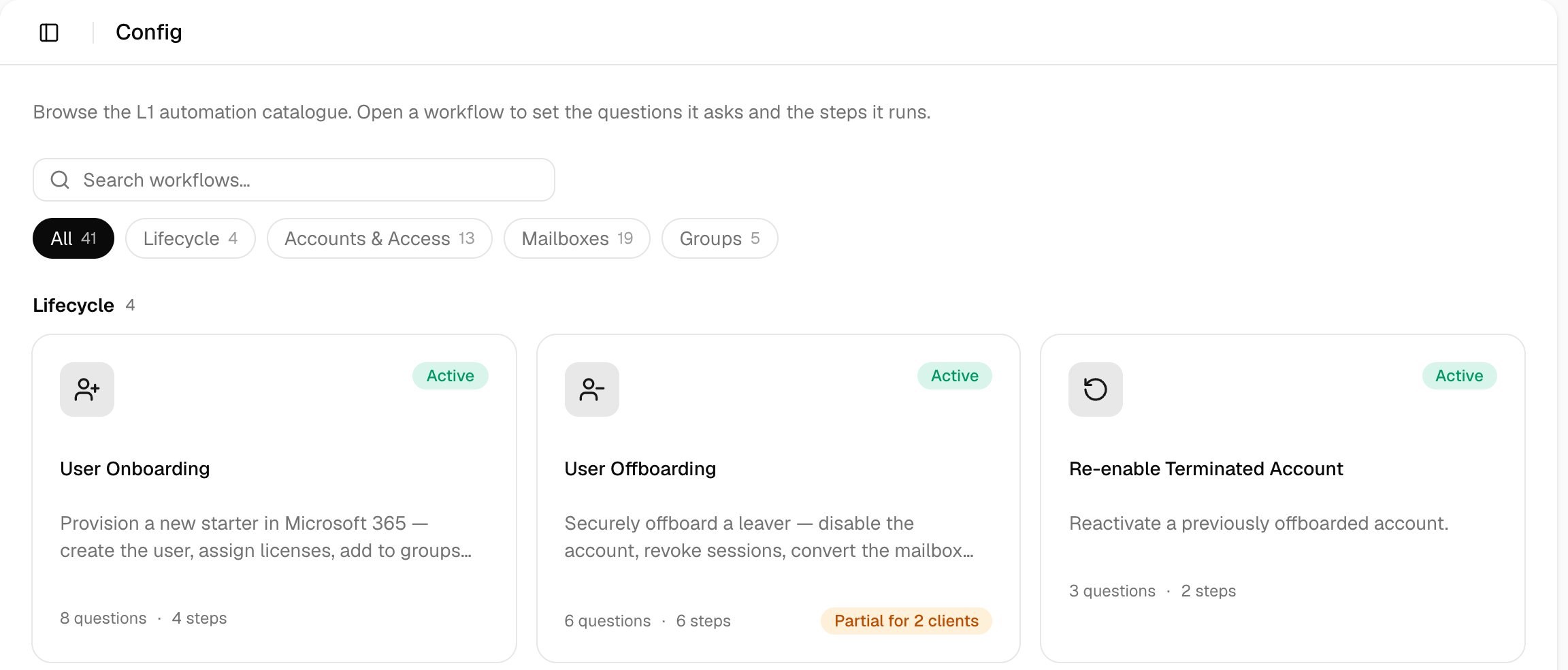
Go to **Config** and click User Onboarding. It starts as Internal only; to offer it to clients, see [Share your forms](/core/get-started/share-your-forms).
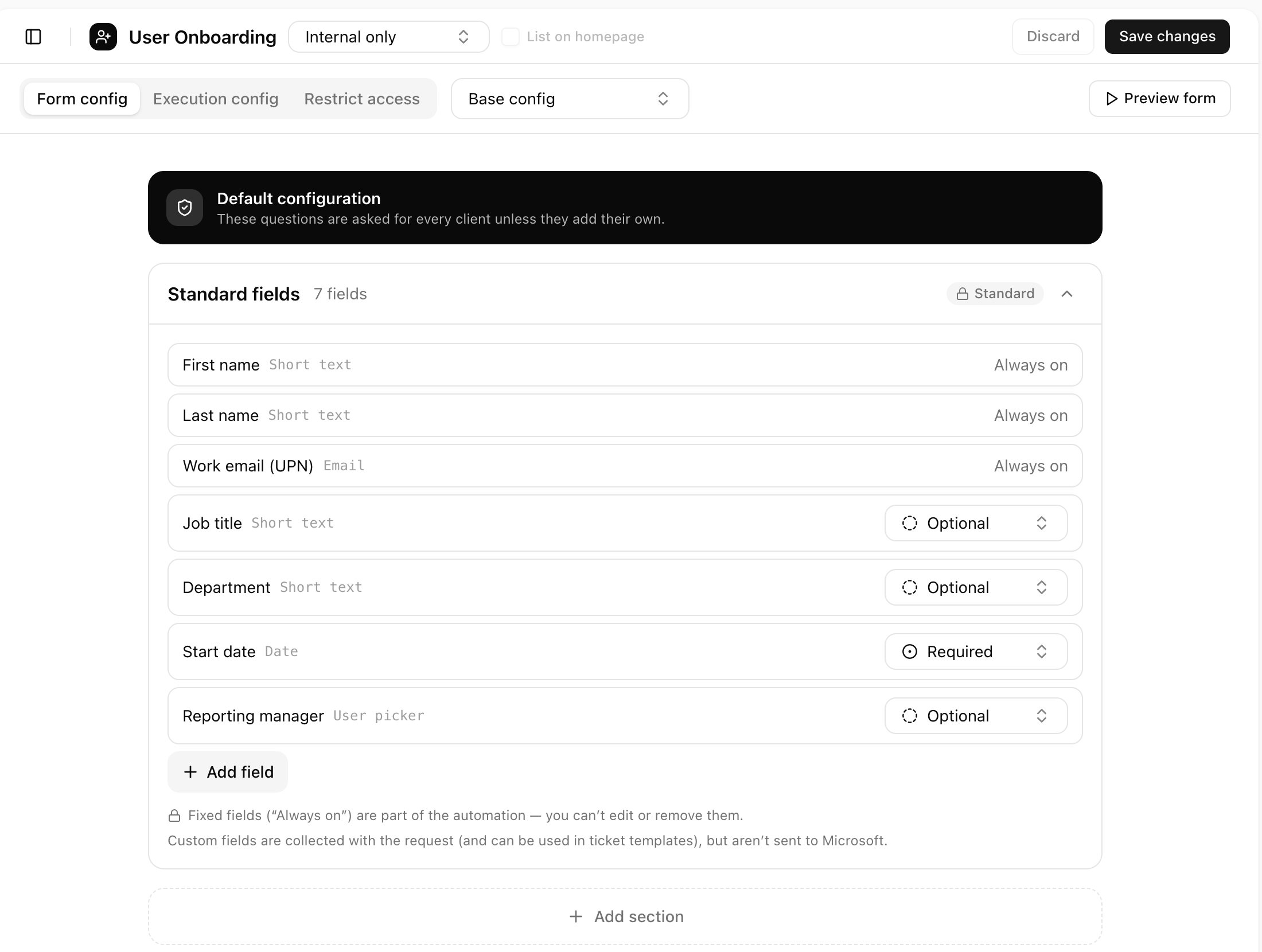
 On **Form config**, set each optional field to Hidden, Optional or Required. Add field and Add section add your own questions.
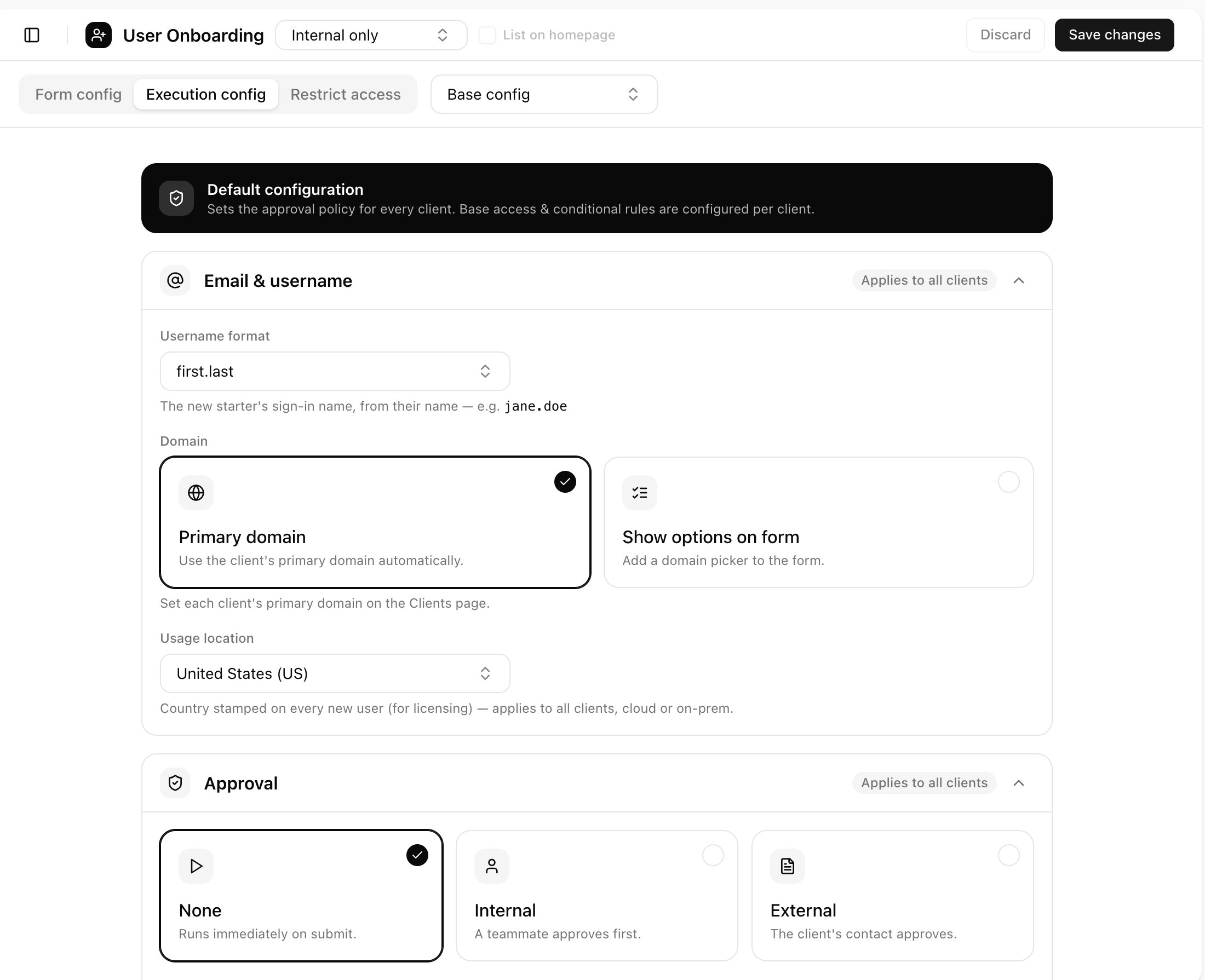
 On **Execution config**, choose the Username format, Domain and Usage location, and who approves under Approval (see [Approvals](/core/use/approvals#set-it-up)). Tick Wait until close to the start date to create the account shortly before the start date instead of at approval.
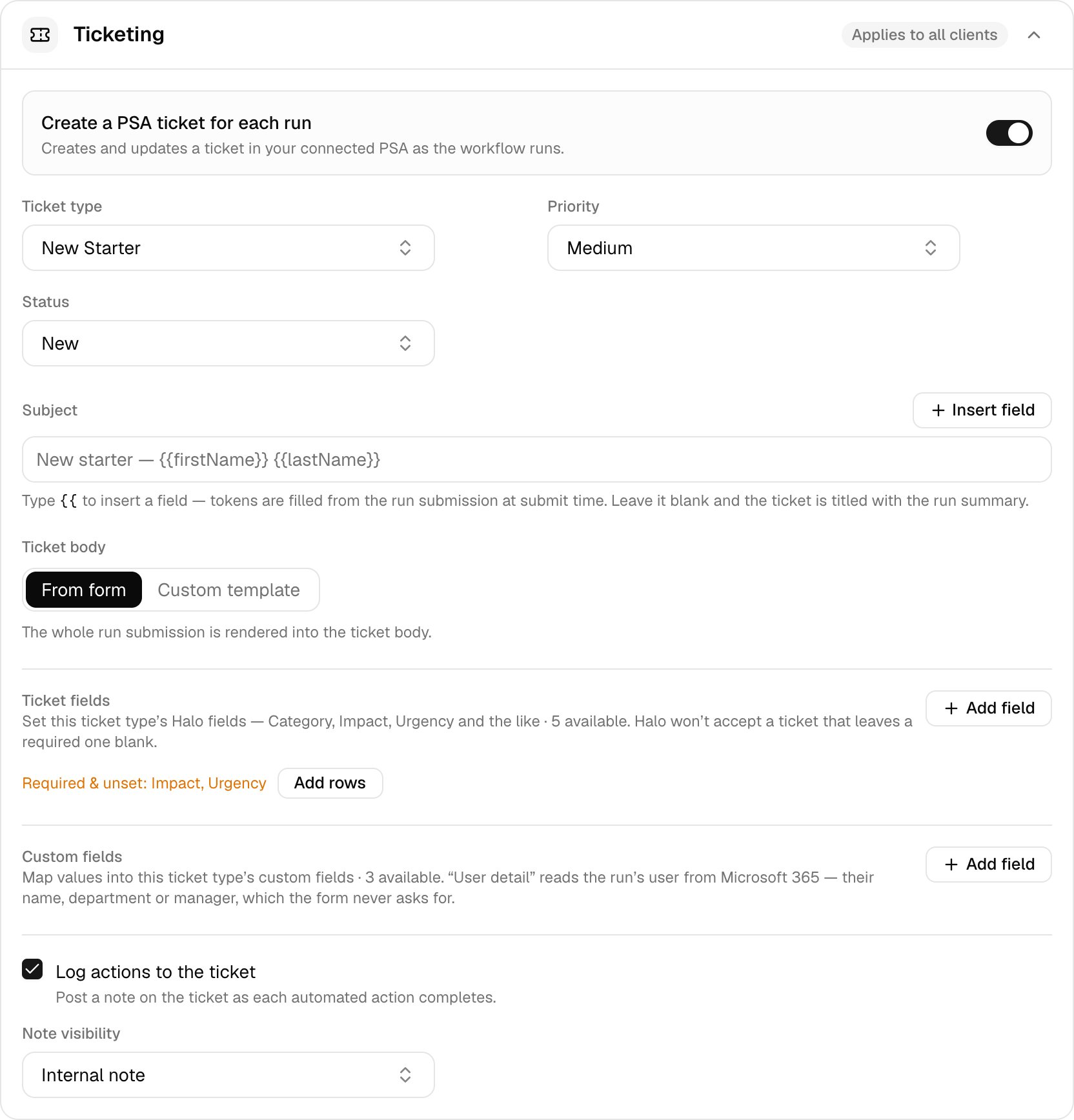
 Under Ticketing, turn on **Create a PSA ticket for each run** and pick the ticket type, priority and status (plus the board or queue for ConnectWise PSA and Autotask). Halo PSA rejects a ticket with a required field blank, so set those under Ticket fields.
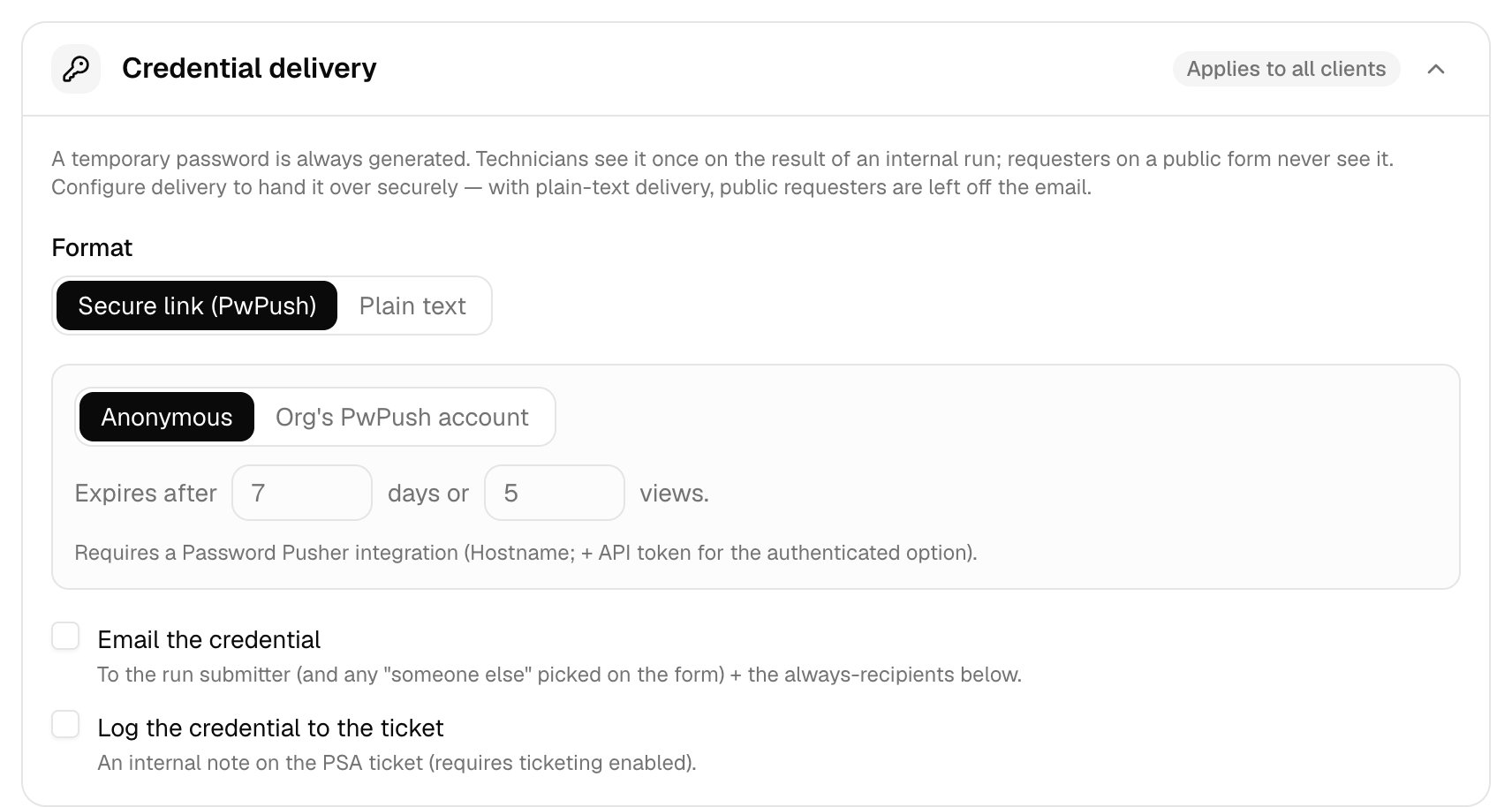
 Under Credential delivery, choose Secure link (PwPush), which needs [Password Pusher](/integrations/password-pusher) connected, or Plain text. Tick Email the credential to send it to the submitter; a public requester is never emailed a plain-text password.
 Click **Save changes**. One save covers Base config and every client you changed, and ticks the step off on Home.
## Settings for each client
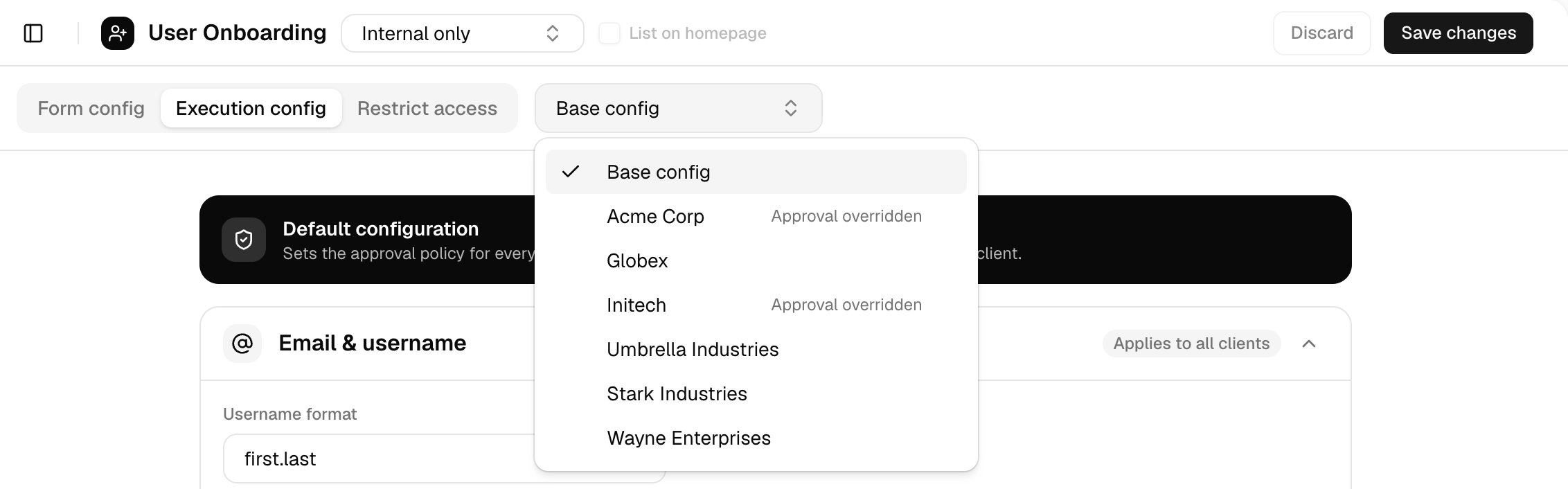
Base config is the default every client gets. To change something for one client, choose that client in the scope dropdown next to the tabs.
* **Inheriting default:** the card follows Base config, including later changes to it.
* **Override:** gives the client its own copy of the card. From then on, changes to Base config don't reach that card for that client. Reset deletes the copy when you save, and the client follows Base config again.
* These cards can be overridden: Email & username, Approval, Ticketing, User directory filters, Start date scheduling and Credential delivery. Availability and List on homepage are set on Base config only.
* On Form config, a client can set each field to Hidden, Optional or Required, show or hide a section, and set its own options for a dropdown with a manual list. Add client section adds questions only that client is asked. Always on fields can't change.
* One Save changes saves Base config and every client you changed. Other clients aren't touched.
Preview form shows Base config only. To check a client's form, open [Run a workflow](/core/use/run-a-workflow) for that client.
Click **Save changes**. One save covers Base config and every client you changed, and ticks the step off on Home.
## Settings for each client
Base config is the default every client gets. To change something for one client, choose that client in the scope dropdown next to the tabs.
* **Inheriting default:** the card follows Base config, including later changes to it.
* **Override:** gives the client its own copy of the card. From then on, changes to Base config don't reach that card for that client. Reset deletes the copy when you save, and the client follows Base config again.
* These cards can be overridden: Email & username, Approval, Ticketing, User directory filters, Start date scheduling and Credential delivery. Availability and List on homepage are set on Base config only.
* On Form config, a client can set each field to Hidden, Optional or Required, show or hide a section, and set its own options for a dropdown with a manual list. Add client section adds questions only that client is asked. Always on fields can't change.
* One Save changes saves Base config and every client you changed. Other clients aren't touched.
Preview form shows Base config only. To check a client's form, open [Run a workflow](/core/use/run-a-workflow) for that client.
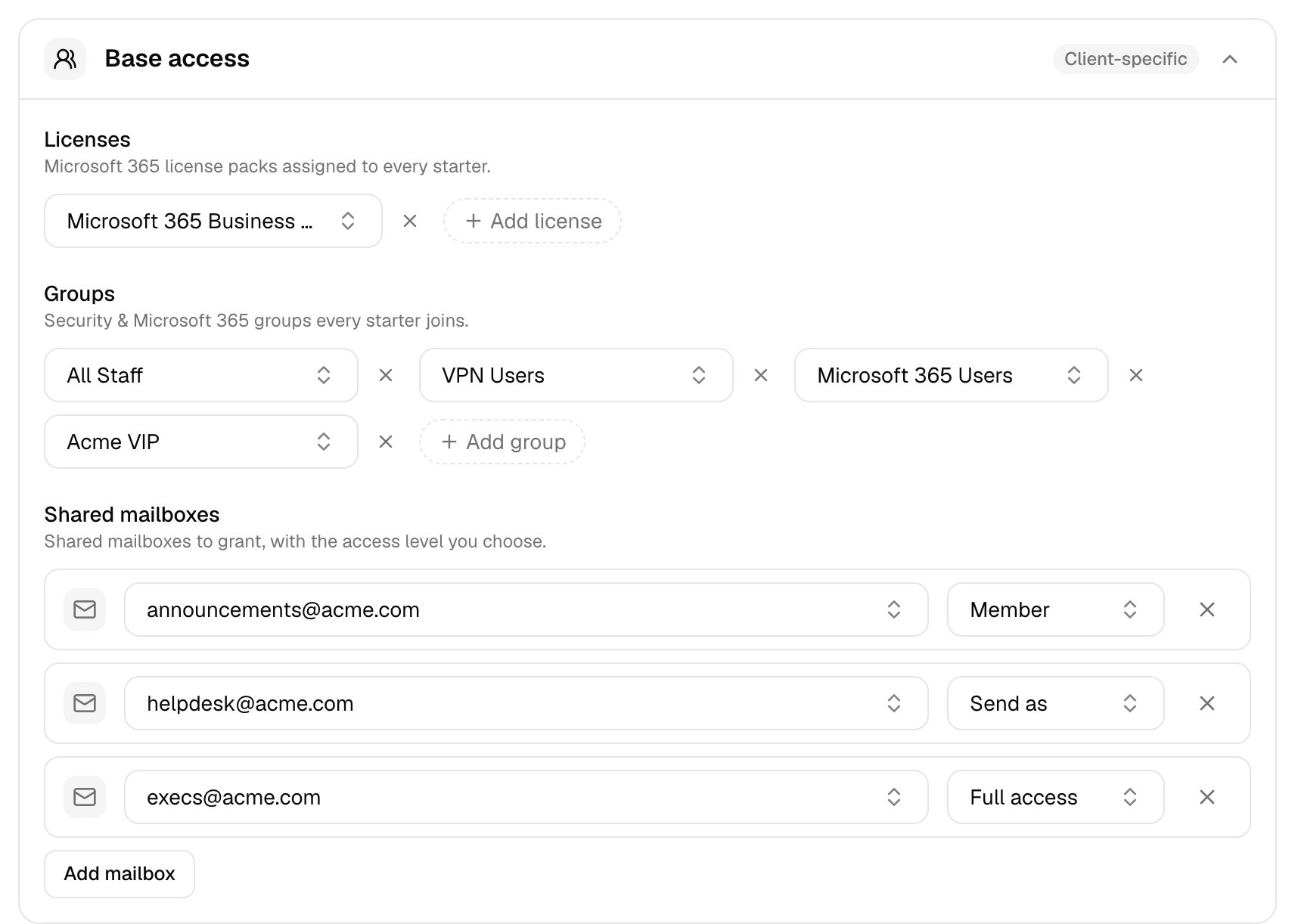
 Some cards are client-specific: they have no default, and each client sets its own.
* Base access: the licences, groups and shared mailboxes every starter gets. Without licences, accounts are created unlicensed.
* Conditional rules: extra access when the form's answers match. Click Add rule, choose a field and a value, then add groups, mailboxes or licences under Then grant. A rule's licences can add to or replace the base licences, and its mailboxes are granted with full access.
* On-premises AD: Create users in OU for synced clients, through the [desktop agent](/desktop-agent/overview).
* Distributor licenses: see [Licences and distributors](/core/manage/licences-and-distributors).
Some cards are client-specific: they have no default, and each client sets its own.
* Base access: the licences, groups and shared mailboxes every starter gets. Without licences, accounts are created unlicensed.
* Conditional rules: extra access when the form's answers match. Click Add rule, choose a field and a value, then add groups, mailboxes or licences under Then grant. A rule's licences can add to or replace the base licences, and its mailboxes are granted with full access.
* On-premises AD: Create users in OU for synced clients, through the [desktop agent](/desktop-agent/overview).
* Distributor licenses: see [Licences and distributors](/core/manage/licences-and-distributors).
 For External approval, set each client's approver on its Approval card; a run for a client without one is blocked at submit. Other workflows on Config use the same page, showing only the cards that apply.
## Troubleshooting
Set the client's primary domain on Clients, or choose Show options on form under Domain.
Set Default PSA in **Settings > General**, then reopen the workflow. See [Connect your PSA](/core/get-started/connect-your-psa#troubleshooting).
No account was created. Free or buy a seat in the client's tenant, or turn on [auto-buy](/core/manage/licences-and-distributors), then submit again.
Update the client's licences under Base access and Conditional rules.
Connect [Password Pusher](/integrations/password-pusher), or set Credential delivery to Plain text.
Choose Secure link (PwPush), or add an Always send to address under Email the credential.
Next: [Add your clients](/core/get-started/add-your-clients).
This documentation is built and hosted on [Mintlify](https://mintlify.com), a developer documentation platform.
For External approval, set each client's approver on its Approval card; a run for a client without one is blocked at submit. Other workflows on Config use the same page, showing only the cards that apply.
## Troubleshooting
Set the client's primary domain on Clients, or choose Show options on form under Domain.
Set Default PSA in **Settings > General**, then reopen the workflow. See [Connect your PSA](/core/get-started/connect-your-psa#troubleshooting).
No account was created. Free or buy a seat in the client's tenant, or turn on [auto-buy](/core/manage/licences-and-distributors), then submit again.
Update the client's licences under Base access and Conditional rules.
Connect [Password Pusher](/integrations/password-pusher), or set Credential delivery to Plain text.
Choose Secure link (PwPush), or add an Always send to address under Email the credential.
Next: [Add your clients](/core/get-started/add-your-clients).
This documentation is built and hosted on [Mintlify](https://mintlify.com), a developer documentation platform.