> ## Documentation Index
> Fetch the complete documentation index at: https://university.triggr-app.com/llms.txt
> Use this file to discover all available pages before exploring further.
# Connect Microsoft 365
> Let Triggr Core work in your clients' Microsoft 365 tenants, through GDAP or a per-client app.
On Home, click **Set up** next to Connect Microsoft 365. Setting up each client's Microsoft access needs an organisation Admin; the wizard resumes where you left off.
## Choose how to connect
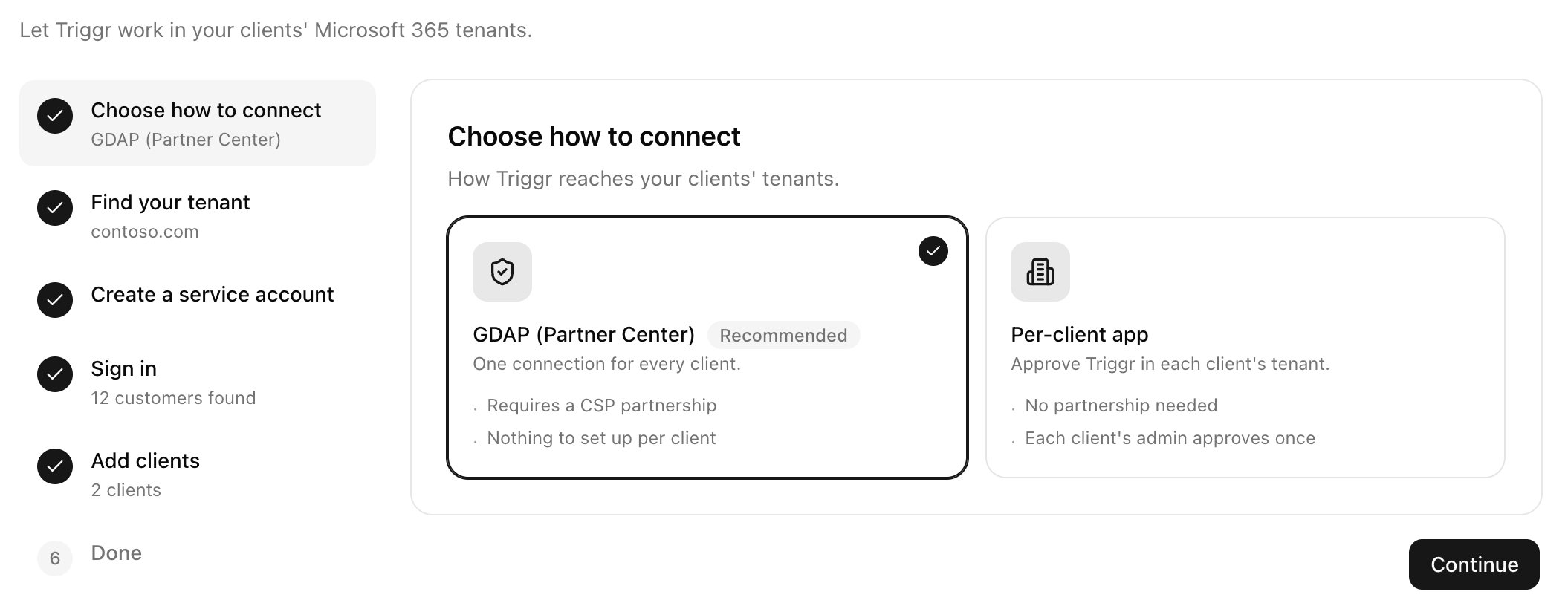
Pick **GDAP (Partner Center)** if you're a CSP partner, otherwise Per-client app. The choice applies to all clients.
 ## Connect with GDAP
You need Partner Center access, GDAP relationships with the [recommended roles](/integrations/microsoft-graph/recommended-roles), and an admin who can create users and assign Entra roles.
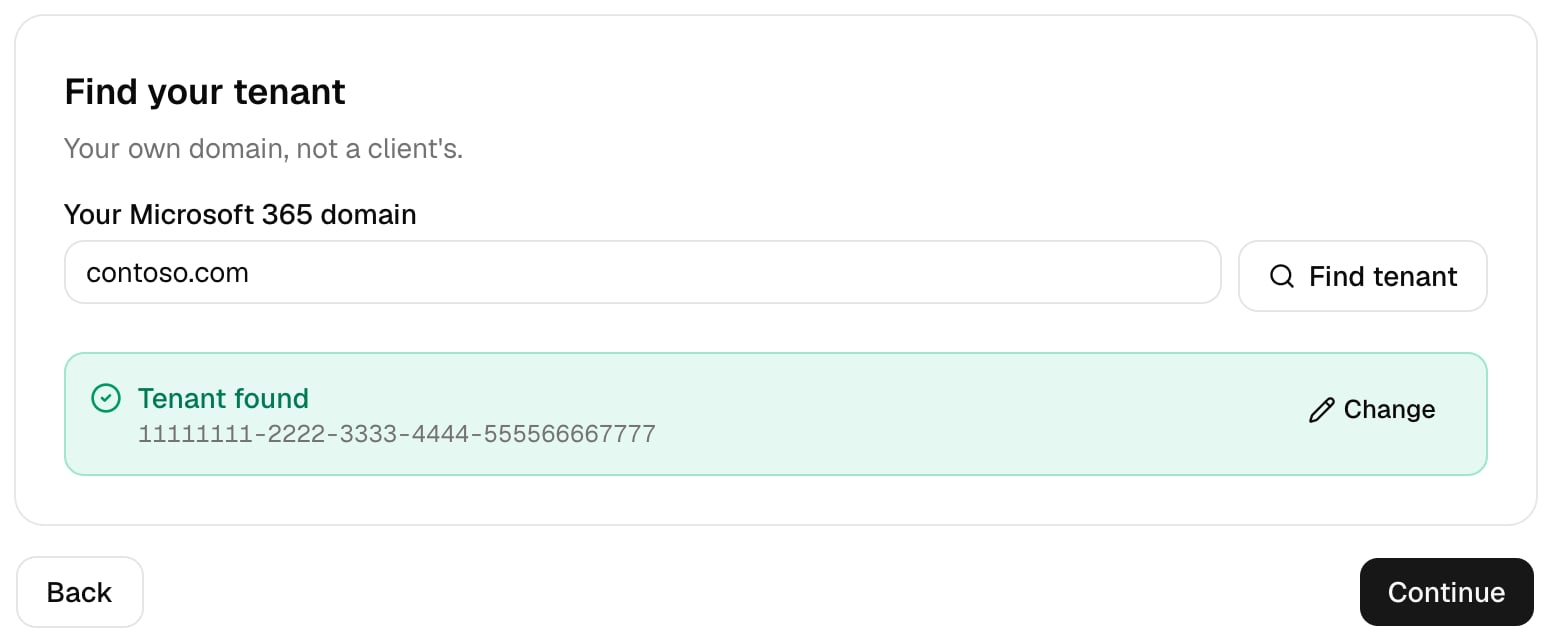
Enter your own domain and click Find tenant.
## Connect with GDAP
You need Partner Center access, GDAP relationships with the [recommended roles](/integrations/microsoft-graph/recommended-roles), and an admin who can create users and assign Entra roles.
Enter your own domain and click Find tenant.
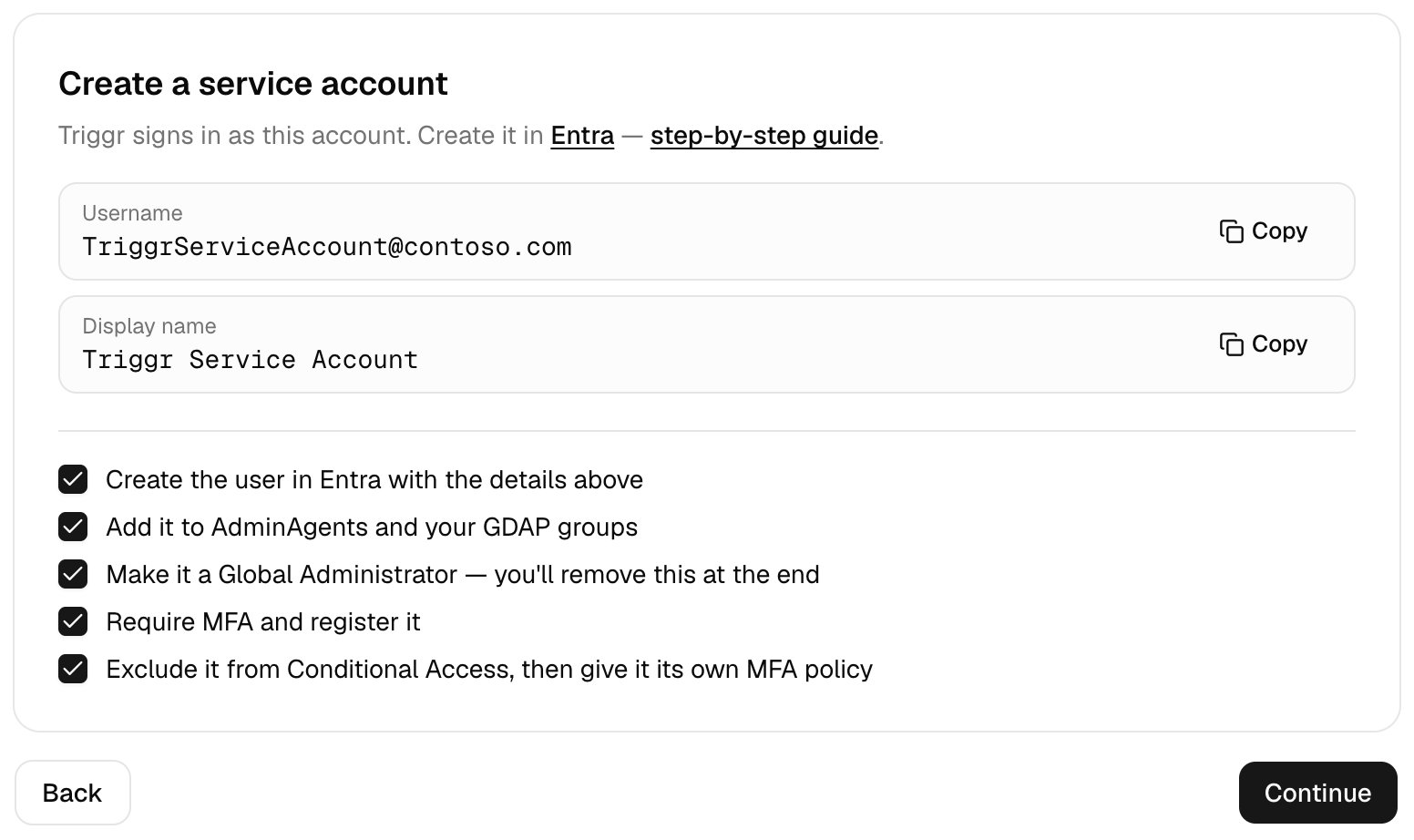
 Create the account in Microsoft Entra with the details shown, following the [service account guide](/integrations/microsoft-graph/gdap-service-account#create-the-service-account) and [Conditional Access](/integrations/microsoft-graph/conditional-access), then tick all five items.
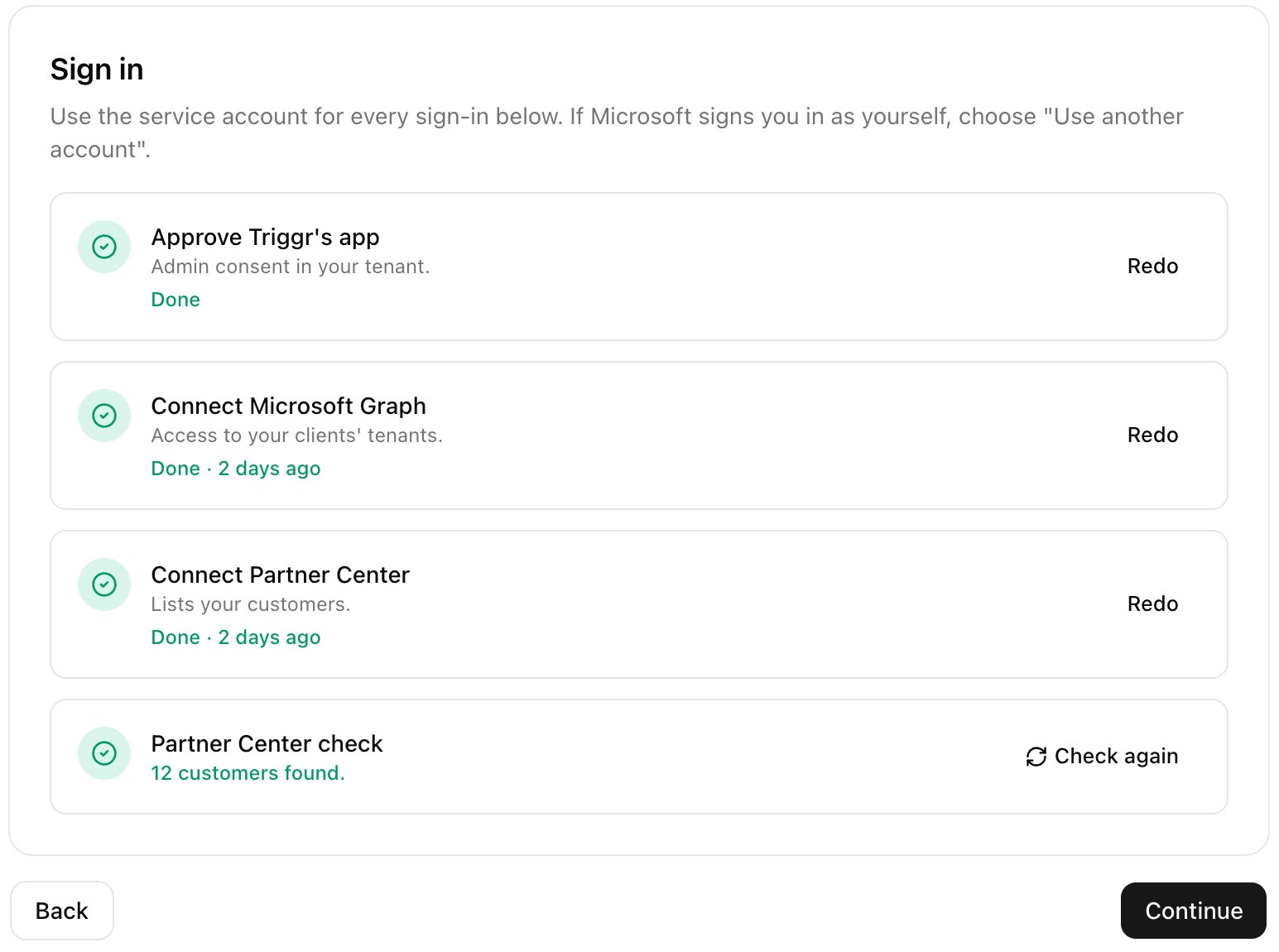
 Click **Approve**, then Sign in on Connect Microsoft Graph and on Connect Partner Center, each time as the service account with MFA. Wait for Partner Center check to find your customers.
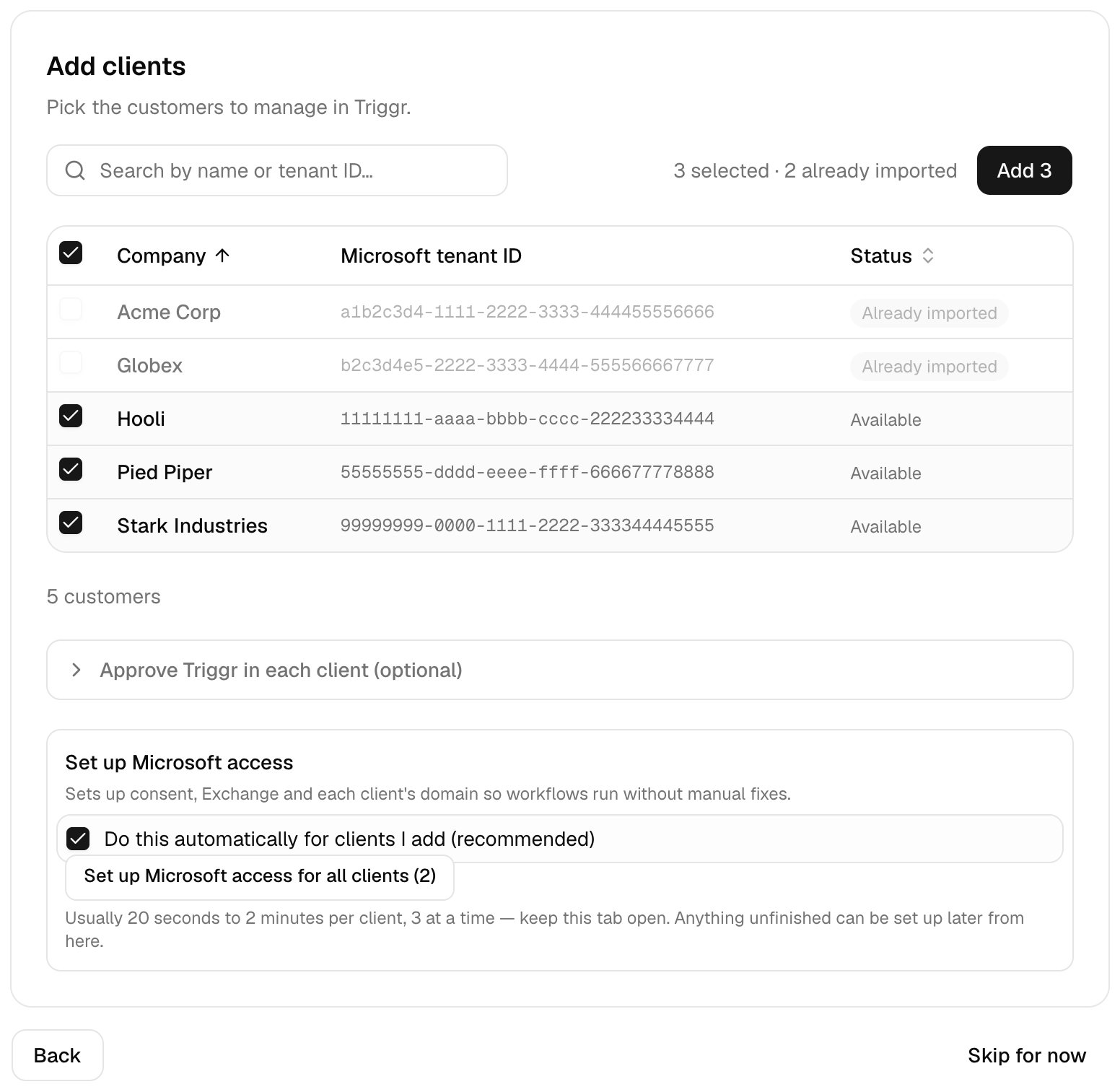
 Untick any customers you don't want and click Add, then confirm. They're added as cloud-only clients linked to GDAP. Leave Do this automatically for clients I add ticked, and keep the tab open until each client shows Ready.
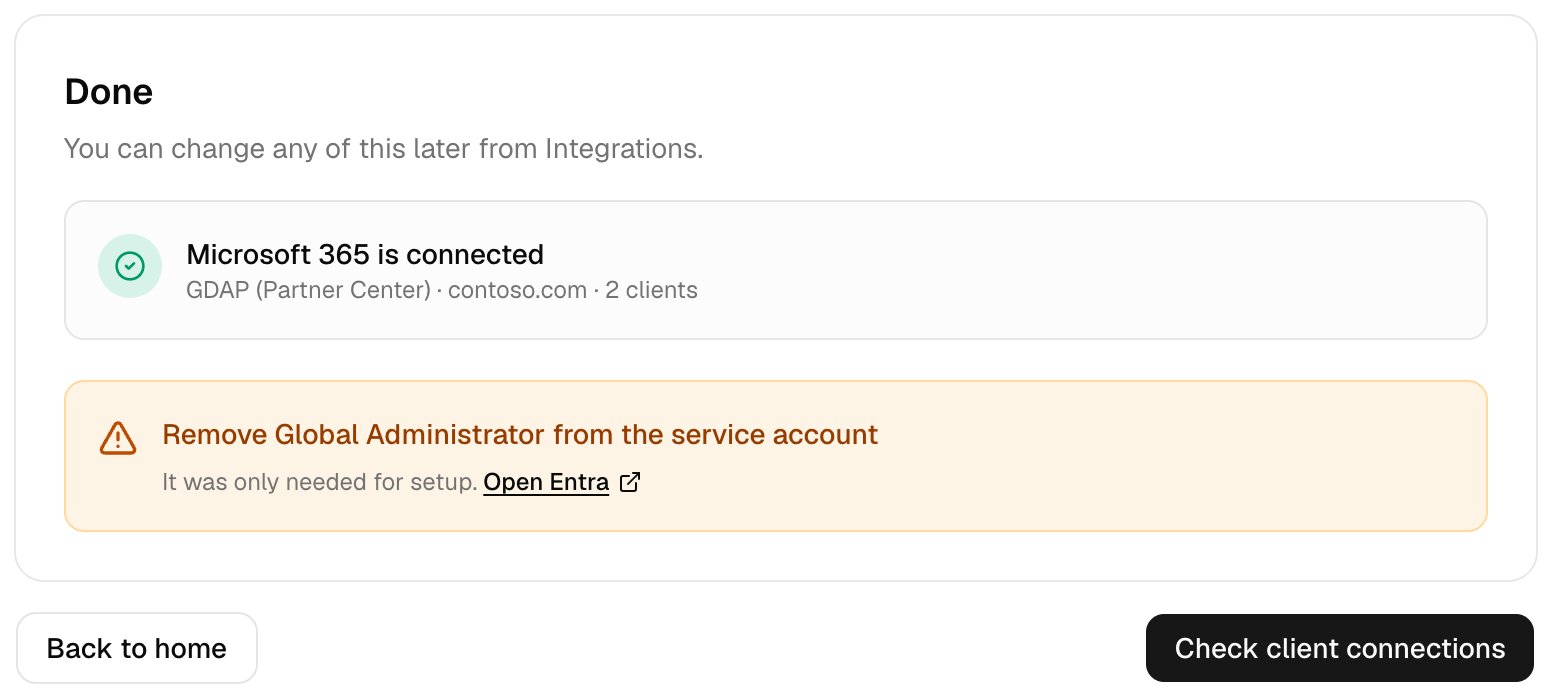
 Click **Open Entra** and remove Global Administrator from the service account. Then click Check client connections and Run all to test each client's access.
 ## Connect with a per-client app
You need a Global Administrator of your own tenant and of each client's.
Enter your own domain and click Find tenant.
Click Approve and sign in as your own Global Administrator.
Click Approve on each client and sign in as its Global Administrator, then click **Set up Microsoft access for all clients**. For No tenant ID, click Add tenant ID first. With no clients yet, click Continue and come back after you [add your clients](/core/get-started/add-your-clients).
## Change your connection
Rerun the wizard, or change Default Microsoft connection in **Settings > General**. Workflows switch at once, so connect your clients the new way first.
## Troubleshooting
Click Enter tenant ID manually and paste it from Entra ID > Overview.
Allow pop-ups for `core.triggr-app.com`, then click Sign in again.
Choose Use another account in Microsoft's window and sign in as the service account.
Check the service account is in AdminAgents (changes take up to an hour), then click Check again. For MFA errors, see [Conditional Access](/integrations/microsoft-graph/conditional-access#troubleshooting).
Usually a missing [GDAP role](/integrations/microsoft-graph/recommended-roles). Fix it, then click Retry the ones that need attention.
Ask an [Admin](/core/get-started/invite-your-team#invite-teammates) to run this step.
Global Administrator is only for approving Triggr's app on Sign in; remove it on Done. It needs no licence or mailbox.
More answers, including what each GDAP health status means: [Microsoft and GDAP FAQ](/core/reference/microsoft-faq).
Next: [Connect your PSA](/core/get-started/connect-your-psa).
This documentation is built and hosted on [Mintlify](https://mintlify.com), a developer documentation platform.
## Connect with a per-client app
You need a Global Administrator of your own tenant and of each client's.
Enter your own domain and click Find tenant.
Click Approve and sign in as your own Global Administrator.
Click Approve on each client and sign in as its Global Administrator, then click **Set up Microsoft access for all clients**. For No tenant ID, click Add tenant ID first. With no clients yet, click Continue and come back after you [add your clients](/core/get-started/add-your-clients).
## Change your connection
Rerun the wizard, or change Default Microsoft connection in **Settings > General**. Workflows switch at once, so connect your clients the new way first.
## Troubleshooting
Click Enter tenant ID manually and paste it from Entra ID > Overview.
Allow pop-ups for `core.triggr-app.com`, then click Sign in again.
Choose Use another account in Microsoft's window and sign in as the service account.
Check the service account is in AdminAgents (changes take up to an hour), then click Check again. For MFA errors, see [Conditional Access](/integrations/microsoft-graph/conditional-access#troubleshooting).
Usually a missing [GDAP role](/integrations/microsoft-graph/recommended-roles). Fix it, then click Retry the ones that need attention.
Ask an [Admin](/core/get-started/invite-your-team#invite-teammates) to run this step.
Global Administrator is only for approving Triggr's app on Sign in; remove it on Done. It needs no licence or mailbox.
More answers, including what each GDAP health status means: [Microsoft and GDAP FAQ](/core/reference/microsoft-faq).
Next: [Connect your PSA](/core/get-started/connect-your-psa).
This documentation is built and hosted on [Mintlify](https://mintlify.com), a developer documentation platform.