> ## Documentation Index
> Fetch the complete documentation index at: https://university.triggr-app.com/llms.txt
> Use this file to discover all available pages before exploring further.
# Connect your PSA
> Connect ConnectWise PSA, Halo PSA or Autotask so Triggr Core can log workflow runs as tickets against the right client.
Core creates a ticket in your PSA for each workflow run and maps each client to its PSA company. You need admin access to your PSA to create an API account for Triggr.
## Set up the connection
On Home, click **Set up** next to Connect your PSA, pick yours and click Continue. For Syncro or Something else, click Done and talk to your account manager.
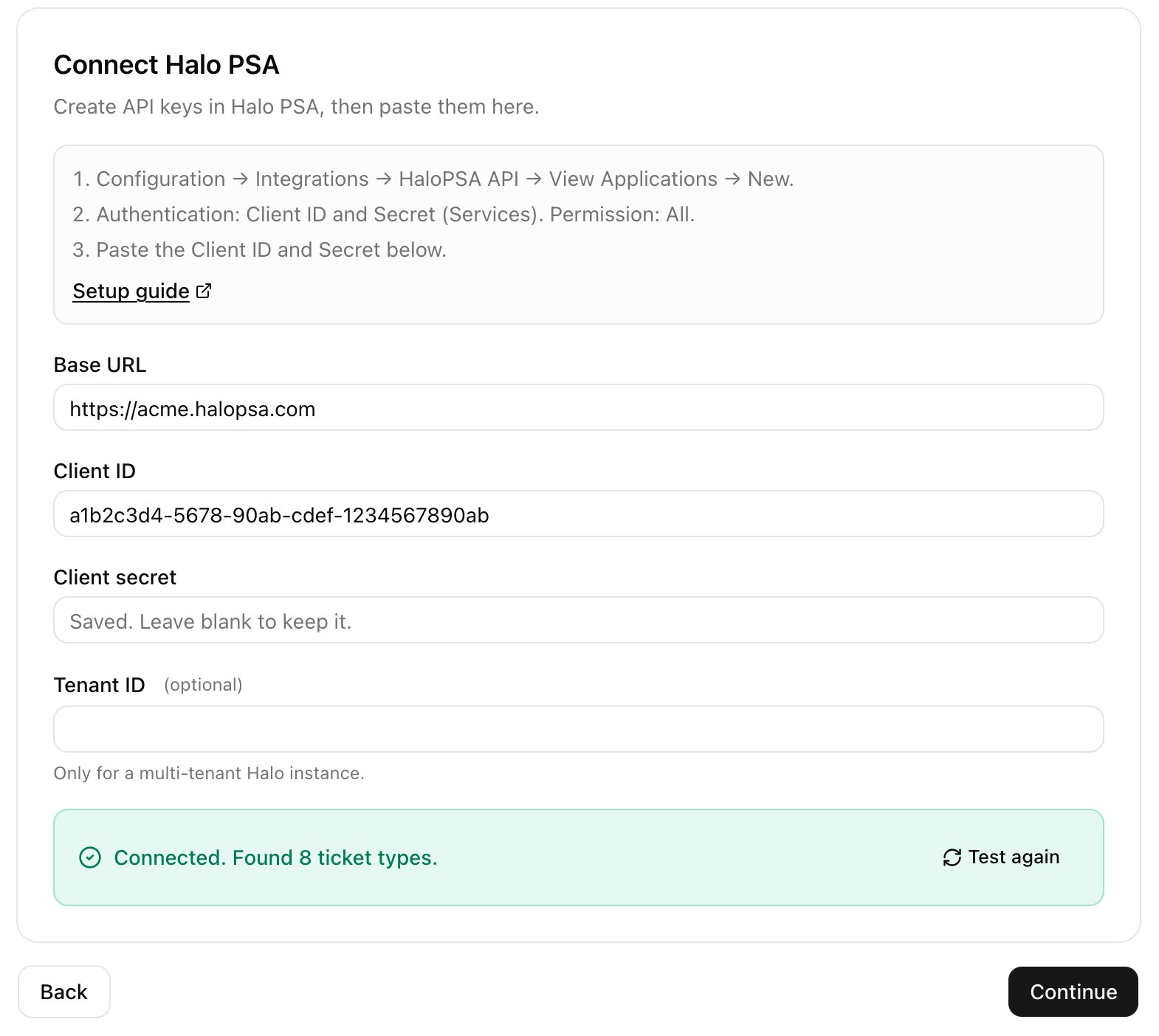
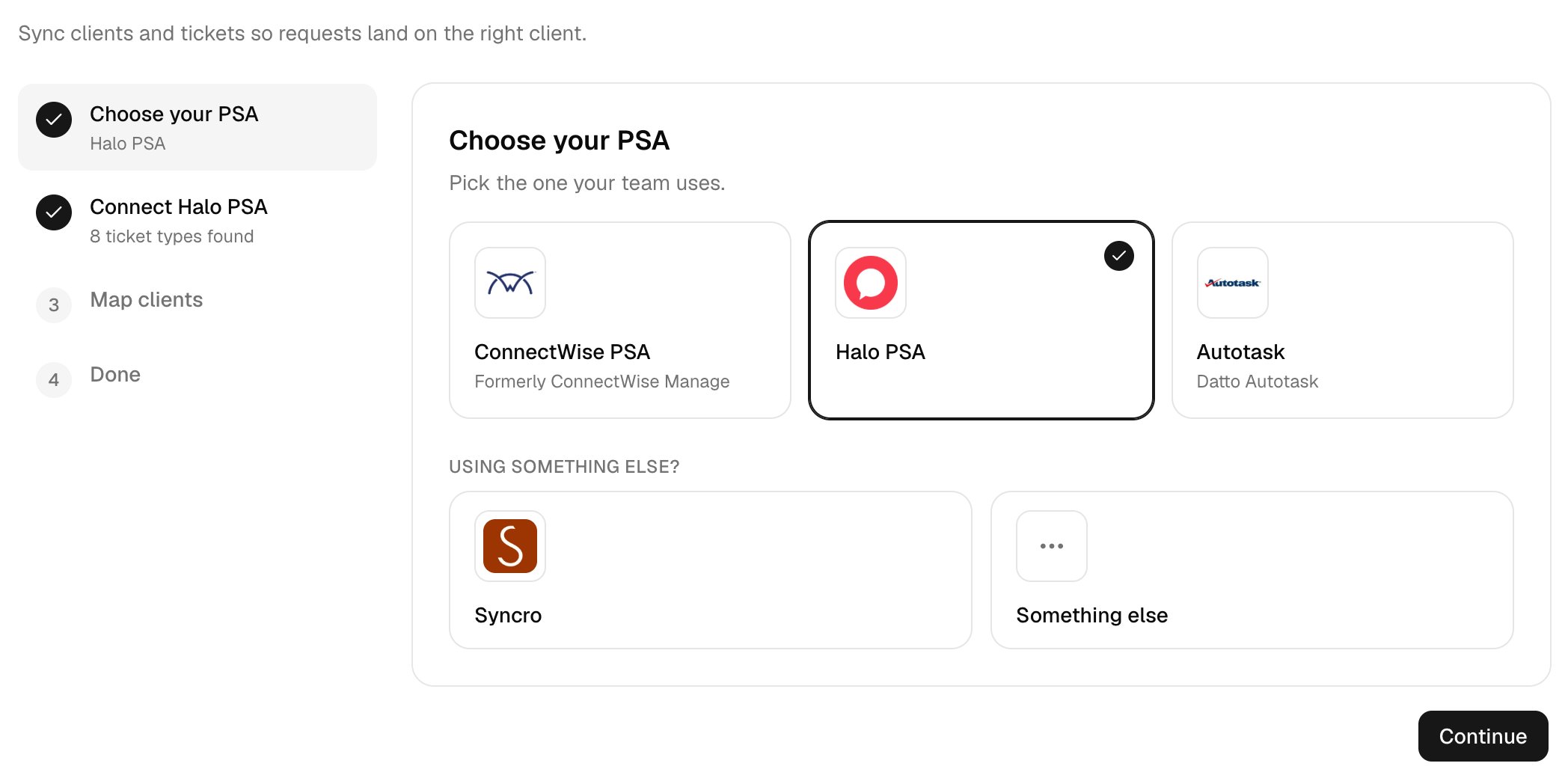 Create the API account in your PSA, paste its details and click **Save and test**.
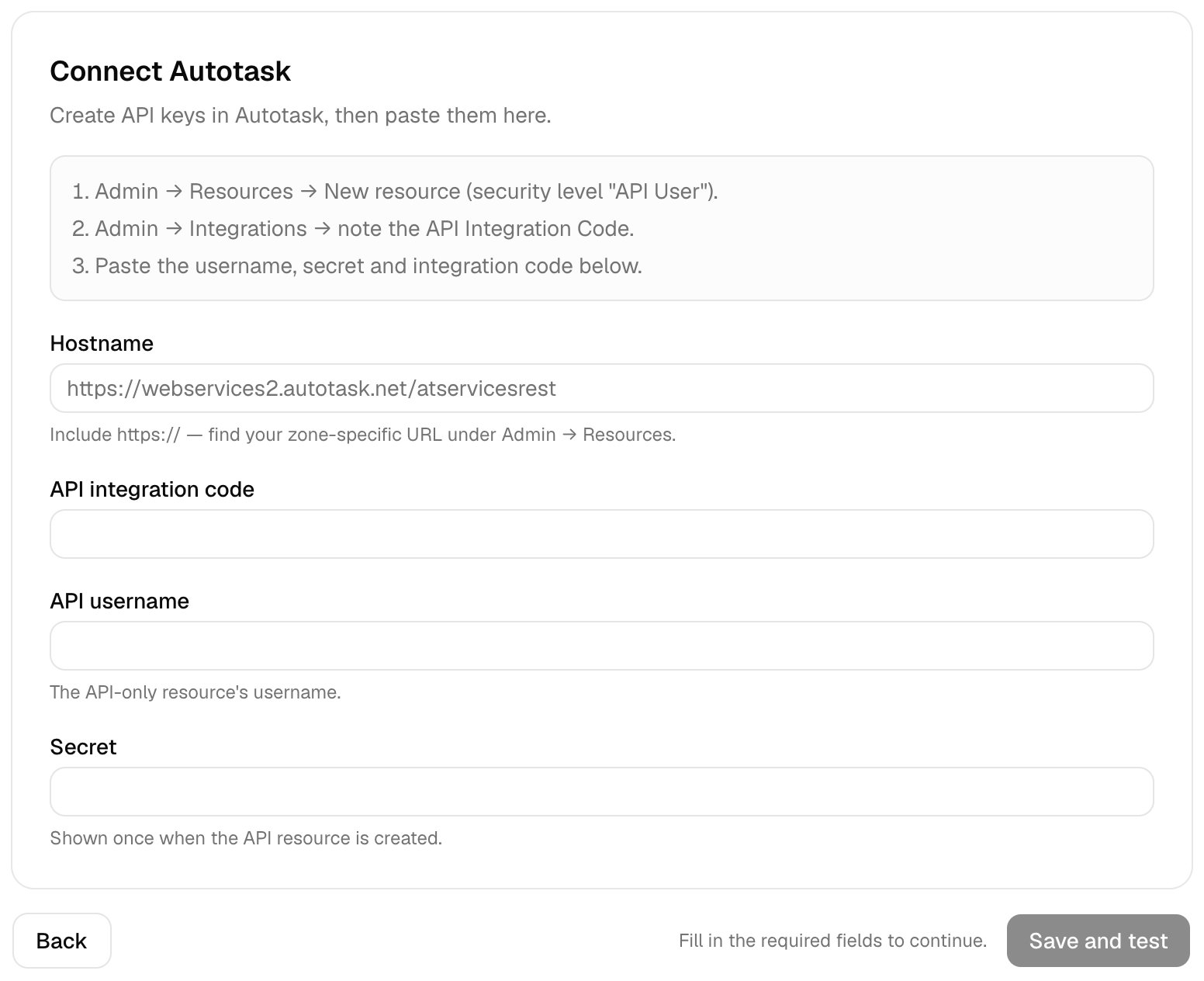
Follow [Set up ConnectWise PSA](/integrations/connectwise-psa#set-up-connectwise-psa), including the [security role permissions](/integrations/connectwise-psa#security-role-permissions). Company ID is the one you sign in with; API member identifier is the API member's Member ID.
Create the API account in your PSA, paste its details and click **Save and test**.
Follow [Set up ConnectWise PSA](/integrations/connectwise-psa#set-up-connectwise-psa), including the [security role permissions](/integrations/connectwise-psa#security-role-permissions). Company ID is the one you sign in with; API member identifier is the API member's Member ID.
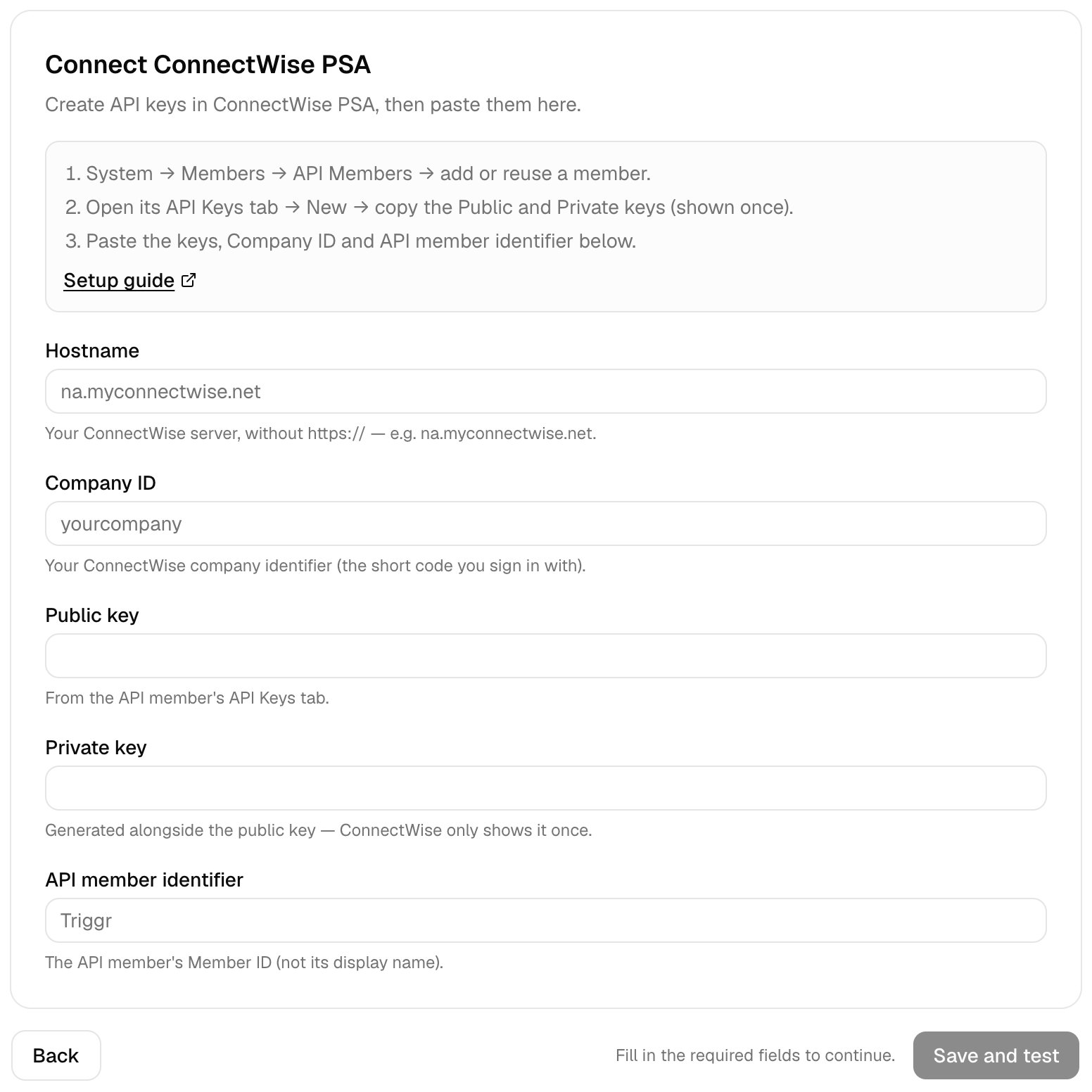 Follow [Set up HaloPSA](/integrations/halopsa#set-up-halopsa). Base URL has no `/api` or trailing slash; leave Tenant ID blank unless Halo hosts several tenants for you.
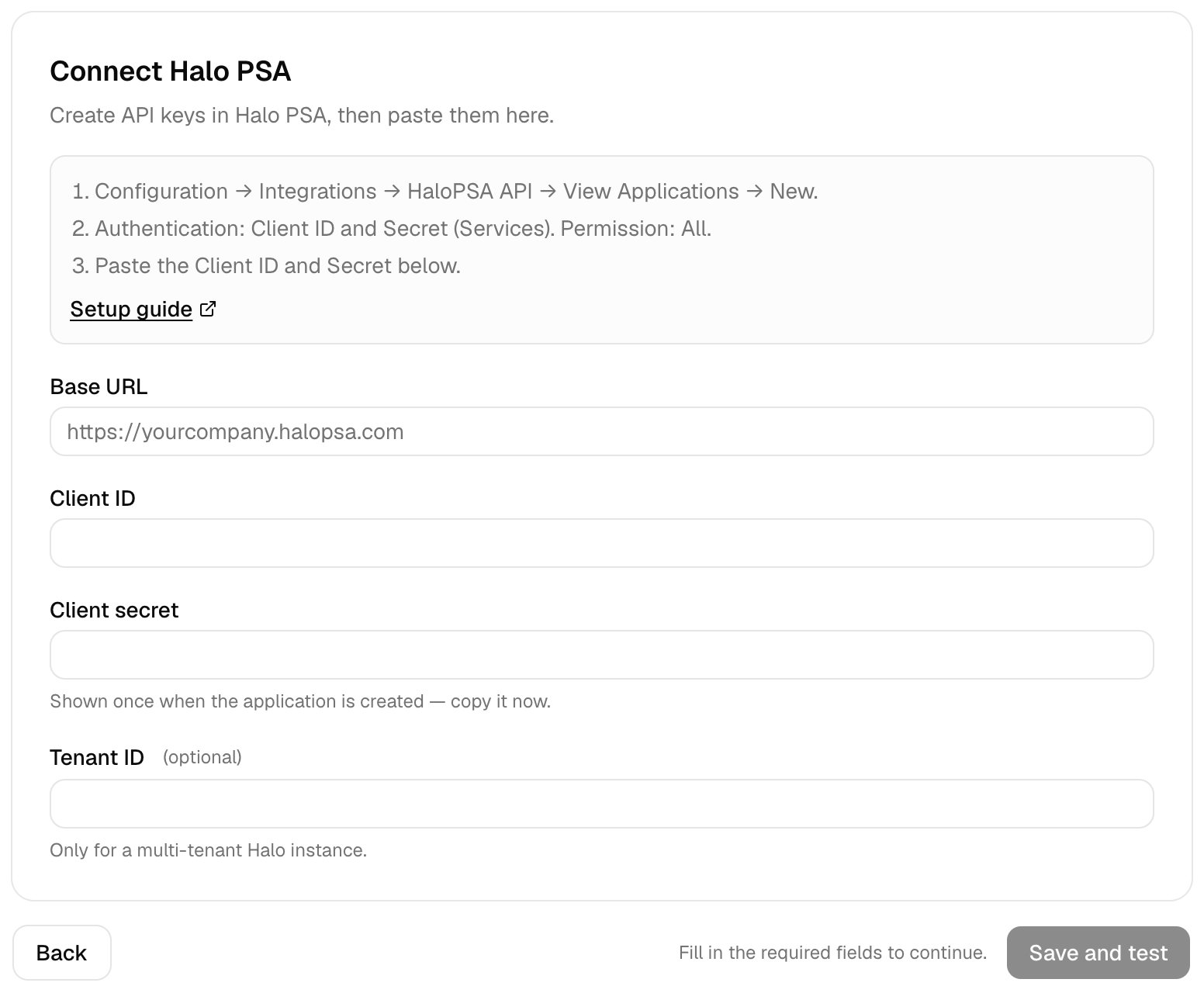 Follow [Set up Autotask](/integrations/autotask#set-up-autotask). Hostname is your zone's API host only, such as `https://webservices5.autotask.net`, without `/atservicesrest`; API integration code is the Tracking Identifier and API username the full Username (Key).
 When Core shows Connected, click Continue. If it shows an error, fix the fields and click Save and test again, or click Skip for now and come back from Home later.
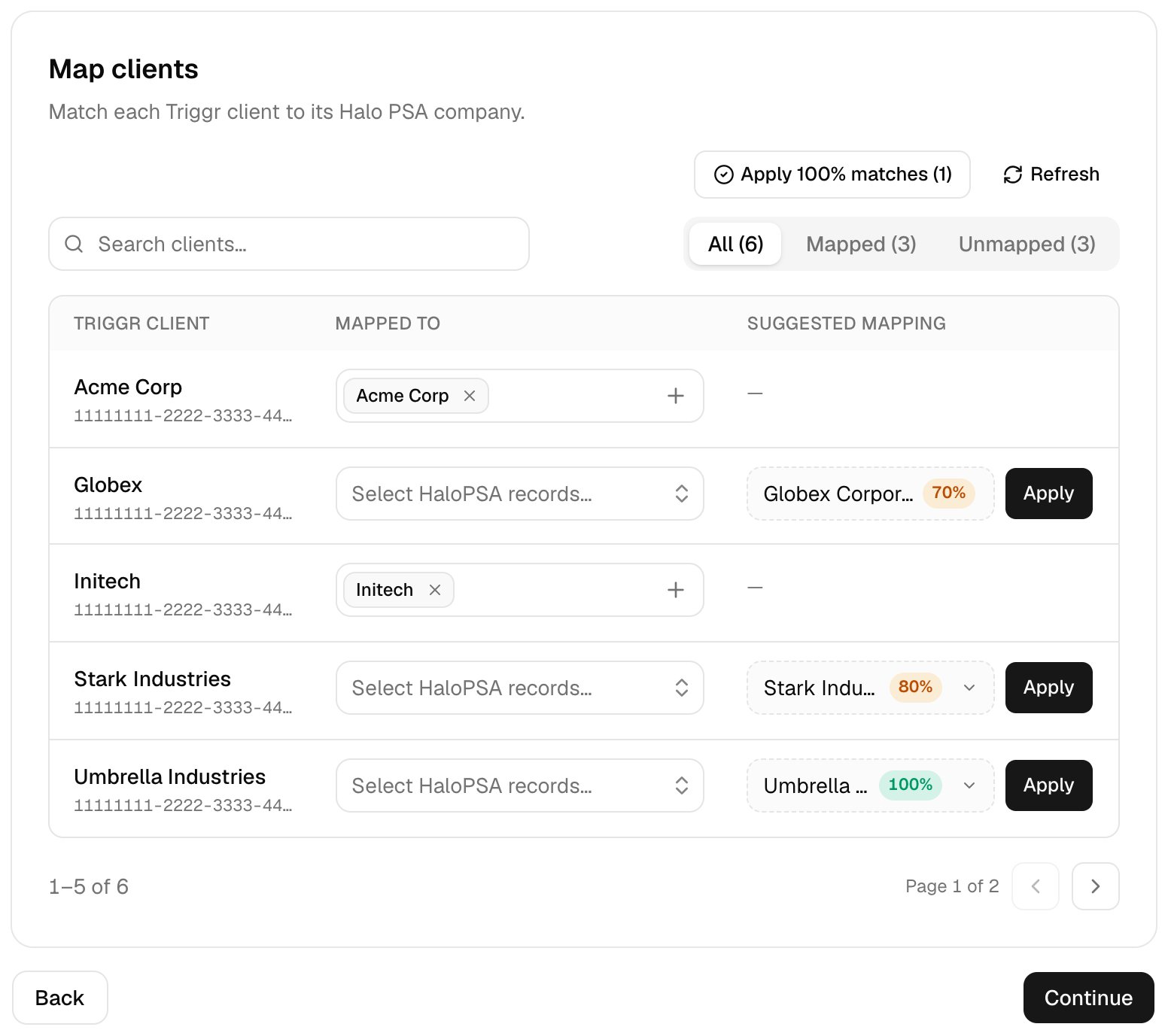
 Click **Apply 100% matches**, then pick the company under Mapped to for anyone left; each change saves at once. With no clients yet, map them later from Integrations.
 The wizard also sets Default PSA in **Settings > General**, which ticket steps use.
## Change it later
* Map clients: Integrations > your PSA > Client mapping, or Map to *your PSA* in a client's panel on Clients.
* New credentials or a different PSA: on Home, click **Review** next to Connect your PSA. Switching PSA moves ticket steps to the new one at once.
If you set up the PSA from Integrations instead of the wizard, set Default PSA in Settings > General yourself; that route doesn't run the test.
## Troubleshooting
Re-copy the keys or secret. ConnectWise: both keys from one API key and the right Company ID. Halo: an enabled application with the all permission. Autotask: the full username and the same user's tracking identifier.
Fix the host as described in your PSA's tab; for Autotask, remove `/atservicesrest`. A self-hosted PSA must be reachable from the internet; allow [Triggr's IP addresses](/security/ip-allowlist).
Let the API account read boards, queues or ticket types.
Set Default PSA in **Settings > General**, then reopen the workflow. The rest of the run still completes; only the ticket is missing.
Core creates tickets in ConnectWise PSA, Halo PSA and Autotask. Turn Ticketing off on the workflow's Execution config, or ask your account manager about your PSA.
Next: [Add your branding](/core/get-started/add-your-branding).
This documentation is built and hosted on [Mintlify](https://mintlify.com), a developer documentation platform.
The wizard also sets Default PSA in **Settings > General**, which ticket steps use.
## Change it later
* Map clients: Integrations > your PSA > Client mapping, or Map to *your PSA* in a client's panel on Clients.
* New credentials or a different PSA: on Home, click **Review** next to Connect your PSA. Switching PSA moves ticket steps to the new one at once.
If you set up the PSA from Integrations instead of the wizard, set Default PSA in Settings > General yourself; that route doesn't run the test.
## Troubleshooting
Re-copy the keys or secret. ConnectWise: both keys from one API key and the right Company ID. Halo: an enabled application with the all permission. Autotask: the full username and the same user's tracking identifier.
Fix the host as described in your PSA's tab; for Autotask, remove `/atservicesrest`. A self-hosted PSA must be reachable from the internet; allow [Triggr's IP addresses](/security/ip-allowlist).
Let the API account read boards, queues or ticket types.
Set Default PSA in **Settings > General**, then reopen the workflow. The rest of the run still completes; only the ticket is missing.
Core creates tickets in ConnectWise PSA, Halo PSA and Autotask. Turn Ticketing off on the workflow's Execution config, or ask your account manager about your PSA.
Next: [Add your branding](/core/get-started/add-your-branding).
This documentation is built and hosted on [Mintlify](https://mintlify.com), a developer documentation platform.