> ## Documentation Index
> Fetch the complete documentation index at: https://university.triggr-app.com/llms.txt
> Use this file to discover all available pages before exploring further.
# Invite your team
> Invite teammates to your Core organisation, choose their role, and group them for approvals.
## Invite teammates
Click your organisation's name at the bottom of the sidebar, then **Manage > Members**.
Click **Invite**, enter email addresses, choose a Role and click Send invitations. Teammates follow the emailed link, then sign in at `core.triggr-app.com`.
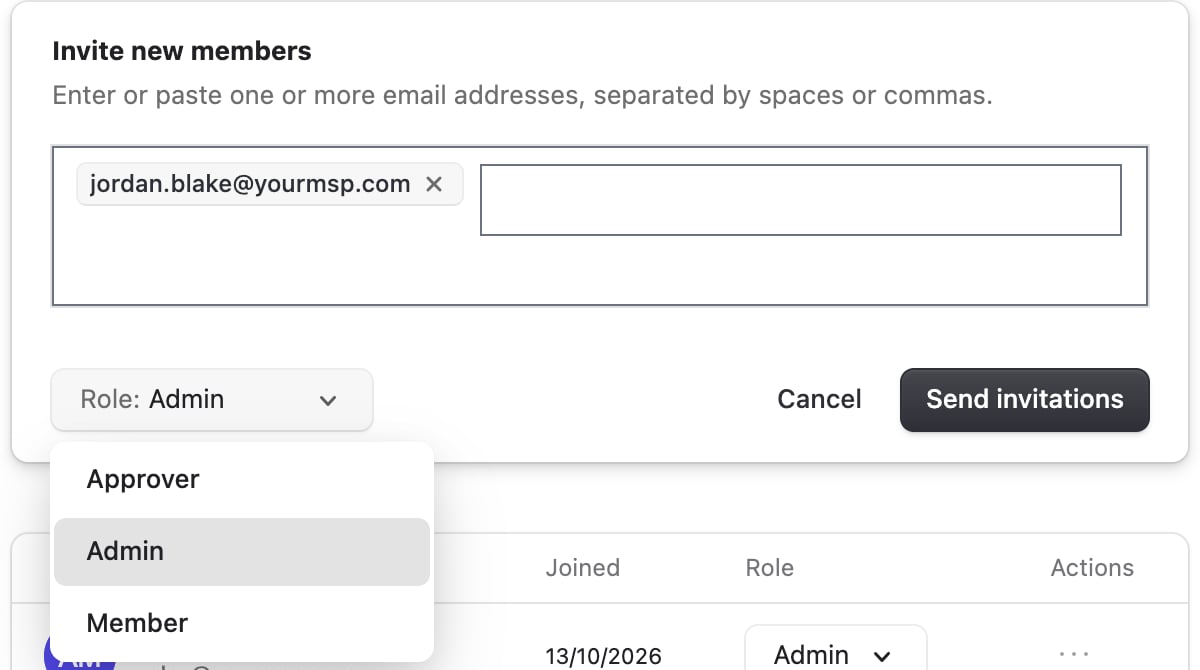 On Members, change a Role on its row or use the row's menu to Remove member. Revoke invitation is in the menu on Invitations.
| Role | In Core |
| - | - |
| Admin | Everything a member can do, plus manage members, set up clients' Microsoft access, Repair GDAP health, and manage Settings > Alerts, API keys and Webhooks. |
| Member | Run and configure workflows, manage clients and settings, and approve requests assigned to them. |
| Approver | The same as Member in Core. In Studio it's for people who only follow and approve requests; see [Team and permissions](/studio/clients/team-and-permissions#roles). |
## Group teammates for approvals
Any member of a group can approve requests routed to it.
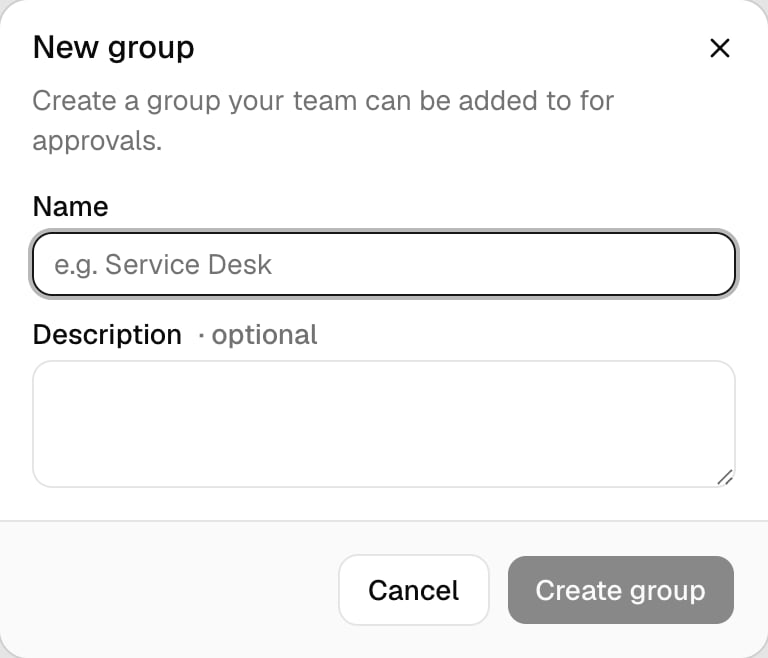
Go to **Settings > User groups**, click **New group**, enter a Name and click Create group.
On Members, change a Role on its row or use the row's menu to Remove member. Revoke invitation is in the menu on Invitations.
| Role | In Core |
| - | - |
| Admin | Everything a member can do, plus manage members, set up clients' Microsoft access, Repair GDAP health, and manage Settings > Alerts, API keys and Webhooks. |
| Member | Run and configure workflows, manage clients and settings, and approve requests assigned to them. |
| Approver | The same as Member in Core. In Studio it's for people who only follow and approve requests; see [Team and permissions](/studio/clients/team-and-permissions#roles). |
## Group teammates for approvals
Any member of a group can approve requests routed to it.
Go to **Settings > User groups**, click **New group**, enter a Name and click Create group.
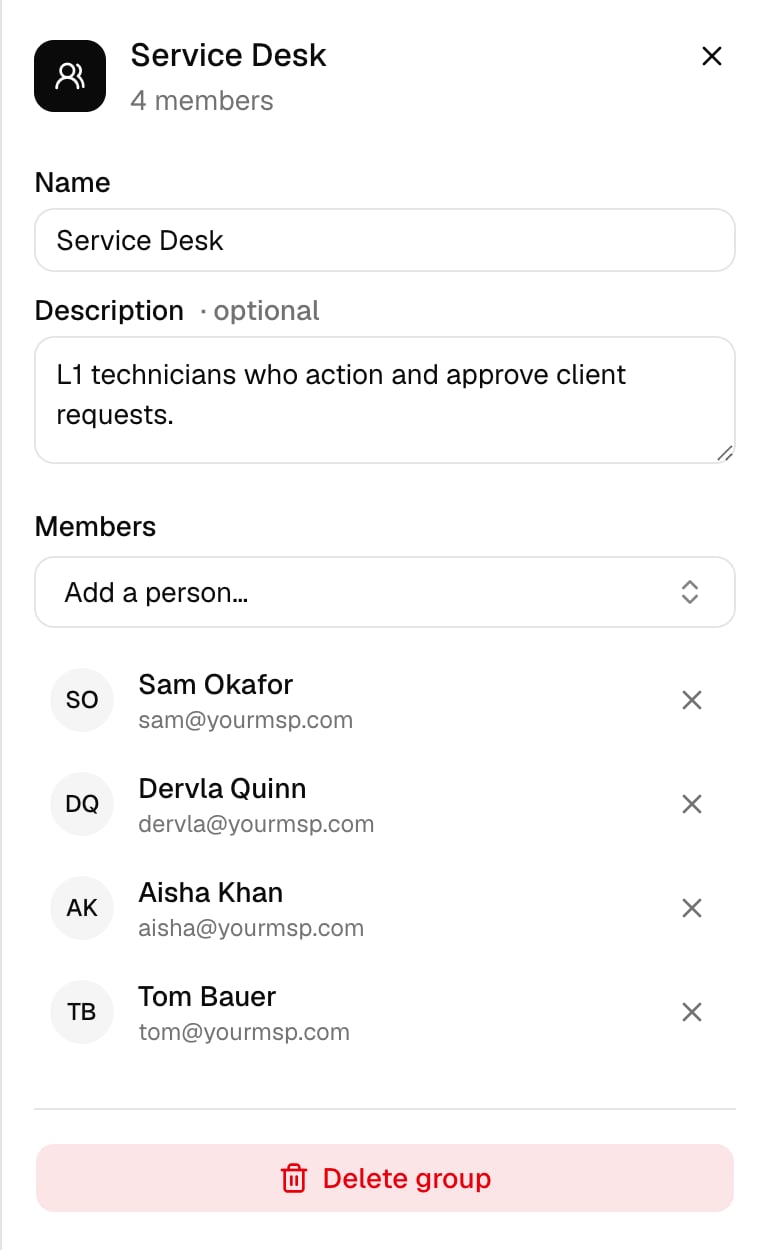
 Click the group and pick teammates from Add a person…. Changes save as you go.
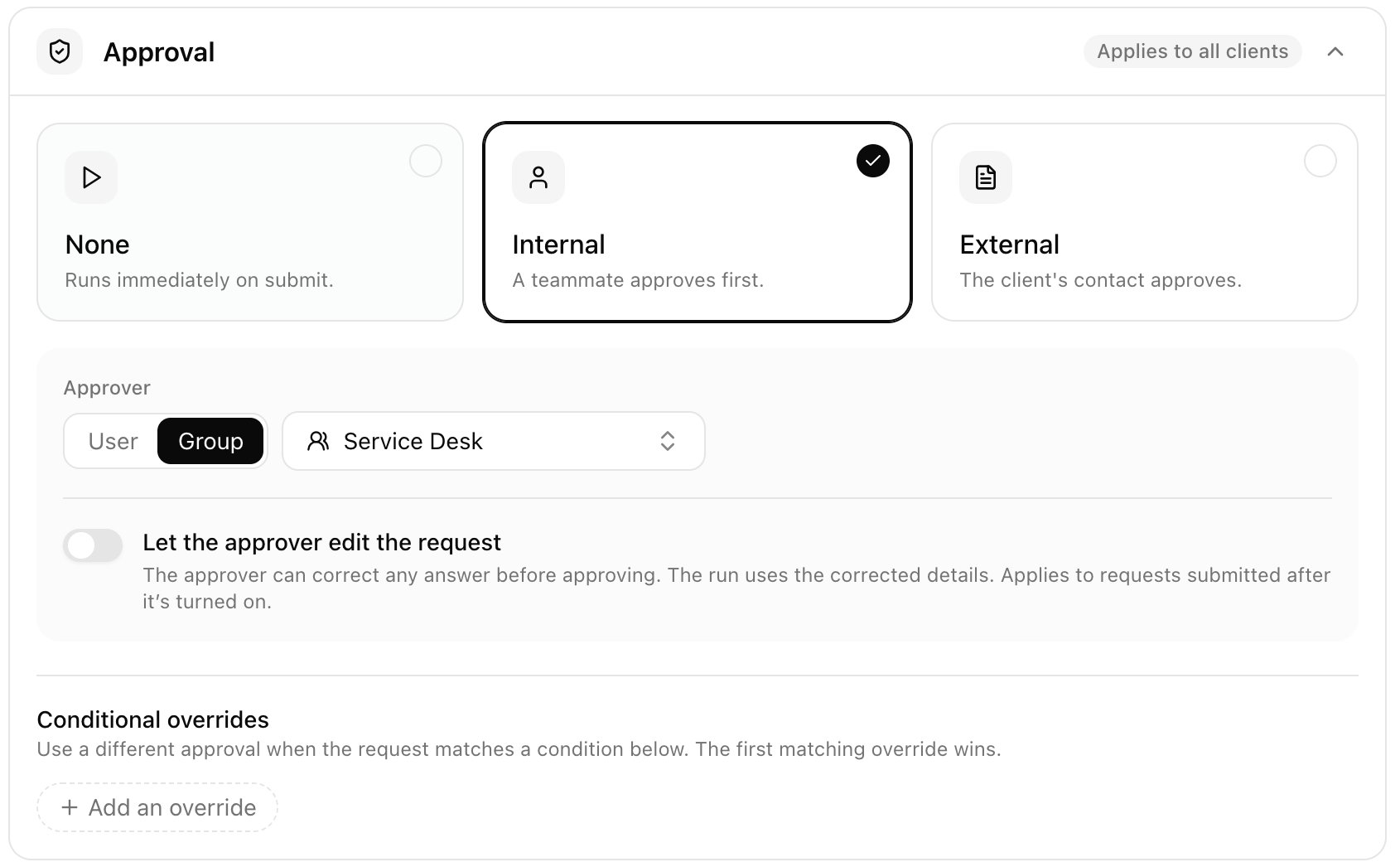
 Open the workflow from Config. On Execution config, under Approval, choose Internal, set Approver to Group, pick the group and click Save changes. Any member of the group can approve, and one approval is enough. Group approvals aren't emailed: they wait in Approvals in Core, and with Ticketing on, the PSA ticket gets a note linking to Approvals. See [Set up approval groups](/core/use/approvals#set-up-approval-groups).
 ## Troubleshooting
They're in a workspace of their own, not yours. They should click Choose another workspace and pick your organisation; if it isn't listed, resend the invitation from Invitations.
Those need the Admin role. Change their Role on Members.
Next: [Run a workflow](/core/use/run-a-workflow).
This documentation is built and hosted on [Mintlify](https://mintlify.com), a developer documentation platform.
## Troubleshooting
They're in a workspace of their own, not yours. They should click Choose another workspace and pick your organisation; if it isn't listed, resend the invitation from Invitations.
Those need the Admin role. Change their Role on Members.
Next: [Run a workflow](/core/use/run-a-workflow).
This documentation is built and hosted on [Mintlify](https://mintlify.com), a developer documentation platform.