> ## Documentation Index
> Fetch the complete documentation index at: https://university.triggr-app.com/llms.txt
> Use this file to discover all available pages before exploring further.
# Set up Triggr Core
> Sign in to Triggr Core and work through the setup checklist on Home.
Core takes about 20 minutes to set up: sign in, then work through the five-step checklist on Home.
## Sign in
Sign in at [core.triggr-app.com](https://core.triggr-app.com) with **Continue with Microsoft** or your email address. You need an invitation from your Triggr account manager or a [teammate](/core/get-started/invite-your-team). With more than one organisation, pick yours under Choose your workspace; switch later from the bottom of the sidebar.
## Work through the checklist
On Home, click **Set up** on each step in order. Core ticks a step off when it's done and its button changes to Review.
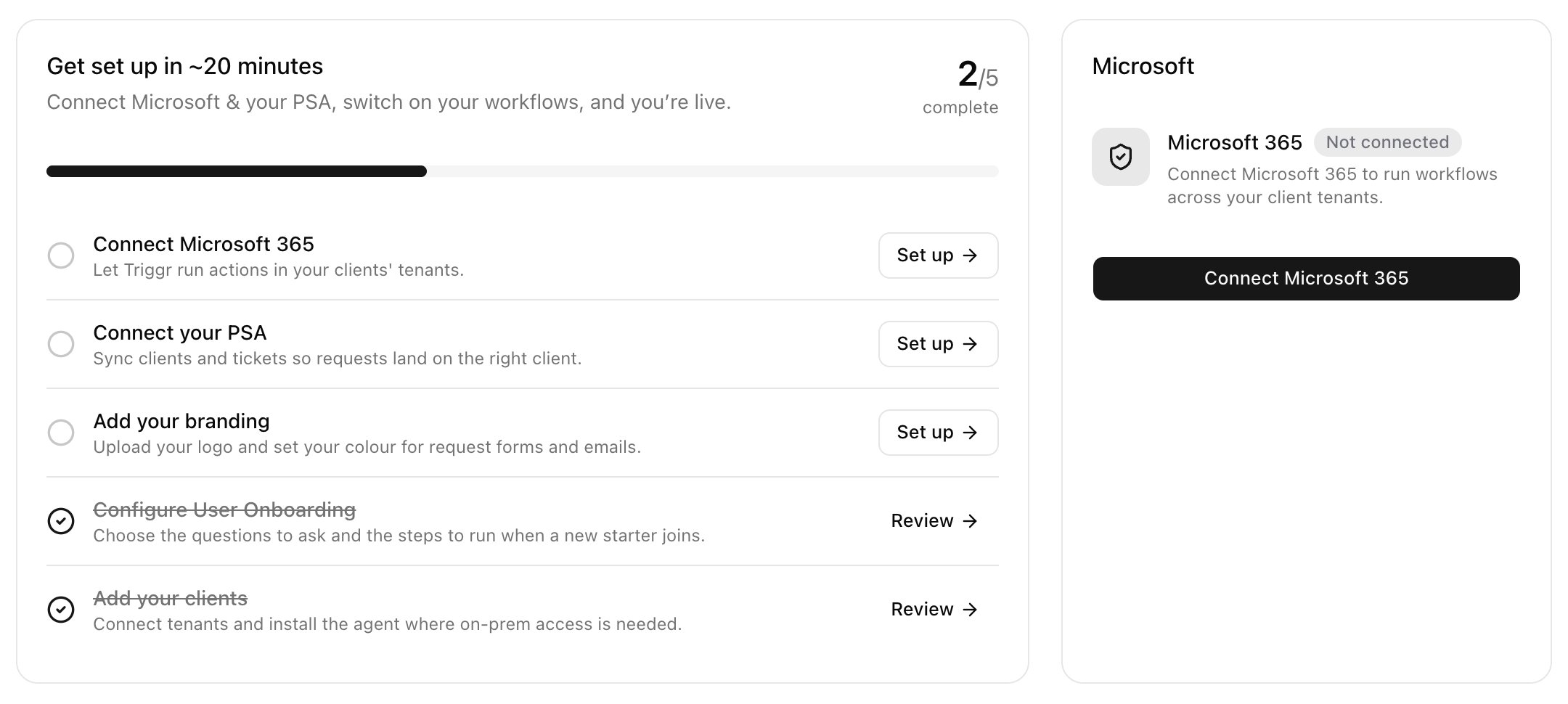 | Step | Ticked off when |
| - | - |
| 1. [Connect Microsoft 365](/core/get-started/connect-microsoft-365) | Your Microsoft sign-in is authorised. |
| 2. [Connect your PSA](/core/get-started/connect-your-psa) | A PSA connection is saved. |
| 3. [Add your branding](/core/get-started/add-your-branding) | A display name or logo is saved. |
| 4. [Configure User Onboarding](/core/get-started/configure-user-onboarding) | User Onboarding is saved and not Disabled. |
| 5. [Add your clients](/core/get-started/add-your-clients) | You have at least one client. |
Then [share your forms](/core/get-started/share-your-forms) and [invite your team](/core/get-started/invite-your-team).
## Troubleshooting
You're in a workspace that doesn't have Core. Click Choose another workspace and pick your organisation; if it isn't listed, ask your account manager.
This documentation is built and hosted on [Mintlify](https://mintlify.com), a developer documentation platform.
| Step | Ticked off when |
| - | - |
| 1. [Connect Microsoft 365](/core/get-started/connect-microsoft-365) | Your Microsoft sign-in is authorised. |
| 2. [Connect your PSA](/core/get-started/connect-your-psa) | A PSA connection is saved. |
| 3. [Add your branding](/core/get-started/add-your-branding) | A display name or logo is saved. |
| 4. [Configure User Onboarding](/core/get-started/configure-user-onboarding) | User Onboarding is saved and not Disabled. |
| 5. [Add your clients](/core/get-started/add-your-clients) | You have at least one client. |
Then [share your forms](/core/get-started/share-your-forms) and [invite your team](/core/get-started/invite-your-team).
## Troubleshooting
You're in a workspace that doesn't have Core. Click Choose another workspace and pick your organisation; if it isn't listed, ask your account manager.
This documentation is built and hosted on [Mintlify](https://mintlify.com), a developer documentation platform.