> ## Documentation Index
> Fetch the complete documentation index at: https://university.triggr-app.com/llms.txt
> Use this file to discover all available pages before exploring further.
# Share your forms
> Make a workflow a public form, share its link with clients and test it before you go live.
Your clients' staff sign in to a public form with their Microsoft work account, so each client needs its Microsoft tenant ID set on [Clients](/core/get-started/add-your-clients). Links use your [public forms domain](/core/get-started/add-your-branding#use-your-own-domain-optional) if you have one. The three built-in reports can be published the same way, so clients run them from your homepage; see [Reports](/core/use/reports#what-your-clients-see).
## Publish a form
Open the workflow from Config, choose **Public form only** or **Internal + public** by its name, and tick List on homepage to show it on your requests homepage.
 On Restrict access, turn on **Restrict to group membership**, click Add group and type a group's display name; Core matches it in each client's directory, nested membership included. To pick one client's groups from a list, choose the client in the scope dropdown and click Override. Override starts with an empty list, so add that client's groups before you save; with no groups, anyone at that client can submit.
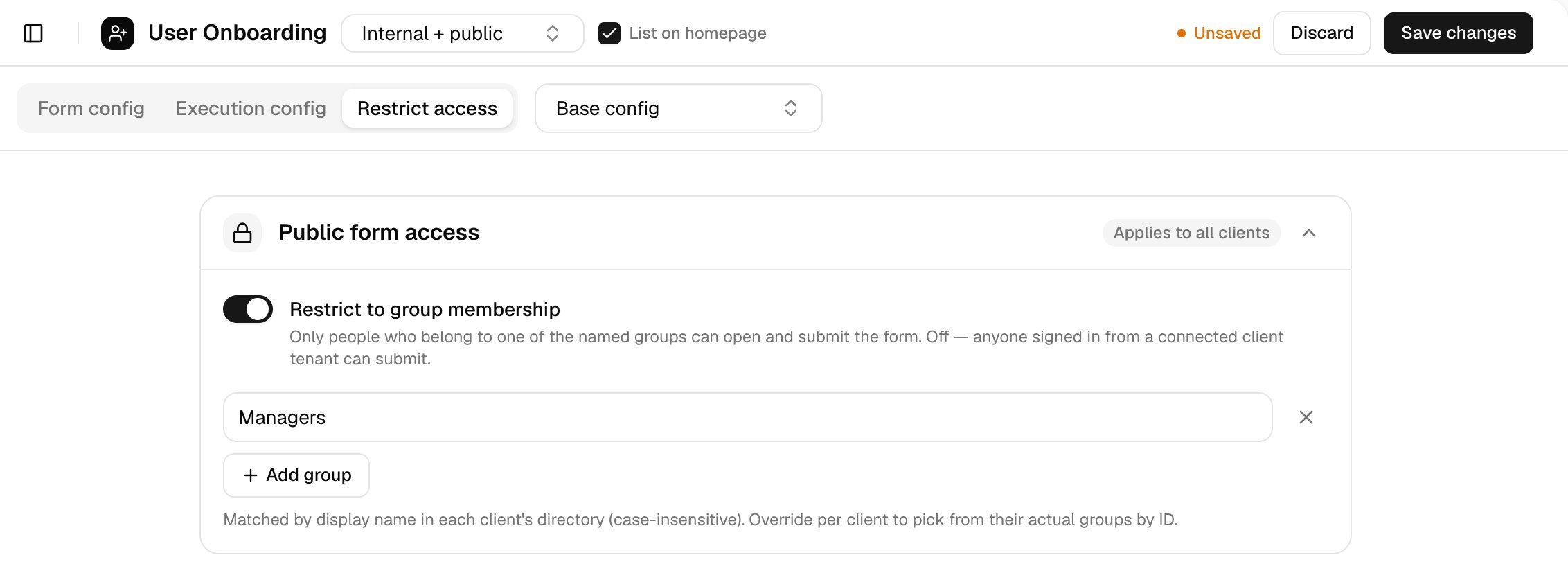 Click Save changes.
## Share the link
On Public forms, click **Copy** next to a form's link. View homepage opens your requests homepage.
Click Save changes.
## Share the link
On Public forms, click **Copy** next to a form's link. View homepage opens your requests homepage.
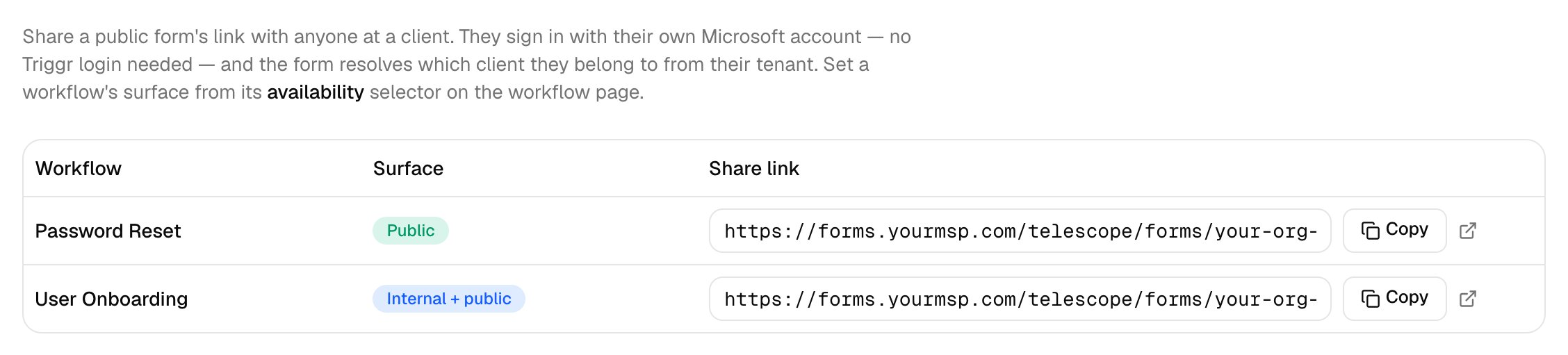 | Link | Default | With a public forms domain |
| - | - | - |
| Form | `https://core.triggr-app.com/telescope/forms//` | `https://forms.yourmsp.com/telescope/forms//` |
| Homepage | `https://core.triggr-app.com/telescope/home/` | `https://forms.yourmsp.com` |
## What your client sees
Clients click Sign in with Microsoft and see their own version of the form. After Submit request they get a Request received page with a reference such as `REQ-4F2A9C`; the homepage lists Available requests and Your recent requests. Their requests appear under [Executions](/core/use/executions).
| Link | Default | With a public forms domain |
| - | - | - |
| Form | `https://core.triggr-app.com/telescope/forms//` | `https://forms.yourmsp.com/telescope/forms//` |
| Homepage | `https://core.triggr-app.com/telescope/home/` | `https://forms.yourmsp.com` |
## What your client sees
Clients click Sign in with Microsoft and see their own version of the form. After Submit request they get a Request received page with a reference such as `REQ-4F2A9C`; the homepage lists Available requests and Your recent requests. Their requests appear under [Executions](/core/use/executions).
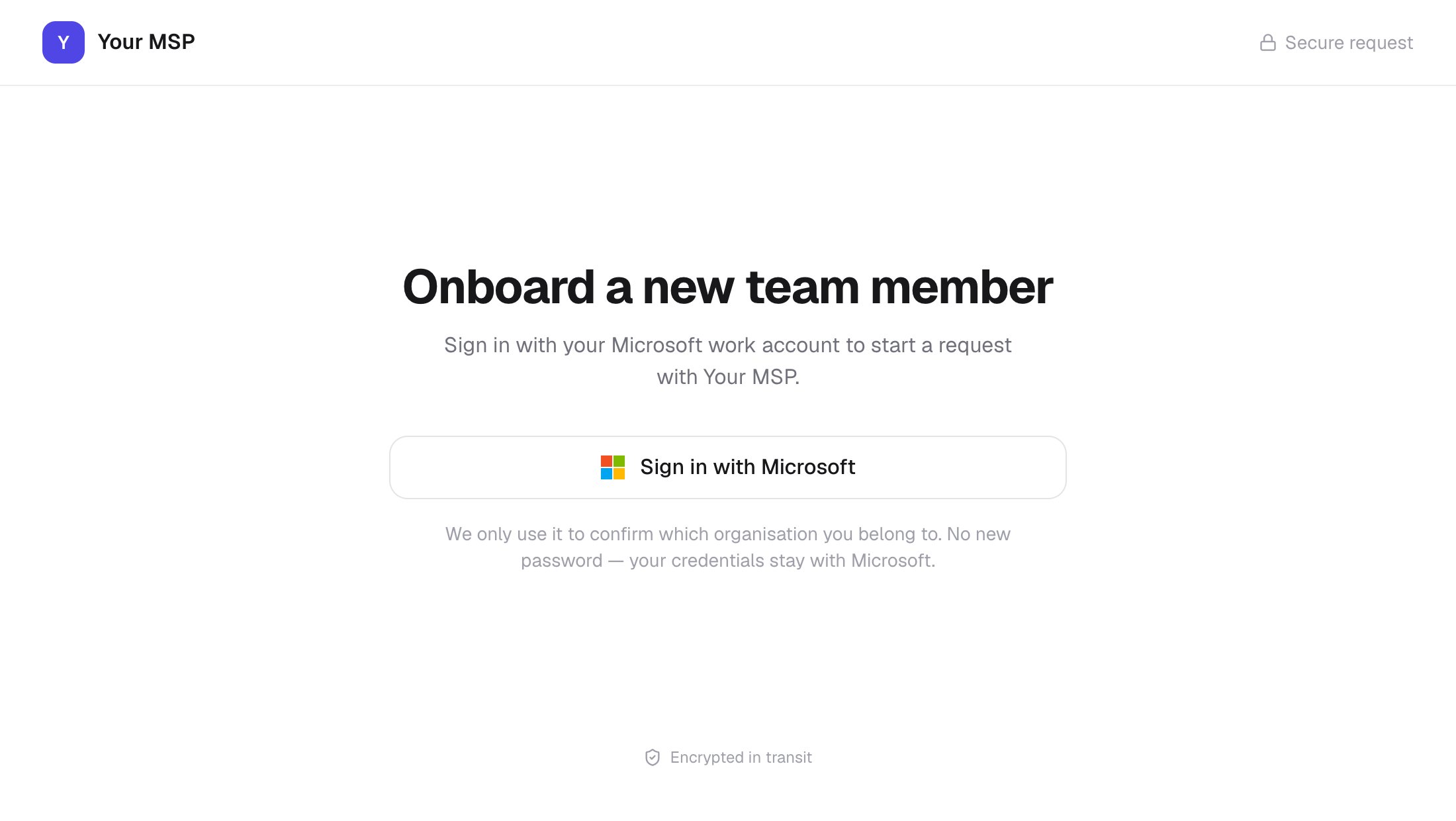 To check a client's questions without submitting, choose the client on the workflow page and click **Preview form**. To test end to end, set Approval to Internal, submit with an account from a client's tenant, then reject it on Approvals; if ticketing is on, it still raises a PSA ticket.
To help your clients' staff use the forms, send them the [guides for your clients](/guides/overview).
## Troubleshooting
Allow pop-ups for the form's domain, then click Sign in with Microsoft again.
No client in Core has this person's tenant ID. Check it on Clients.
Set the workflow to Public form only or Internal + public and click Save changes.
Check the person is in a group on Restrict access, and the client's Microsoft status on Clients.
A client can submit the same form 20 times in 20 minutes. Wait, then try again.
Tick List on homepage on a public workflow, and check its Restrict access groups include the person.
Next: [Invite your team](/core/get-started/invite-your-team).
This documentation is built and hosted on [Mintlify](https://mintlify.com), a developer documentation platform.
To check a client's questions without submitting, choose the client on the workflow page and click **Preview form**. To test end to end, set Approval to Internal, submit with an account from a client's tenant, then reject it on Approvals; if ticketing is on, it still raises a PSA ticket.
To help your clients' staff use the forms, send them the [guides for your clients](/guides/overview).
## Troubleshooting
Allow pop-ups for the form's domain, then click Sign in with Microsoft again.
No client in Core has this person's tenant ID. Check it on Clients.
Set the workflow to Public form only or Internal + public and click Save changes.
Check the person is in a group on Restrict access, and the client's Microsoft status on Clients.
A client can submit the same form 20 times in 20 minutes. Wait, then try again.
Tick List on homepage on a public workflow, and check its Restrict access groups include the person.
Next: [Invite your team](/core/get-started/invite-your-team).
This documentation is built and hosted on [Mintlify](https://mintlify.com), a developer documentation platform.