> ## Documentation Index
> Fetch the complete documentation index at: https://university.triggr-app.com/llms.txt
> Use this file to discover all available pages before exploring further.
# Introduction
> What Triggr Core does and how a request becomes finished work in your client's Microsoft 365.
Triggr Core automates your service desk's Level 1 Microsoft 365 work: onboarding, offboarding, password resets, licences, mailboxes and groups. Client staff can submit requests themselves, under your branding.
 ## How a request runs
1. A technician uses Run a workflow, or client staff sign in to your public forms with their Microsoft account.
2. Core opens a ticket in your PSA, if ticketing is on.
3. Your team or the client [approves](/core/use/approvals) it, if needed.
4. Core does the work in the client's tenant, and in synced on-premises Active Directory through the [desktop agent](/desktop-agent/overview).
5. Every step is recorded in [Executions](/core/use/executions).
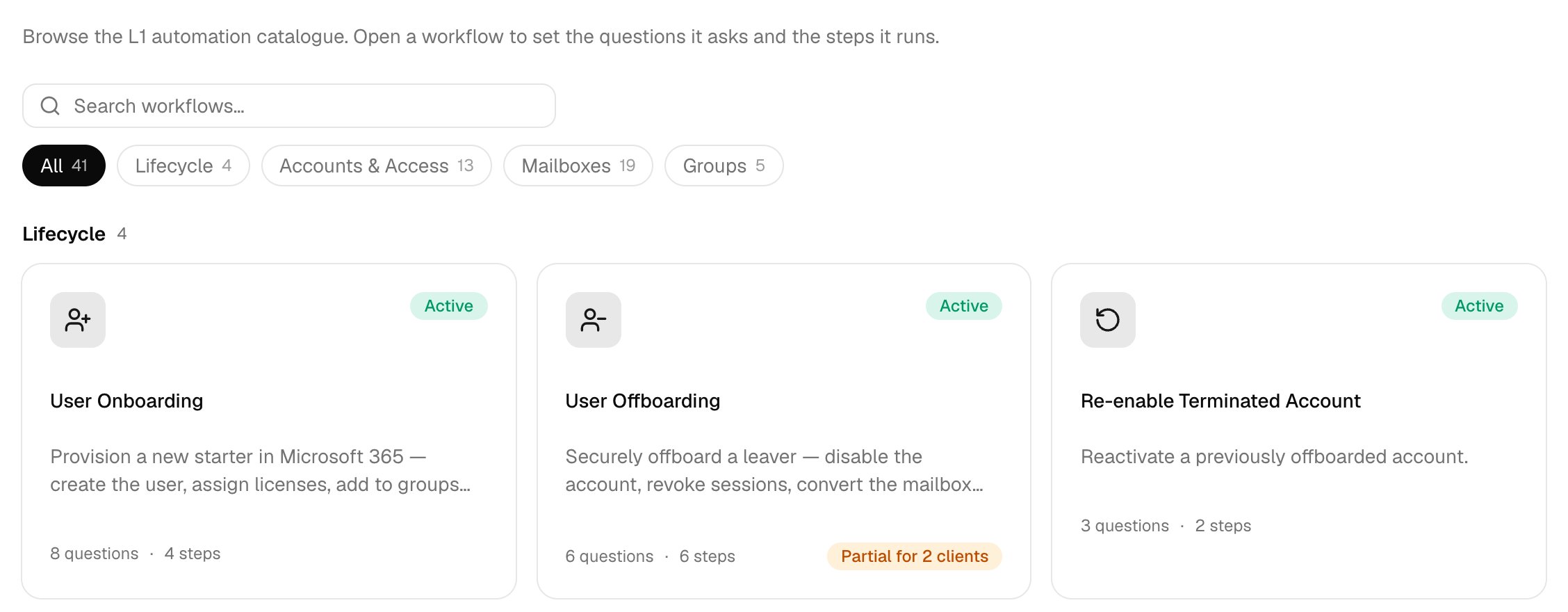
Set up each workflow once, then override it for any client that needs something different. The [workflow catalogue](/core/reference/workflow-catalogue) lists them all; for anything beyond it, use [Triggr Studio](/studio/introduction).
Next: [Set up Triggr Core](/core/get-started/overview).
This documentation is built and hosted on [Mintlify](https://mintlify.com), a developer documentation platform.
## How a request runs
1. A technician uses Run a workflow, or client staff sign in to your public forms with their Microsoft account.
2. Core opens a ticket in your PSA, if ticketing is on.
3. Your team or the client [approves](/core/use/approvals) it, if needed.
4. Core does the work in the client's tenant, and in synced on-premises Active Directory through the [desktop agent](/desktop-agent/overview).
5. Every step is recorded in [Executions](/core/use/executions).
Set up each workflow once, then override it for any client that needs something different. The [workflow catalogue](/core/reference/workflow-catalogue) lists them all; for anything beyond it, use [Triggr Studio](/studio/introduction).
Next: [Set up Triggr Core](/core/get-started/overview).
This documentation is built and hosted on [Mintlify](https://mintlify.com), a developer documentation platform.