> ## Documentation Index
> Fetch the complete documentation index at: https://university.triggr-app.com/llms.txt
> Use this file to discover all available pages before exploring further.
# API and webhooks
> Create API keys for the Triggr Public API and send signed events to your portal or PSA integration.
Only admins can manage API keys and webhooks. Endpoints, scopes and a playground are in the [API reference](/api-reference/introduction).
## Create an API key
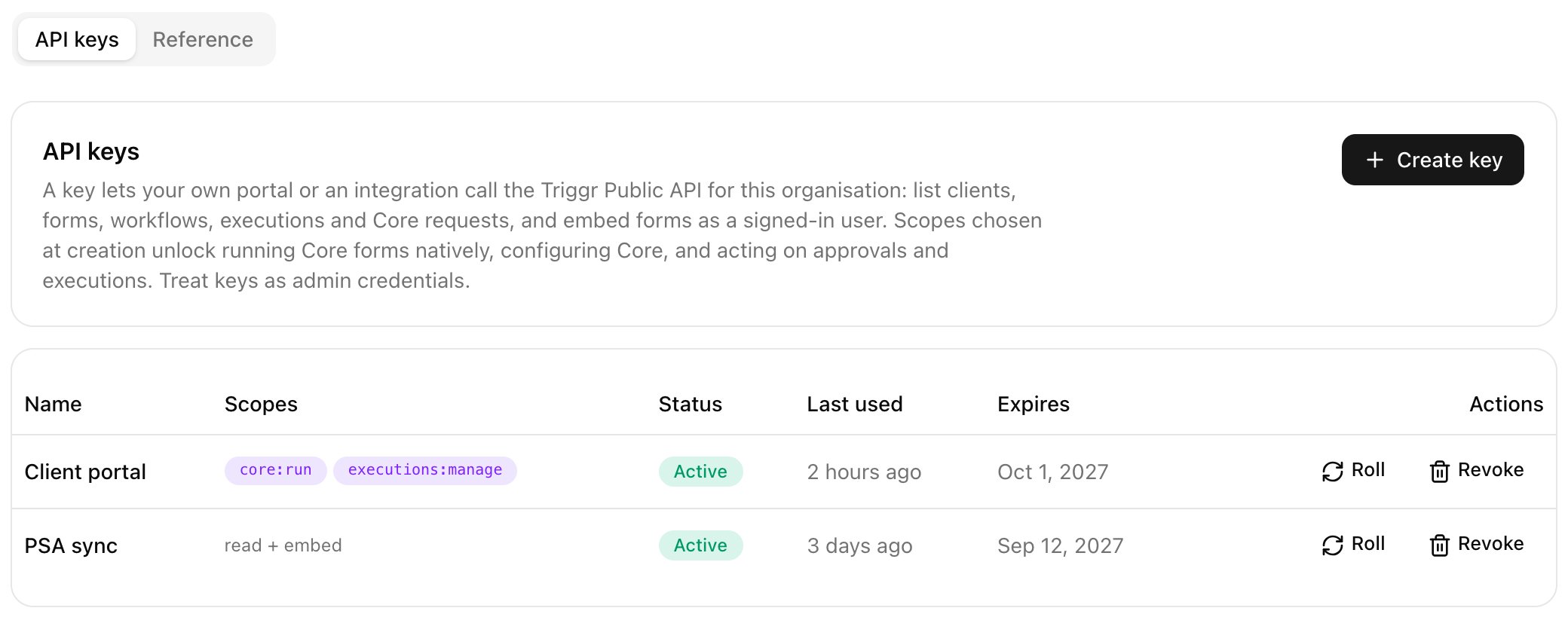
Go to **Settings > API** and click **Create key**.
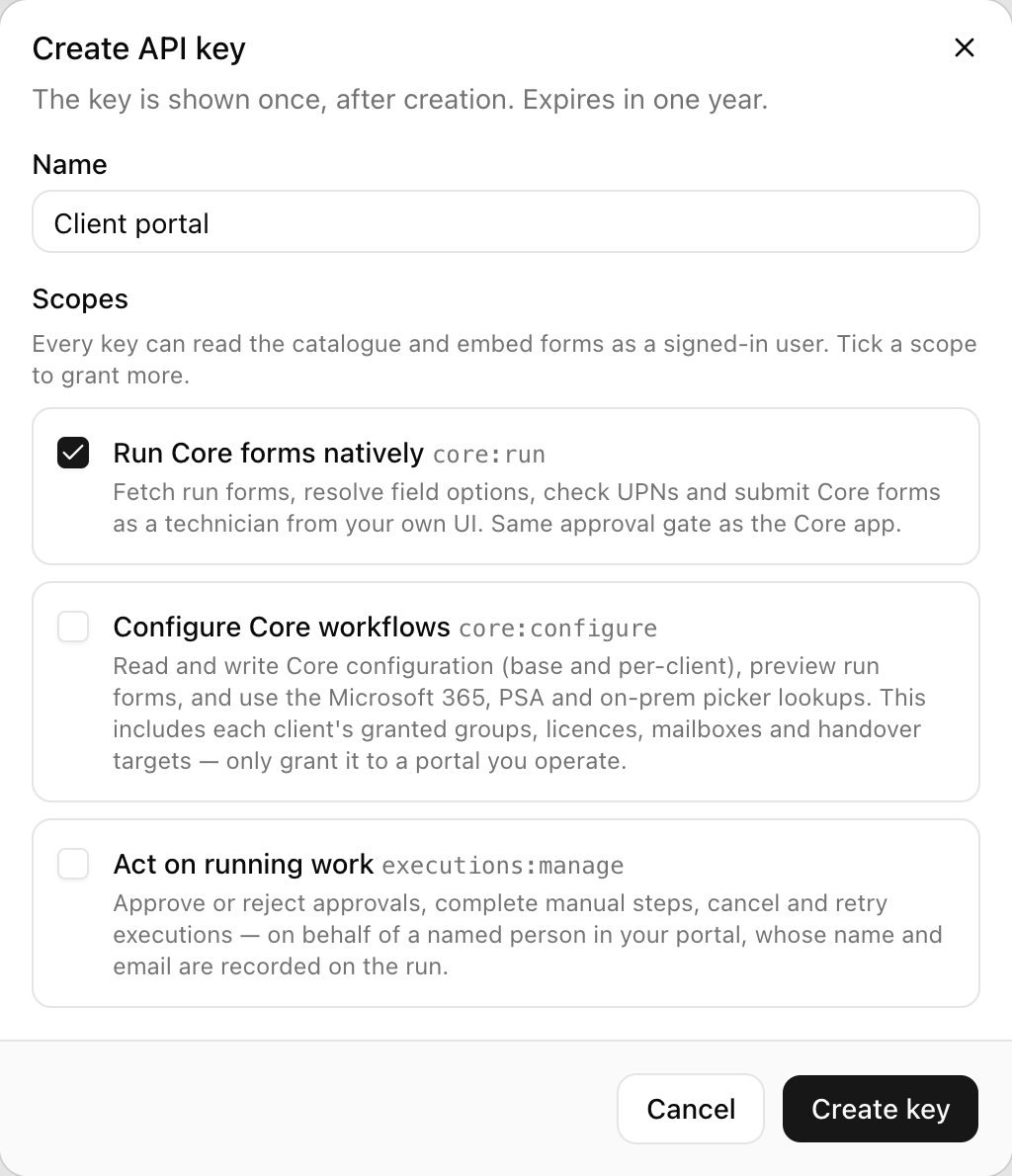
 Every key can read your clients, forms, workflows, executions and Core requests, and embed forms as a signed-in user. Tick a scope only if the integration needs it, then click Create key.
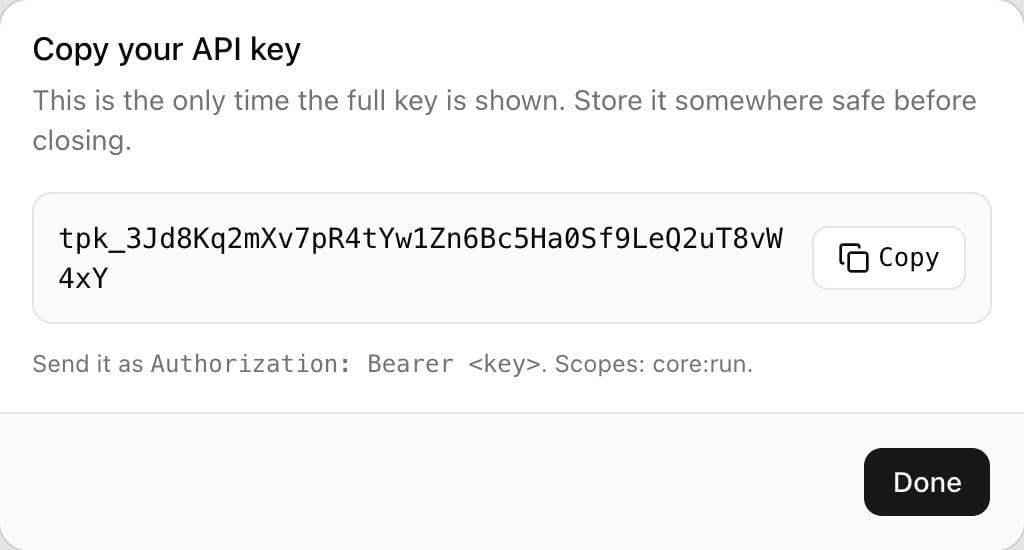
 Click **Copy** before Done: the key is shown once. Keys expire after a year.
 | Scope | Lets the key |
| - | - |
| `core:run` | Submit Core forms from your own UI, through the same approval as Core. |
| `core:configure` | Read and change Core configuration, including each client's groups, licences and mailboxes. |
| `executions:manage` | Decide approvals, and cancel or retry executions. |
Roll issues a replacement and keeps the old key working for 1, 24 or 72 hours (or until it expires, if sooner). Revoke stops it at once and disables its webhooks.
## Add a webhook
Go to **Settings > Webhooks** and click **Add webhook**.
| Scope | Lets the key |
| - | - |
| `core:run` | Submit Core forms from your own UI, through the same approval as Core. |
| `core:configure` | Read and change Core configuration, including each client's groups, licences and mailboxes. |
| `executions:manage` | Decide approvals, and cancel or retry executions. |
Roll issues a replacement and keeps the old key working for 1, 24 or 72 hours (or until it expires, if sooner). Revoke stops it at once and disables its webhooks.
## Add a webhook
Go to **Settings > Webhooks** and click **Add webhook**.
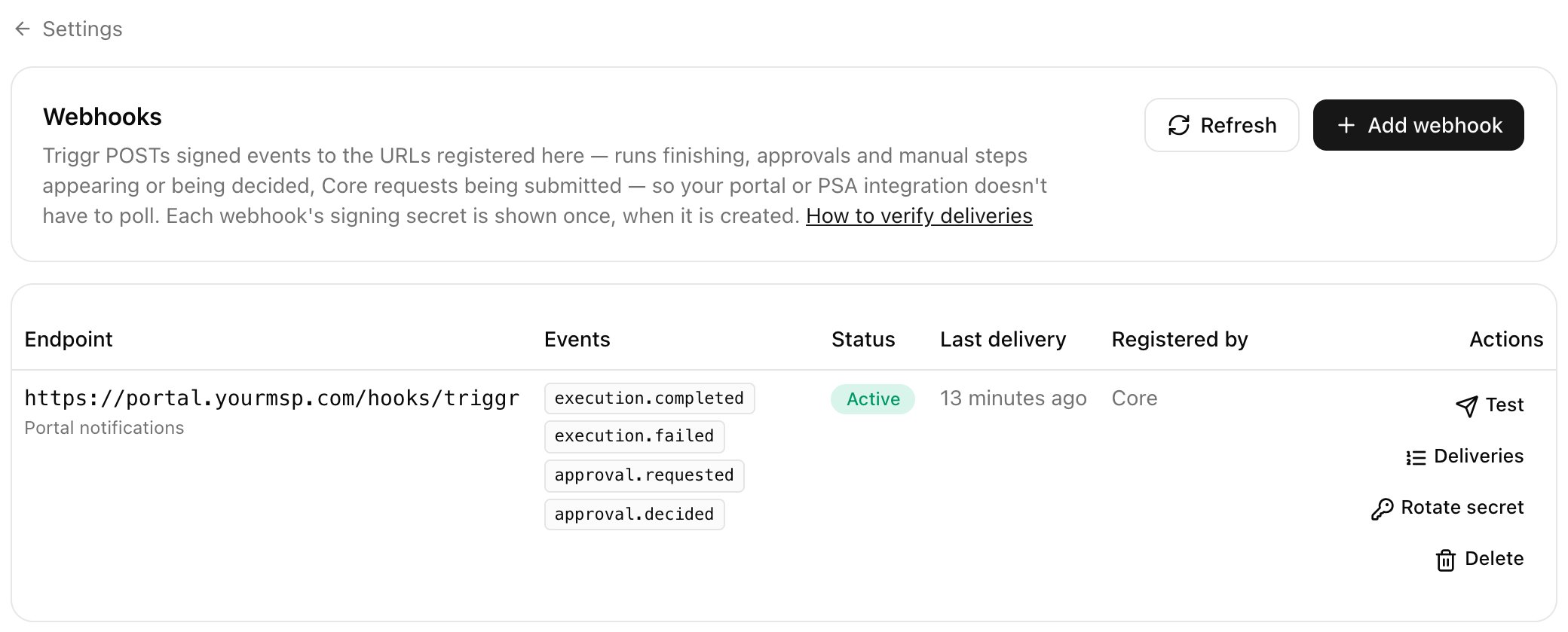 The Endpoint URL must be public `https`; redirects aren't followed. Tick the events you want, or All events to include future ones, then click Add webhook.
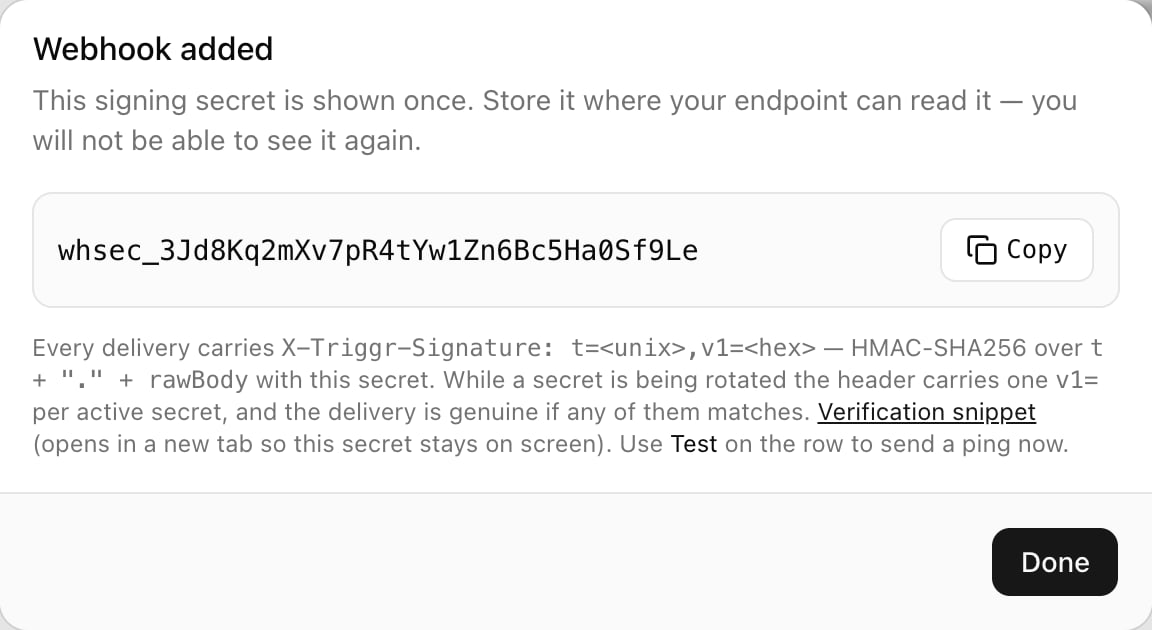
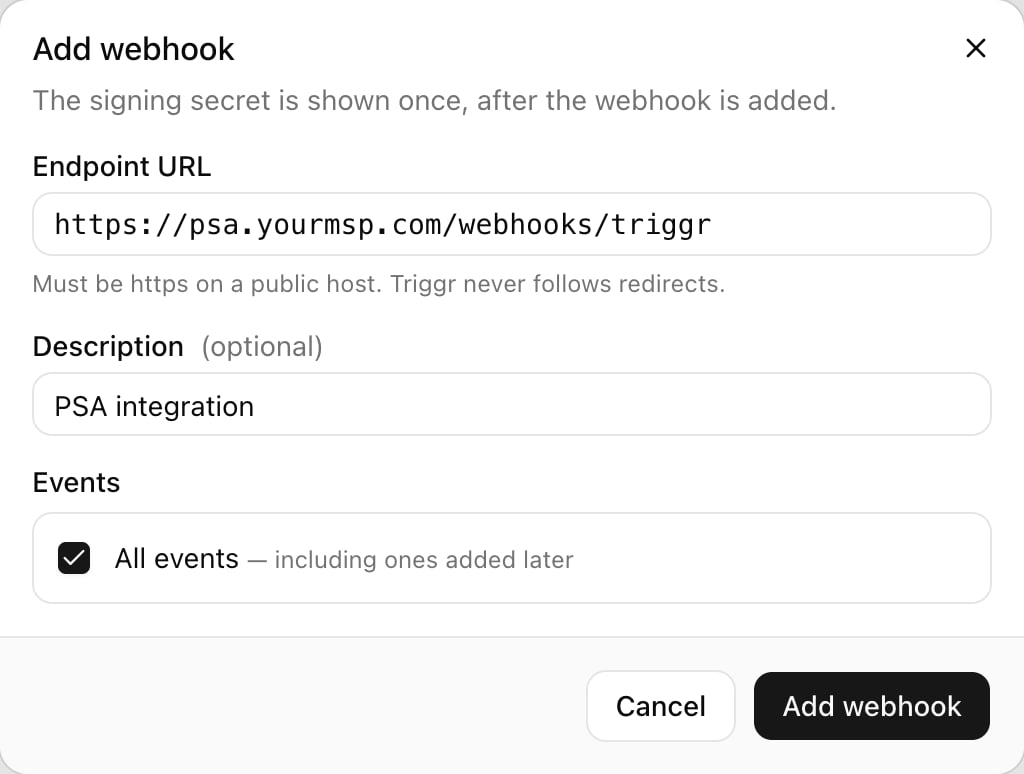 Click **Copy** before Done: the secret is shown once.
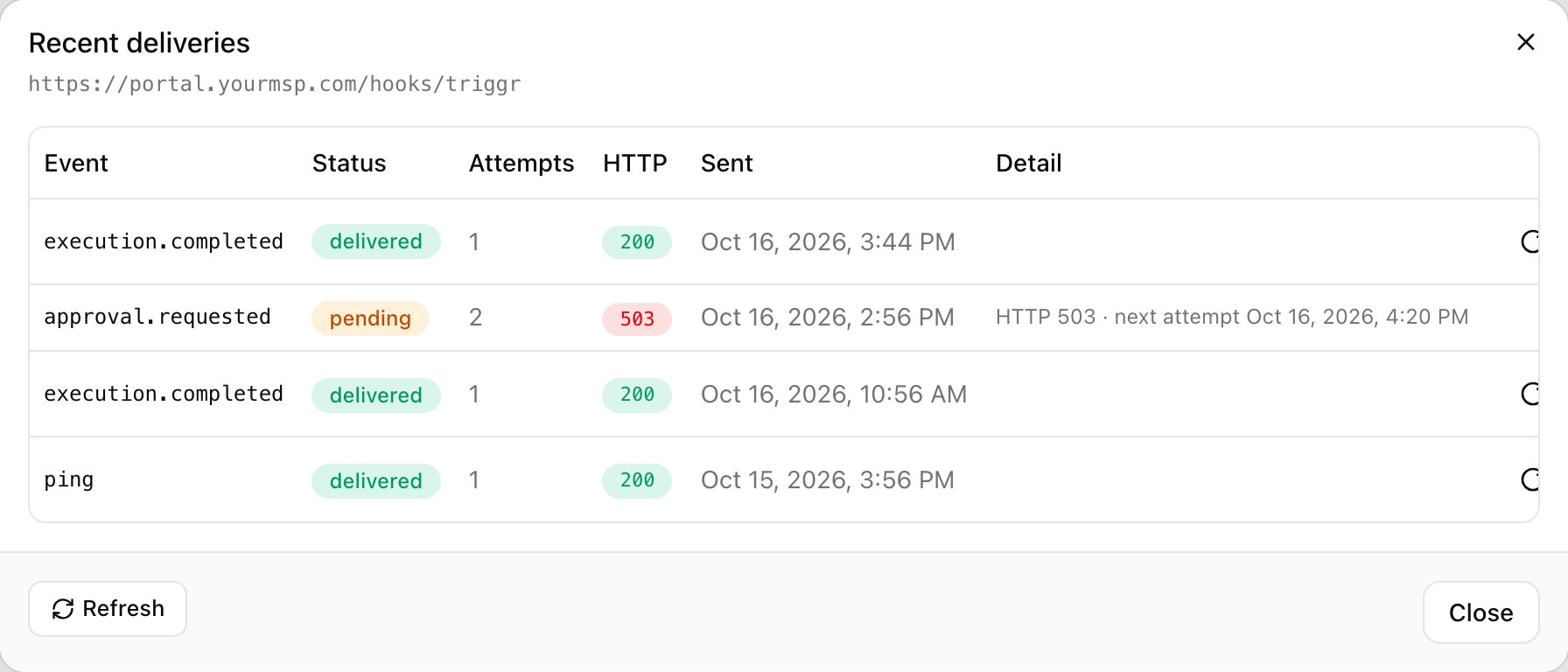
 Click **Test** on the row to send a `ping`, then Deliveries to see each attempt's HTTP code and error.
 | Event | Sent when |
| - | - |
| `core.request.submitted` | A Core form is submitted. |
| `execution.completed`, `execution.failed` | A run finishes or fails. |
| `approval.requested`, `approval.decided`, `approval.expired` | An approval is created, decided or expires. |
| `client.created`, `client.updated`, `client.deleted` | A client changes. |
| `core_form.updated` | A Core form's settings change. |
| `form.created`, `form.updated`, `form.deleted` | A Triggr Studio form changes. |
| `ping` | You click Test. |
Triggr POSTs JSON, normally within a minute, with `X-Triggr-Event`, `X-Triggr-Delivery-Id` and `X-Triggr-Signature` headers. `data` is the object the event is about; `id` stays the same across retries, so deduplicate on it.
```json theme={null}
{
"id": "3f2b9c1e-…",
"event": "ping",
"createdAt": "2026-10-12T09:00:00Z",
"organisationId": "org_…",
"data": { "message": "Triggr webhook test", "at": "2026-10-12T09:00:00Z" }
}
```
### Verify the signature
`X-Triggr-Signature` is `t=,v1=`: an HMAC-SHA256 of `t + "." + rawBody` with your secret. Reject a `t` older than five minutes. For 24 hours after you click Rotate secret, the header carries two `v1` values; accept either.
```js theme={null}
const crypto = require('node:crypto')
// rawBody is the unparsed request body (a Buffer or string)
function verifyTriggrWebhook(header, rawBody, secret) {
const fields = (header || '').split(',')
const t = fields.find((f) => f.startsWith('t='))?.slice(2)
const sigs = fields.filter((f) => f.startsWith('v1=')).map((f) => f.slice(3))
if (!/^\d+$/.test(t || '') || !sigs.length) return false
if (Math.abs(Date.now() / 1000 - Number(t)) > 300) return false
const expected = crypto.createHmac('sha256', secret).update(`${t}.${rawBody}`).digest('hex')
return sigs.some((v1) => /^[0-9a-f]{64}$/.test(v1) && crypto.timingSafeEqual(Buffer.from(v1, 'hex'), Buffer.from(expected, 'hex')))
}
```
### Retries
Answer 2xx within 15 seconds. Triggr retries after 1 minute, 5 minutes, 30 minutes, 2 hours and 12 hours. After 25 failures in a row the webhook shows Disabled: fix the endpoint and click Enable. Deliveries keeps 30 days; Redeliver sends one again, and Delete stops deliveries and removes the history.
## Troubleshooting
Ask an [Admin](/core/get-started/invite-your-team#invite-teammates) to create the key or webhook, or to change your role.
The URL must be `https`, on a public host, and answer within 15 seconds without redirecting. Private addresses are refused.
Compute the HMAC over the raw request body, not a re-serialised copy, and check your endpoint's clock: the sample code rejects a `t` more than five minutes out.
This documentation is built and hosted on [Mintlify](https://mintlify.com), a developer documentation platform.
| Event | Sent when |
| - | - |
| `core.request.submitted` | A Core form is submitted. |
| `execution.completed`, `execution.failed` | A run finishes or fails. |
| `approval.requested`, `approval.decided`, `approval.expired` | An approval is created, decided or expires. |
| `client.created`, `client.updated`, `client.deleted` | A client changes. |
| `core_form.updated` | A Core form's settings change. |
| `form.created`, `form.updated`, `form.deleted` | A Triggr Studio form changes. |
| `ping` | You click Test. |
Triggr POSTs JSON, normally within a minute, with `X-Triggr-Event`, `X-Triggr-Delivery-Id` and `X-Triggr-Signature` headers. `data` is the object the event is about; `id` stays the same across retries, so deduplicate on it.
```json theme={null}
{
"id": "3f2b9c1e-…",
"event": "ping",
"createdAt": "2026-10-12T09:00:00Z",
"organisationId": "org_…",
"data": { "message": "Triggr webhook test", "at": "2026-10-12T09:00:00Z" }
}
```
### Verify the signature
`X-Triggr-Signature` is `t=,v1=`: an HMAC-SHA256 of `t + "." + rawBody` with your secret. Reject a `t` older than five minutes. For 24 hours after you click Rotate secret, the header carries two `v1` values; accept either.
```js theme={null}
const crypto = require('node:crypto')
// rawBody is the unparsed request body (a Buffer or string)
function verifyTriggrWebhook(header, rawBody, secret) {
const fields = (header || '').split(',')
const t = fields.find((f) => f.startsWith('t='))?.slice(2)
const sigs = fields.filter((f) => f.startsWith('v1=')).map((f) => f.slice(3))
if (!/^\d+$/.test(t || '') || !sigs.length) return false
if (Math.abs(Date.now() / 1000 - Number(t)) > 300) return false
const expected = crypto.createHmac('sha256', secret).update(`${t}.${rawBody}`).digest('hex')
return sigs.some((v1) => /^[0-9a-f]{64}$/.test(v1) && crypto.timingSafeEqual(Buffer.from(v1, 'hex'), Buffer.from(expected, 'hex')))
}
```
### Retries
Answer 2xx within 15 seconds. Triggr retries after 1 minute, 5 minutes, 30 minutes, 2 hours and 12 hours. After 25 failures in a row the webhook shows Disabled: fix the endpoint and click Enable. Deliveries keeps 30 days; Redeliver sends one again, and Delete stops deliveries and removes the history.
## Troubleshooting
Ask an [Admin](/core/get-started/invite-your-team#invite-teammates) to create the key or webhook, or to change your role.
The URL must be `https`, on a public host, and answer within 15 seconds without redirecting. Private addresses are refused.
Compute the HMAC over the raw request body, not a re-serialised copy, and check your endpoint's clock: the sample code rejects a `t` more than five minutes out.
This documentation is built and hosted on [Mintlify](https://mintlify.com), a developer documentation platform.