> ## Documentation Index
> Fetch the complete documentation index at: https://university.triggr-app.com/llms.txt
> Use this file to discover all available pages before exploring further.
# GDAP alerts
> Email your team a daily or weekly digest of new, fixed and expiring GDAP problems across your clients.
The digest summarises Core's [GDAP health checks](/core/get-started/add-your-clients#keep-an-eye-on-microsoft-access), so it needs a GDAP (Partner Center) connection. Only admins can change it.
## Turn on the digest
Go to **Settings > Alerts** and turn on **Email a GDAP health digest**. Add Contacts (press Enter after each; they don't need a Core account) and choose when to send it.
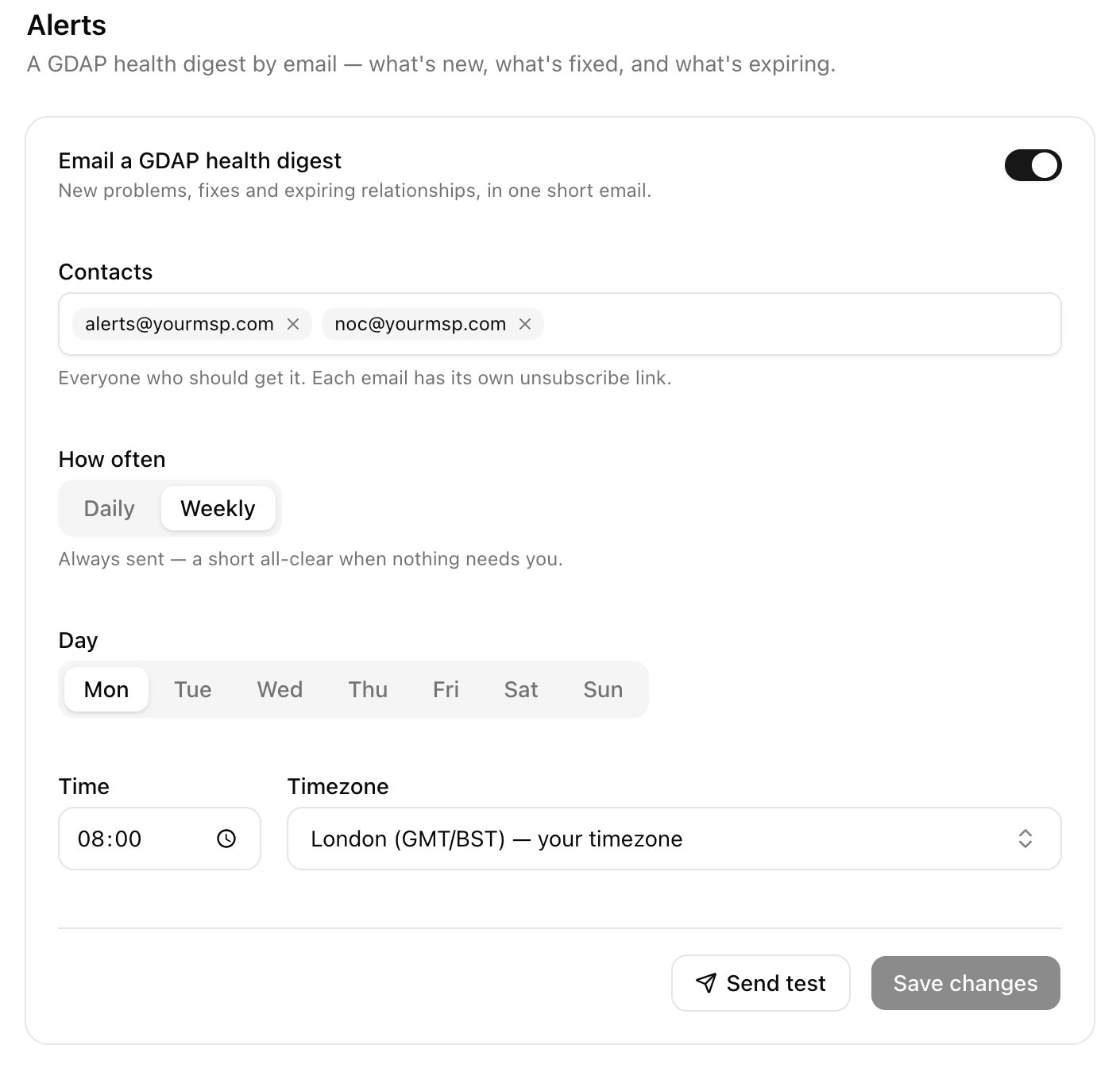 Click **Save changes**, then Send test to email one now.
Daily sends only when something changed; Weekly always sends, with an all-clear when nothing needs attention. The digest comes from `app@triggr-app.com` within 15 minutes of the time you set and lists new, fixed and ongoing problems, plus relationships expiring within 30 days. Each contact has their own Unsubscribe link; when the last contact unsubscribes, the digest turns off.
## Check Microsoft access for every client
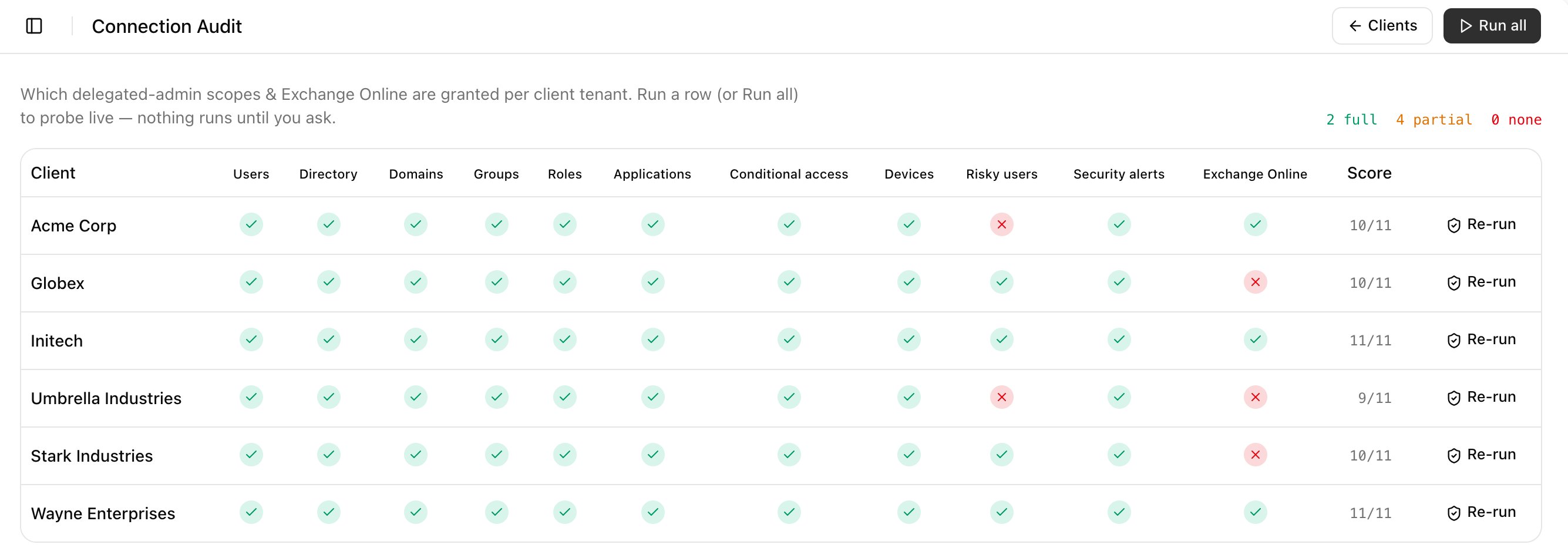
On Clients, click **Connection Audit**, then Run all. Click a cross to see the error.
Click **Save changes**, then Send test to email one now.
Daily sends only when something changed; Weekly always sends, with an all-clear when nothing needs attention. The digest comes from `app@triggr-app.com` within 15 minutes of the time you set and lists new, fixed and ongoing problems, plus relationships expiring within 30 days. Each contact has their own Unsubscribe link; when the last contact unsubscribes, the digest turns off.
## Check Microsoft access for every client
On Clients, click **Connection Audit**, then Run all. Click a cross to see the error.
 ## Troubleshooting
The message names the address or error. Correct the contact and click Save changes; Core retries hourly for up to 24 hours.
The digest only covers GDAP clients. Check Default Microsoft connection in Settings > General.
Triggr's own sign-in needs renewing: [sign in again](/core/get-started/connect-microsoft-365#connect-with-gdap) as the service account.
Connection Audit also tests reads Core's workflows don't use, such as Devices and Risky users. See the [Microsoft and GDAP FAQ](/core/reference/microsoft-faq#health-checks-and-repairs).
This documentation is built and hosted on [Mintlify](https://mintlify.com), a developer documentation platform.
## Troubleshooting
The message names the address or error. Correct the contact and click Save changes; Core retries hourly for up to 24 hours.
The digest only covers GDAP clients. Check Default Microsoft connection in Settings > General.
Triggr's own sign-in needs renewing: [sign in again](/core/get-started/connect-microsoft-365#connect-with-gdap) as the service account.
Connection Audit also tests reads Core's workflows don't use, such as Devices and Risky users. See the [Microsoft and GDAP FAQ](/core/reference/microsoft-faq#health-checks-and-repairs).
This documentation is built and hosted on [Mintlify](https://mintlify.com), a developer documentation platform.