> ## Documentation Index
> Fetch the complete documentation index at: https://university.triggr-app.com/llms.txt
> Use this file to discover all available pages before exploring further.
# Licences and distributors
> Set Core's org-wide defaults, and let User Onboarding buy an extra licence seat at your distributor when a client has none free.
## General settings
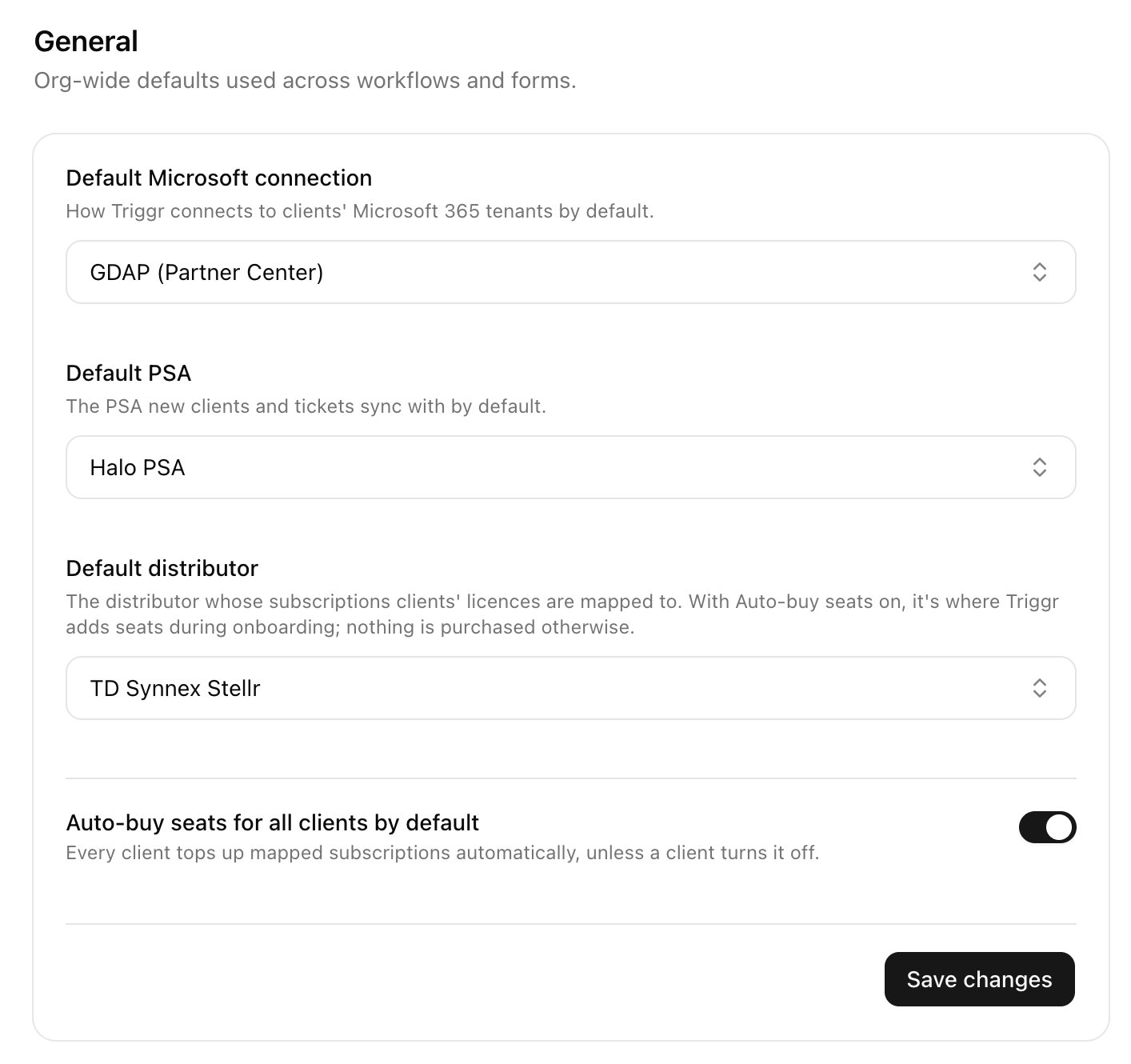
Go to **Settings > General**, change a setting and click Save changes. Default Microsoft connection and Default PSA come from the [Microsoft](/core/get-started/connect-microsoft-365#change-your-connection) and [PSA](/core/get-started/connect-your-psa#change-it-later) setups; clearing either stops the workflows that use it.
 ## Buy seats automatically
When a new starter needs a licence with no free seat, User Onboarding can buy one at your distributor.
In Integrations, set up [Pax8](/integrations/pax8), [Sherweb](/integrations/sherweb) or [TD SYNNEX StreamOne Stellr](/integrations/td-synnex/stellr), then choose it as **Default distributor** in **Settings > General**.
Open the client on Clients and click **Map** next to your distributor under Integrations.
## Buy seats automatically
When a new starter needs a licence with no free seat, User Onboarding can buy one at your distributor.
In Integrations, set up [Pax8](/integrations/pax8), [Sherweb](/integrations/sherweb) or [TD SYNNEX StreamOne Stellr](/integrations/td-synnex/stellr), then choose it as **Default distributor** in **Settings > General**.
Open the client on Clients and click **Map** next to your distributor under Integrations.
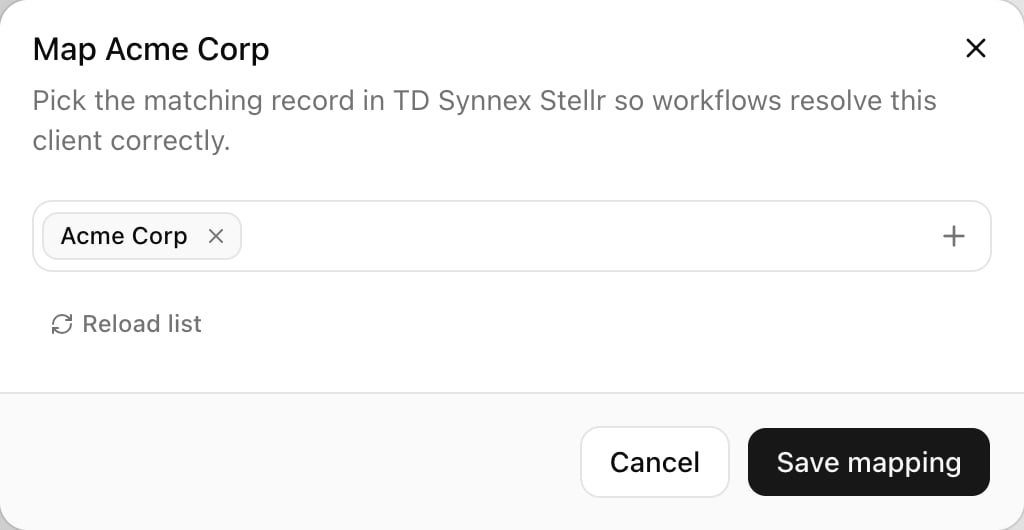
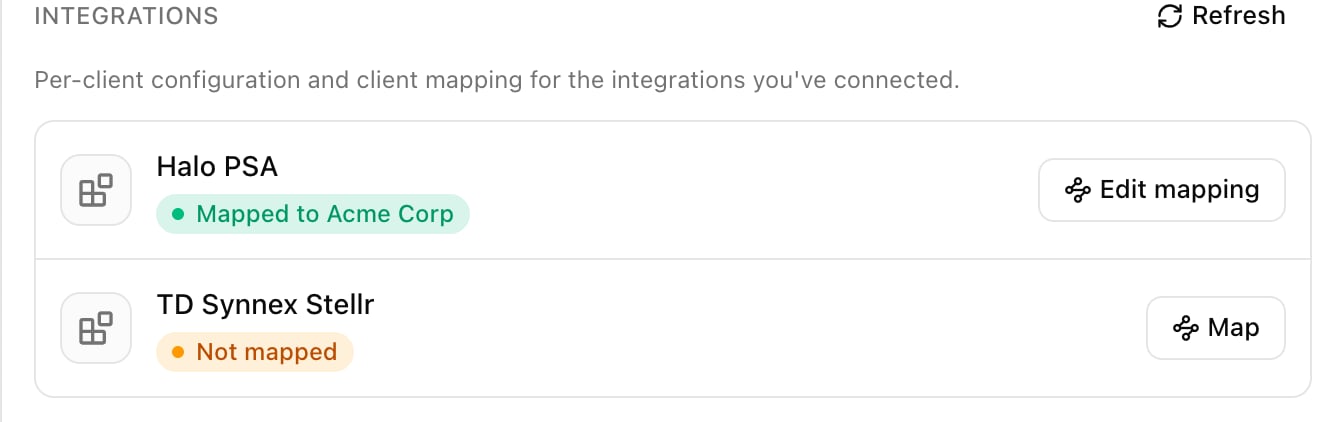 Core suggests the closest name. Click **Save mapping**. For many clients at once, use the Client Mapping card on the distributor's integration page.
 Under Distributor licenses in the same panel, check the subscription Core picked for each licence, set **Auto-buy seats** and click Save changes. Not mapped — won't auto-buy means pick a subscription; Client not linked means do the previous step.
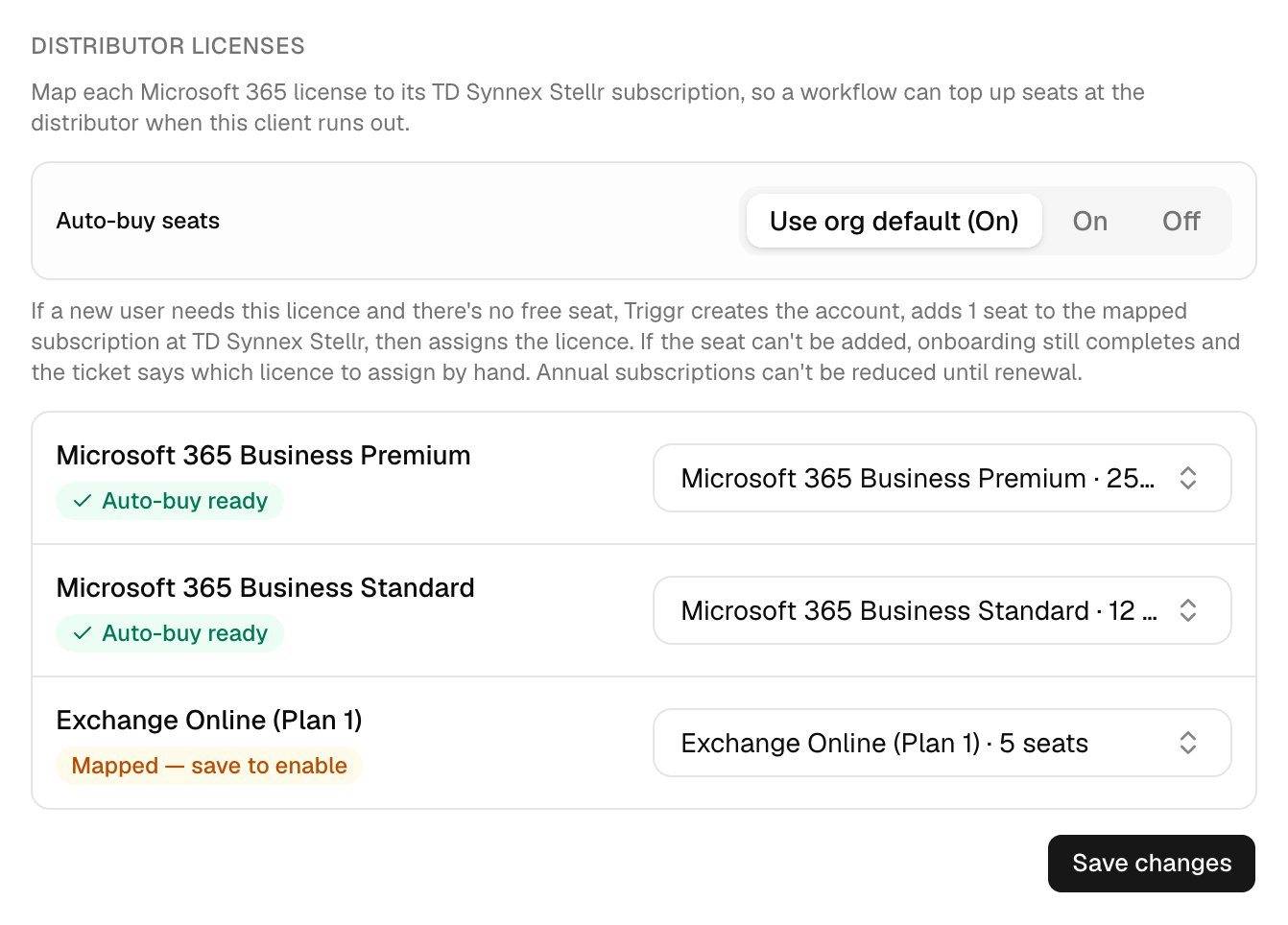 Only licences marked Auto-buy ready buy seats. The request's summary says Will buy 1 seat of *licence* at *distributor*; after approval, Top Up Licence Seats adds one seat, waits up to 10 minutes for Microsoft 365 to show it, then Core assigns the licence. A failed purchase never stops onboarding, and with Log actions to the ticket on, the ticket says what happened. Seats on annual subscriptions can't be reduced until renewal.
## Troubleshooting
Check the licence shows Auto-buy ready and Auto-buy seats is On (or Use org default (On)), then submit again.
Assign the licence once the seat appears.
Fix the reason given, then assign the licence by hand once a seat is free.
Check the subscription in your distributor's portal before buying another seat.
Any client without its own setting may then have a seat added on its next onboarding. Set Auto-buy seats to Off on clients you want to exclude.
This documentation is built and hosted on [Mintlify](https://mintlify.com), a developer documentation platform.
Only licences marked Auto-buy ready buy seats. The request's summary says Will buy 1 seat of *licence* at *distributor*; after approval, Top Up Licence Seats adds one seat, waits up to 10 minutes for Microsoft 365 to show it, then Core assigns the licence. A failed purchase never stops onboarding, and with Log actions to the ticket on, the ticket says what happened. Seats on annual subscriptions can't be reduced until renewal.
## Troubleshooting
Check the licence shows Auto-buy ready and Auto-buy seats is On (or Use org default (On)), then submit again.
Assign the licence once the seat appears.
Fix the reason given, then assign the licence by hand once a seat is free.
Check the subscription in your distributor's portal before buying another seat.
Any client without its own setting may then have a seat added on its next onboarding. Set Auto-buy seats to Off on clients you want to exclude.
This documentation is built and hosted on [Mintlify](https://mintlify.com), a developer documentation platform.