> ## Documentation Index
> Fetch the complete documentation index at: https://university.triggr-app.com/llms.txt
> Use this file to discover all available pages before exploring further.
# Approvals
> Choose who approves a workflow's requests, let them correct a request first, and see what your team and your client's approver see.
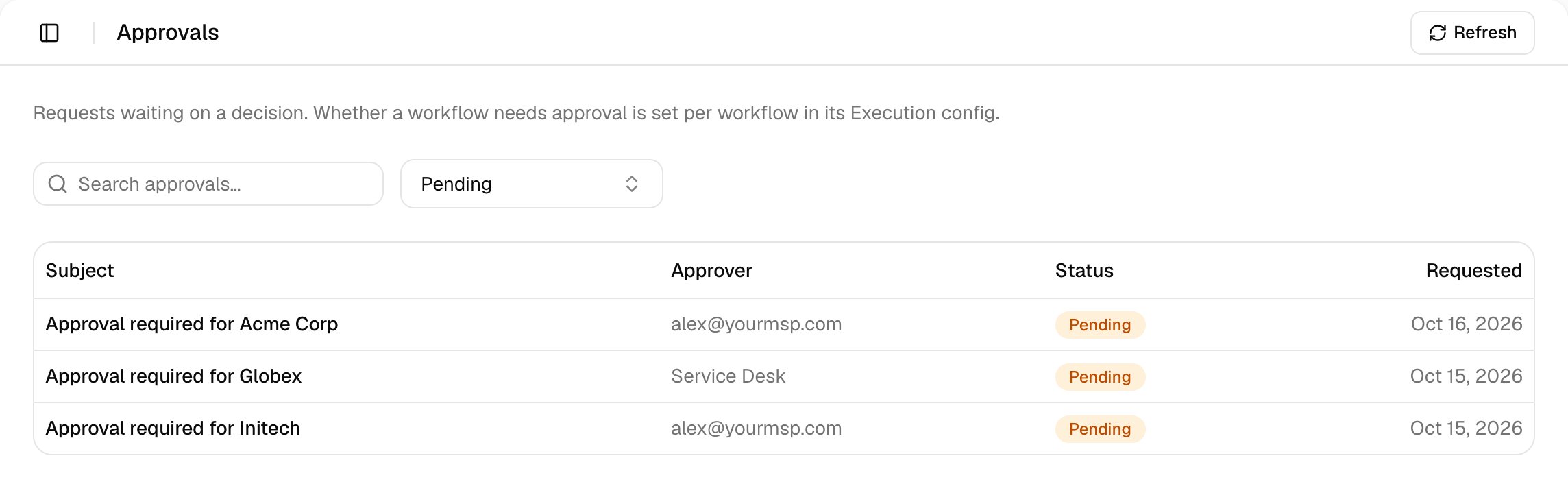
A workflow with approval waits before changing anything in the client's tenant. Your team decides internal requests on Approvals; the client's approver decides external ones from an emailed link. A request routed to a [group](#set-up-approval-groups) isn't emailed: it waits on Approvals for any member, and with Ticketing on, its PSA ticket gets a note linking to Approvals.
## Set it up
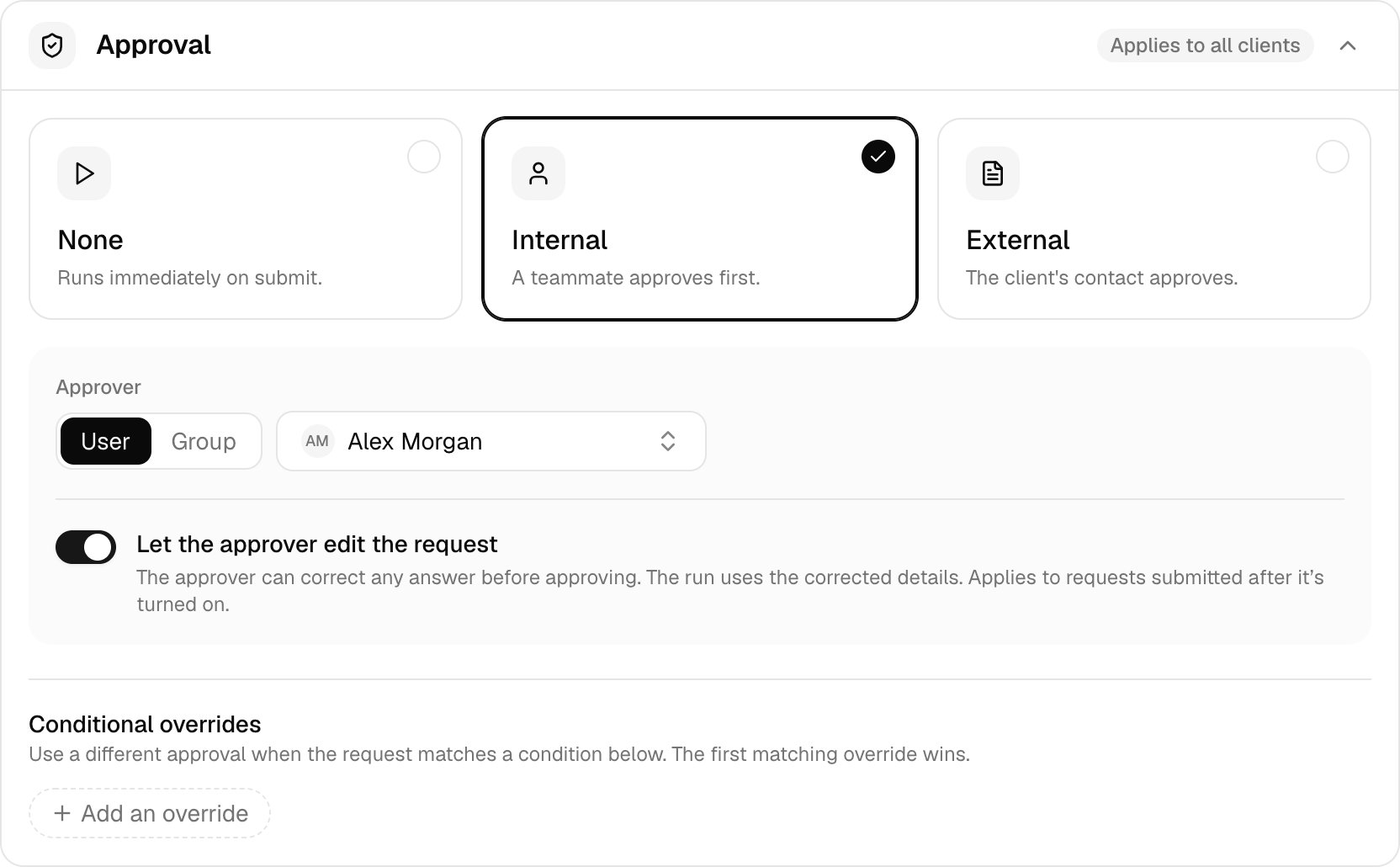
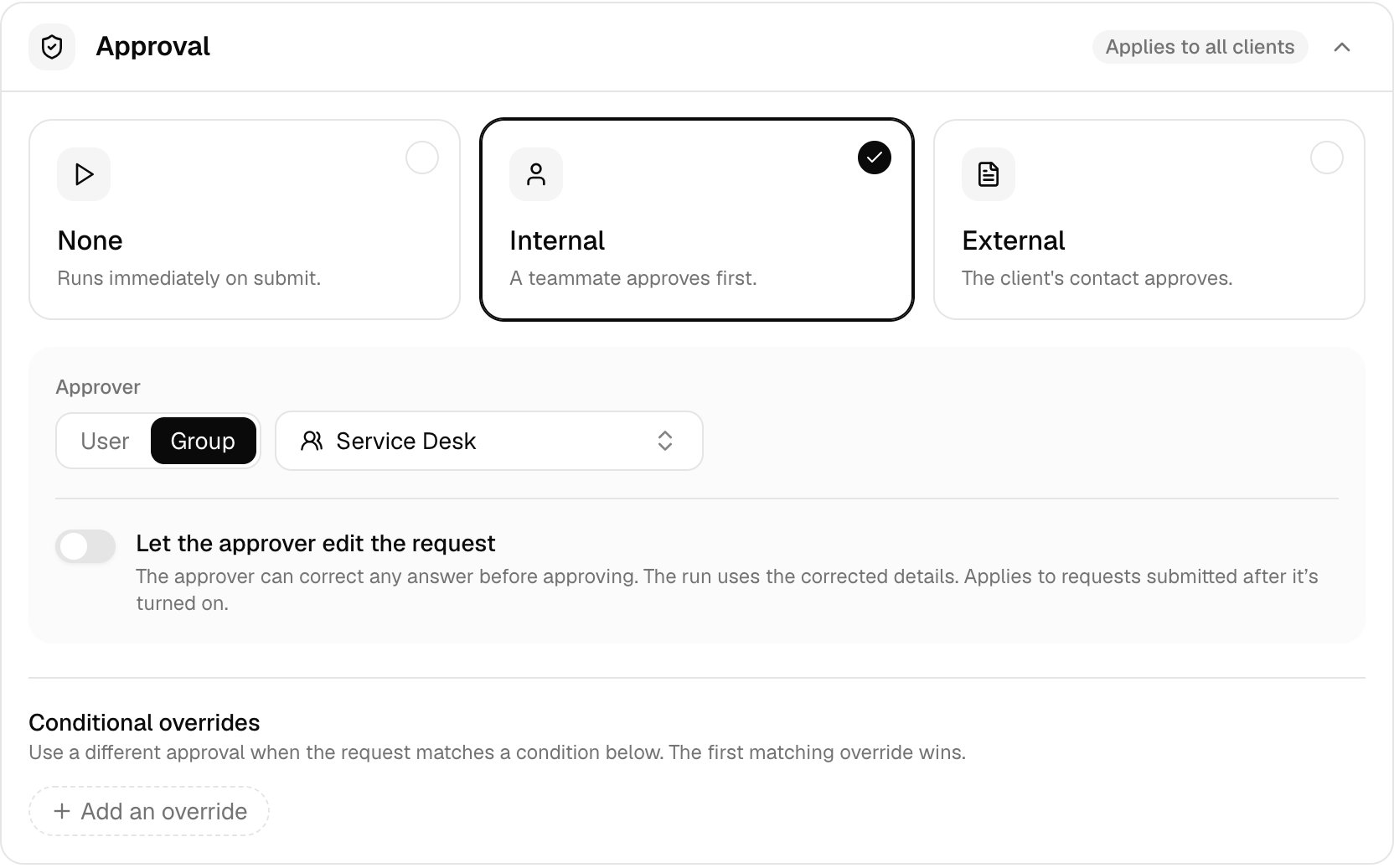
On the workflow's **Execution config** tab, choose Internal on the Approval card and pick the user or [user group](#set-up-approval-groups) who approves.
 Choose External, then pick each client in the scope dropdown, click **Override** on its Approval card and enter the Client approver name and email. Any email address can approve, without an account.
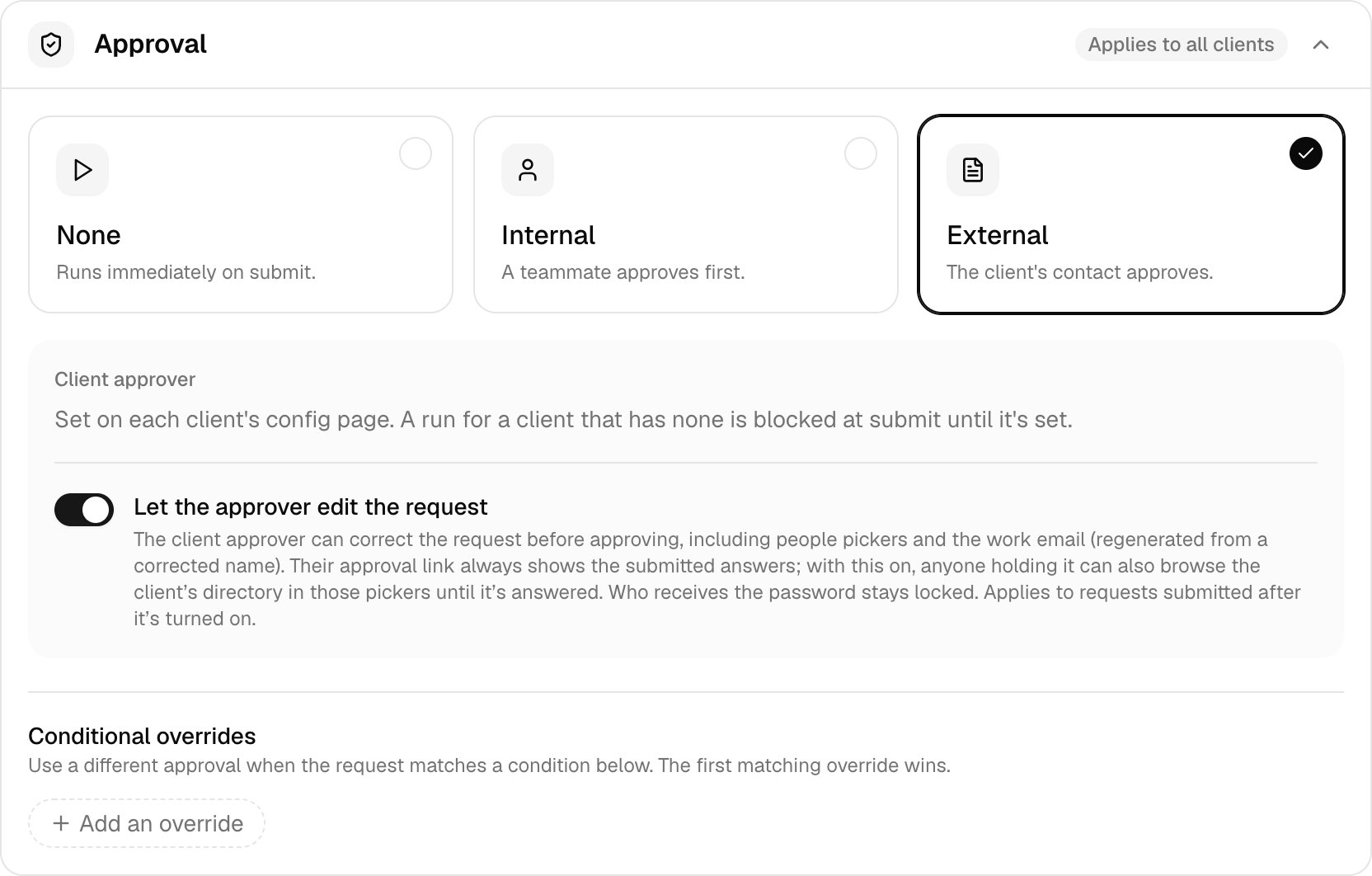
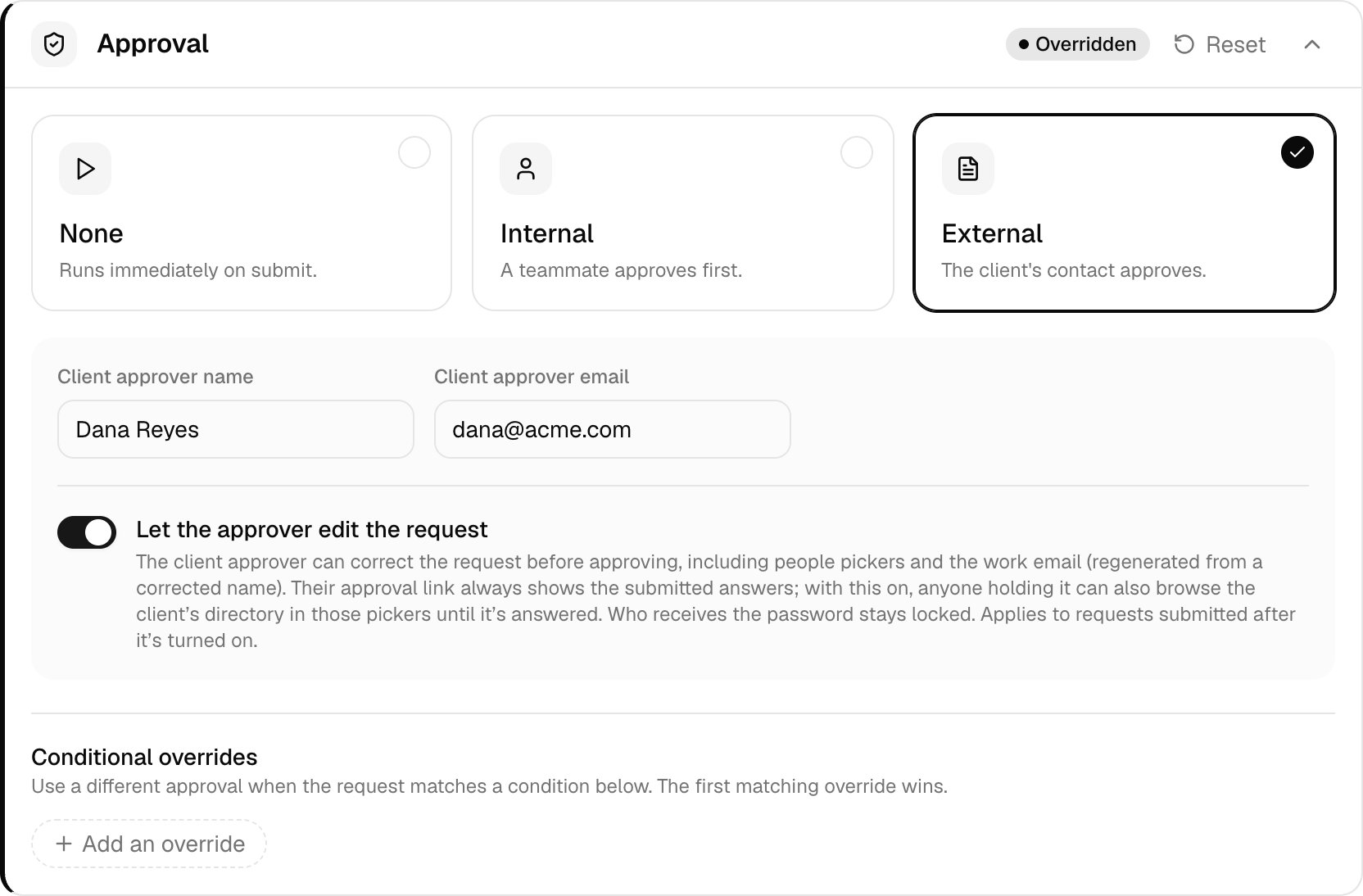 Turn on **Let the approver edit the request**. It applies to requests submitted after that; with an external approver, anyone holding the link can also browse the client's directory in the request's people pickers until it's answered.
Click **Save changes**.
To route some requests to a different approval, add a rule under Conditional overrides; the first match wins. Each override has its own Let the approver edit the request switch, off by default, and its approval replaces the default rather than adding to it. Overriding the Approval card for a client copies the base conditional overrides into that client, so later base changes to them don't reach it.
What an approver can correct, when editing is on:
| | Internal | External |
| - | - | - |
| Where | The request on Approvals | The emailed link |
| What | Any answer | Any answer except who receives a password |
| Work email | Regenerated from a corrected name | Regenerated; must be a suggested address not already in use |
| Saved | On Save changes, before approving | On approve; dropped on reject |
Core re-checks corrected answers as it would a new request, keeps any temporary password already shown, and the run uses the corrections.
## Set up approval groups
Route approvals to a group of teammates. Any member can decide a request, and the first decision settles it.
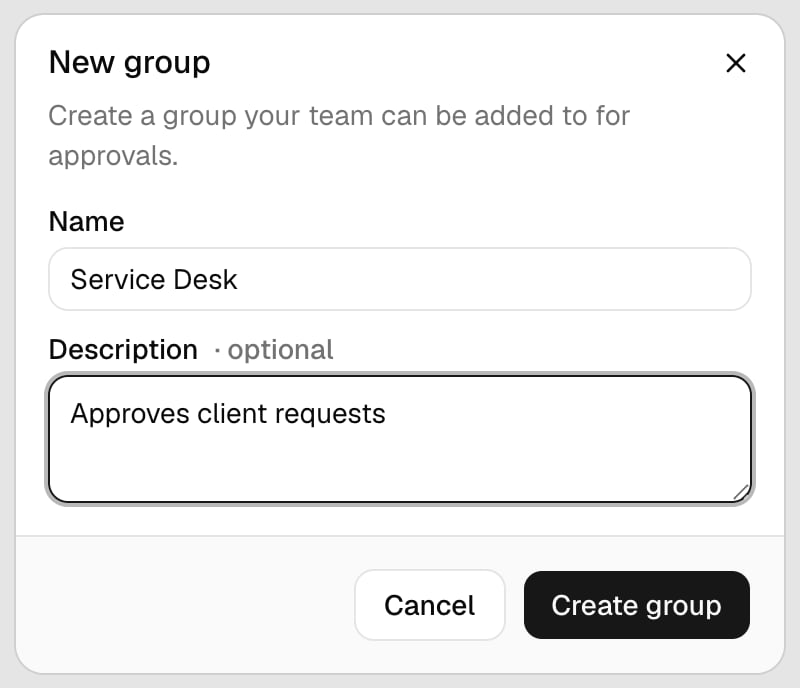
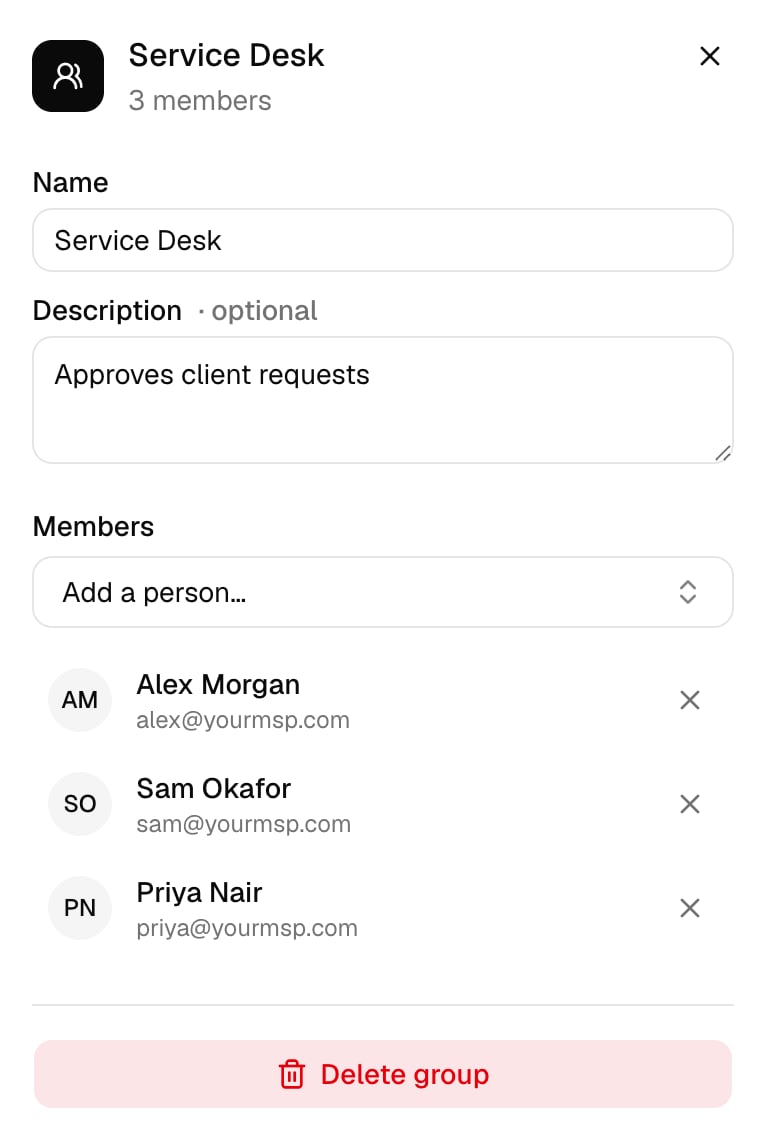
Go to **Settings > User groups**, click **New group**, enter a Name and an optional Description, and click Create group.
Turn on **Let the approver edit the request**. It applies to requests submitted after that; with an external approver, anyone holding the link can also browse the client's directory in the request's people pickers until it's answered.
Click **Save changes**.
To route some requests to a different approval, add a rule under Conditional overrides; the first match wins. Each override has its own Let the approver edit the request switch, off by default, and its approval replaces the default rather than adding to it. Overriding the Approval card for a client copies the base conditional overrides into that client, so later base changes to them don't reach it.
What an approver can correct, when editing is on:
| | Internal | External |
| - | - | - |
| Where | The request on Approvals | The emailed link |
| What | Any answer | Any answer except who receives a password |
| Work email | Regenerated from a corrected name | Regenerated; must be a suggested address not already in use |
| Saved | On Save changes, before approving | On approve; dropped on reject |
Core re-checks corrected answers as it would a new request, keeps any temporary password already shown, and the run uses the corrections.
## Set up approval groups
Route approvals to a group of teammates. Any member can decide a request, and the first decision settles it.
Go to **Settings > User groups**, click **New group**, enter a Name and an optional Description, and click Create group.
 Click the group and pick each teammate from **Add a person…**. Changes save as you go; click the cross next to someone to remove them.
 Open the workflow from Config. On Execution config, under Approval, choose Internal, set Approver to Group, pick the group and click **Save changes**. Every client inherits it unless you override the Approval card for that client. To send only some requests to the group, use a conditional override and choose Internal, Group and the group under Then.
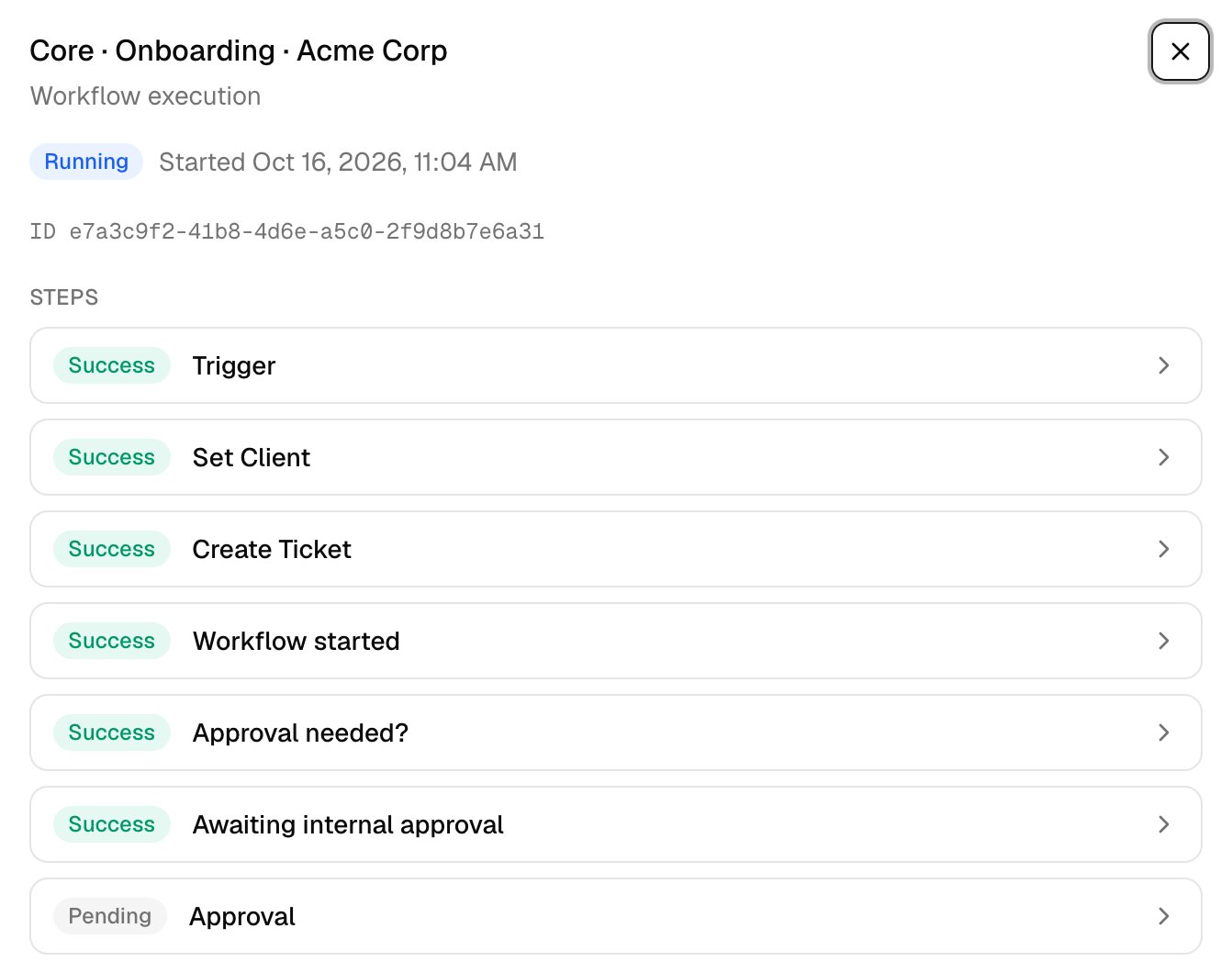
 When a request arrives, it waits on Approvals with the group's name as Approver. Group approvals aren't emailed. If the workflow creates a PSA ticket and Log actions to the ticket is on (the default), the ticket gets an internal note, Awaiting internal approval, linking to Approvals.
 Before you delete a group, choose a new approver for the workflows that use it. Requests routed to a deleted group can't be approved.
## Approve in Core
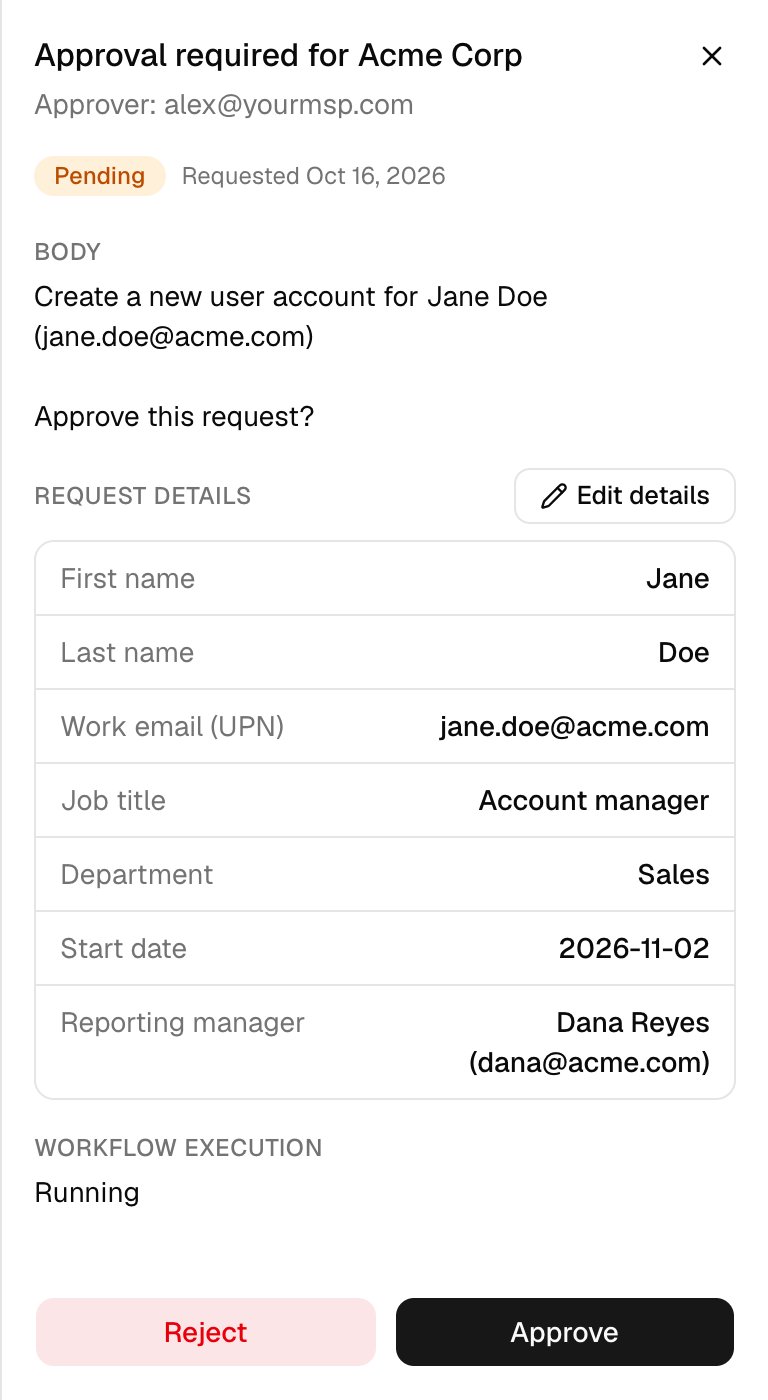
Go to **Approvals** and click a request. Only its approver, or a member of its group, can decide it.
Before you delete a group, choose a new approver for the workflows that use it. Requests routed to a deleted group can't be approved.
## Approve in Core
Go to **Approvals** and click a request. Only its approver, or a member of its group, can decide it.
 Request details lists the answers as submitted.
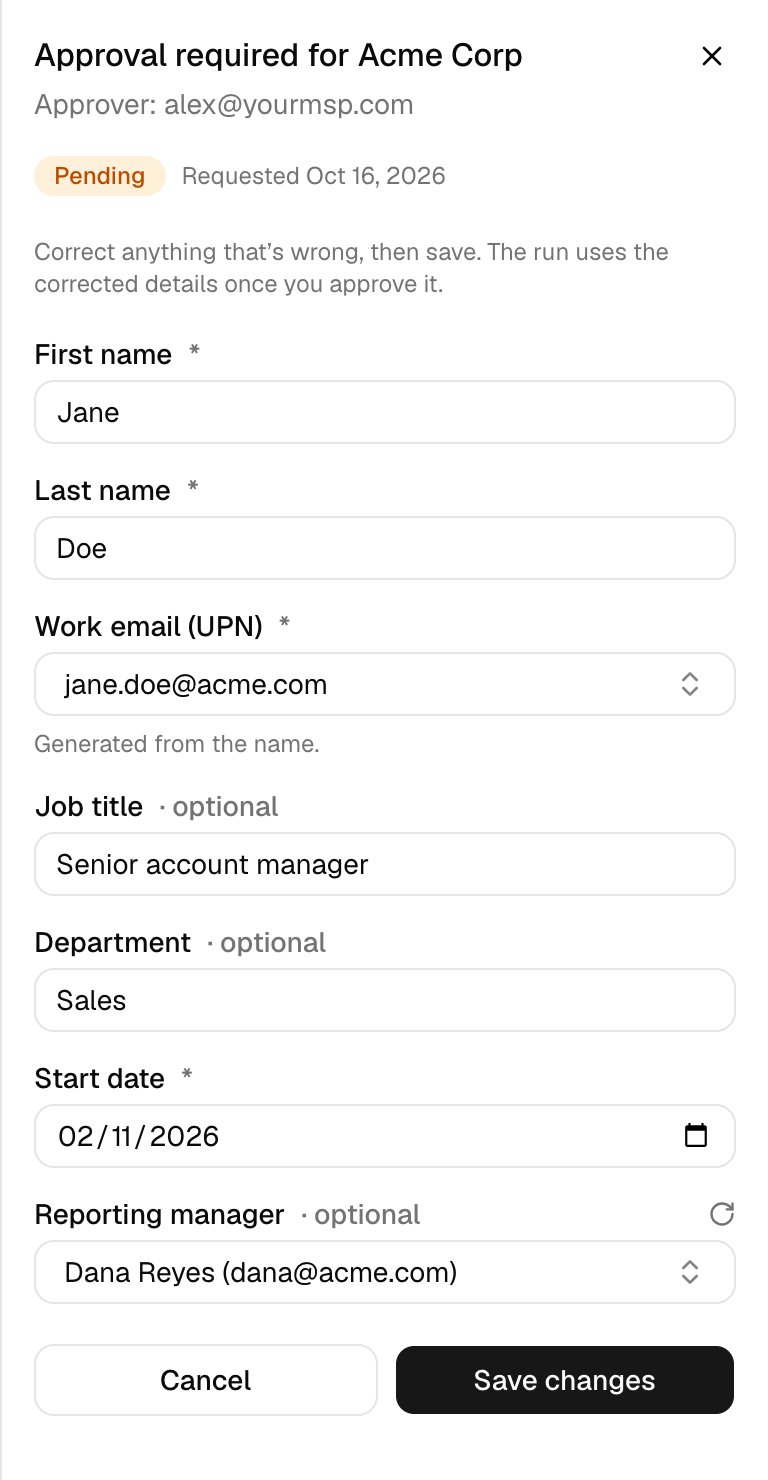
 Click **Edit details**, fix the answers and click Save changes.
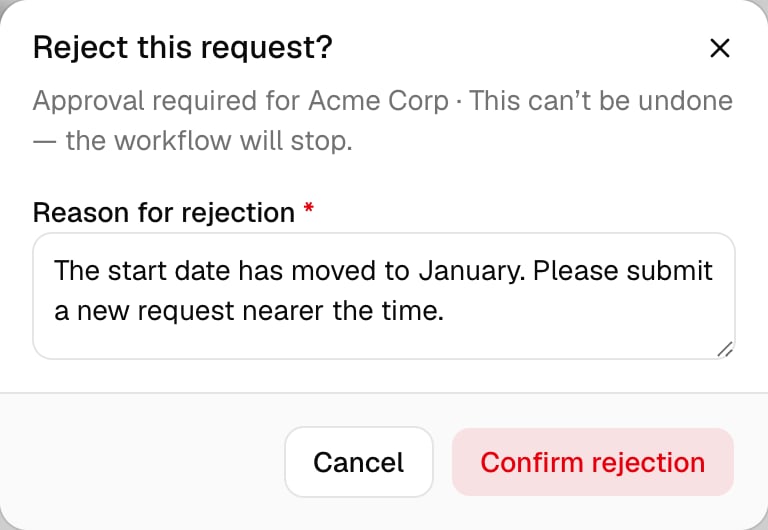
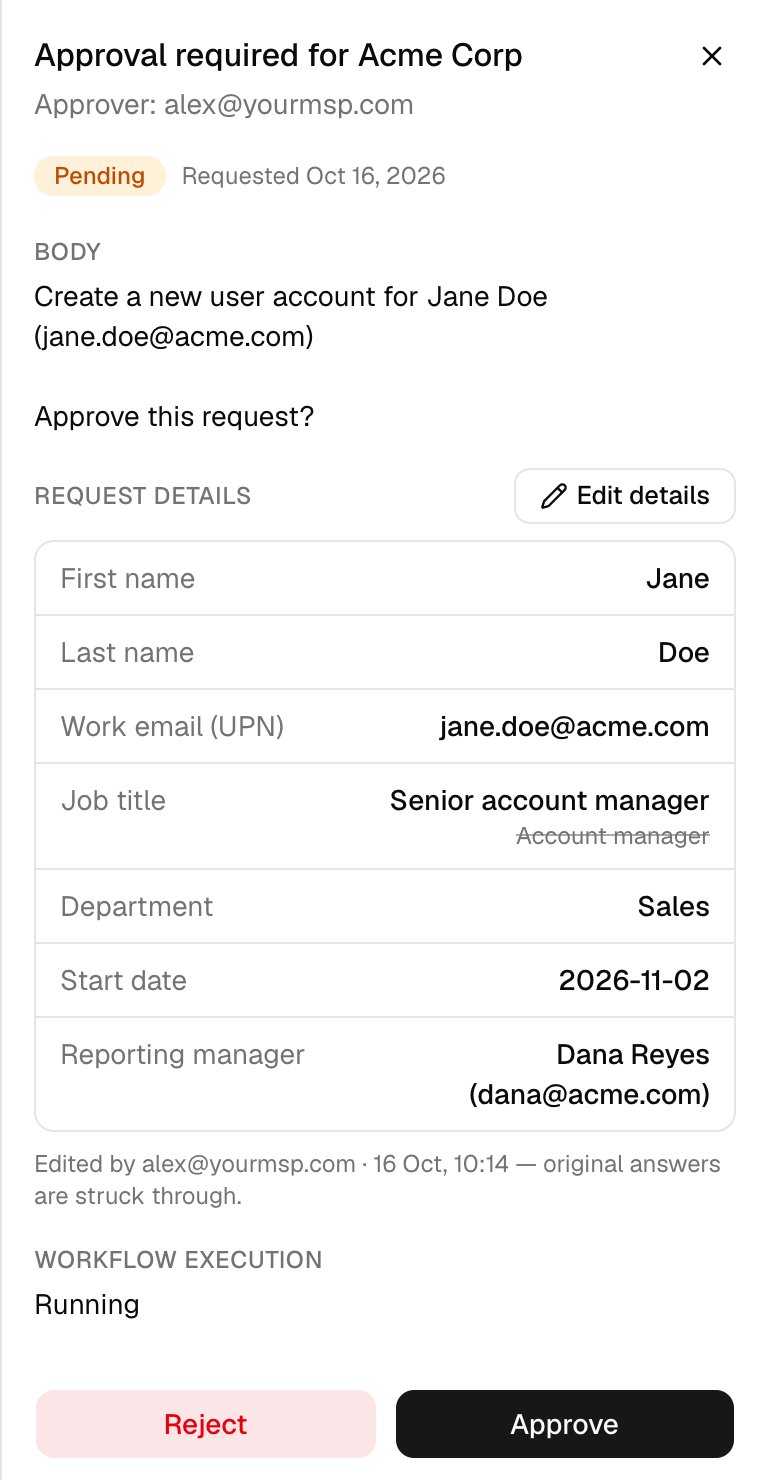 Click **Approve**. To reject, click Reject, give a reason and confirm; the run stops.
 Filter by Approved or Rejected to see past decisions, who made them and the reason.
## What the client's approver sees
External requests don't appear on Approvals. Send your clients' approvers the [Approve a request](/guides/approve-a-request) guide.
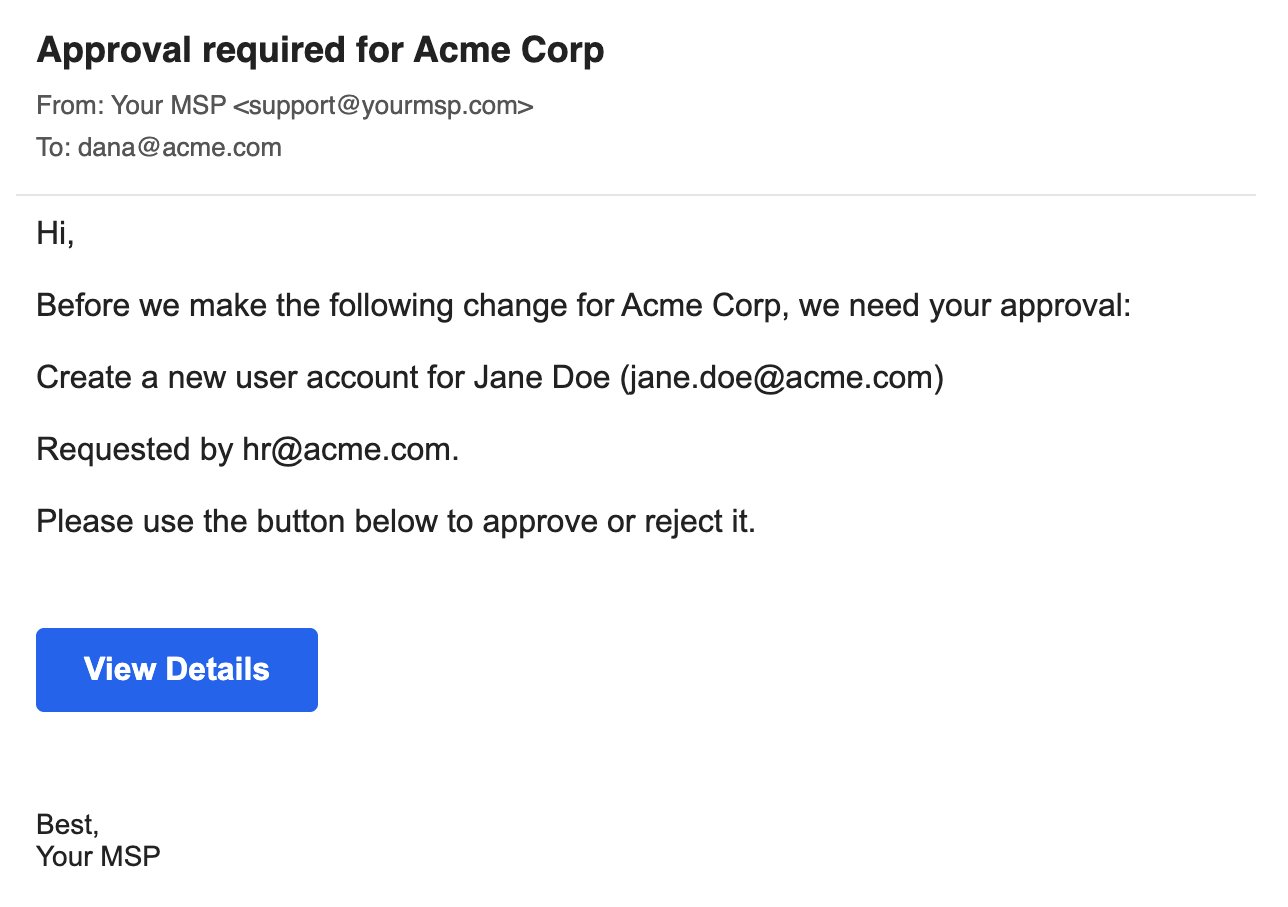
It comes from your [approval sender](/core/get-started/add-your-branding#send-client-emails-from-your-own-address-optional) and says who requested the change.
Filter by Approved or Rejected to see past decisions, who made them and the reason.
## What the client's approver sees
External requests don't appear on Approvals. Send your clients' approvers the [Approve a request](/guides/approve-a-request) guide.
It comes from your [approval sender](/core/get-started/add-your-branding#send-client-emails-from-your-own-address-optional) and says who requested the change.
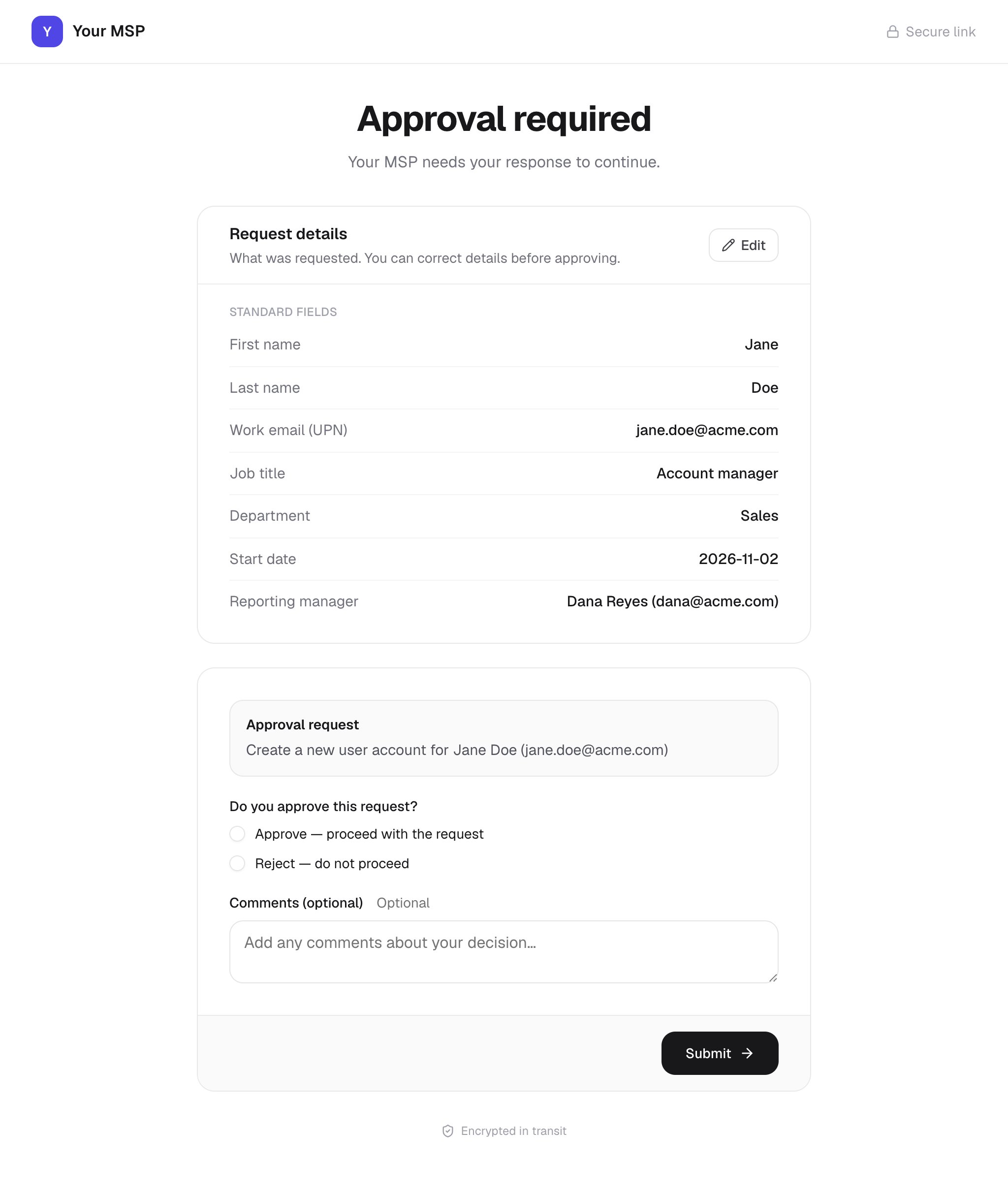
 View Details opens a page with your branding, on your [public forms domain](/core/get-started/add-your-branding#use-your-own-domain-optional) if you've set one, otherwise on Core's own address. There's no sign-in: anyone with the link can answer, and it stops working once someone has.
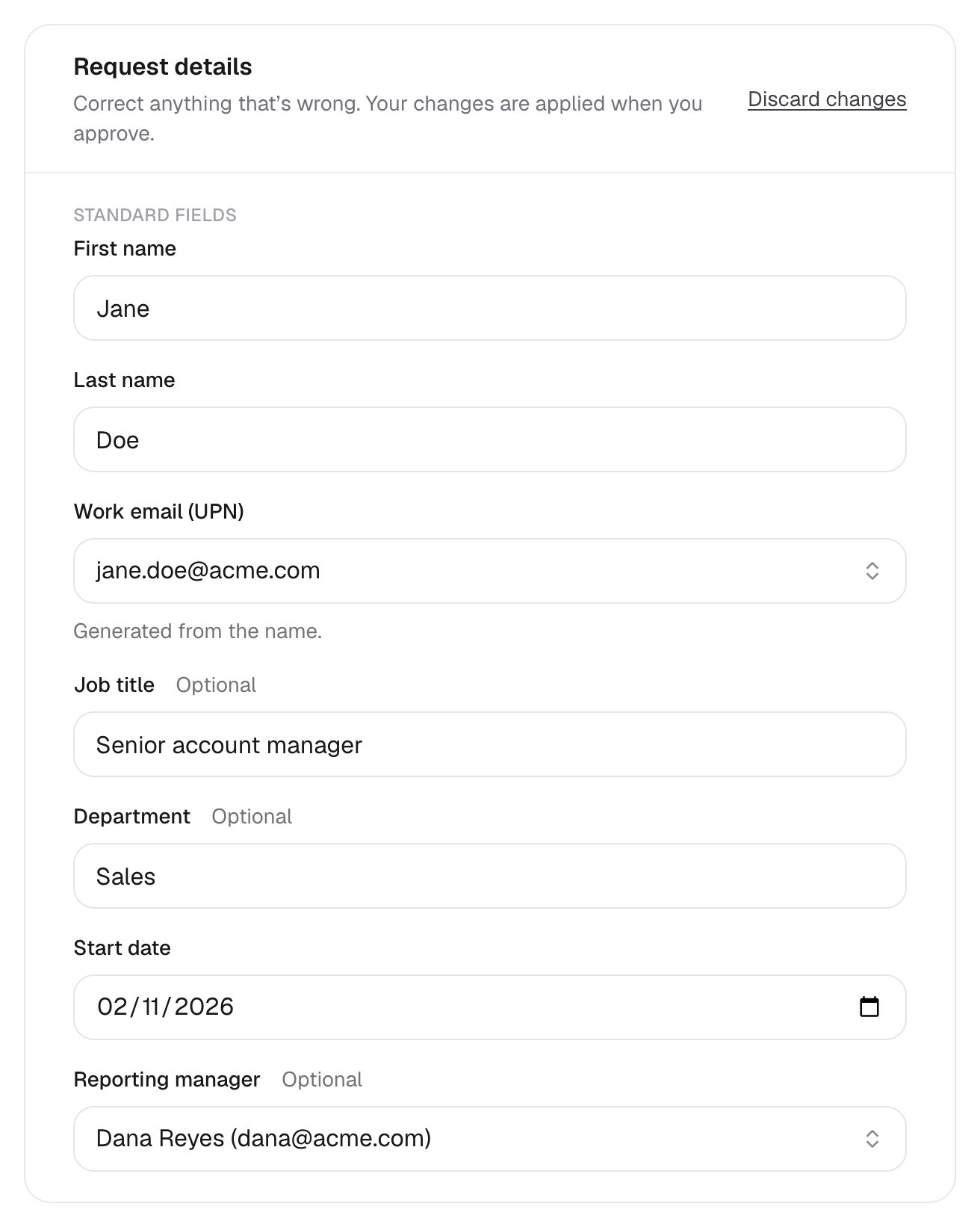
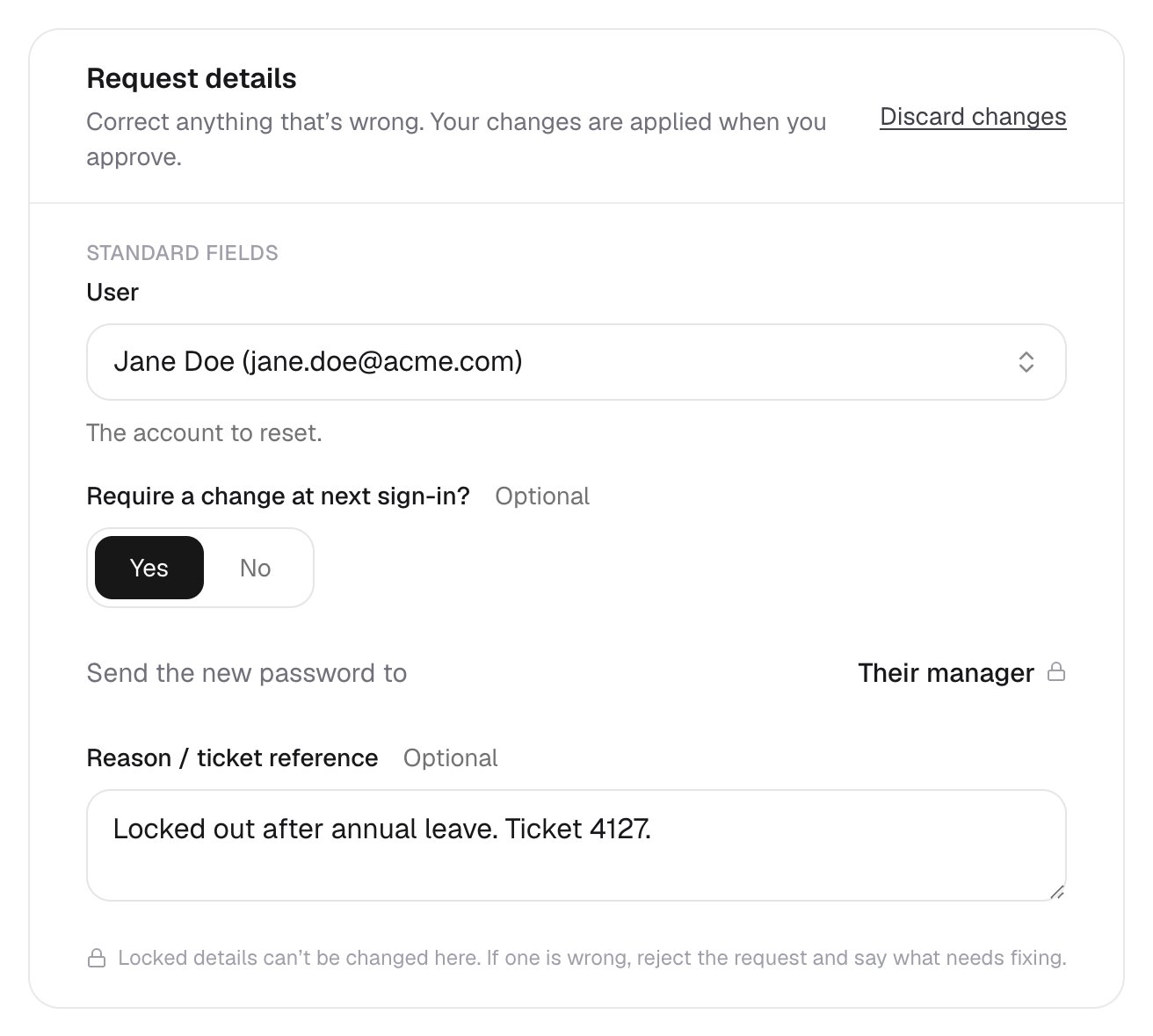
 With editing on, Edit turns the details into a form. Who receives a password isn't shown, and anything else they can't change has a padlock.
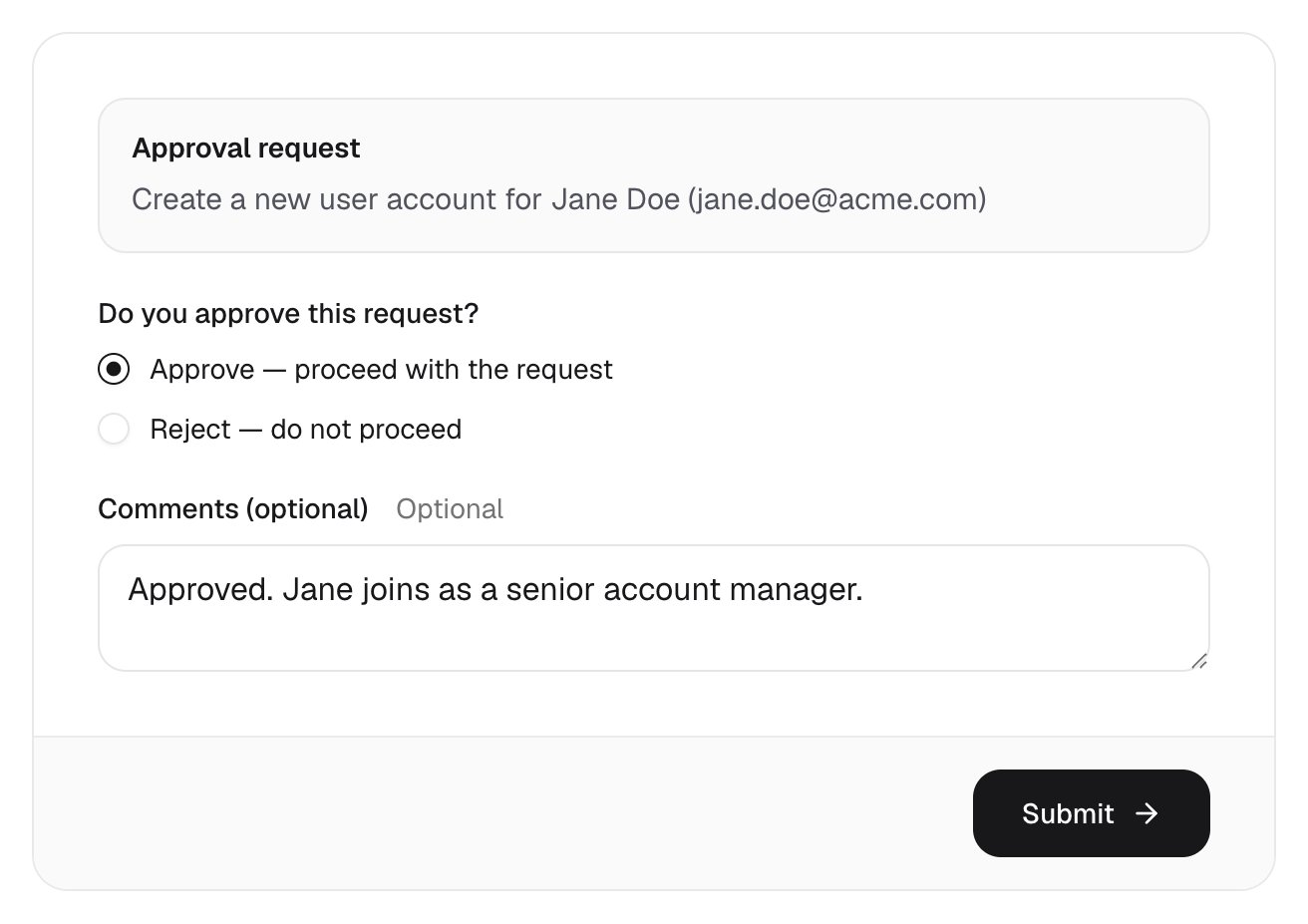
 They approve or reject, add an optional comment and click Submit. Corrections are saved only if they approve.
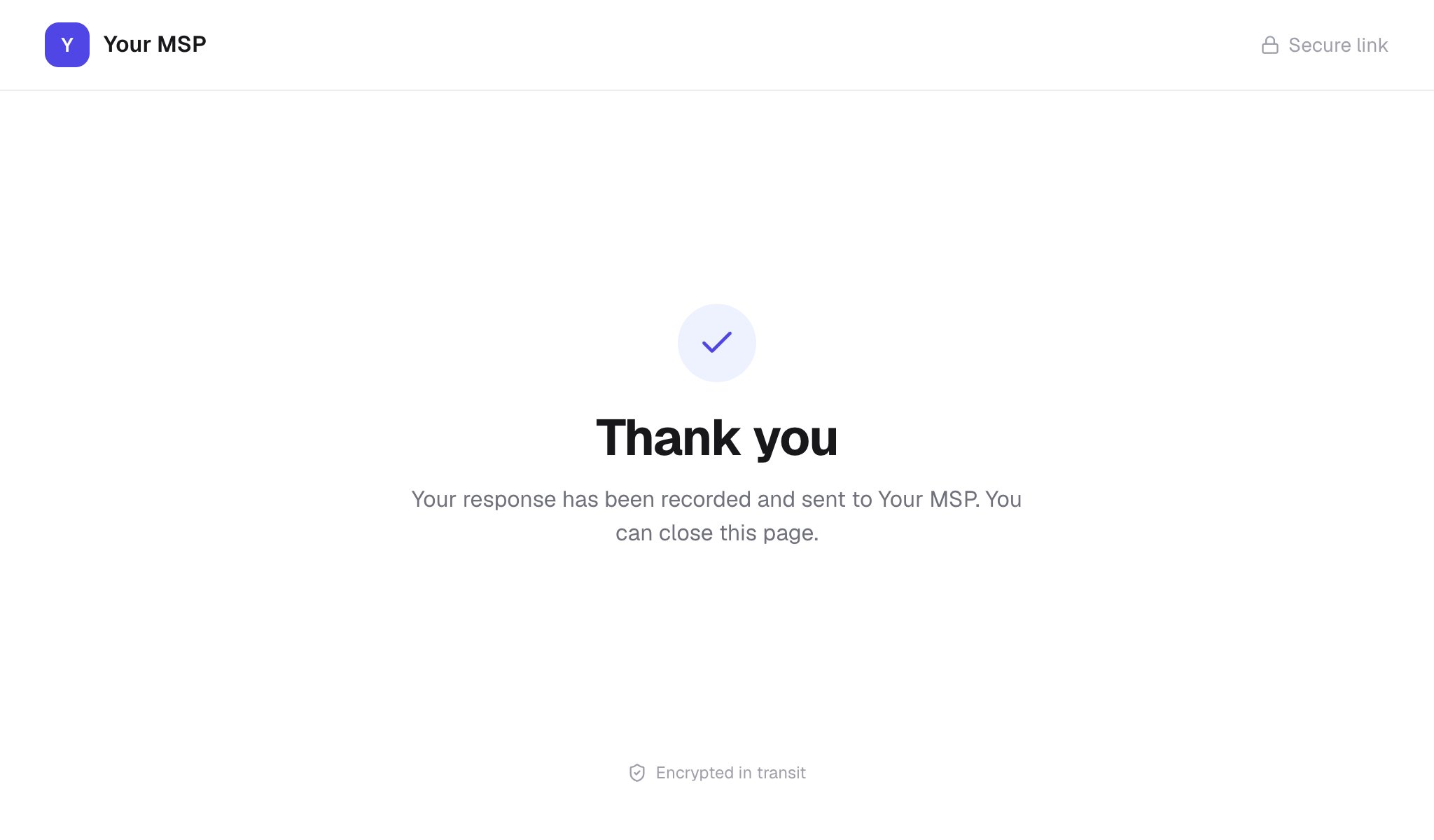
 Thank you means the answer reached Core and the run has carried on.
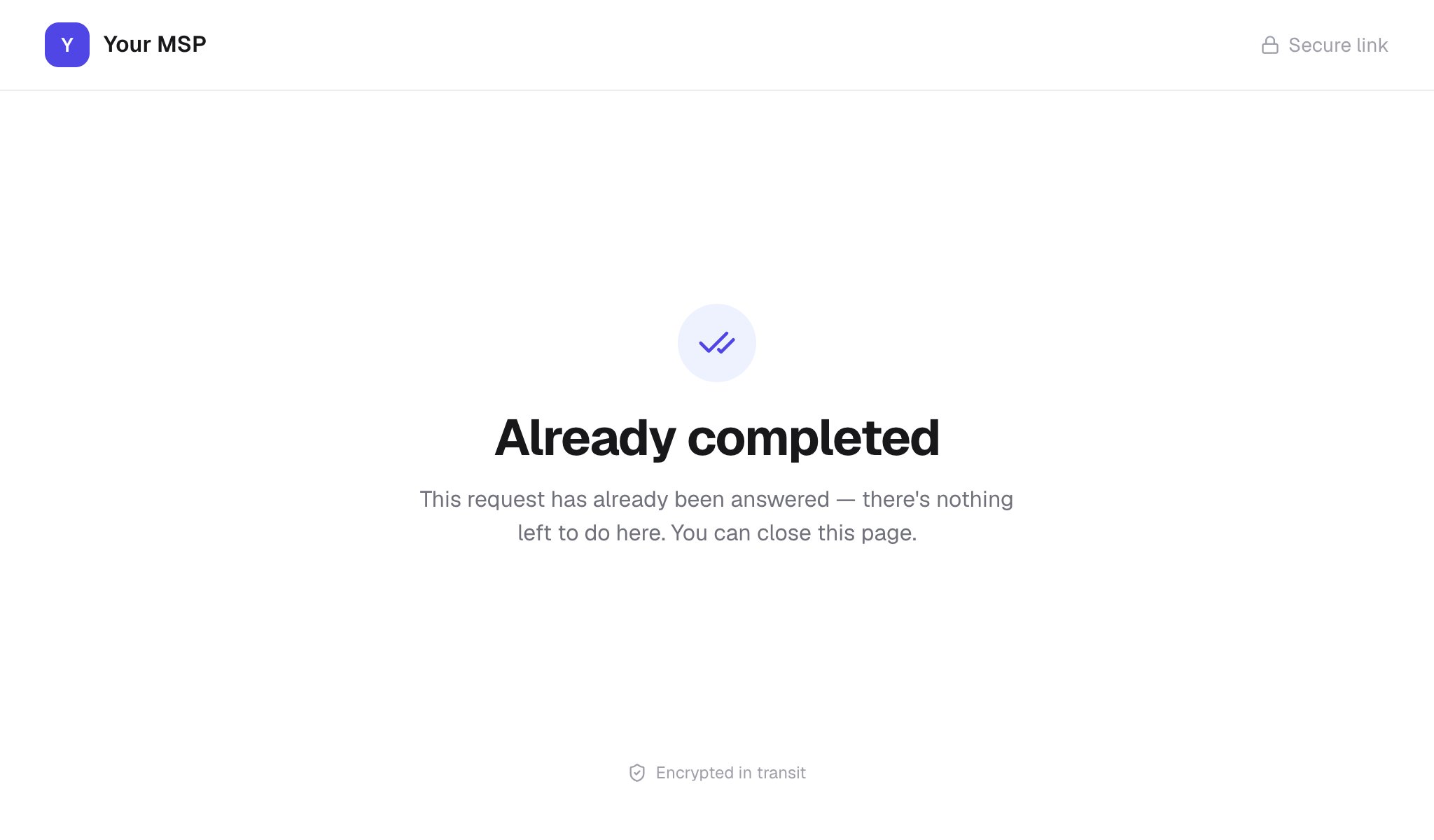
 Opening the link again shows one of these:
The request has already been answered.
Opening the link again shows one of these:
The request has already been answered.
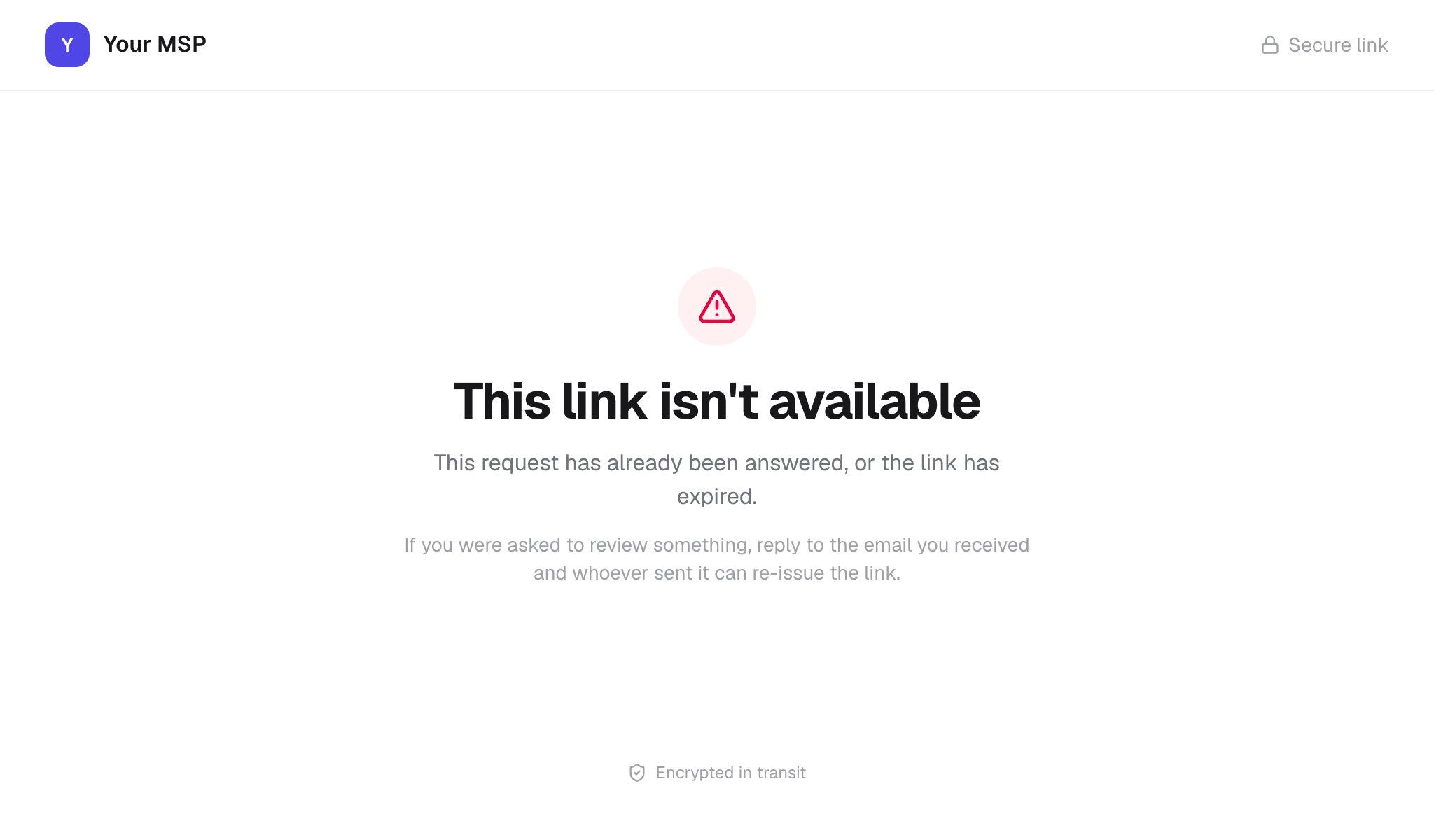 Someone answered while the page was open.
 ## After the decision
Follow the run on [Executions](/core/use/executions): an external request waits at its Client approval step, and a rejected request ends at Not Approved. With Log actions to the ticket on, the PSA ticket also gets these notes:
| Note | When |
| - | - |
| Awaiting internal approval, or Awaiting client approval | The request starts waiting; the client note names the approver's email. |
| Request corrected by the approver | After the decision, if anyone corrected it: who, and each change as `Label: before → after`. |
| Request not approved | The request was rejected. |
## Troubleshooting
The client has no approver. Override its Approval card and enter a Client approver email.
The corrected answers match a different conditional override. Reject the request and submit a new one with the corrected details.
Editing applies only to requests submitted after it was turned on, and only the request's approver can edit, while it's pending.
Only the named approver can decide it. For a group the message reads "You are not a member of the group that can approve this request": add them under **Settings > User groups**.
Check the client's Client approver email and your approval sender. Without a sending profile, ask them to check spam for mail from `app@triggr-app.com`.
Next: [Reports](/core/use/reports).
This documentation is built and hosted on [Mintlify](https://mintlify.com), a developer documentation platform.
## After the decision
Follow the run on [Executions](/core/use/executions): an external request waits at its Client approval step, and a rejected request ends at Not Approved. With Log actions to the ticket on, the PSA ticket also gets these notes:
| Note | When |
| - | - |
| Awaiting internal approval, or Awaiting client approval | The request starts waiting; the client note names the approver's email. |
| Request corrected by the approver | After the decision, if anyone corrected it: who, and each change as `Label: before → after`. |
| Request not approved | The request was rejected. |
## Troubleshooting
The client has no approver. Override its Approval card and enter a Client approver email.
The corrected answers match a different conditional override. Reject the request and submit a new one with the corrected details.
Editing applies only to requests submitted after it was turned on, and only the request's approver can edit, while it's pending.
Only the named approver can decide it. For a group the message reads "You are not a member of the group that can approve this request": add them under **Settings > User groups**.
Check the client's Client approver email and your approval sender. Without a sending profile, ask them to check spam for mail from `app@triggr-app.com`.
Next: [Reports](/core/use/reports).
This documentation is built and hosted on [Mintlify](https://mintlify.com), a developer documentation platform.