> ## Documentation Index
> Fetch the complete documentation index at: https://university.triggr-app.com/llms.txt
> Use this file to discover all available pages before exploring further.
# Executions
> Find any workflow run, check its status and see what each step did.
Executions lists every run, newest first, including public form requests. Search by the reference shown after you submit, filter by status or client, and click **Refresh** for new runs.
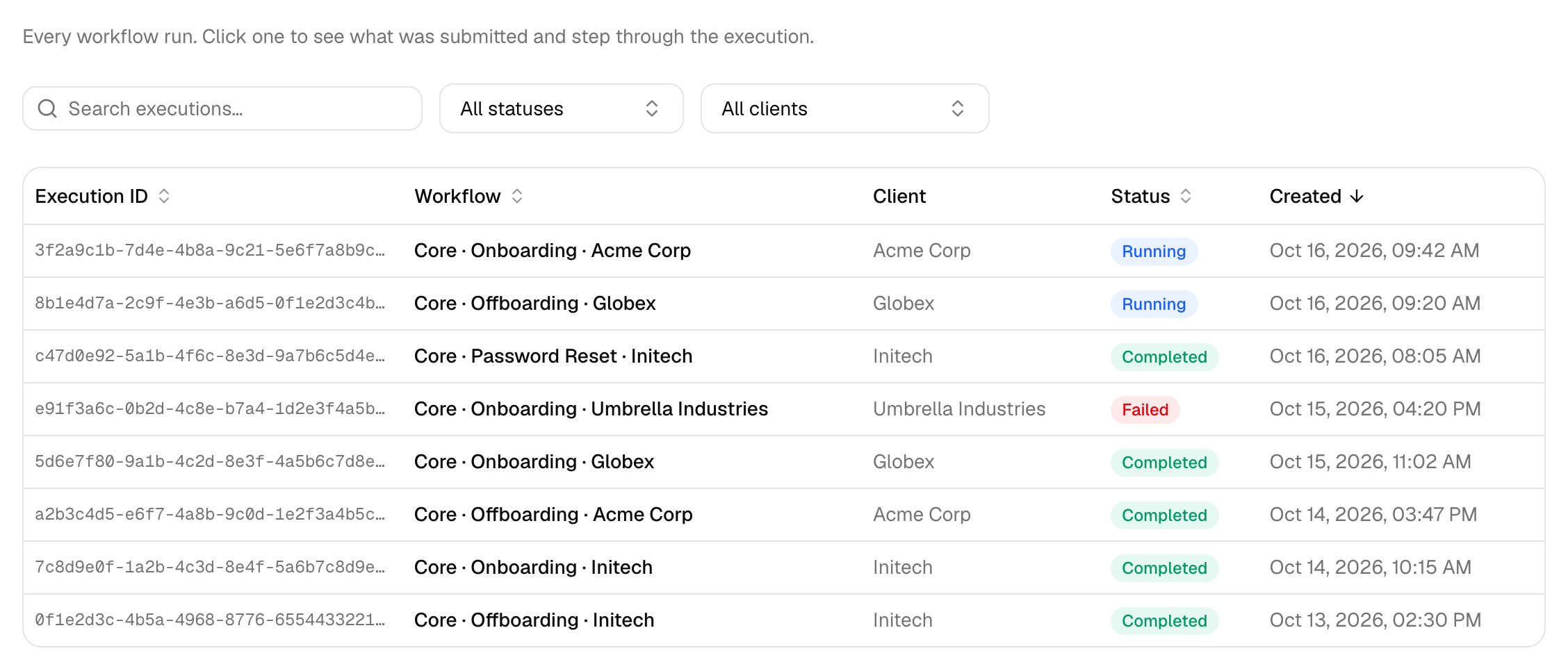 | Status | Meaning |
| - | - |
| Pending | Queued; it starts within moments. |
| Running | In progress, including while it waits for approval or a scheduled time. |
| Completed | Finished. |
| Failed | A step failed, or the request wasn't approved. |
## Open a run
Steps appear as the run reaches them. A rejected request ends at a Not Approved step.
| Status | Meaning |
| - | - |
| Pending | Queued; it starts within moments. |
| Running | In progress, including while it waits for approval or a scheduled time. |
| Completed | Finished. |
| Failed | A step failed, or the request wasn't approved. |
## Open a run
Steps appear as the run reaches them. A rejected request ends at a Not Approved step.
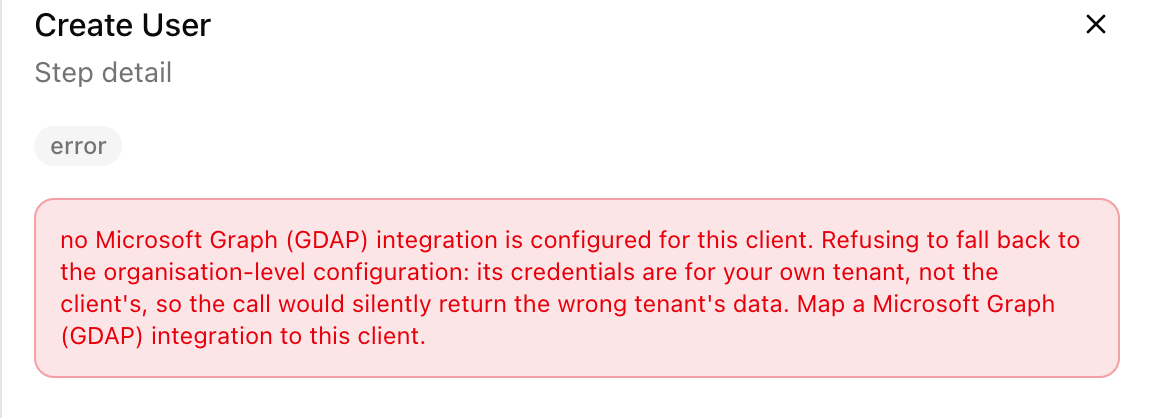
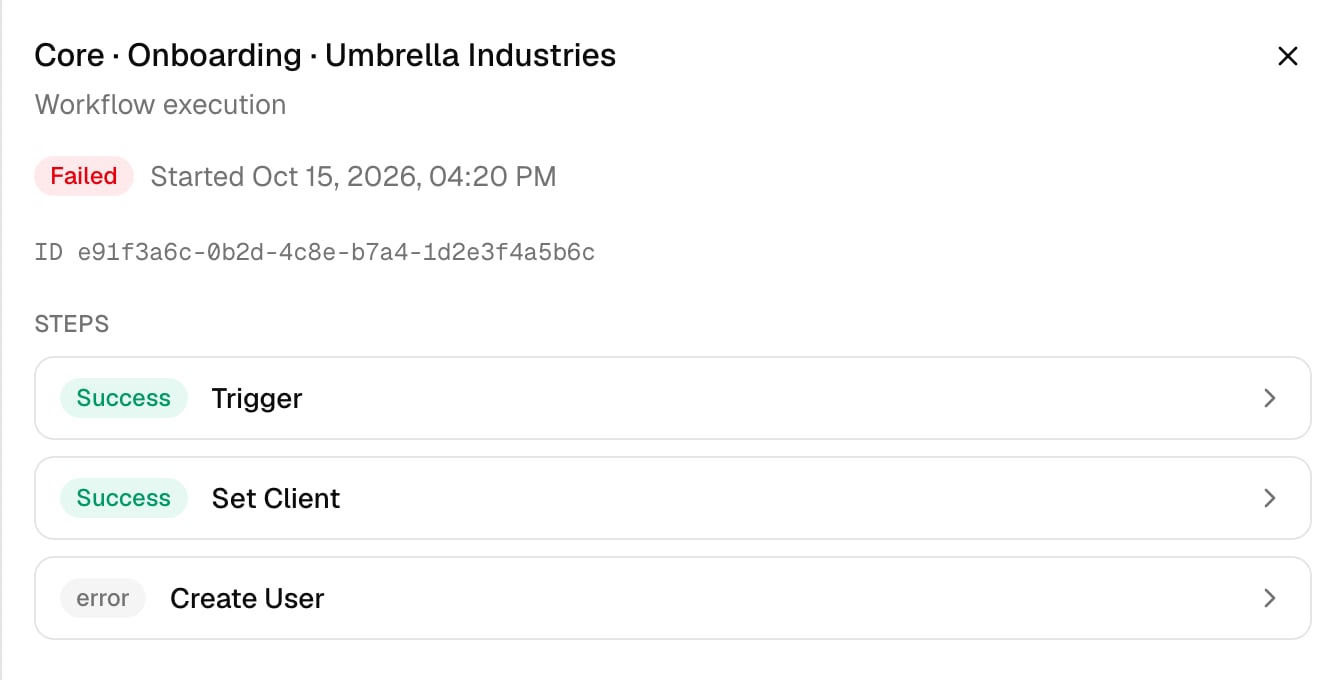 Its Output or error opens alongside.
 To approve or reject a waiting run, use [Approvals](/core/use/approvals).
## Troubleshooting
A ticketing problem never stops the work. `org.defaultPSA not found or empty` means [set Default PSA](/core/get-started/connect-your-psa#troubleshooting); a missing client ID means [map the client](/core/get-started/add-your-clients#fix-whats-not-ready) to your PSA.
The client isn't linked. Open it on Clients, click **Link to GDAP** and run the workflow again. See the [Microsoft and GDAP FAQ](/core/reference/microsoft-faq#errors-you-might-see).
It's waiting: check [Approvals](/core/use/approvals) for a pending request, or the workflow's Start date scheduling.
Next: [Approvals](/core/use/approvals).
This documentation is built and hosted on [Mintlify](https://mintlify.com), a developer documentation platform.
To approve or reject a waiting run, use [Approvals](/core/use/approvals).
## Troubleshooting
A ticketing problem never stops the work. `org.defaultPSA not found or empty` means [set Default PSA](/core/get-started/connect-your-psa#troubleshooting); a missing client ID means [map the client](/core/get-started/add-your-clients#fix-whats-not-ready) to your PSA.
The client isn't linked. Open it on Clients, click **Link to GDAP** and run the workflow again. See the [Microsoft and GDAP FAQ](/core/reference/microsoft-faq#errors-you-might-see).
It's waiting: check [Approvals](/core/use/approvals) for a pending request, or the workflow's Start date scheduling.
Next: [Approvals](/core/use/approvals).
This documentation is built and hosted on [Mintlify](https://mintlify.com), a developer documentation platform.