> ## Documentation Index
> Fetch the complete documentation index at: https://university.triggr-app.com/llms.txt
> Use this file to discover all available pages before exploring further.
# Install the desktop agent
> Deploy the Triggr desktop agent as a Windows service through your RMM.
After [generating agent credentials](/desktop-agent/generate-credentials), run this script on a machine that meets the [requirements](/desktop-agent/overview#requirements). It installs the agent as the `TriggrAgentService` Windows service in `C:\Program Files\TriggrAgent`, set to start automatically.
## Deploy through your RMM
In your RMM, set the `TriggrClientId` and `TriggrClientSecret` environment variables for the target machine to the client ID and secret you generated, then run the script as administrator. Rerun it to upgrade or reconfigure an agent: it replaces any installed service with the current version.
```powershell TriggrAgentDeploy.ps1 lines theme={null}
# This script uses environment variables for TriggrClientId and TriggrClientSecret.
$ErrorActionPreference = "Stop"
$AgentUrl = "https://triggr-agent.s3.eu-west-2.amazonaws.com/TriggrAgentService.exe"
$ServiceName = "TriggrAgentService"
$ExeName = "TriggrAgentService.exe"
$InstallPath = "C:\Program Files\TriggrAgent"
# Get variables from Datto RMM environment variables
$ClientId = $env:TriggrClientId
$ClientSecret = $env:TriggrClientSecret
Write-Host "Starting Triggr Agent Service deployment"
Write-Host "Agent URL: $AgentUrl"
Write-Host "Client ID: $ClientId"
Write-Host "Install Path: $InstallPath"
# Step 1: Check if running as Administrator
Write-Host "Checking administrator privileges..."
if (-NOT ([Security.Principal.WindowsPrincipal] [Security.Principal.WindowsIdentity]::GetCurrent()).IsInRole([Security.Principal.WindowsBuiltInRole] "Administrator")) {
Write-Host "ERROR: This script must be run as Administrator"
exit 2
}
Write-Host "Administrator privileges confirmed"
# Step 2: Create installation directory
Write-Host "Creating installation directory: $InstallPath"
if (!(Test-Path $InstallPath)) {
New-Item -ItemType Directory -Path $InstallPath -Force | Out-Null
Write-Host "Installation directory created"
} else {
Write-Host "Installation directory already exists"
}
# Step 3: Stop and uninstall existing service if it exists
$finalExePath = Join-Path $InstallPath $ExeName
Write-Host "Checking for existing service installation..."
try {
$existingService = Get-Service -Name $ServiceName -ErrorAction SilentlyContinue
if ($existingService) {
Write-Host "Existing service found. Stopping and uninstalling..."
if ($existingService.Status -eq "Running") {
Write-Host "Stopping existing service..."
Stop-Service -Name $ServiceName -Force -ErrorAction SilentlyContinue
Start-Sleep -Seconds 5
}
Write-Host "Uninstalling existing service..."
& $finalExePath -uninstall | Out-Null
Start-Sleep -Seconds 3
} else {
Write-Host "No existing service found"
}
} catch {
Write-Host "WARNING: Error handling existing service: $($_.Exception.Message)"
}
# Step 4: Download the executable directly to final location
Write-Host "Downloading Triggr Agent Service from: $AgentUrl"
# Force modern TLS for WinPS 5.1
[Net.ServicePointManager]::SecurityProtocol = [Net.SecurityProtocolType]::Tls12
try {
if (Test-Path $finalExePath) {
Remove-Item $finalExePath -Force
}
Invoke-WebRequest -Uri $AgentUrl -OutFile $finalExePath -UseBasicParsing
Write-Host "Download completed successfully"
if (!(Test-Path $finalExePath)) {
Write-Host "ERROR: Downloaded file not found at: $finalExePath"
exit 3
}
$fileSize = (Get-Item $finalExePath).Length
Write-Host "Downloaded file size: $fileSize bytes"
} catch {
Write-Host "ERROR: Failed to download agent: $($_.Exception.Message)"
exit 3
}
# Step 5: Configure credentials
Write-Host "Configuring service credentials..."
try {
$configArgs = @(
"-client-id", "`"$ClientId`"",
"-client-secret", "`"$ClientSecret`""
)
Write-Host "Running: $finalExePath $($configArgs -join ' ')"
$configResult = & $finalExePath $configArgs 2>&1
if ($LASTEXITCODE -ne 0) {
Write-Host "ERROR: Failed to configure credentials. Exit code: $LASTEXITCODE. Output: $configResult"
exit 5
}
Write-Host "Credentials configured successfully"
Write-Host "Configuration output: $configResult"
} catch {
Write-Host "ERROR: Failed to configure credentials: $($_.Exception.Message)"
exit 5
}
# Step 6: Install the service
Write-Host "Installing Windows service..."
try {
$installResult = & $finalExePath -install 2>&1
if ($LASTEXITCODE -ne 0) {
Write-Host "ERROR: Failed to install service. Exit code: $LASTEXITCODE. Output: $installResult"
exit 6
}
Write-Host "Service installed successfully"
Write-Host "Installation output: $installResult"
} catch {
Write-Host "ERROR: Failed to install service: $($_.Exception.Message)"
exit 6
}
# Step 7: Wait for service to be ready
Write-Host "Waiting for service to be ready..."
Start-Sleep -Seconds 30
# Step 8: Start the service
Write-Host "Starting Windows service..."
try {
$startResult = & $finalExePath -start 2>&1
if ($LASTEXITCODE -ne 0) {
Write-Host "ERROR: Failed to start service. Exit code: $LASTEXITCODE. Output: $startResult"
exit 7
}
Write-Host "Service started successfully"
Write-Host "Start output: $startResult"
} catch {
Write-Host "ERROR: Failed to start service: $($_.Exception.Message)"
exit 7
}
# Step 9: Verify service is running
Write-Host "Verifying service status..."
Start-Sleep -Seconds 10
try {
$service = Get-Service -Name $ServiceName -ErrorAction Stop
Write-Host "Service status: $($service.Status)"
if ($service.Status -ne "Running") {
Write-Host "ERROR: Service is not running. Current status: $($service.Status)"
exit 8
}
Write-Host "Service verification successful"
} catch {
Write-Host "ERROR: Failed to verify service status: $($_.Exception.Message)"
exit 8
}
# Step 10: Show service information
Write-Host "Retrieving service information..."
try {
$infoResult = & $finalExePath -info 2>&1
Write-Host "Service information:"
Write-Host $infoResult
} catch {
Write-Host "WARNING: Could not retrieve service information: $($_.Exception.Message)"
}
# Step 11: Cleanup
Write-Host "No cleanup needed - file downloaded directly to final location"
Write-Host "Deployment completed successfully!"
Write-Host "Service Name: $ServiceName"
Write-Host "Installation Path: $InstallPath"
Write-Host "Service Status: Running"
```
## Exit codes
Your RMM can report the step that failed from the exit code.
| Code | Meaning |
| - | - |
| `2` | The script is not running as administrator. |
| `3` | The agent download failed. |
| `5` | Configuring the credentials failed. |
| `6` | The Windows service could not be installed. |
| `7` | The Windows service could not be started. |
| `8` | The service is not running after start-up. |
## Check it's connected
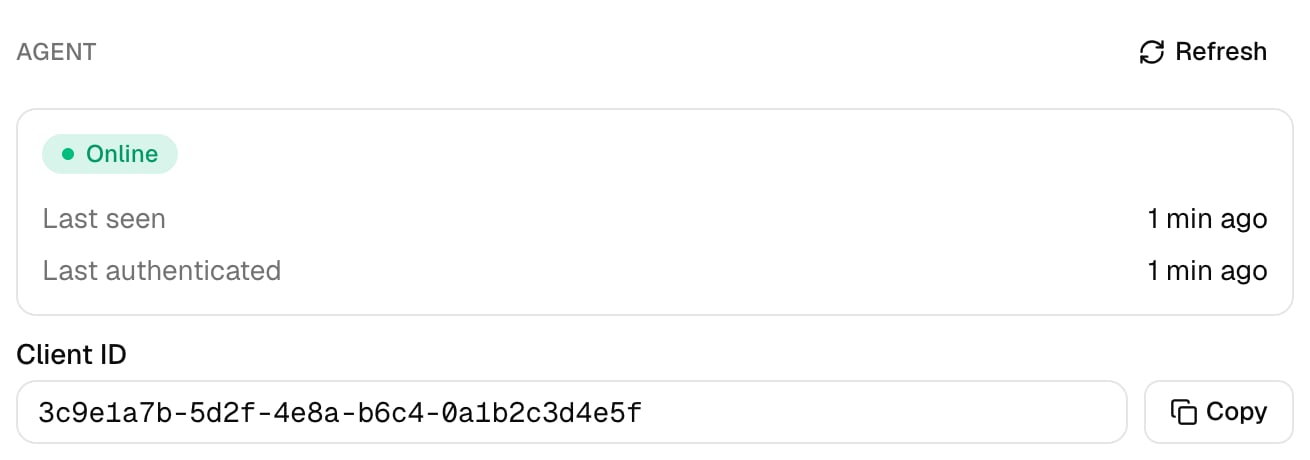
Within a few minutes the client shows the agent Online: under Agent Summary in Studio, or in the client's Agent section in Core (click Refresh). Then run a workflow with an Execute PowerShell step for that client.
 ## Troubleshooting
On the machine, run `& "C:\Program Files\TriggrAgent\TriggrAgentService.exe" -status`, then read `C:\ProgramData\TriggrAgent\logs\service.log` (or run the same command with `-view-logs`). `authentication failed with status 401`: the client ID or secret is wrong or revoked, so rerun the script with the right values. `failed to send request`: the machine can't reach `api.triggr-app.com` over HTTPS.
The machine can't reach `triggr-agent.s3.eu-west-2.amazonaws.com` over HTTPS, or TLS 1.2 is disabled. Allow the download in your web filter and try again.
The script couldn't save the agent's config file. Check it ran as administrator and that `TriggrClientId` and `TriggrClientSecret` are set for the machine, not just for your RMM session. Wrong values don't fail this step; they show up later as an authentication error in the log.
The service runs as Local System on that machine. Install it on a domain controller, or change the service's **Log On** account in Services to one with the rights your scripts need, and install the modules they use.
The agent stops a script after 10 minutes. Split long jobs into several steps.
This documentation is built and hosted on [Mintlify](https://mintlify.com), a developer documentation platform.
## Troubleshooting
On the machine, run `& "C:\Program Files\TriggrAgent\TriggrAgentService.exe" -status`, then read `C:\ProgramData\TriggrAgent\logs\service.log` (or run the same command with `-view-logs`). `authentication failed with status 401`: the client ID or secret is wrong or revoked, so rerun the script with the right values. `failed to send request`: the machine can't reach `api.triggr-app.com` over HTTPS.
The machine can't reach `triggr-agent.s3.eu-west-2.amazonaws.com` over HTTPS, or TLS 1.2 is disabled. Allow the download in your web filter and try again.
The script couldn't save the agent's config file. Check it ran as administrator and that `TriggrClientId` and `TriggrClientSecret` are set for the machine, not just for your RMM session. Wrong values don't fail this step; they show up later as an authentication error in the log.
The service runs as Local System on that machine. Install it on a domain controller, or change the service's **Log On** account in Services to one with the rights your scripts need, and install the modules they use.
The agent stops a script after 10 minutes. Split long jobs into several steps.
This documentation is built and hosted on [Mintlify](https://mintlify.com), a developer documentation platform.