> ## Documentation Index
> Fetch the complete documentation index at: https://university.triggr-app.com/llms.txt
> Use this file to discover all available pages before exploring further.
# Sign in to your IT provider's forms
> Sign in with your Microsoft or Google work account, or a form password, and fix the messages you might see.
Signing in shows your IT provider which organisation you work for. You use your normal work account, so there's no new password to remember.
## Sign in with Microsoft
Your page looks like one of these. A Microsoft window opens.
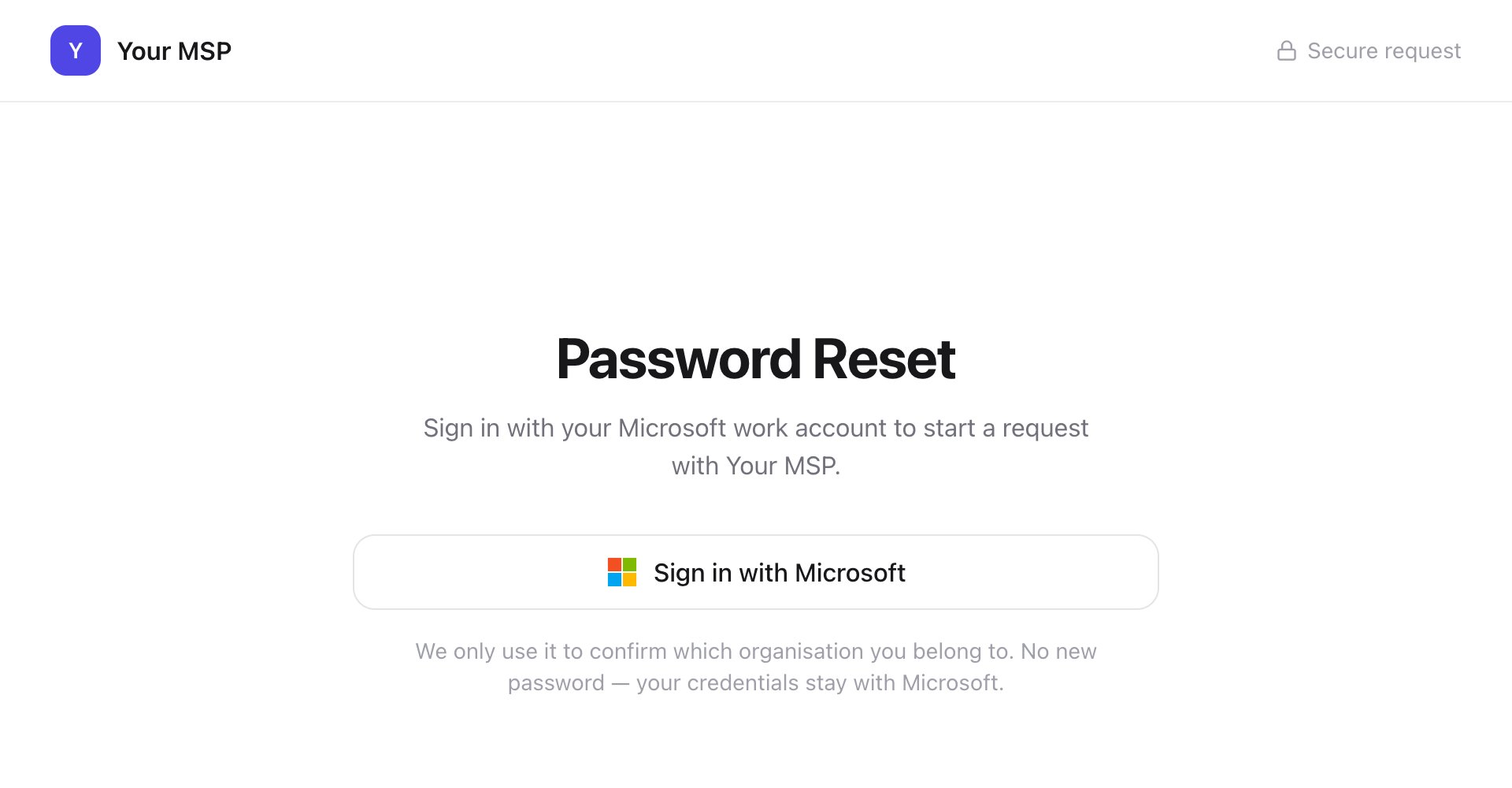
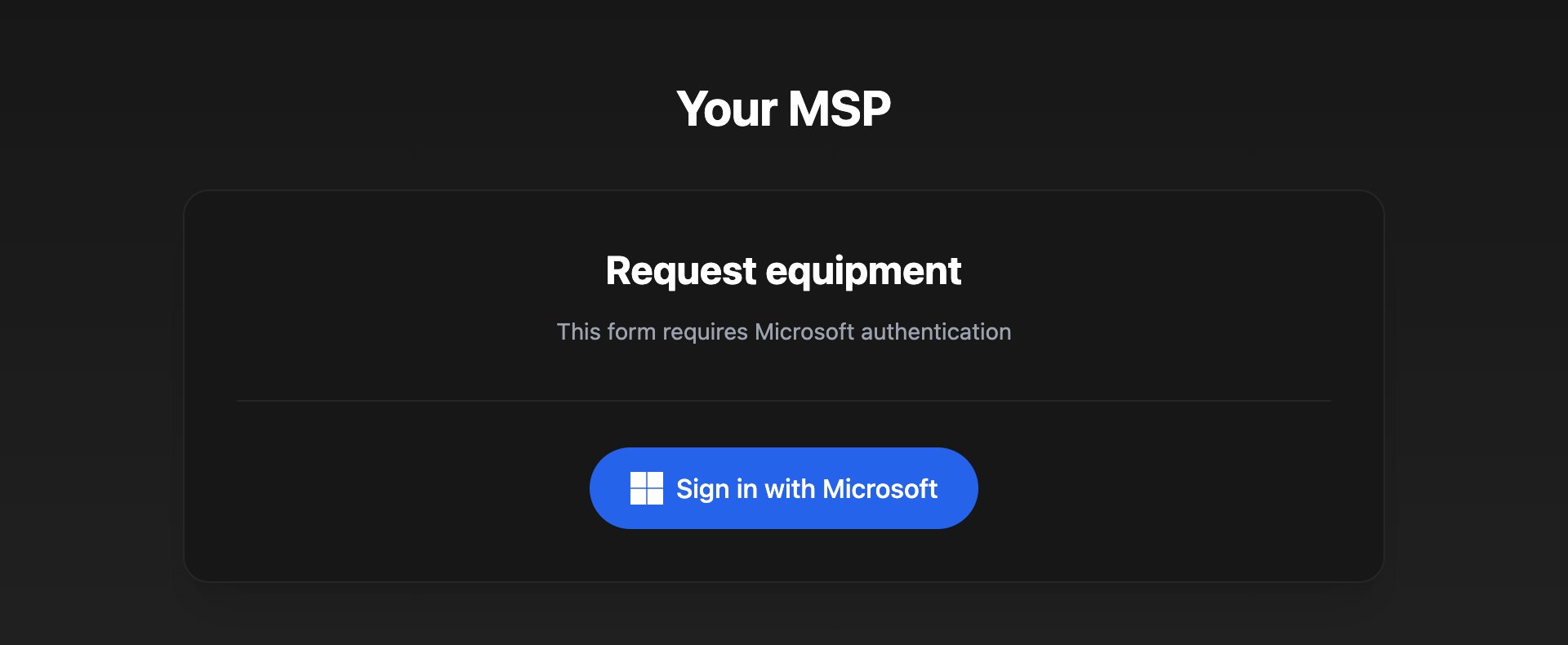 Pick the account you use for work email. Personal accounts, such as outlook.com, don't work.
If Microsoft shows Permissions requested, click **Accept**. If it says Need admin approval, see [Troubleshooting](#troubleshooting).
You're signed in when your email address shows at the top of the page.
## Sign in with Google
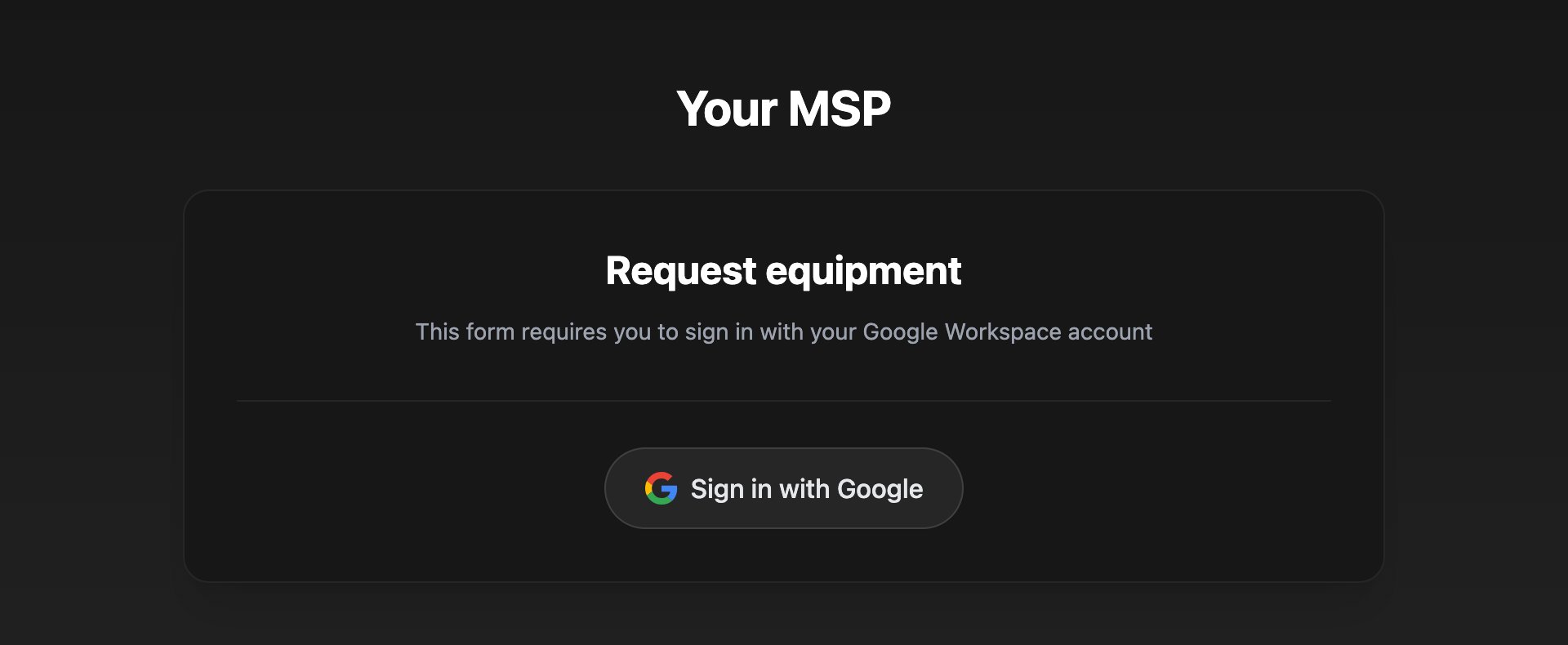
Click **Sign in with Google** and choose your work Google account.
Pick the account you use for work email. Personal accounts, such as outlook.com, don't work.
If Microsoft shows Permissions requested, click **Accept**. If it says Need admin approval, see [Troubleshooting](#troubleshooting).
You're signed in when your email address shows at the top of the page.
## Sign in with Google
Click **Sign in with Google** and choose your work Google account.
 ## Forms with a password
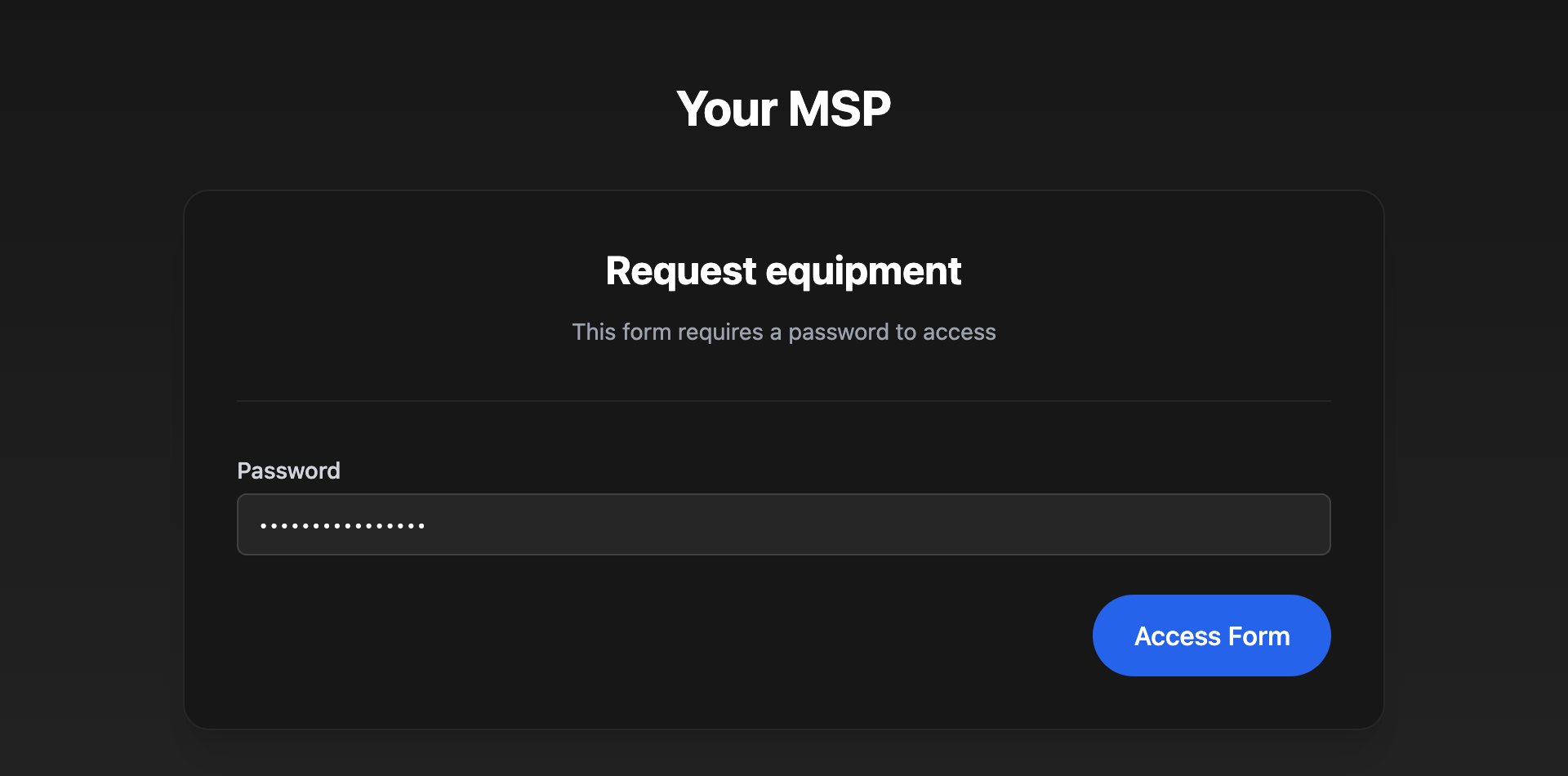
Type the password your IT provider gave you and click **Access Form**.
## Forms with a password
Type the password your IT provider gave you and click **Access Form**.
 ## Troubleshooting
Your IT provider doesn't recognise that account. Click **Sign out** and sign in with your work account. Still stuck? Contact your IT provider.
## Troubleshooting
Your IT provider doesn't recognise that account. Click **Sign out** and sign in with your work account. Still stuck? Contact your IT provider.
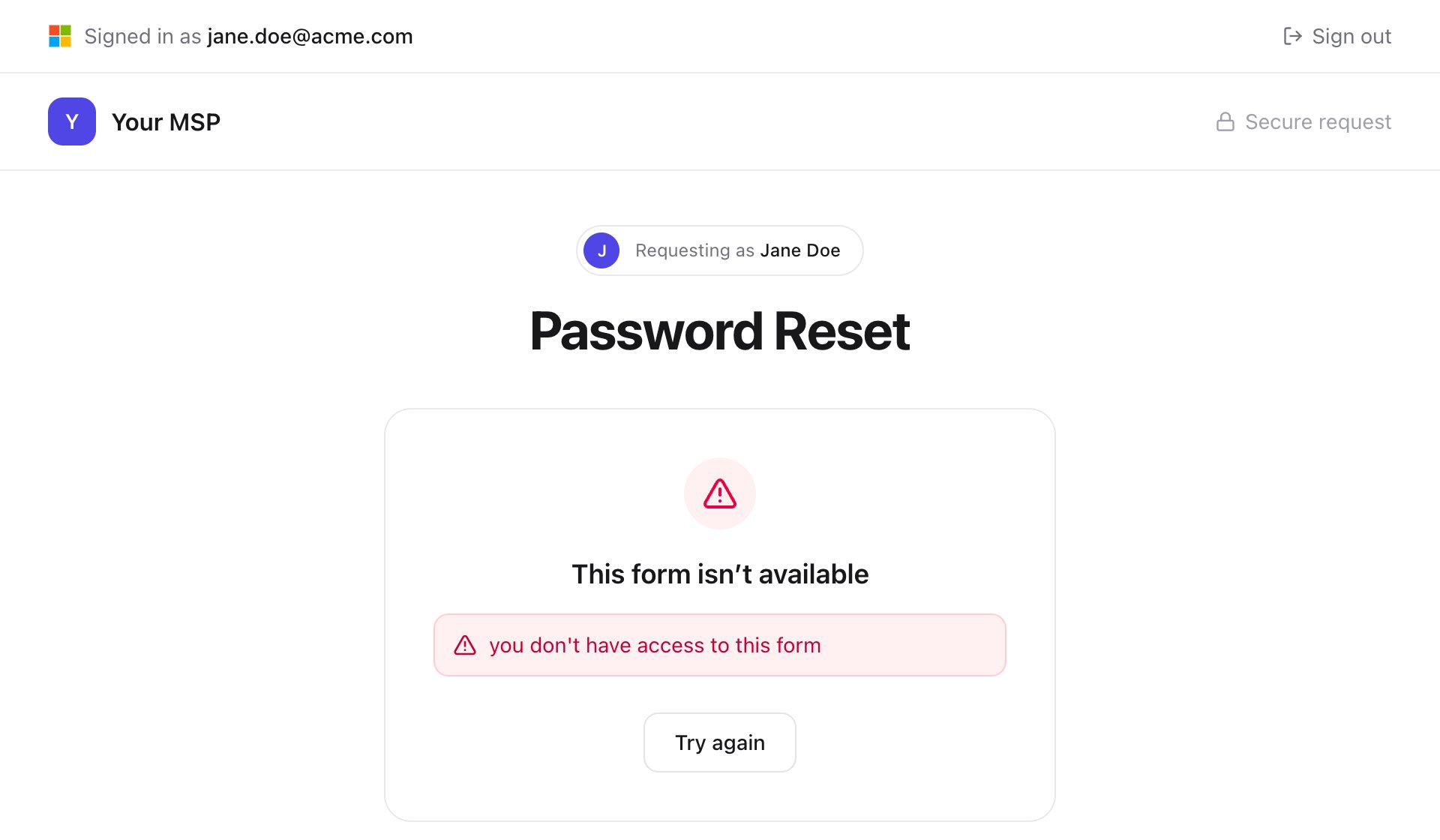
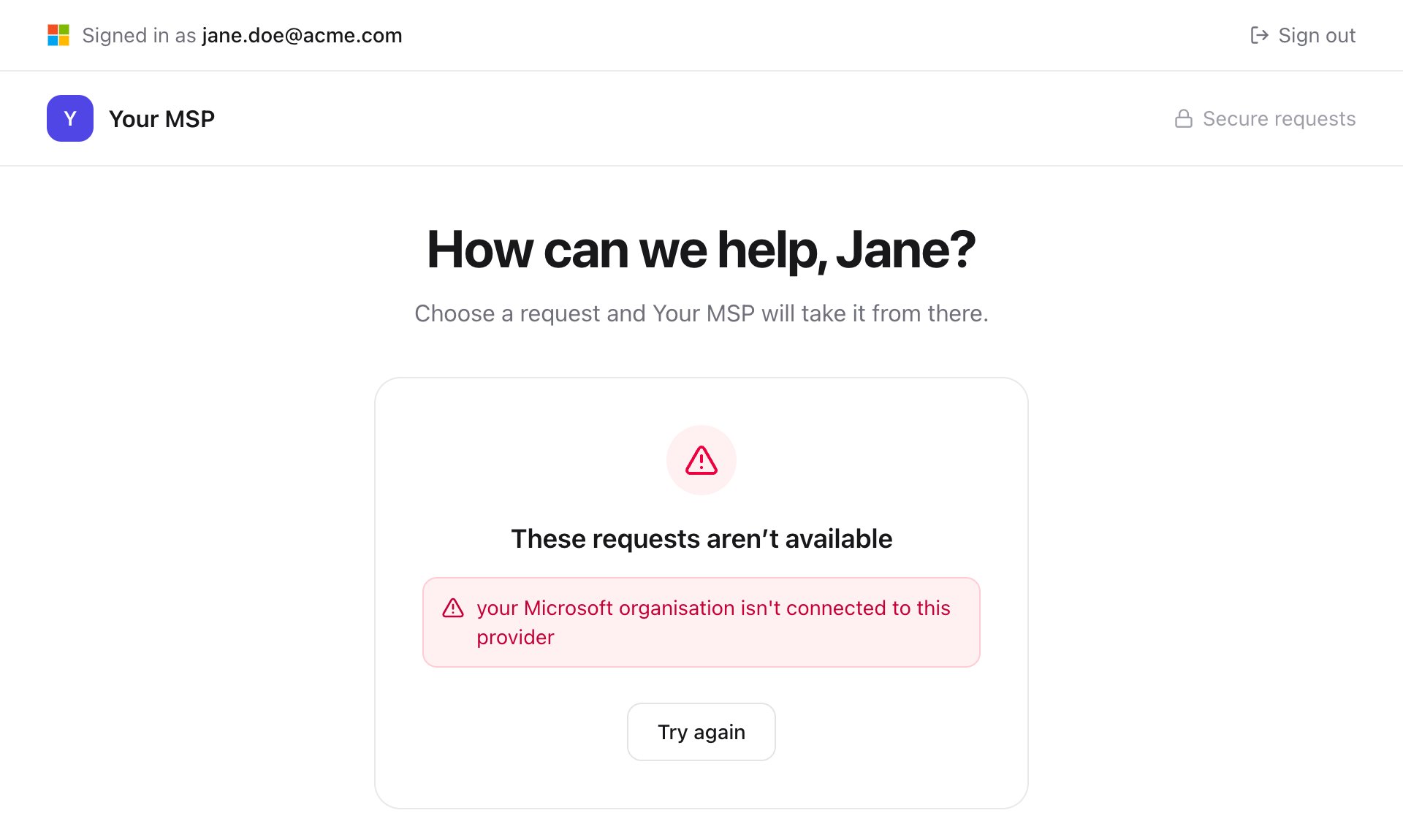 The form is only open to certain people, such as managers, or you signed in with the wrong account. Sign out and try your work account; if that doesn't help, ask your IT provider whether you should have it.
 Your organisation only lets its administrators approve new sign-ins. Ask your IT administrator or IT provider to approve it once for everyone.
Your browser blocked the sign-in window. Allow pop-ups for this page in your browser's address bar, then click Sign in again.
The sign-in window was closed or left open too long. Click Sign in again and finish within a few minutes.
You chose a personal Gmail account. Sign in with your work Google account instead.
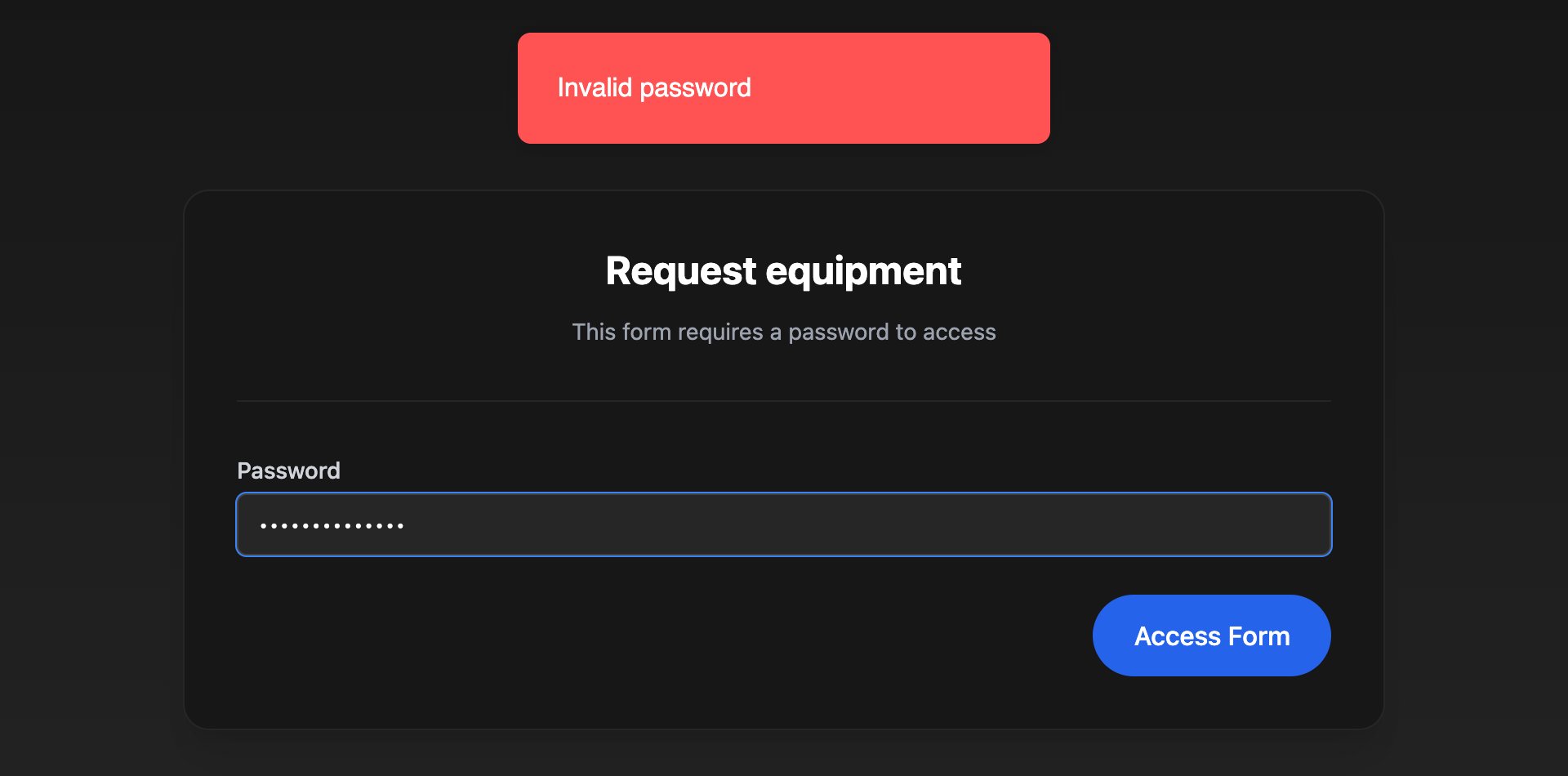
Check the password with your IT provider, then reload the page and try again.
Your organisation only lets its administrators approve new sign-ins. Ask your IT administrator or IT provider to approve it once for everyone.
Your browser blocked the sign-in window. Allow pop-ups for this page in your browser's address bar, then click Sign in again.
The sign-in window was closed or left open too long. Click Sign in again and finish within a few minutes.
You chose a personal Gmail account. Sign in with your work Google account instead.
Check the password with your IT provider, then reload the page and try again.
 Your sign-in has expired. Reload the page, sign in again and re-enter your answers.
Go back to the page you opened the form from and open it again.
If none of these help, contact your IT provider and tell them the exact message.
This documentation is built and hosted on [Mintlify](https://mintlify.com), a developer documentation platform.
Your sign-in has expired. Reload the page, sign in again and re-enter your answers.
Go back to the page you opened the form from and open it again.
If none of these help, contact your IT provider and tell them the exact message.
This documentation is built and hosted on [Mintlify](https://mintlify.com), a developer documentation platform.