> ## Documentation Index
> Fetch the complete documentation index at: https://university.triggr-app.com/llms.txt
> Use this file to discover all available pages before exploring further.
# Submit a request
> Open your IT provider's request link, sign in with your work account, fill in the form and send it.
Your IT provider sends you a link. Pick the tab that looks like your page.
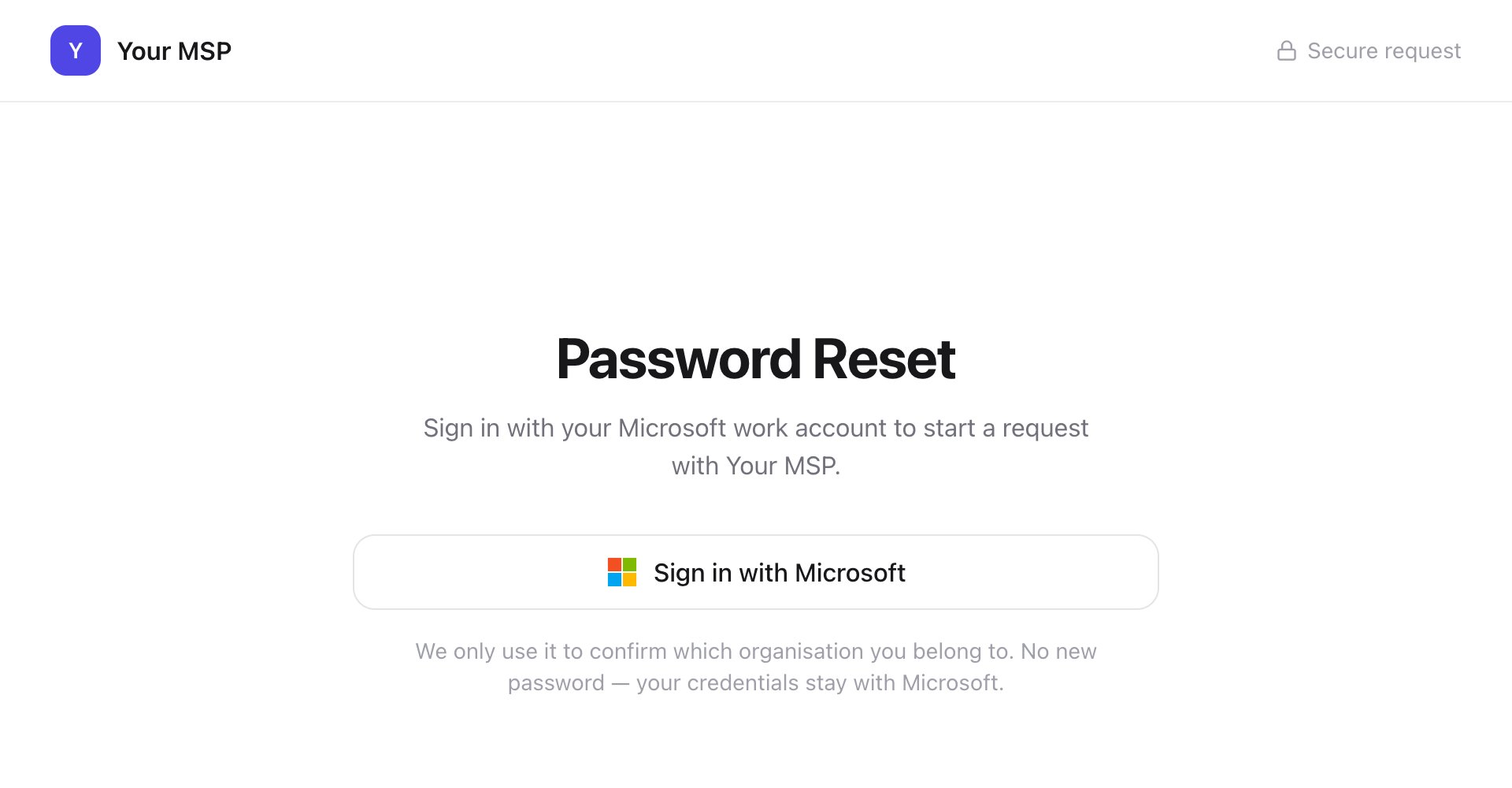 Click **Sign in with Microsoft** and choose your work account. Stuck? See [Sign in](/guides/sign-in).
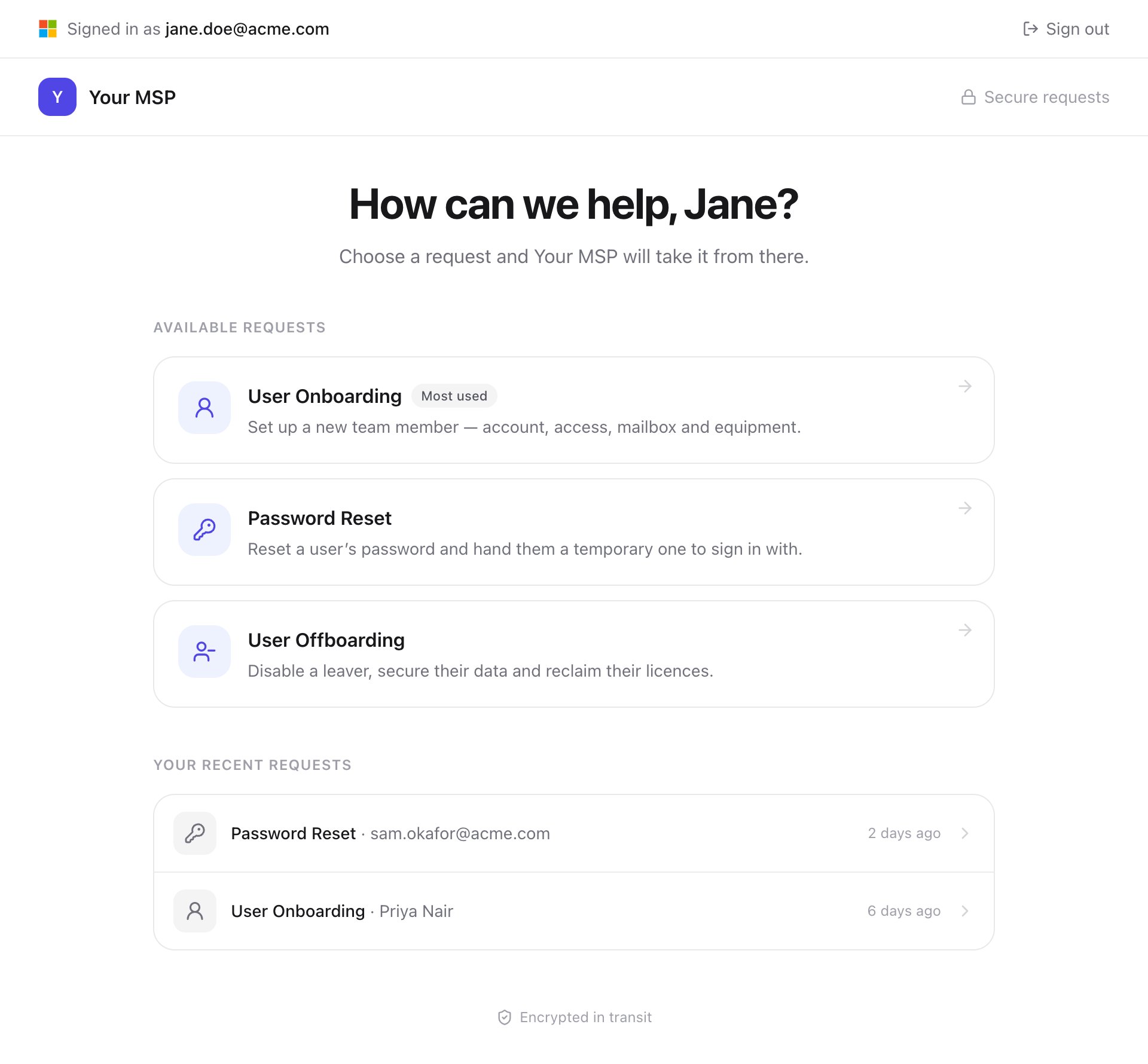
Click the request you need under Available requests. If your link opened a form straight away, skip this step.
Click **Sign in with Microsoft** and choose your work account. Stuck? See [Sign in](/guides/sign-in).
Click the request you need under Available requests. If your link opened a form straight away, skip this step.
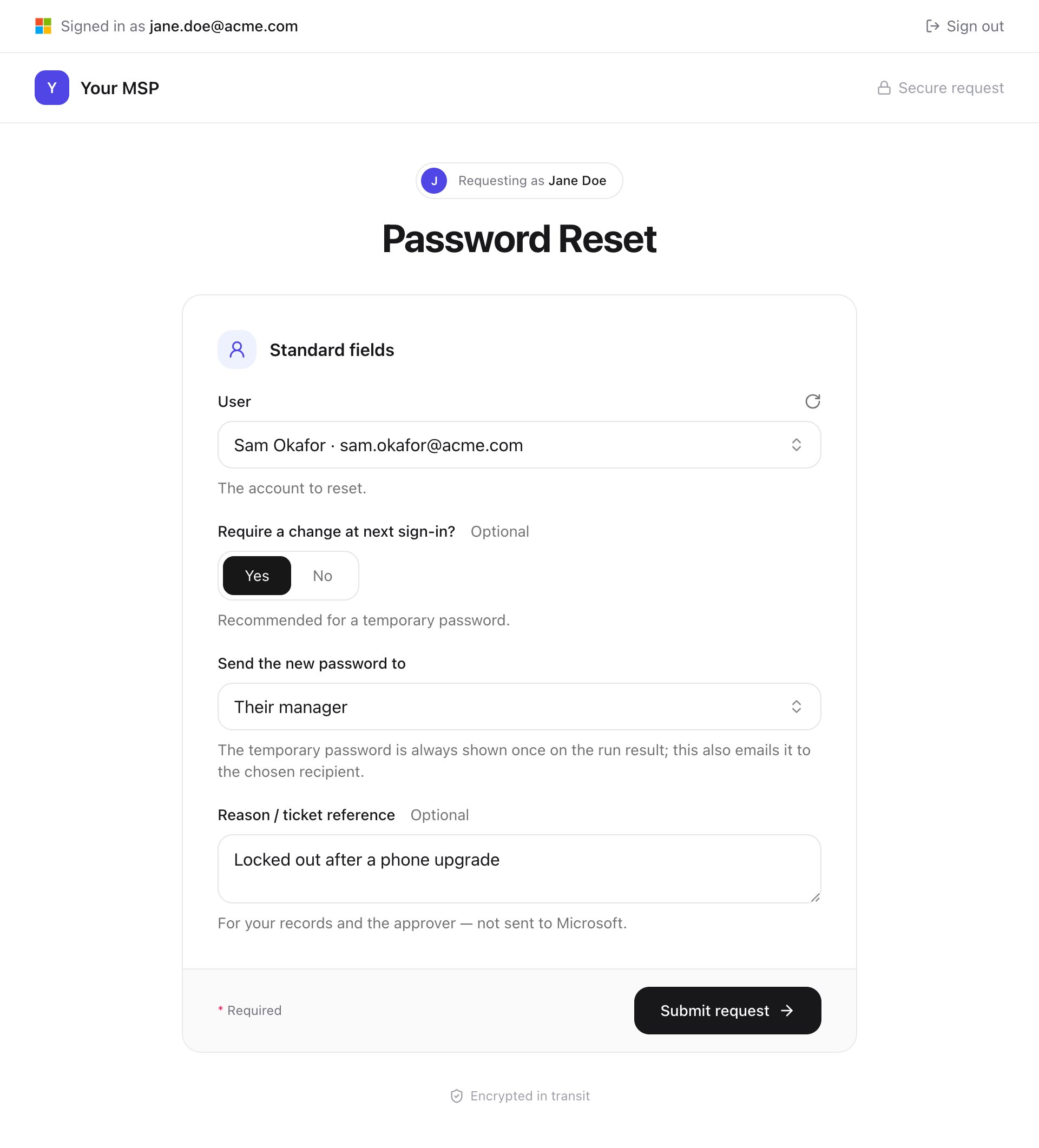
 Answer each question. Anything marked Optional can be left blank.
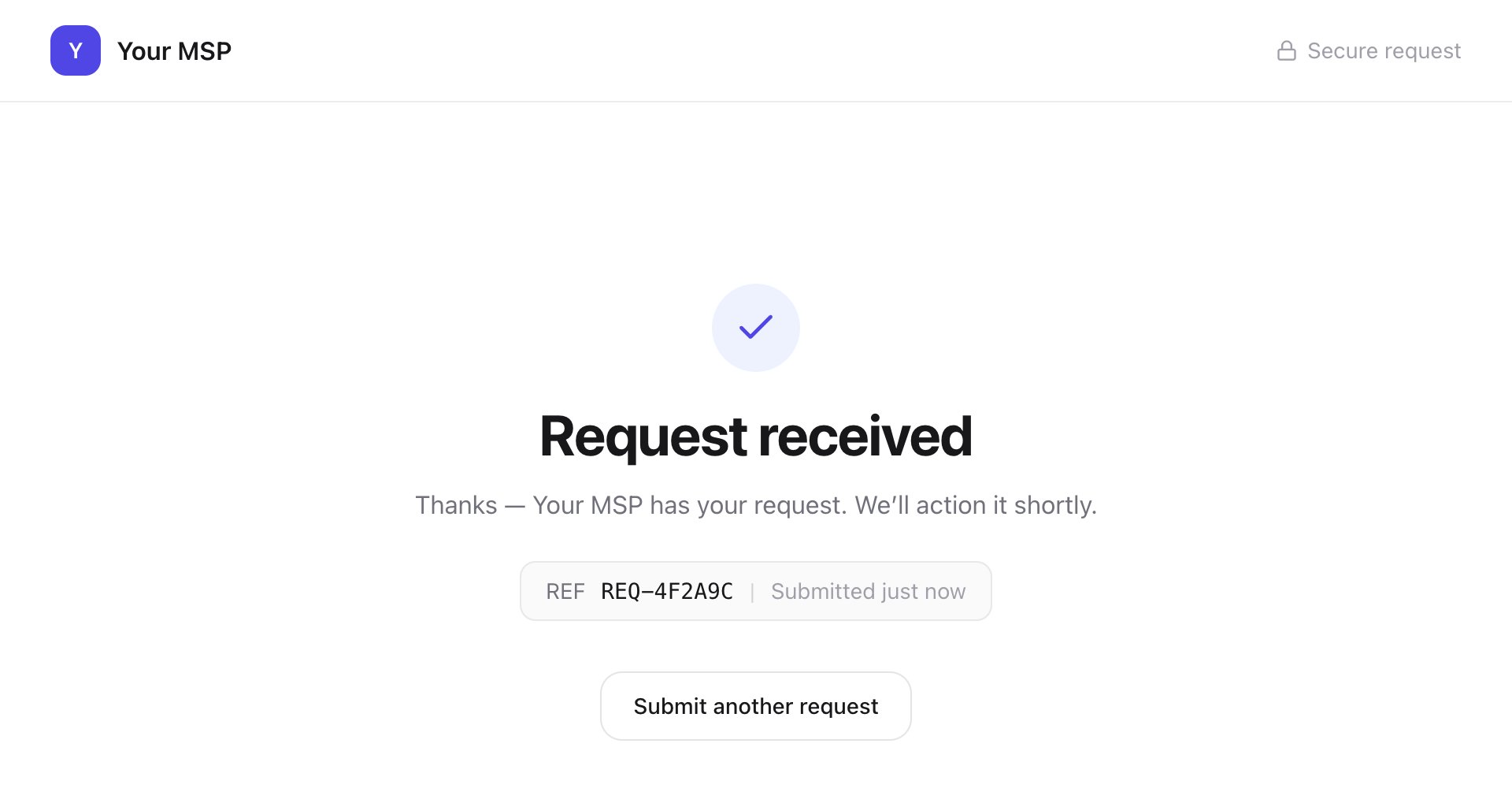
 Click **Submit request**. Request received shows your reference, such as `REQ-4F2A9C`. Keep it in case you need to ask about the request.
 If a manager has to approve it first, the page says It will run once it’s approved. Your requests appear under Your recent requests on the homepage; click one to see what you sent.
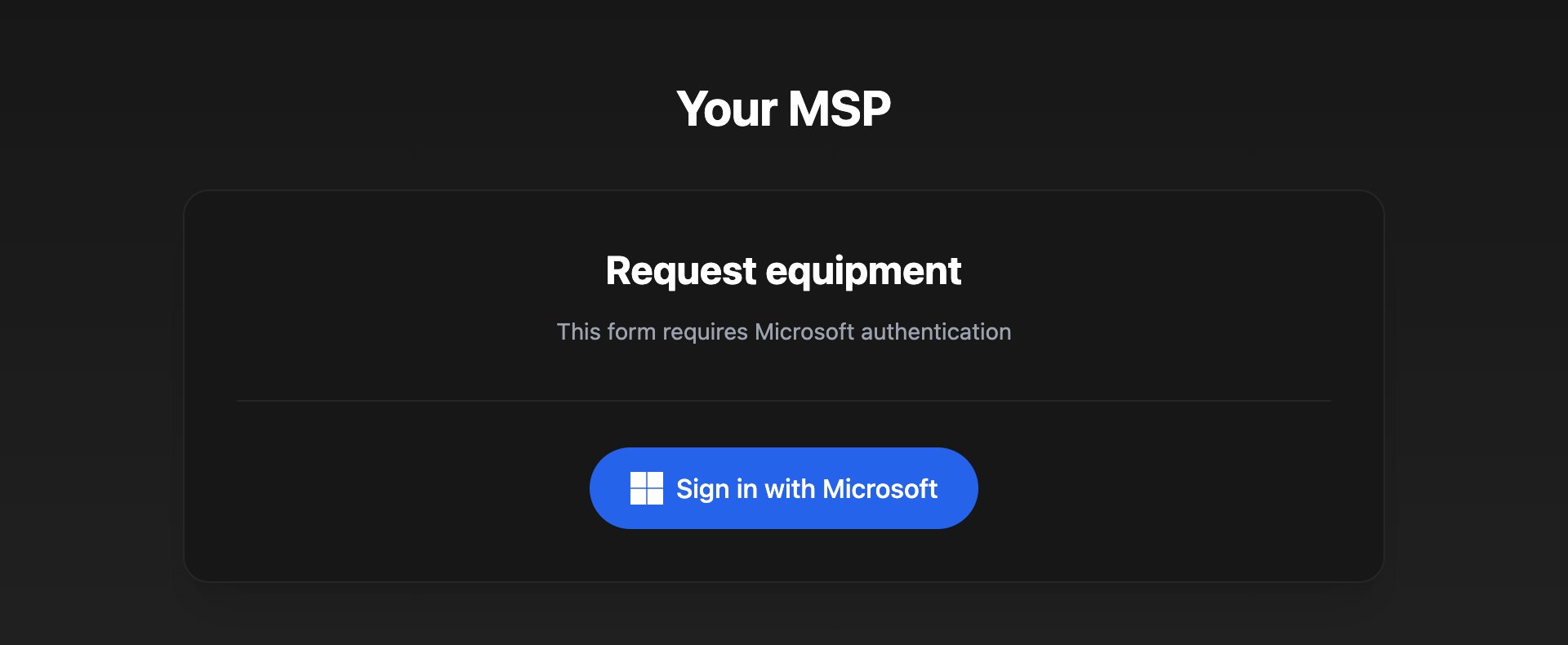 Click Sign in with Microsoft or Sign in with Google, or enter the form's password. Stuck? See [Sign in](/guides/sign-in).
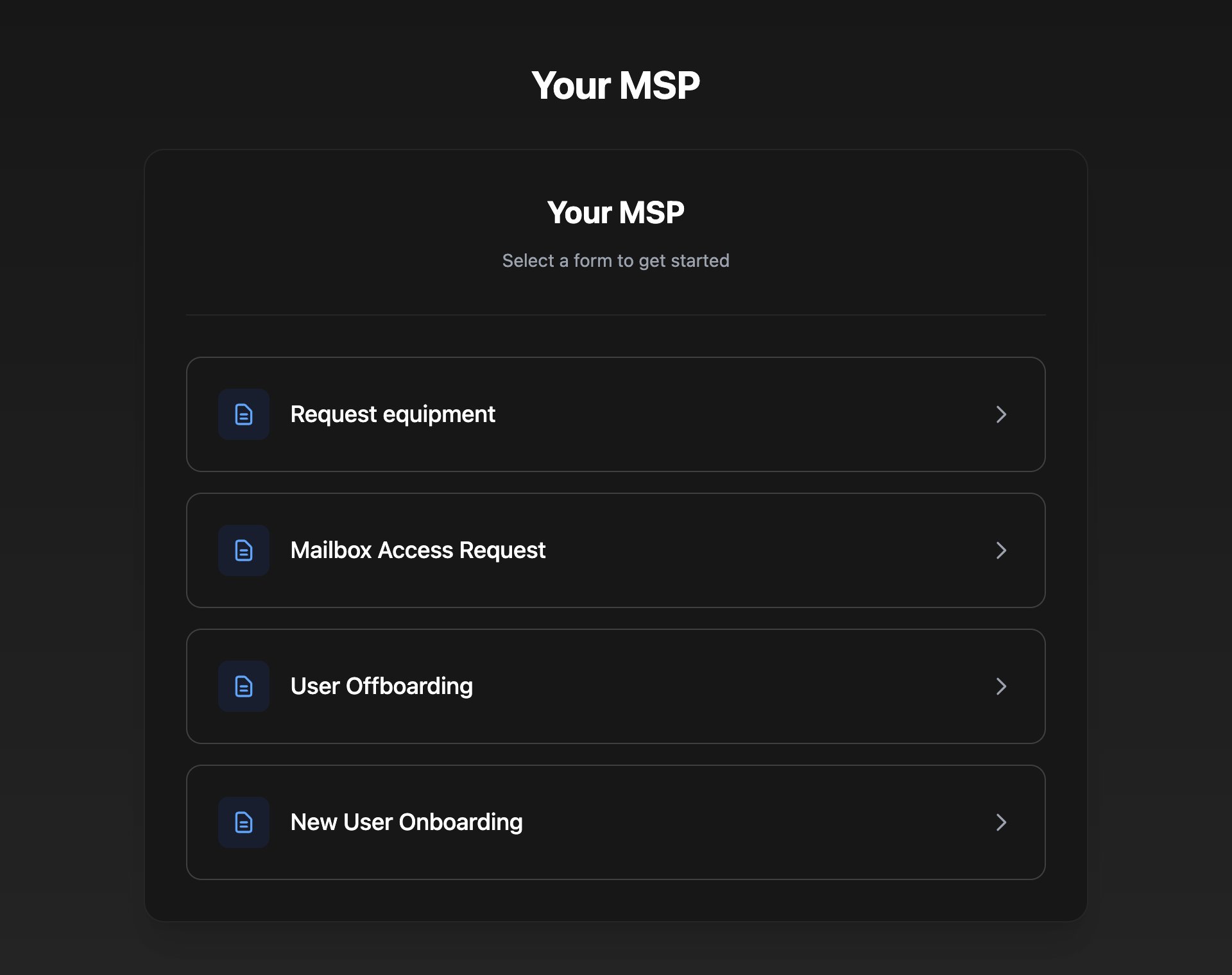
Click the form you need. If your link opened a form straight away, skip this step.
Click Sign in with Microsoft or Sign in with Google, or enter the form's password. Stuck? See [Sign in](/guides/sign-in).
Click the form you need. If your link opened a form straight away, skip this step.
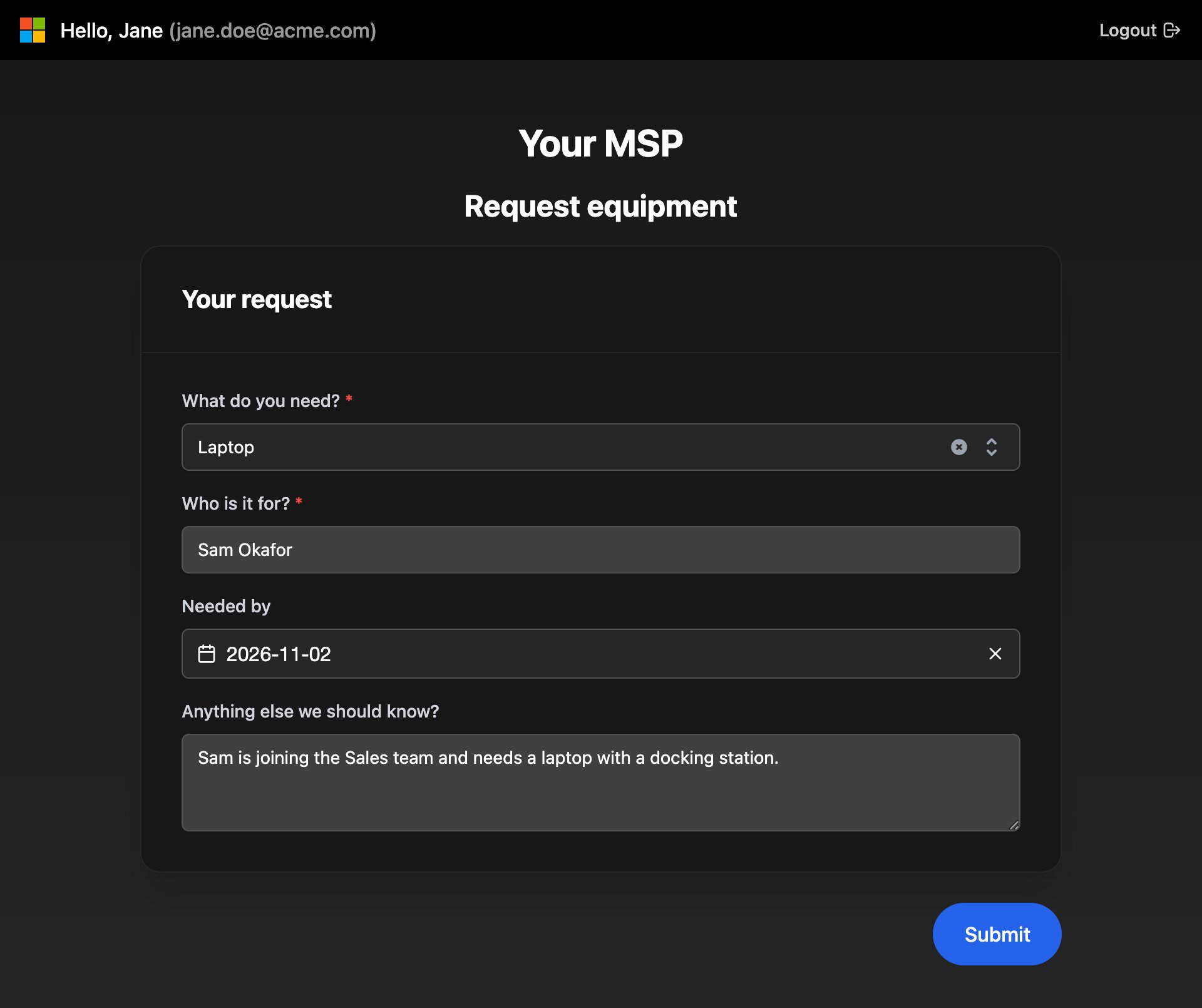
 Answer each question. A red \* means the question is required.
 Click **Submit**. If the button says Next, check your answers on the next page and click Submit there.
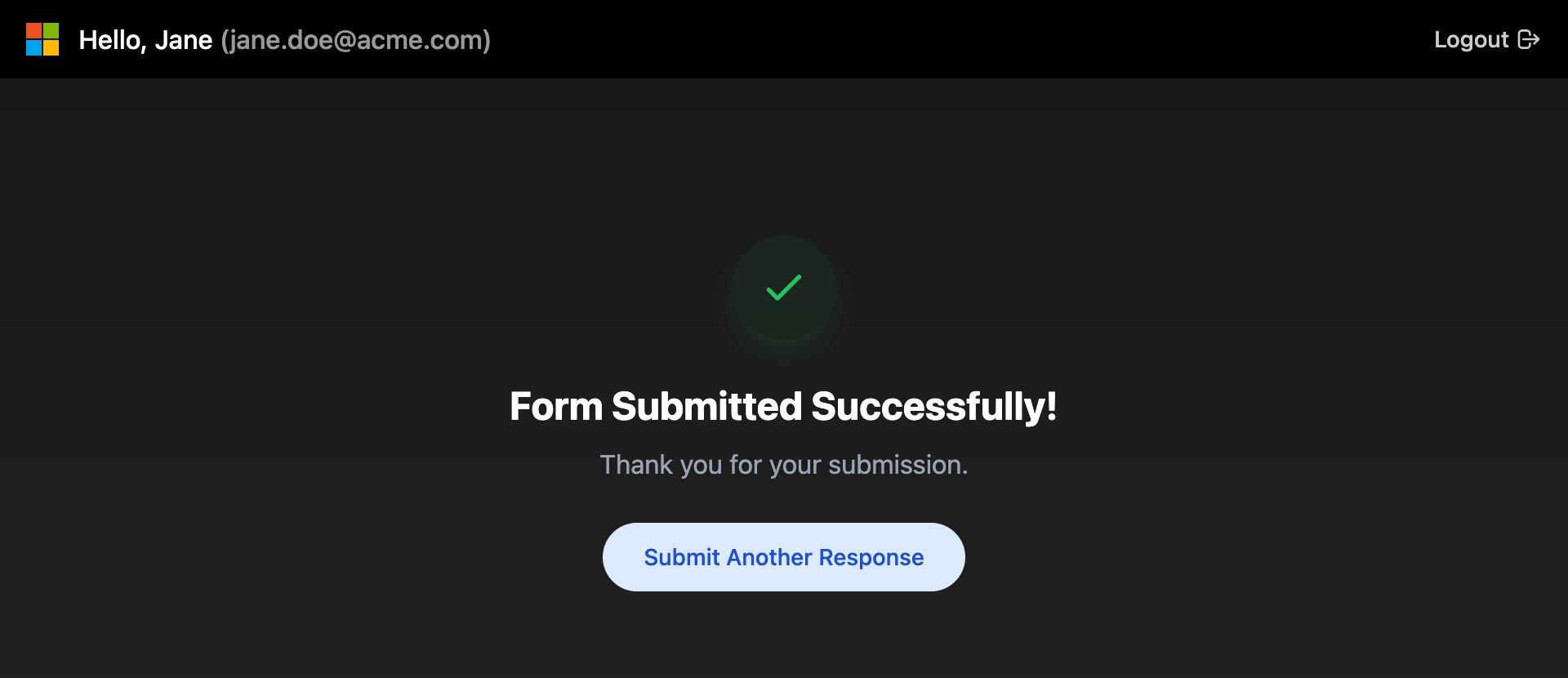 Your IT provider takes it from there.
## Troubleshooting
Click **Sign out** (or Logout) at the top of the page and sign in again with your work account.
Lots of the same request came from your organisation in a short time. Wait a few minutes and try again.
A question marked \* is empty. Answer it and click Submit again.
Your IT provider hasn't given you any requests yet. Ask them which link to use.
Contact your IT provider with the request's name and, if you have one, its reference.
This documentation is built and hosted on [Mintlify](https://mintlify.com), a developer documentation platform.
Your IT provider takes it from there.
## Troubleshooting
Click **Sign out** (or Logout) at the top of the page and sign in again with your work account.
Lots of the same request came from your organisation in a short time. Wait a few minutes and try again.
A question marked \* is empty. Answer it and click Submit again.
Your IT provider hasn't given you any requests yet. Ask them which link to use.
Contact your IT provider with the request's name and, if you have one, its reference.
This documentation is built and hosted on [Mintlify](https://mintlify.com), a developer documentation platform.