> ## Documentation Index
> Fetch the complete documentation index at: https://university.triggr-app.com/llms.txt
> Use this file to discover all available pages before exploring further.
# 3CX
> Connect each client's 3CX phone system to Triggr with a Configuration API client.
Triggr lists users and creates users and their extensions on 3CX systems running version 20 or later. Each system needs the licence 3CX requires for the Configuration API (an 8SC or higher AI licence).
## Set up 3CX
Repeat these steps on each client's system, with an API client just for Triggr: 3CX keeps one access token active per API client, so tools that share one sign each other out.
In the 3CX Admin Console, go to **Integrations > API** and click Add.
Use a value not already in use on the system, such as an unused extension number, and tick 3CX Configuration API Access.
Choose System Owner or System Admin to list and create users anywhere on the system.
3CX shows the key only once.
It's the 3CX Web Client address without `https://`, such as `yourcompany.3cx.eu`, or `pbx.example.com:5001` if it has a port. It must serve HTTPS to the internet with a publicly trusted certificate; allow [Triggr's IP addresses](/security/ip-allowlist) through any firewall.
See 3CX's [Configuration API guide](https://www.3cx.com/docs/configuration-rest-api/).
## Connect it in Triggr
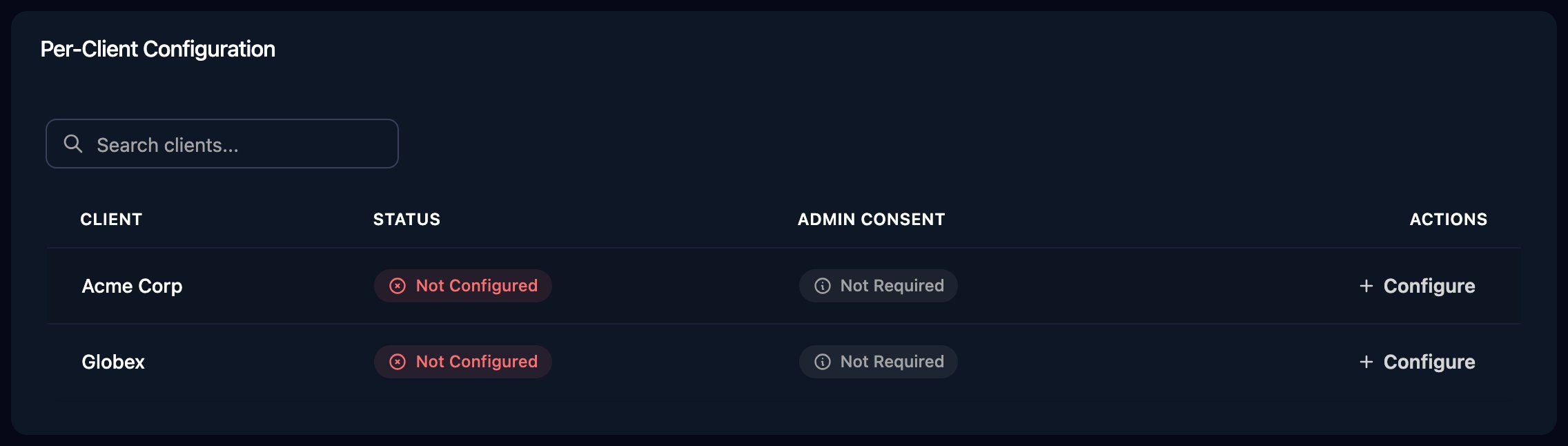
Go to **Integrations > 3CX** and click **Configure** on the client's row in the Per-Client Configuration card.
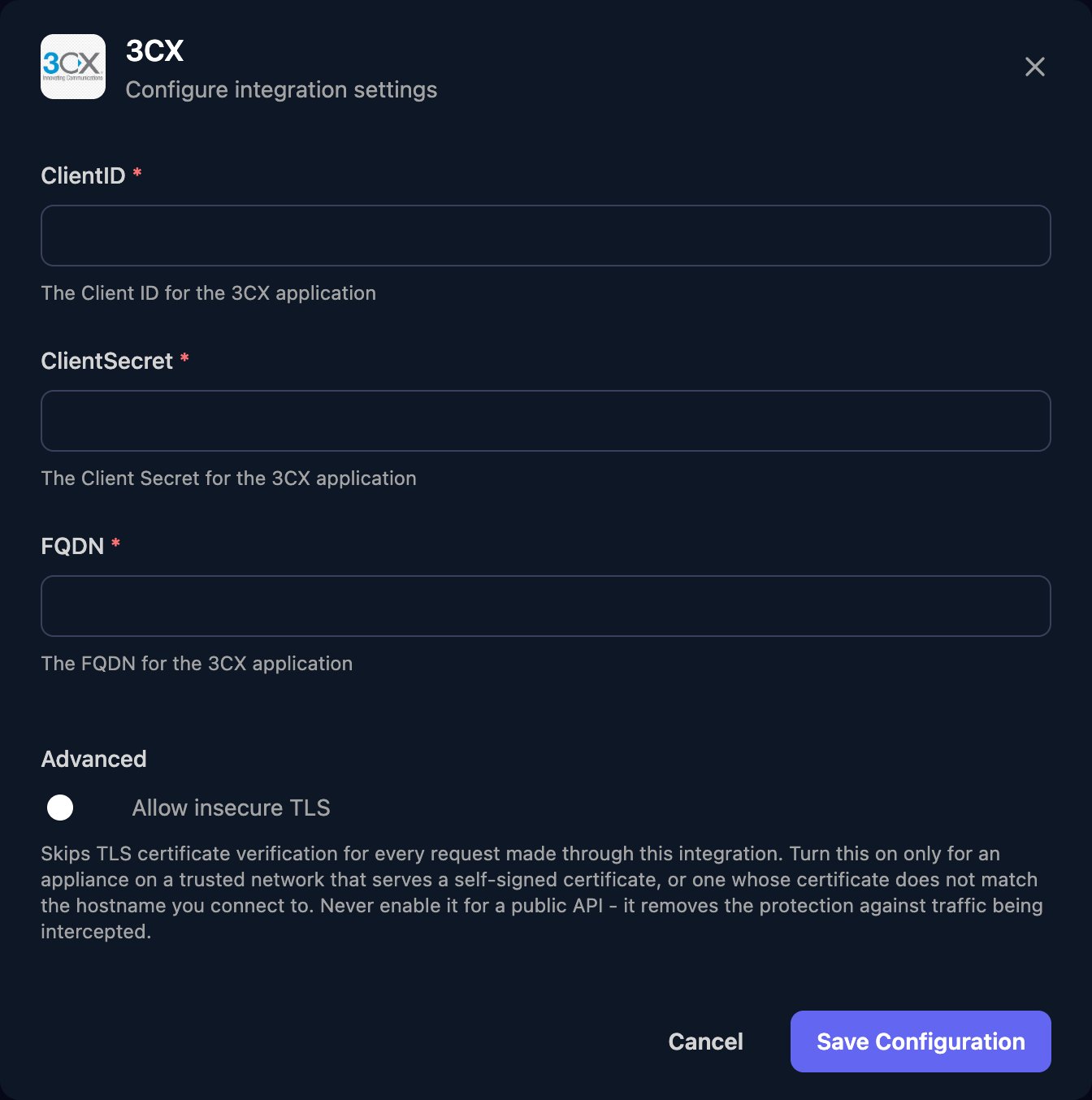
 Enter the ClientID, the API key as ClientSecret and the FQDN, then click **Save Configuration**.
 Per-client integrations never fall back to the Base Configuration, so every client whose workflows use 3CX needs its own row; the Base Configuration is only for workflows that don't run for a client. If several clients are departments on one shared system, add a separate API client for each, scoped by its Department and Role.
Create User takes 3CX's user fields as JSON, with `Id` set to `0`. See 3CX's [Create a User](https://www.3cx.com/docs/configuration-rest-api-endpoints/) reference.
## Troubleshooting
Configure the client on the Per-Client Configuration card, then run the workflow again.
Check ClientID matches the API client exactly and ClientSecret holds the full API key. If you've lost the key, add a new API client.
FQDN must be only the address and port, with no `https://` or path, and reachable from the internet with a trusted certificate. Allow [Triggr's IP addresses](/security/ip-allowlist) if a firewall restricts it.
Something other than 3CX answered at the FQDN. Check it points at the 3CX system.
Another tool is using the same API client. Add one just for Triggr.
Check 3CX Configuration API Access is ticked on the API client, and that its Role is System Owner or System Admin, or covers the right Department.
The `Number` is already used by another extension. Choose a free one.
This documentation is built and hosted on [Mintlify](https://mintlify.com), a developer documentation platform.
Per-client integrations never fall back to the Base Configuration, so every client whose workflows use 3CX needs its own row; the Base Configuration is only for workflows that don't run for a client. If several clients are departments on one shared system, add a separate API client for each, scoped by its Department and Role.
Create User takes 3CX's user fields as JSON, with `Id` set to `0`. See 3CX's [Create a User](https://www.3cx.com/docs/configuration-rest-api-endpoints/) reference.
## Troubleshooting
Configure the client on the Per-Client Configuration card, then run the workflow again.
Check ClientID matches the API client exactly and ClientSecret holds the full API key. If you've lost the key, add a new API client.
FQDN must be only the address and port, with no `https://` or path, and reachable from the internet with a trusted certificate. Allow [Triggr's IP addresses](/security/ip-allowlist) if a firewall restricts it.
Something other than 3CX answered at the FQDN. Check it points at the 3CX system.
Another tool is using the same API client. Add one just for Triggr.
Check 3CX Configuration API Access is ticked on the API client, and that its Role is System Owner or System Admin, or covers the right Department.
The `Number` is already used by another extension. Choose a free one.
This documentation is built and hosted on [Mintlify](https://mintlify.com), a developer documentation platform.