> ## Documentation Index
> Fetch the complete documentation index at: https://university.triggr-app.com/llms.txt
> Use this file to discover all available pages before exploring further.
# Autotask PSA
> Connect Autotask PSA to Triggr with an API-only user, then map your clients to Autotask companies.
Triggr works with Autotask tickets, ticket notes, companies, contacts and other entities, including their fields and picklist values. It appears in Triggr as Autotask.
## Set up Autotask
Go to **Admin > Admin Categories > Organization Settings & Users**, open Resources/Users (HR) > Resources/Users, click New and select New API User.
Set Security Level to API User (system) (API-only), or API User (system) Can't Read Costs (API-only) to hide your internal costs. Email Address receives Autotask's notifications about the integration, and Primary Internal Location sets the user's timezone.
Under Credentials, click Generate Key and Generate Secret. Copy the full Username (Key), including the `@` and domain, and the Password (Secret).
Under API Tracking Identifier, select Custom (Internal Integration), enter `Triggr` as the Internal Integration Name and copy the Tracking Identifier.
Leave Line of Business without associations and click Save & Close. Autotask won't show the secret again.
Open this address in a browser (no sign-in needed), replacing `USERNAME` with the API user's full username:
```text theme={null}
https://webservices.autotask.net/atservicesrest/v1.0/zoneInformation?user=USERNAME
```
Your API host is the `url` in the response up to `/atservicesrest/`, such as `https://webservices5.autotask.net`.
See Autotask's guide to [adding an API user](https://autotask.net/help/Content/4_Admin/1CompanySettings_Users/ResourcesUsersHR/Resources/API_User_Add_Edit.htm).
## Connect it in Triggr
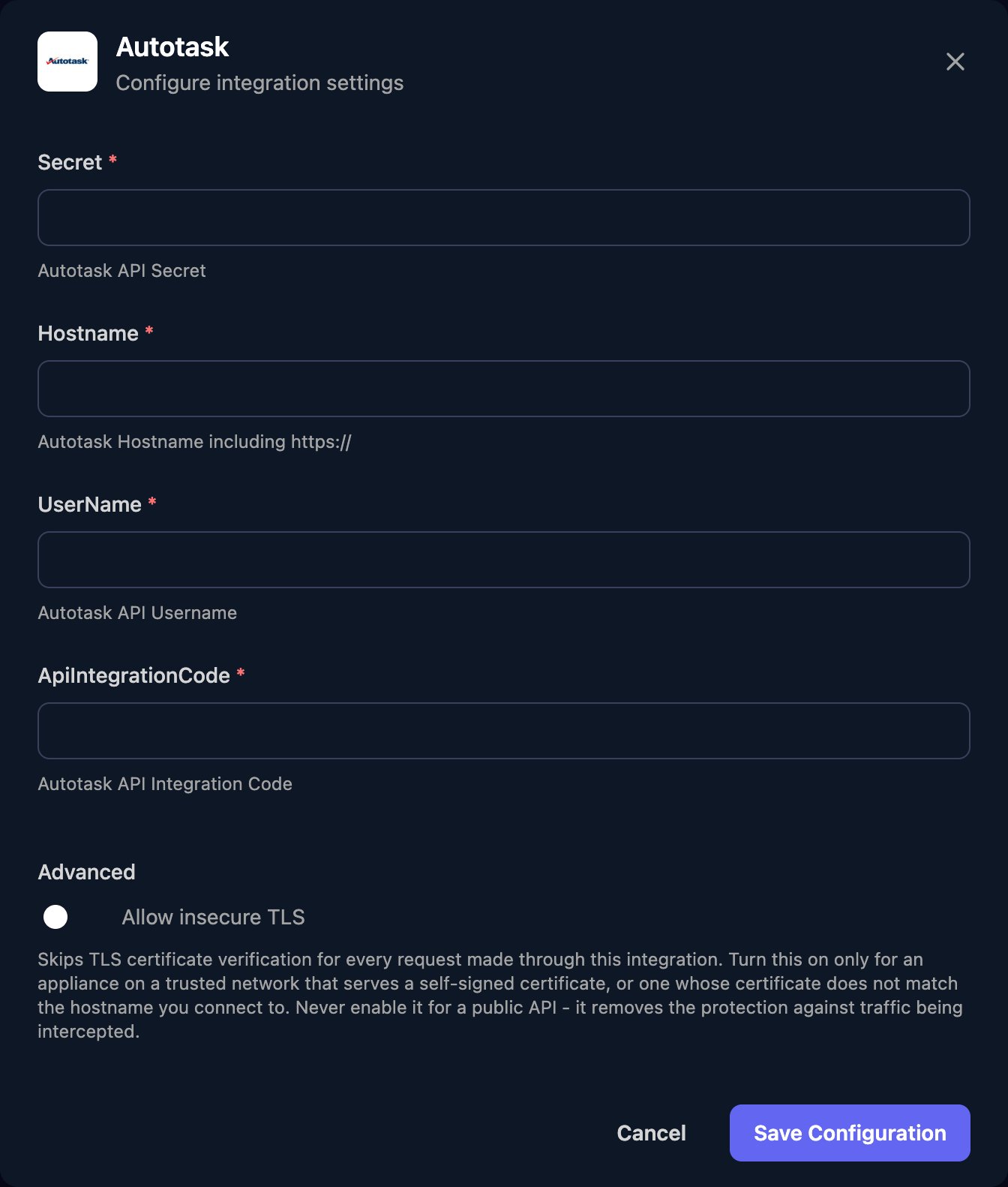
Go to **Integrations > Autotask** and click **Configure** on the Base Configuration card.
 Enter the Password (Secret) as Secret, your API host as Hostname (without `/atservicesrest`), the full username as UserName and the Tracking Identifier as ApiIntegrationCode, then click **Save Configuration**.
 ## Map your clients
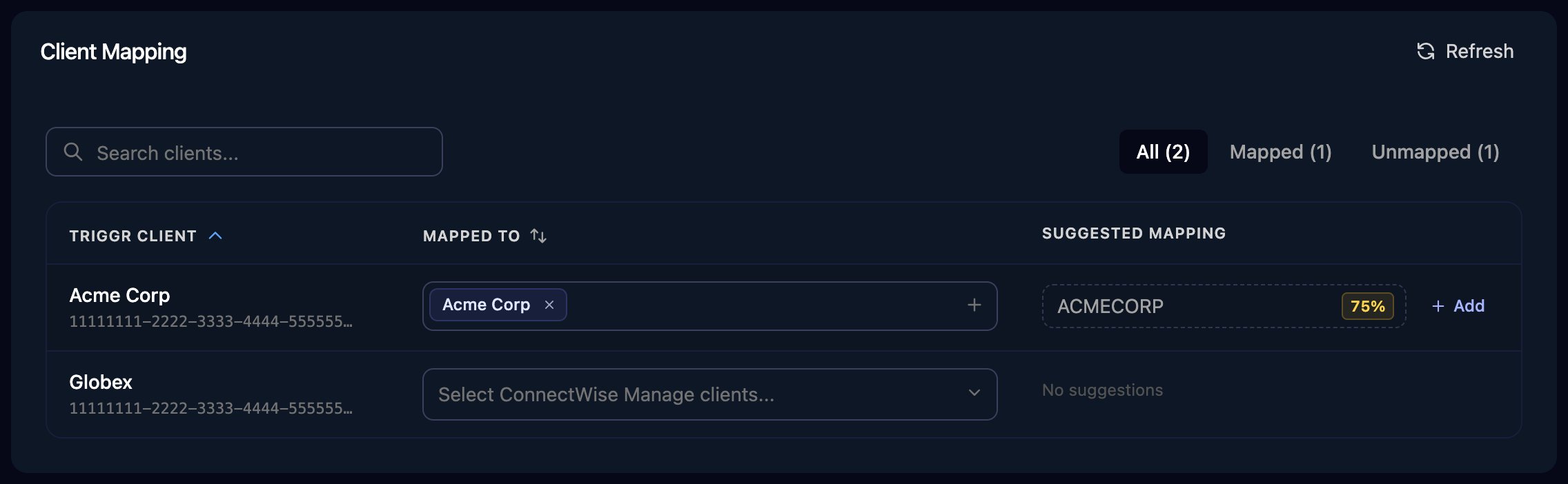
On the Client Mapping card, click **Apply 100% Matches**, then choose the Autotask company in Mapped to for anyone left. Only active companies of type Customer or Partner are listed. Triggr saves each match as the client's `autotaskId` variable, which steps such as Create Ticket use to pick the company.
## Map your clients
On the Client Mapping card, click **Apply 100% Matches**, then choose the Autotask company in Mapped to for anyone left. Only active companies of type Customer or Partner are listed. Triggr saves each match as the client's `autotaskId` variable, which steps such as Create Ticket use to pick the company.
 Ticket steps run against the PSA set as Default PSA: in Triggr Core, Settings > General; in Studio, Settings > Org Variables > Setup Wizard. See [Connect your PSA](/core/get-started/connect-your-psa).
## Troubleshooting
Check UserName is the full username and ApiIntegrationCode is the same user's Tracking Identifier. In Autotask, check the API user is Active; Autotask locks it after failed sign-ins, so clear Locked if it's ticked.
Hostname must start with `https://`, must not end in `/atservicesrest` and must be your own zone's host.
Click Generate Secret on the API user and Save & Close. In Triggr, click Edit on the Base Configuration card and paste it into Secret.
Check the company is active and a Customer or Partner, and that the API user's security level doesn't hide it. Then click Refresh on Client Mapping.
This documentation is built and hosted on [Mintlify](https://mintlify.com), a developer documentation platform.
Ticket steps run against the PSA set as Default PSA: in Triggr Core, Settings > General; in Studio, Settings > Org Variables > Setup Wizard. See [Connect your PSA](/core/get-started/connect-your-psa).
## Troubleshooting
Check UserName is the full username and ApiIntegrationCode is the same user's Tracking Identifier. In Autotask, check the API user is Active; Autotask locks it after failed sign-ins, so clear Locked if it's ticked.
Hostname must start with `https://`, must not end in `/atservicesrest` and must be your own zone's host.
Click Generate Secret on the API user and Save & Close. In Triggr, click Edit on the Base Configuration card and paste it into Secret.
Check the company is active and a Customer or Partner, and that the API user's security level doesn't hide it. Then click Refresh on Client Mapping.
This documentation is built and hosted on [Mintlify](https://mintlify.com), a developer documentation platform.