> ## Documentation Index
> Fetch the complete documentation index at: https://university.triggr-app.com/llms.txt
> Use this file to discover all available pages before exploring further.
# Auvik
> Connect Auvik Network Management to Triggr with an API-only Auvik user and API key, then map your clients to Auvik sites.
Triggr reads Auvik sites, devices, networks, configuration backups, alerts, statistics, SNMP pollers, billing usage and SaaS Management data, and dismisses alerts.
## Set up Auvik
You need a mailbox for a dedicated Triggr user in Auvik. If Auvik uses Single Sign-On for All Users, the user must also exist in your identity provider.
The built-in API Access Only role covers most actions. For Dismiss Alert or SNMP pollers, go to **Manage Users > Roles > Add Role** on your multi-site dashboard, tick API Role Only and select the [permissions](#permissions) you need. Don't use Read Only, which has no API permissions.
In Manage Users, click **Invite User** and enter an address such as `triggr@yourcompany.com`. Select every site Triggr should work with, give the user the role on each and click Invite. Authorise the user on sites you add later, too.
Accept the invitation and sign in as the Triggr user (only users can generate their own keys). Click the username in the side navigation bar, click **Generate API Key** and copy the key. Auvik shows it only once.
It's the three characters before `my.auvik.com` in your Auvik address, such as `us2` in `https://yourcompany.us2.my.auvik.com`.
See Auvik's [API access only role](https://support.auvik.com/hc/en-us/articles/360022803872-API-access-only-role) article.
### Permissions
API Access Only includes every permission below except the last two rows. The SaaS Management actions also need an Auvik SaaS Management subscription.
| Auvik permission | Triggr actions |
| - | - |
| API - Tenants | Client mapping, List Tenants, List Tenant Details, Get Tenant Details |
| API - Device Info | List Device Info, Get Device Info |
| API - Device Details | List Device Details, Get Device Details |
| API - Device Details Extended | List Device Extended Details, Get Device Extended Details |
| API - Hardware Lifecycle | List Device Lifecycles, Get Device Lifecycle |
| API - Network Info | List Network Info, Get Network Info |
| API - Network Details | List Network Details, Get Network Details |
| API - Interface Info | List Interface Info, Get Interface Info |
| API - Components | List Component Info, Get Component Info |
| API - Configuration History | List Device Configurations, Get Device Configuration |
| API - Entity Notes | List Entity Notes, Get Entity Note |
| API - Audit History | List Entity Audits, Get Entity Audit |
| API - Usage | Get Client Usage, Get Device Usage |
| API - Alerts | List Alert History, Get Alert History Entry |
| API - Alerts at Access and Edit | Dismiss Alert |
| The Poller API permissions, plus API - Device Details | The SNMP poller actions |
## Connect it in Triggr
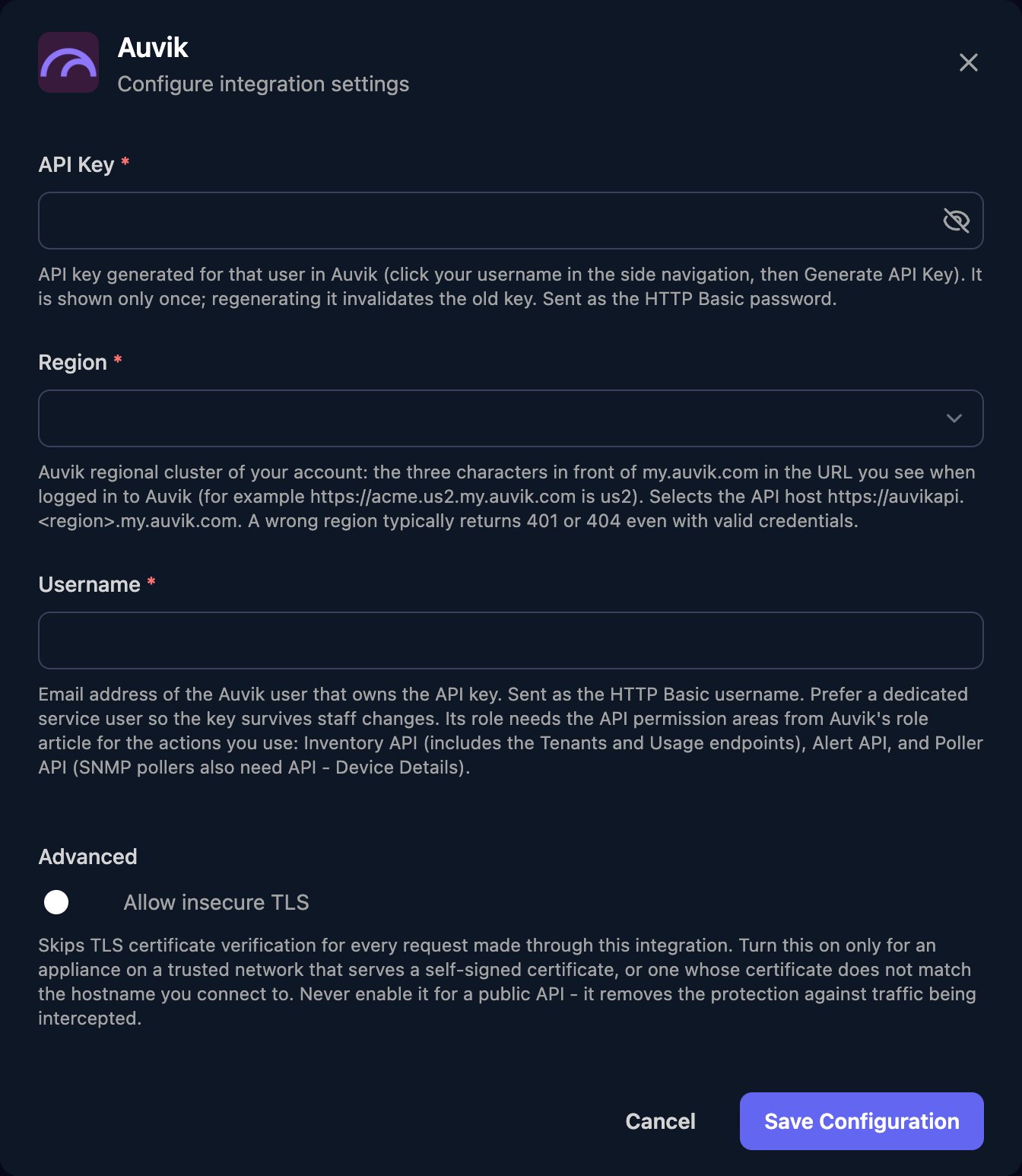
Go to **Integrations > Auvik** and click **Configure** on the Base Configuration card.
 Enter the API Key, choose your Region, enter the Triggr user's sign-in email address as Username, then click **Save Configuration**.
 ## Map your clients
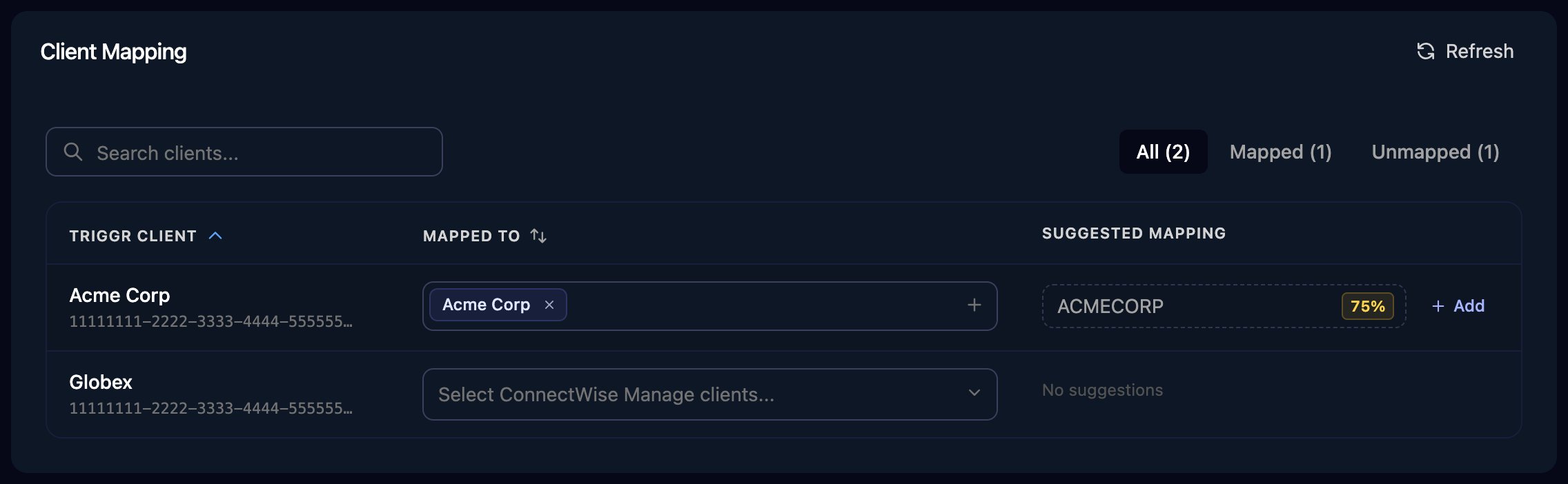
On the Client Mapping card, click **Apply 100% Matches**, then choose the Auvik site in Mapped to for anyone left. A client can map to several sites. Multi-sites aren't listed, and sites are named by their domain prefix (`acme` in `acme.us1.my.auvik.com`), so short prefixes may need mapping by hand.
## Map your clients
On the Client Mapping card, click **Apply 100% Matches**, then choose the Auvik site in Mapped to for anyone left. A client can map to several sites. Multi-sites aren't listed, and sites are named by their domain prefix (`acme` in `acme.us1.my.auvik.com`), so short prefixes may need mapping by hand.
 Triggr saves the mapping as the client's `auvikTenantId`, `auvikTenantIdCsv` and `auvikTenantIdList` variables. Pass `{{ ctx.client.auvikTenantIdCsv }}` as `tenants` on list and statistics actions, or `{{ ctx.client.auvikTenantIdList[0] }}` where an action takes one `tenantId`. To follow `links.next` to the next page of results, use a Generic Integration Action step with URL Type set to Absolute URL.
## Troubleshooting
Check Username is the full sign-in email, the key hasn't been regenerated, and Region matches your Auvik address, which Auvik occasionally moves. Verify Credentials returns 200 when the username and key are valid.
The role lacks the action's [permission](#permissions), or the user isn't authorised on every site in `tenants`. After a rate limit, Auvik can also return 403 until its five-minute window resets.
Authorise the Triggr user on the site with a role that includes API - Tenants, then click Refresh on Client Mapping. Map clients to the sites under a multi-site, not the multi-site.
Auvik allows 2,500 API requests in five minutes. Spread workflows that loop over many clients or pages out over time.
Ask for fewer tenants per call, a smaller page, and a shorter time range or coarser interval.
This documentation is built and hosted on [Mintlify](https://mintlify.com), a developer documentation platform.
Triggr saves the mapping as the client's `auvikTenantId`, `auvikTenantIdCsv` and `auvikTenantIdList` variables. Pass `{{ ctx.client.auvikTenantIdCsv }}` as `tenants` on list and statistics actions, or `{{ ctx.client.auvikTenantIdList[0] }}` where an action takes one `tenantId`. To follow `links.next` to the next page of results, use a Generic Integration Action step with URL Type set to Absolute URL.
## Troubleshooting
Check Username is the full sign-in email, the key hasn't been regenerated, and Region matches your Auvik address, which Auvik occasionally moves. Verify Credentials returns 200 when the username and key are valid.
The role lacks the action's [permission](#permissions), or the user isn't authorised on every site in `tenants`. After a rate limit, Auvik can also return 403 until its five-minute window resets.
Authorise the Triggr user on the site with a role that includes API - Tenants, then click Refresh on Client Mapping. Map clients to the sites under a multi-site, not the multi-site.
Auvik allows 2,500 API requests in five minutes. Spread workflows that loop over many clients or pages out over time.
Ask for fewer tenants per call, a smaller page, and a shorter time range or coarser interval.
This documentation is built and hosted on [Mintlify](https://mintlify.com), a developer documentation platform.