> ## Documentation Index
> Fetch the complete documentation index at: https://university.triggr-app.com/llms.txt
> Use this file to discover all available pages before exploring further.
# ConnectSecure
> Connect ConnectSecure to Triggr with a user's API client ID and secret, your tenant name and your pod number.
Triggr works with ConnectSecure agents and asset remediation plans.
## Set up ConnectSecure
In the ConnectSecure portal, go to **Global > Settings > Users**, open the Action menu for the user Triggr should act as and choose API Key. Copy the client ID and client secret; they don't expire.
Your tenant name is the one you sign in to ConnectSecure with. Your pod number is the number in your API address, such as `401` in `https://pod401.myconnectsecure.com`; Profile > API Documentation shows it.
See ConnectSecure's [V4 API information](https://cybercns.atlassian.net/wiki/spaces/CVB/pages/2128314664/V4+API+Information).
## Connect it in Triggr
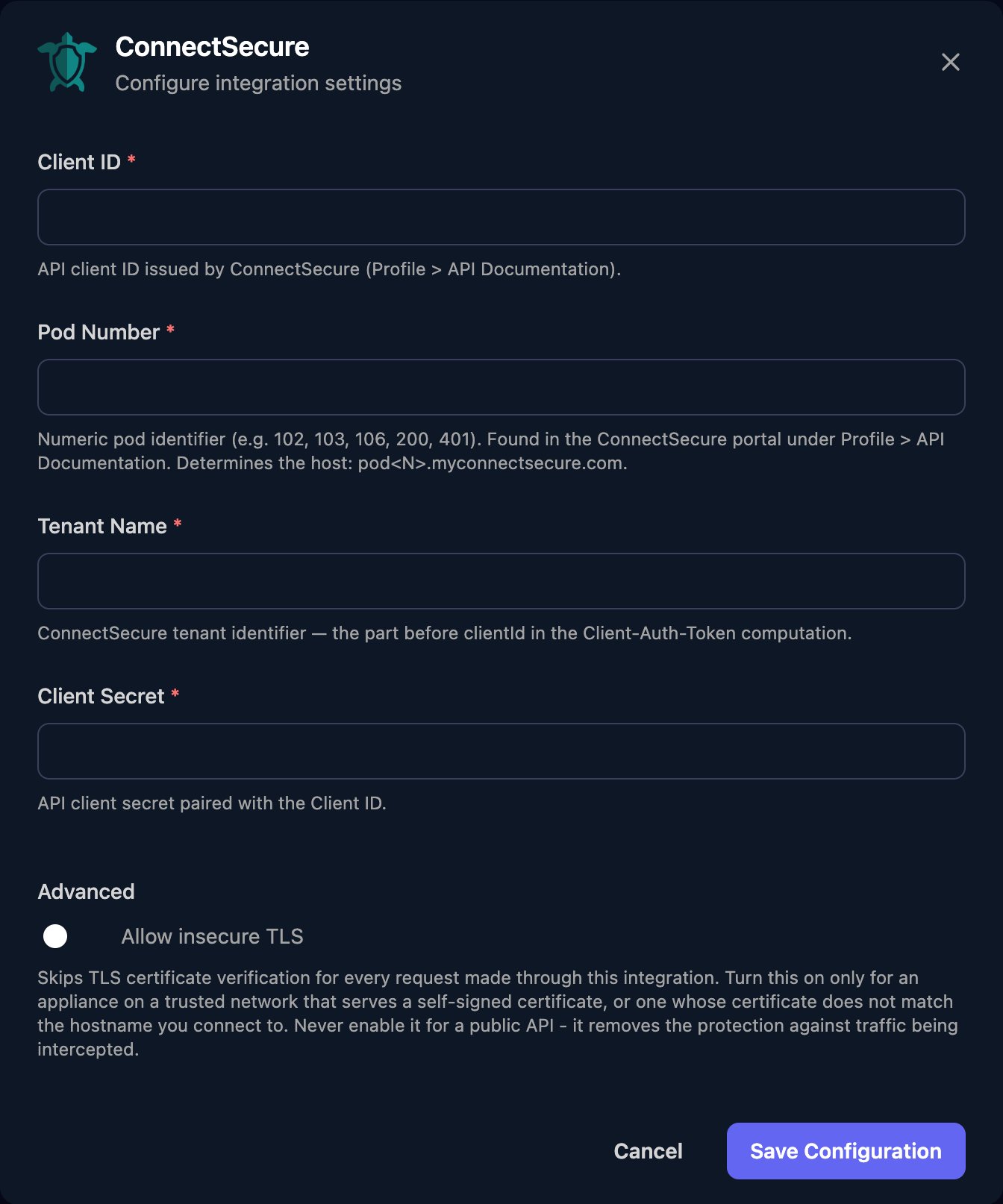
Go to **Integrations > ConnectSecure** and click **Configure** on the Base Configuration card.
 Enter the Client ID, the Pod Number as digits only, the Tenant Name and the Client Secret, then click **Save Configuration**.
 ## Troubleshooting
ConnectSecure rejected the credentials. Check Tenant Name matches the tenant you sign in with, then copy the client ID and secret again from API Key.
Pod Number must be digits only, such as `401`, not `pod401` or a full address.
ConnectSecure allows 300 requests a minute, 2,000 an hour and 30,000 a day. Fetch more rows per request with `limit` and run large workflows in smaller batches.
This documentation is built and hosted on [Mintlify](https://mintlify.com), a developer documentation platform.
## Troubleshooting
ConnectSecure rejected the credentials. Check Tenant Name matches the tenant you sign in with, then copy the client ID and secret again from API Key.
Pod Number must be digits only, such as `401`, not `pod401` or a full address.
ConnectSecure allows 300 requests a minute, 2,000 an hour and 30,000 a day. Fetch more rows per request with `limit` and run large workflows in smaller batches.
This documentation is built and hosted on [Mintlify](https://mintlify.com), a developer documentation platform.