> ## Documentation Index
> Fetch the complete documentation index at: https://university.triggr-app.com/llms.txt
> Use this file to discover all available pages before exploring further.
# ConnectWise PSA
> Connect ConnectWise PSA to Triggr with an API member, then map your clients to ConnectWise companies.
Triggr works with ConnectWise tickets, notes, boards, companies, contacts, configurations, agreements, time entries and opportunities. It appears in Triggr as ConnectWise Manage.
## Set up ConnectWise PSA
Go to **System > Security Roles**, click +, name the role `Triggr API` and click Save. Then set its [permissions](#security-role-permissions).
Go to **System > Members > API Members** and click +. Enter a Member ID and Member Name such as `Triggr`, set Role ID to Triggr API and Level to your highest level, such as Corporate (Level 1), fill in Time Zone, Location, Department, Name and Default Territory, then save.
On the member's API Keys tab, click +, enter a Description and click Save. Copy the Public Key and Private Key; the private key is shown only once.
## Connect it in Triggr
Go to **Integrations > ConnectWise Manage** and click **Configure** on the Base Configuration card.
 Enter the host from your browser's address bar as Hostname, such as `na.myconnectwise.net`, the company you sign in with as Company ID, both keys, and the Member ID as API Member Identifier, then click **Save Configuration**. You don't need a ConnectWise developer ClientId: Triggr sends its own.
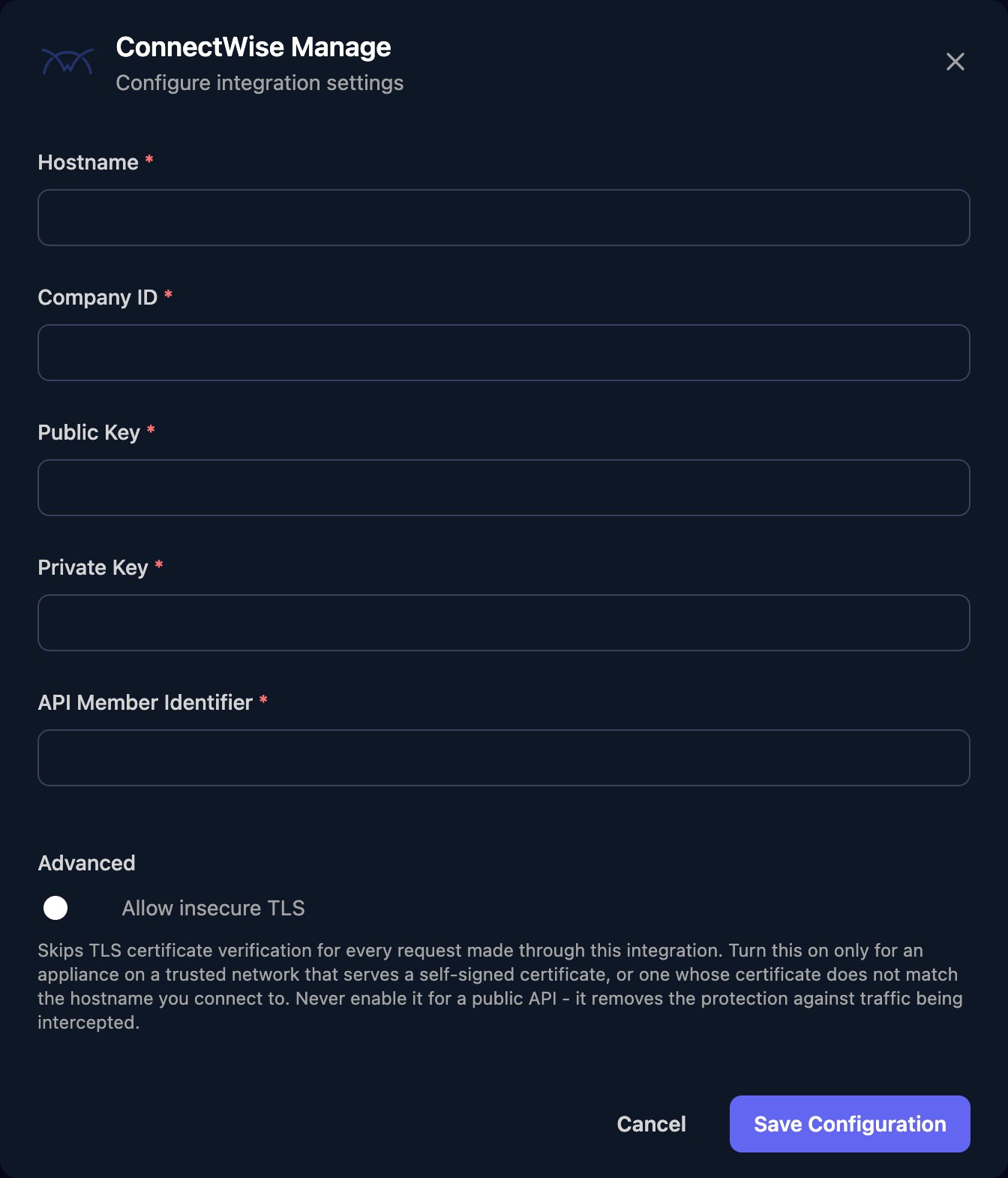 For an on-premises server, use its public host name and allow [Triggr's IP addresses](/security/ip-allowlist). For a self-signed certificate, turn on Allow insecure TLS.
## Map your clients
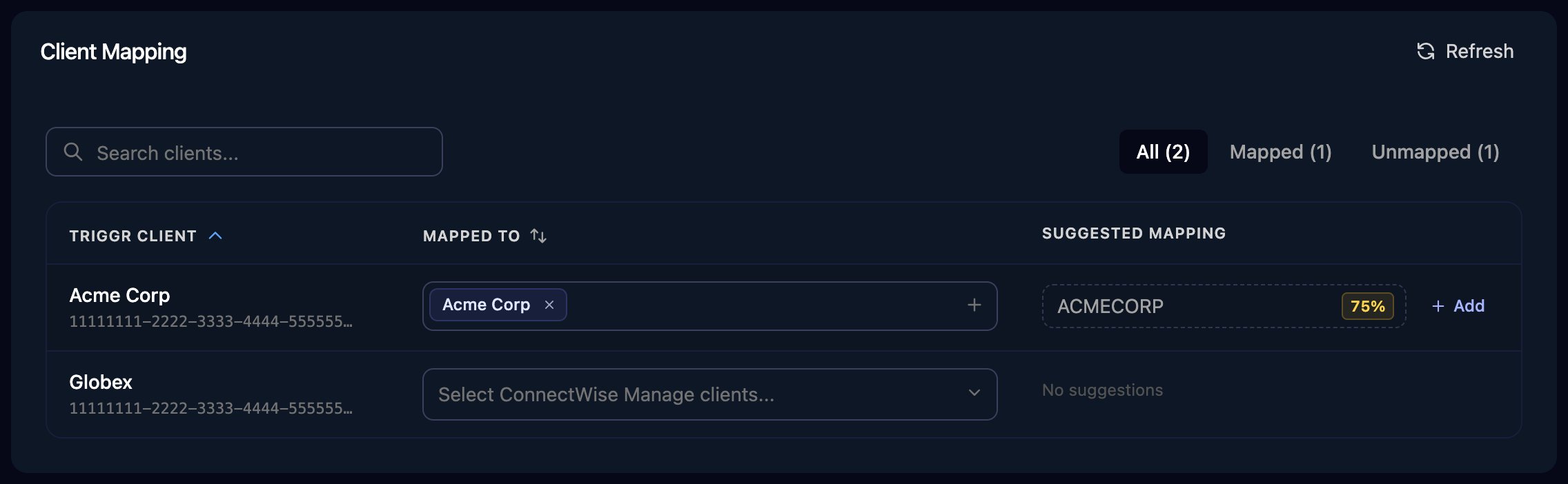
On the Client Mapping card, click **Apply 100% Matches**, then choose the ConnectWise company in Mapped to for anyone left. Triggr saves each match as the client's `connectwiseId` variable, which steps such as Create Ticket use to pick the company.
For an on-premises server, use its public host name and allow [Triggr's IP addresses](/security/ip-allowlist). For a self-signed certificate, turn on Allow insecure TLS.
## Map your clients
On the Client Mapping card, click **Apply 100% Matches**, then choose the ConnectWise company in Mapped to for anyone left. Triggr saves each match as the client's `connectwiseId` variable, which steps such as Create Ticket use to pick the company.
 Ticket steps run against the PSA set as Default PSA: in Triggr Core, Settings > General; in Studio, Settings > Org Variables > Setup Wizard. See [Connect your PSA](/core/get-started/connect-your-psa).
## Security role permissions
On the Triggr API role, expand each module and change these levels from None to All, for the areas your workflows use.
| Used for | Module | Permission | Levels to set to All |
| - | - | - | - |
| Client mapping, companies and sites | Companies | Company Maintenance | Inquire |
| Contacts | Companies | Contacts | Add, Edit, Delete, Inquire |
| Configurations | Companies | Configurations | Add, Edit, Delete, Inquire |
| Tickets and notes | Service Desk | Service Tickets | Add, Edit, Inquire |
| Agreements | Finance | Agreements | Add, Edit, Delete, Inquire |
| Time entries | Time & Expense | Time Entry | Add, Inquire |
| Opportunities | Sales | Opportunity | Add, Edit, Inquire |
| Boards, statuses and types | System | Table Setup | Inquire, plus Add, Edit and Delete if workflows change them |
If you restrict Table Setup to selected tables, include the ones your workflows read, such as Service / Service Board.
## Troubleshooting
Check both keys come from the same API key, Company ID is the company you sign in with, and Hostname has no `https://` or path. For a cloud instance, ConnectWise's API hosts carry an `api-` prefix, such as `api-na.myconnectwise.net`; if the browser host is refused, enter that instead.
Every field in the member's profile is required, including Time Zone, Location, Department and Default Territory.
The security role doesn't allow the request. Set the missing levels from [Security role permissions](#security-role-permissions).
Create a new API key on the member's API Keys tab, then paste both keys in via Edit on the Base Configuration card.
Set Company Maintenance Inquire to All, then click Refresh on Client Mapping.
This documentation is built and hosted on [Mintlify](https://mintlify.com), a developer documentation platform.
Ticket steps run against the PSA set as Default PSA: in Triggr Core, Settings > General; in Studio, Settings > Org Variables > Setup Wizard. See [Connect your PSA](/core/get-started/connect-your-psa).
## Security role permissions
On the Triggr API role, expand each module and change these levels from None to All, for the areas your workflows use.
| Used for | Module | Permission | Levels to set to All |
| - | - | - | - |
| Client mapping, companies and sites | Companies | Company Maintenance | Inquire |
| Contacts | Companies | Contacts | Add, Edit, Delete, Inquire |
| Configurations | Companies | Configurations | Add, Edit, Delete, Inquire |
| Tickets and notes | Service Desk | Service Tickets | Add, Edit, Inquire |
| Agreements | Finance | Agreements | Add, Edit, Delete, Inquire |
| Time entries | Time & Expense | Time Entry | Add, Inquire |
| Opportunities | Sales | Opportunity | Add, Edit, Inquire |
| Boards, statuses and types | System | Table Setup | Inquire, plus Add, Edit and Delete if workflows change them |
If you restrict Table Setup to selected tables, include the ones your workflows read, such as Service / Service Board.
## Troubleshooting
Check both keys come from the same API key, Company ID is the company you sign in with, and Hostname has no `https://` or path. For a cloud instance, ConnectWise's API hosts carry an `api-` prefix, such as `api-na.myconnectwise.net`; if the browser host is refused, enter that instead.
Every field in the member's profile is required, including Time Zone, Location, Department and Default Territory.
The security role doesn't allow the request. Set the missing levels from [Security role permissions](#security-role-permissions).
Create a new API key on the member's API Keys tab, then paste both keys in via Edit on the Base Configuration card.
Set Company Maintenance Inquire to All, then click Refresh on Client Mapping.
This documentation is built and hosted on [Mintlify](https://mintlify.com), a developer documentation platform.