> ## Documentation Index
> Fetch the complete documentation index at: https://university.triggr-app.com/llms.txt
> Use this file to discover all available pages before exploring further.
# ConnectWise ScreenConnect
> Connect ConnectWise ScreenConnect to Triggr with the RESTful API Manager extension and a secret you set.
Triggr finds ScreenConnect sessions, updates their custom properties and calls the RESTful API Manager's other methods, such as sending a command to a session. It needs ScreenConnect 22.3 or later, cloud or on-premises.
## Set up ScreenConnect
Go to **Admin > Extensions**, click Browse Extension Marketplace, find RESTful API Manager and click Install. If it's already installed, click Check for Updates.
Open the extension's Options menu and select Edit Settings. Enter a long random string in the Custom field for **RESTfulAuthenticationSecret**, leave RESTfulAllowedOrigin empty and click Save Settings. Anyone with the secret can send commands to your machines, so store it like an administrator password.
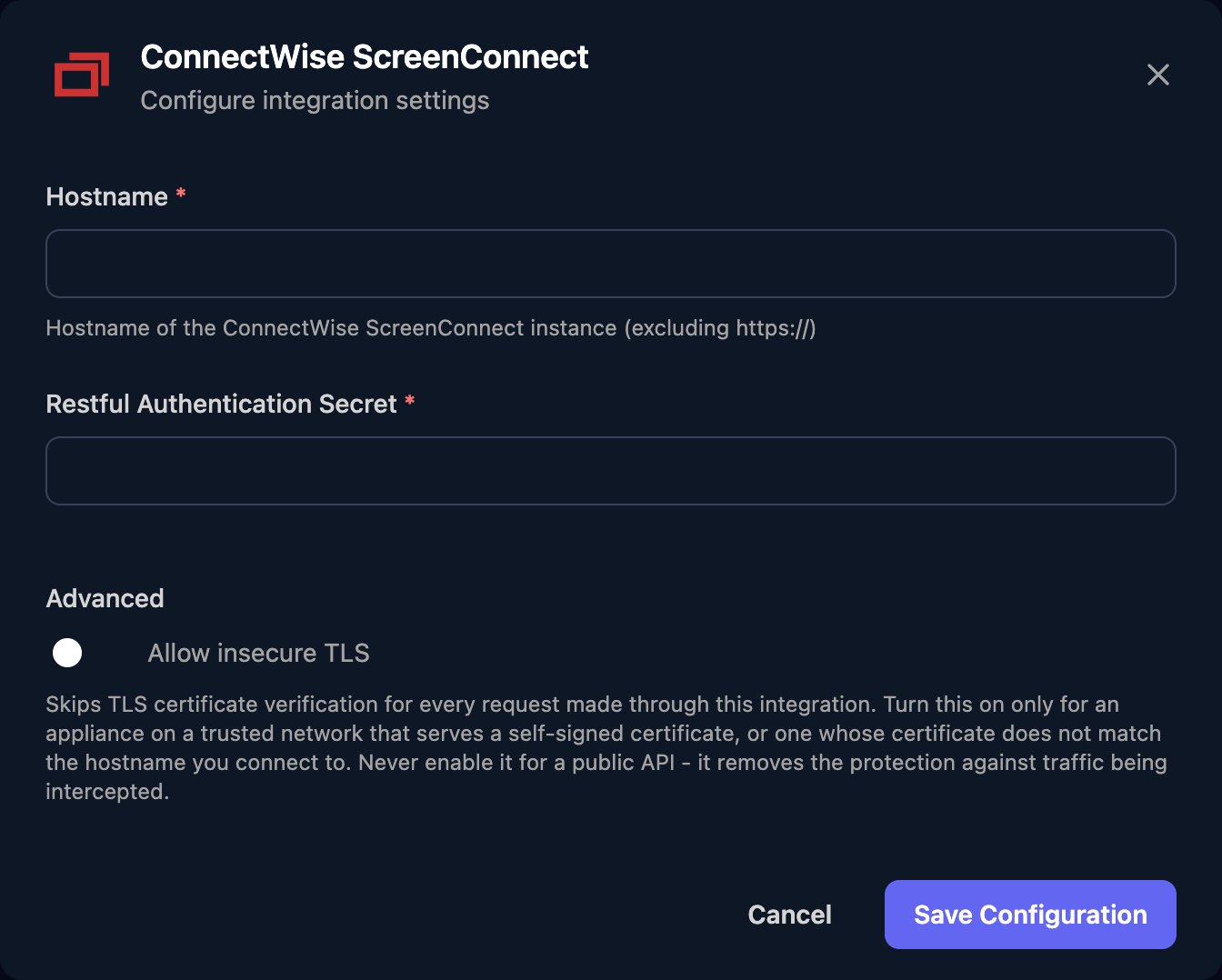
It's the address you open ScreenConnect at, without `https://`, such as `yourcompany.screenconnect.com`. An on-premises server must serve HTTPS at a public address; add the port if it isn't 443 (`support.example.com:8443`) and allow [Triggr's IP addresses](/security/ip-allowlist) through any firewall.
See ConnectWise's [RESTful API Manager](https://docs.connectwise.com/ConnectWise_ScreenConnect_Documentation/Supported_extensions/Administration/RESTful_API_Manager) guide.
## Connect it in Triggr
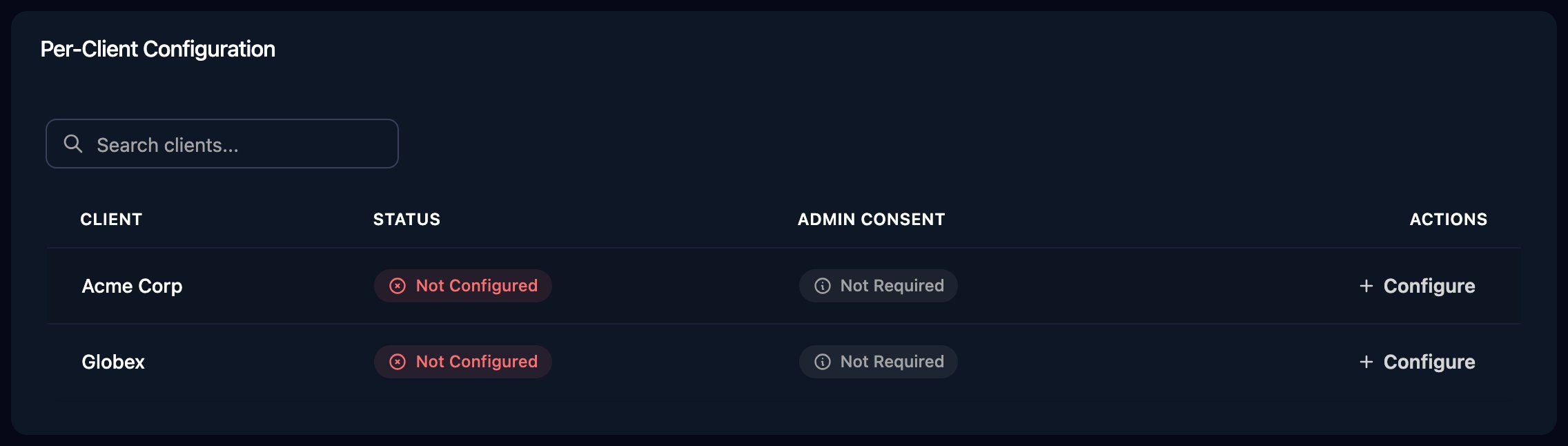
Go to **Integrations > ConnectWise ScreenConnect** and click **Configure** on the client's row in the Per-Client Configuration card.
 Enter the Hostname and the secret as Restful Authentication Secret, then click **Save Configuration**. For an on-premises server with a self-signed or internal certificate, turn on Allow insecure TLS first.
 Most MSPs enter the same instance for every client; each row holds its own copy. Per-client integrations never fall back to the Base Configuration, so a client without its own row fails its ScreenConnect steps. The Base Configuration is only for workflows that don't run for a client.
## Use ScreenConnect in workflows
* Set every action's `appExtensionId` to `2d558935-686a-4bd0-9991-07539f5fe749`, the extension's ID on every instance.
* Get Sessions By Filter takes a [session group filter](https://docs.connectwise.com/ScreenConnect_Documentation/Get_started/Host_page/Session_groups/Session_groups_filter_reference), such as `CustomProperty1 = 'Contoso'`.
* Make Post Request takes a method name as `endpoint`, such as `SendCommandToSession`, and its parameters in order as a JSON array, such as `["", "ipconfig"]`.
## Troubleshooting
Configure the client on the Per-Client Configuration card, then run the workflow again.
Check the secret matches RESTfulAuthenticationSecret exactly, RESTfulAllowedOrigin is empty and the extension isn't Inactive. If you changed the secret, update every row.
Hostname must be only the hostname and port, with no `https://` or path, served over HTTPS at a public address. For certificate errors, turn on Allow insecure TLS in each row that uses the server.
Check `appExtensionId` and the `endpoint` spelling. `AddNoteToSession` needs version 1.0.6 or later of the extension.
This documentation is built and hosted on [Mintlify](https://mintlify.com), a developer documentation platform.
Most MSPs enter the same instance for every client; each row holds its own copy. Per-client integrations never fall back to the Base Configuration, so a client without its own row fails its ScreenConnect steps. The Base Configuration is only for workflows that don't run for a client.
## Use ScreenConnect in workflows
* Set every action's `appExtensionId` to `2d558935-686a-4bd0-9991-07539f5fe749`, the extension's ID on every instance.
* Get Sessions By Filter takes a [session group filter](https://docs.connectwise.com/ScreenConnect_Documentation/Get_started/Host_page/Session_groups/Session_groups_filter_reference), such as `CustomProperty1 = 'Contoso'`.
* Make Post Request takes a method name as `endpoint`, such as `SendCommandToSession`, and its parameters in order as a JSON array, such as `["", "ipconfig"]`.
## Troubleshooting
Configure the client on the Per-Client Configuration card, then run the workflow again.
Check the secret matches RESTfulAuthenticationSecret exactly, RESTfulAllowedOrigin is empty and the extension isn't Inactive. If you changed the secret, update every row.
Hostname must be only the hostname and port, with no `https://` or path, served over HTTPS at a public address. For certificate errors, turn on Allow insecure TLS in each row that uses the server.
Check `appExtensionId` and the `endpoint` spelling. `AddNoteToSession` needs version 1.0.6 or later of the extension.
This documentation is built and hosted on [Mintlify](https://mintlify.com), a developer documentation platform.