> ## Documentation Index
> Fetch the complete documentation index at: https://university.triggr-app.com/llms.txt
> Use this file to discover all available pages before exploring further.
# Datto RMM
> Connect Datto RMM to Triggr with a Datto RMM user's API key and secret, then map your clients to Datto RMM sites.
Triggr works with Datto RMM sites and variables, devices and their audit data, quick jobs, alerts, users, components and the activity log. You need the Administrator security level in Datto RMM.
## Set up Datto RMM
Go to **Setup > Global Settings > Access Control** and turn on Enable API Access.
Administrator lets every Triggr action work. To limit access, go to **Setup > Security Levels**, click Create Security Level and name it `Triggr API`. Under Device visibility, enable Sites, click Add Site and Add all, then set the [permissions](#permissions) you need, keeping Global > Dashboard at View or higher.
Go to **Setup > Users** and click Create User. Use an email address such as `triggr@yourcompany.com` as the Username and assign the security level as the Default Security Level. The user must set a password and two-factor authentication within seven days, or Datto RMM deactivates it.
Open the user and click Generate API Keys in the API section. Set API security level, and set API Components level at least as high as any component Triggr runs as a quick job. Click Copy All to copy the API URL, API key and API Secret Key, then save. Datto RMM shows the secret only once, and generating new keys invalidates the old ones.
See Datto's [Activate the API](https://rmm.datto.com/help/en/Content/2SETUP/APIv2.htm#Activate_the_API) guide.
## Connect it in Triggr
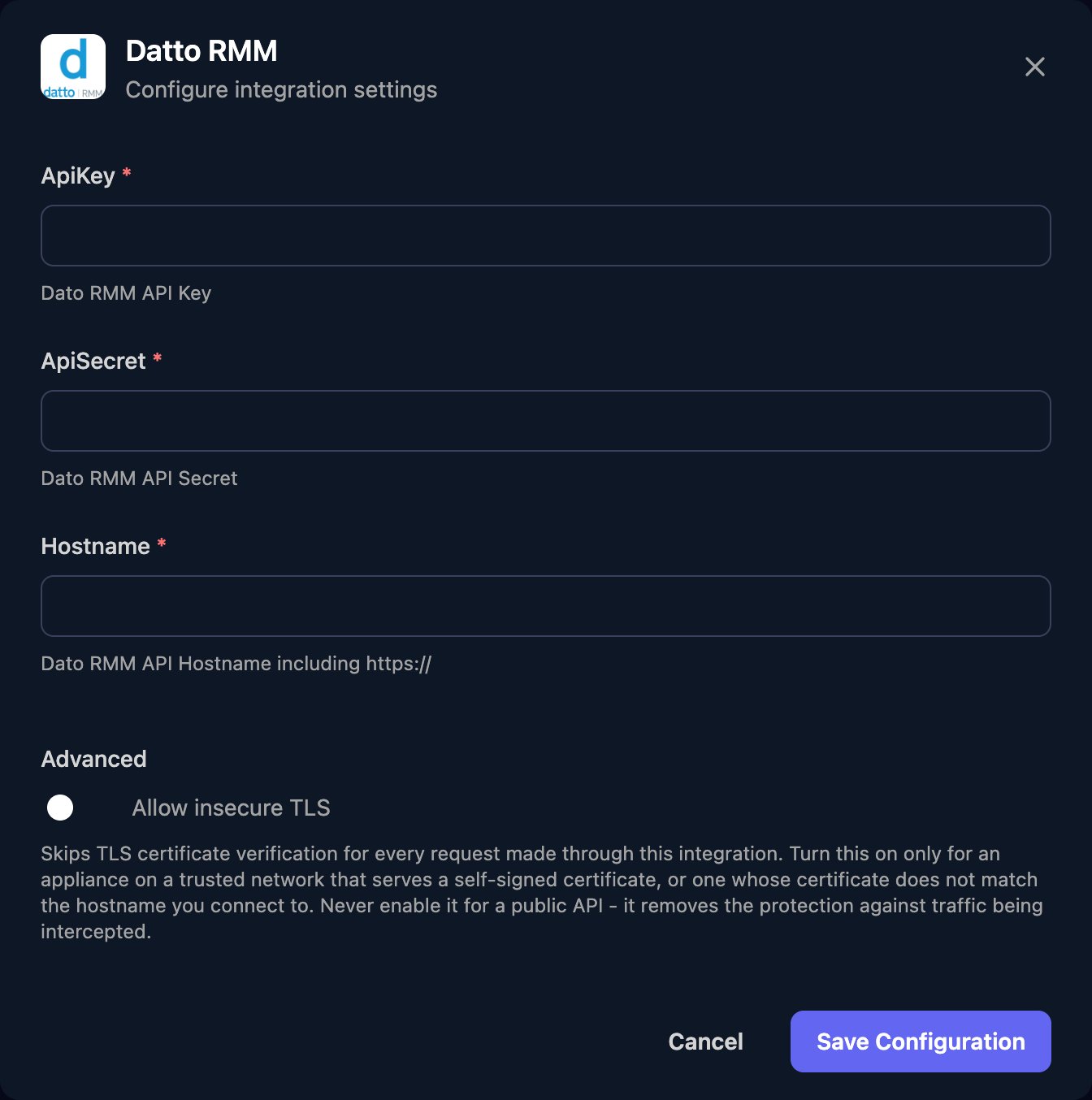
Go to **Integrations > Datto RMM** and click **Configure** on the Base Configuration card.
 Enter the API key as ApiKey, the API Secret Key as ApiSecret, and the API URL as Hostname, such as `https://merlot-api.centrastage.net`, with no trailing slash or `/api`. Click **Save Configuration**.
 ## Map your clients
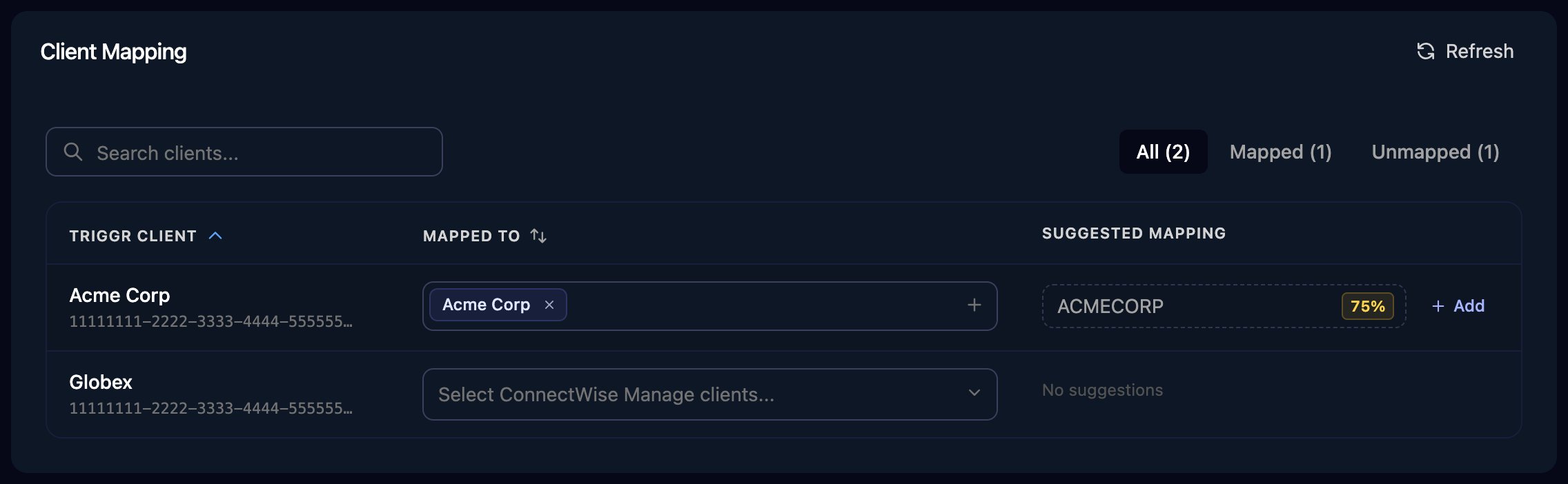
On the Client Mapping card, click **Apply 100% Matches**, then choose the Datto RMM site in Mapped to for anyone left. Triggr saves each match as the client's `dattoSiteId` and `dattoSiteUid` variables, comma-separated if a client maps to several sites. Most site actions take the UID, so use `dattoSiteUid`.
## Map your clients
On the Client Mapping card, click **Apply 100% Matches**, then choose the Datto RMM site in Mapped to for anyone left. Triggr saves each match as the client's `dattoSiteId` and `dattoSiteUid` variables, comma-separated if a client maps to several sites. Most site actions take the UID, so use `dattoSiteUid`.
 ## Permissions
Administrator covers everything. For a dedicated security level, client mapping needs Setup > Global Settings and Sites > Sites at View, with every site you map under Device visibility. See Datto's [API permissions](https://rmm.datto.com/help/en/Content/2SETUP/APIv2.htm#API_permissions) reference.
| Workflow area | Permissions |
| - | - |
| Read sites, site settings and site variables | Sites > Sites: View (site device filters also need Sites > Filters: View) |
| Create and update sites, site variables and proxy settings | Sites > Sites: Manage |
| Read devices and audit data | Sites > Sites and Sites > Devices: View, plus Setup > Global Settings: View across the account |
| Set warranty dates and user-defined fields | Sites > Sites: View, Sites > Devices: Manage |
| Run quick jobs | Sites > Sites: View, Sites > Devices: Manage, Jobs > Active Jobs: Manage, Components: View |
| Read jobs, results and output | Sites > Sites, Sites > Devices, Jobs > Active Jobs and Components: View |
| Read site and device alerts | Sites > Sites and Sites > Monitor: View (device alerts also need Sites > Devices: View) |
| Read account alerts and single alerts | Global > Monitor: View (account alerts also need Setup > Global Settings: View) |
| Resolve alerts | Global > Monitor: Manage |
| Read account details, users, variables and components | Setup > Global Settings: View (components also need Components: View) |
| Create, update and delete account variables | Setup > Global Settings: Manage |
| Read the activity log | Global > Audit: View |
| Read device filters | Global > Filters: View |
## Troubleshooting
Hostname must be the API URL (it contains `-api`), not the web portal. Check the keys aren't swapped or replaced, the Triggr user is still active and Enable API Access is on. Reset Authenticated User also replaces the user's keys.
Turn on Enable API Access under Setup > Global Settings > Access Control first.
Add them to the security level's Device visibility, then click Refresh on Client Mapping.
Add the missing [permission](#permissions) to the API security level.
Raise the Triggr user's API Components level in Setup > Users.
Datto RMM allows 600 reads and 100 writes per 60 seconds across your account, then blocks the IP address. Wait five minutes, and spread large workflows out.
This documentation is built and hosted on [Mintlify](https://mintlify.com), a developer documentation platform.
## Permissions
Administrator covers everything. For a dedicated security level, client mapping needs Setup > Global Settings and Sites > Sites at View, with every site you map under Device visibility. See Datto's [API permissions](https://rmm.datto.com/help/en/Content/2SETUP/APIv2.htm#API_permissions) reference.
| Workflow area | Permissions |
| - | - |
| Read sites, site settings and site variables | Sites > Sites: View (site device filters also need Sites > Filters: View) |
| Create and update sites, site variables and proxy settings | Sites > Sites: Manage |
| Read devices and audit data | Sites > Sites and Sites > Devices: View, plus Setup > Global Settings: View across the account |
| Set warranty dates and user-defined fields | Sites > Sites: View, Sites > Devices: Manage |
| Run quick jobs | Sites > Sites: View, Sites > Devices: Manage, Jobs > Active Jobs: Manage, Components: View |
| Read jobs, results and output | Sites > Sites, Sites > Devices, Jobs > Active Jobs and Components: View |
| Read site and device alerts | Sites > Sites and Sites > Monitor: View (device alerts also need Sites > Devices: View) |
| Read account alerts and single alerts | Global > Monitor: View (account alerts also need Setup > Global Settings: View) |
| Resolve alerts | Global > Monitor: Manage |
| Read account details, users, variables and components | Setup > Global Settings: View (components also need Components: View) |
| Create, update and delete account variables | Setup > Global Settings: Manage |
| Read the activity log | Global > Audit: View |
| Read device filters | Global > Filters: View |
## Troubleshooting
Hostname must be the API URL (it contains `-api`), not the web portal. Check the keys aren't swapped or replaced, the Triggr user is still active and Enable API Access is on. Reset Authenticated User also replaces the user's keys.
Turn on Enable API Access under Setup > Global Settings > Access Control first.
Add them to the security level's Device visibility, then click Refresh on Client Mapping.
Add the missing [permission](#permissions) to the API security level.
Raise the Triggr user's API Components level in Setup > Users.
Datto RMM allows 600 reads and 100 writes per 60 seconds across your account, then blocks the IP address. Wait five minutes, and spread large workflows out.
This documentation is built and hosted on [Mintlify](https://mintlify.com), a developer documentation platform.