> ## Documentation Index
> Fetch the complete documentation index at: https://university.triggr-app.com/llms.txt
> Use this file to discover all available pages before exploring further.
# Datto SaaS Protection
> Connect Datto SaaS Protection to Triggr with a Datto Partner Portal API key, then map your clients to SaaS Protection customers.
Triggr lists protected domains and seats, licenses, unlicenses or pauses backup for seats, and reads backup data in Datto SaaS Protection for Microsoft 365 and Google Workspace.
## Set up Datto SaaS Protection
SaaS Protection uses the same Partner Portal API key as [Datto BCDR](/integrations/datto-bcdr); if you already have one for Triggr, reuse it. Otherwise, you need the Admin or Security Admin role in the Partner Portal.
Go to **Admin > Integrations > API Keys** and click Create API Key. Enter an API Key Name such as `Triggr`, leave the vendor and client fields empty, and click Create. Datto allows two keys; you can reuse one with no vendor or client set.
In API Key Management, open the key's three-dot menu, select View keys and copy the public and secret keys.
See Datto's [Using the Datto REST API for SaaS Protection](https://saasprotection.datto.com/help/M365/Content/Other_Administrative_Tasks/using-rest-api-saas-protection.htm).
## Connect it in Triggr
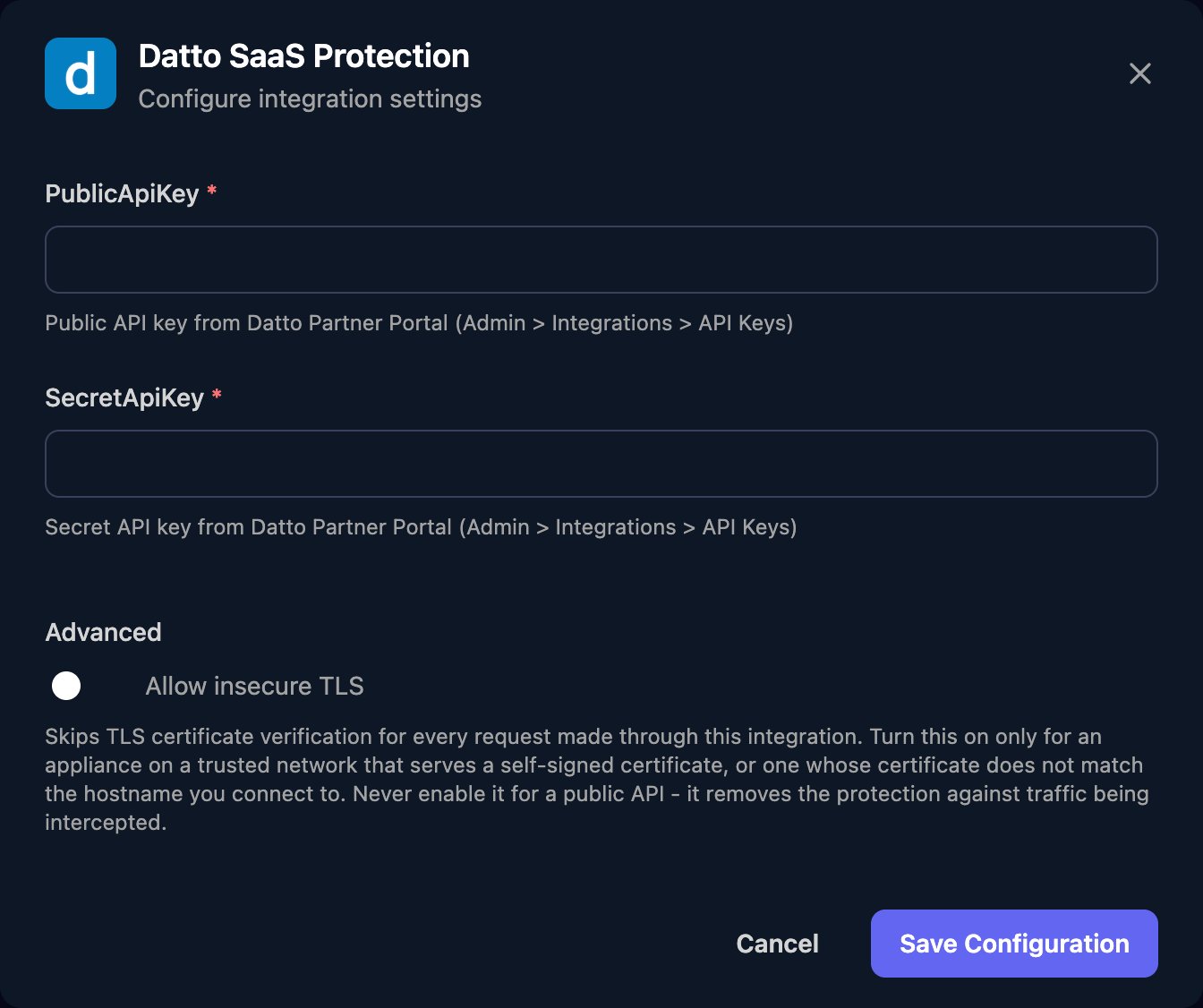
Go to **Integrations > Datto SaaS Protection** and click **Configure** on the Base Configuration card.
 Enter the PublicApiKey and SecretApiKey, then click **Save Configuration**.
 ## Map your clients
On the Client Mapping card, click **Apply 100% Matches**, then choose the SaaS Protection customer in Mapped to for anyone left. Only customers with at least one protected domain are listed.
## Map your clients
On the Client Mapping card, click **Apply 100% Matches**, then choose the SaaS Protection customer in Mapped to for anyone left. Only customers with at least one protected domain are listed.
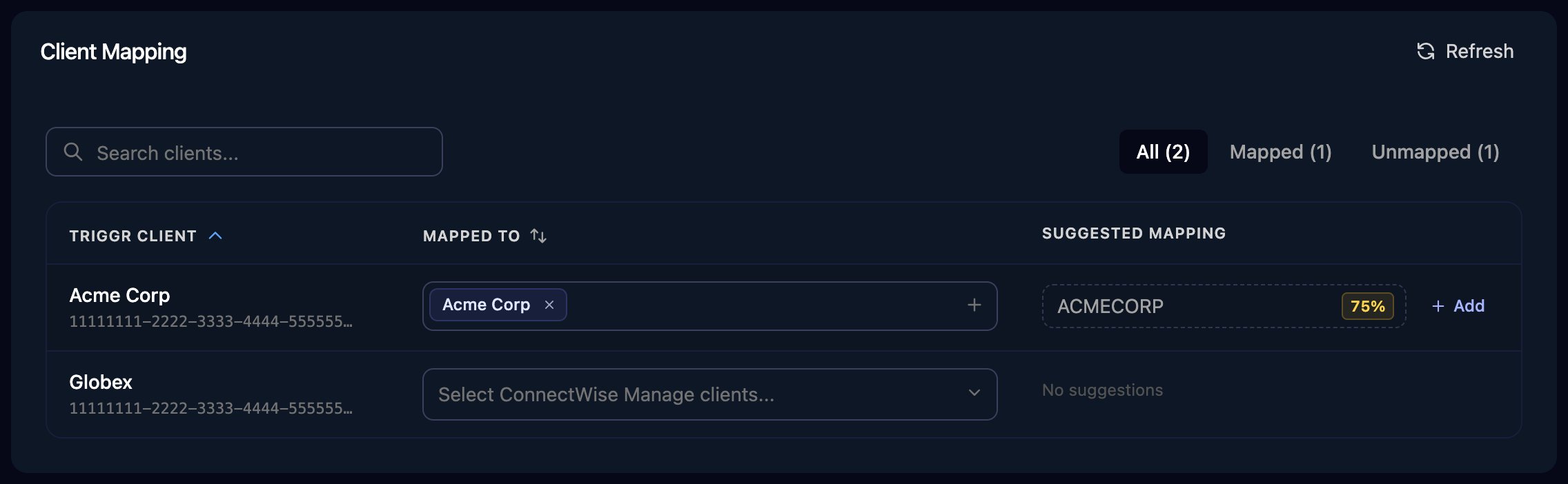 Triggr saves each match as the client's `dattoSaasProtectionId` and `externalSubscriptionId` variables. Pass `{{ ctx.client.dattoSaasProtectionId }}` as `saasCustomerId`, and for Bulk Seat Change also pass `{{ ctx.client.externalSubscriptionId }}` as `externalSubscriptionId`.
Bulk Seat Change takes Datto's JSON body in `requestBody`, with case-sensitive values:
```json theme={null}
{ "seat_type": "User", "action_type": "Unlicense", "ids": [""] }
```
`seat_type` is `User`, `SharedMailbox`, `Site`, `TeamSite` or `Team` for Microsoft 365, or `User` or `SharedDrive` for Google Workspace. `action_type` is `License`, `Pause` or `Unlicense`, and `ids` are `remoteId` values from Get Seats, up to 100 per request.
## Troubleshooting
Check the keys aren't swapped and were pasted in full, and the key hasn't been deactivated or regenerated. A key with a vendor set won't work; create one with the vendor field empty.
A key with a client set returns only that client's data. A customer appears only once one of its domains is protected; then click Refresh.
Check the values and their capitalisation, and that the `ids` and `externalSubscriptionId` belong to the same customer. For Google Workspace, Datto supports seat changes through the API only on Seat Management 2.0.
Reuse an existing key with no vendor or client set, or delete one you no longer use. Deleting a key stops every tool that uses it, including Datto BCDR.
This documentation is built and hosted on [Mintlify](https://mintlify.com), a developer documentation platform.
Triggr saves each match as the client's `dattoSaasProtectionId` and `externalSubscriptionId` variables. Pass `{{ ctx.client.dattoSaasProtectionId }}` as `saasCustomerId`, and for Bulk Seat Change also pass `{{ ctx.client.externalSubscriptionId }}` as `externalSubscriptionId`.
Bulk Seat Change takes Datto's JSON body in `requestBody`, with case-sensitive values:
```json theme={null}
{ "seat_type": "User", "action_type": "Unlicense", "ids": [""] }
```
`seat_type` is `User`, `SharedMailbox`, `Site`, `TeamSite` or `Team` for Microsoft 365, or `User` or `SharedDrive` for Google Workspace. `action_type` is `License`, `Pause` or `Unlicense`, and `ids` are `remoteId` values from Get Seats, up to 100 per request.
## Troubleshooting
Check the keys aren't swapped and were pasted in full, and the key hasn't been deactivated or regenerated. A key with a vendor set won't work; create one with the vendor field empty.
A key with a client set returns only that client's data. A customer appears only once one of its domains is protected; then click Refresh.
Check the values and their capitalisation, and that the `ids` and `externalSubscriptionId` belong to the same customer. For Google Workspace, Datto supports seat changes through the API only on Seat Management 2.0.
Reuse an existing key with no vendor or client set, or delete one you no longer use. Deleting a key stops every tool that uses it, including Datto BCDR.
This documentation is built and hosted on [Mintlify](https://mintlify.com), a developer documentation platform.