> ## Documentation Index
> Fetch the complete documentation index at: https://university.triggr-app.com/llms.txt
> Use this file to discover all available pages before exploring further.
# DefensX
> Connect DefensX to Triggr with a DefensX Partner API token.
Triggr lists and creates DefensX customers, lists policy and message templates, and lists a customer's agents. You need an admin login to your DefensX partner dashboard, such as a Global Partner Admin.
## Set up DefensX
Open the API Keys page and create a key for Triggr. If you restrict it to IP addresses, add both of [Triggr's IP addresses](/security/ip-allowlist).
Generate a token for the key and copy it.
See DefensX's [Using Partner API](https://kb.defensx.com/docs/categories/72-Partner-API/topics/91d5908c-ee58-4e51-8397-ba6823407ff8) guide.
## Connect it in Triggr
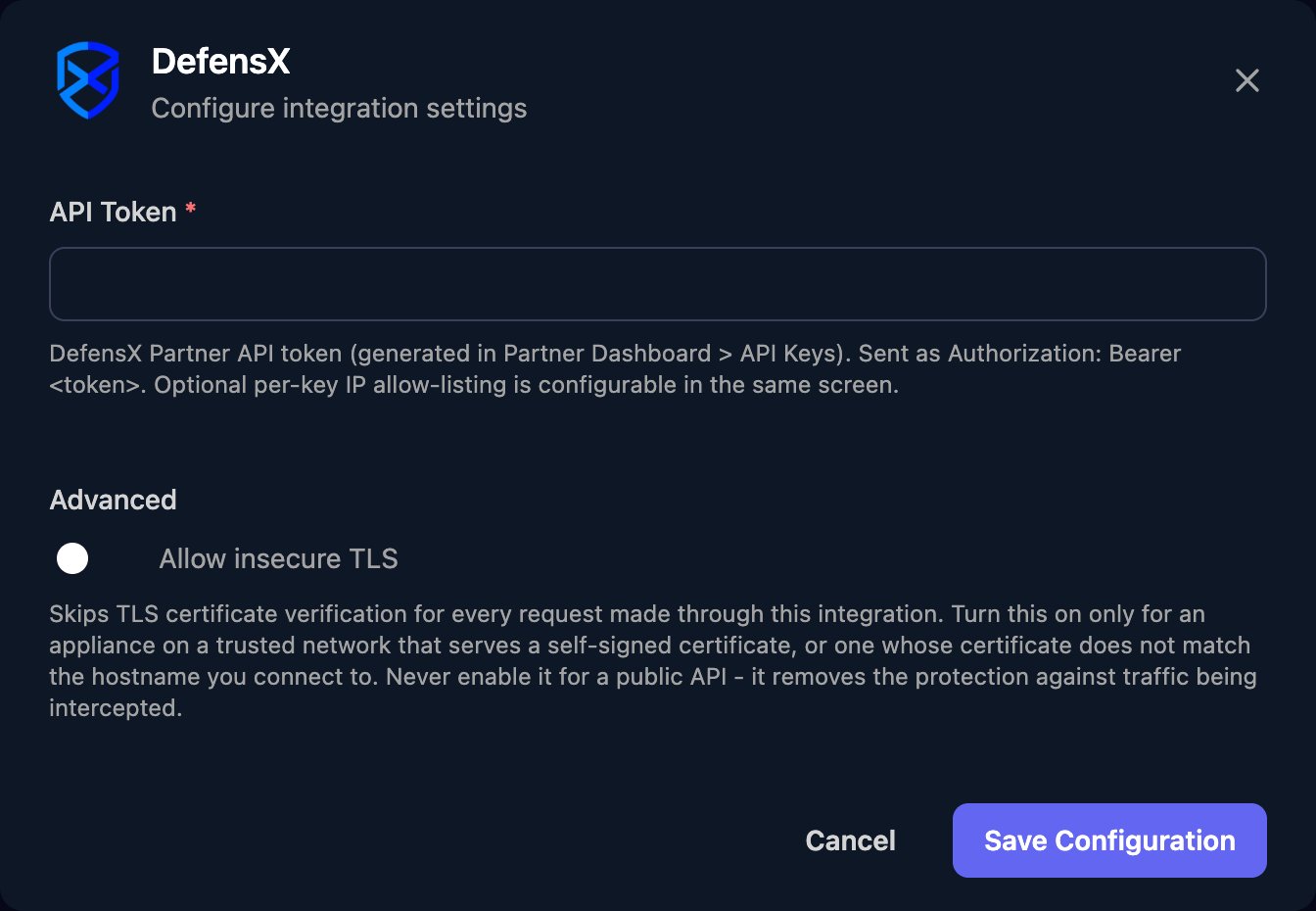
Go to **Integrations > DefensX** and click **Configure** on the Base Configuration card.
 Paste it into API Token, without `Bearer` in front, and click **Save Configuration**.
 One configuration covers every customer, with no client mapping. Actions on one customer take its `customerId` from List Customers. Create Customer takes DefensX's JSON body in `jsonBody`; add `policy_template_id` or `message_template_id` from List Policy Templates or List Message Templates. The Documentation button on the API Keys page lists the fields.
## Troubleshooting
Check API Token holds the full token without `Bearer`, the key still exists, and any IP restriction includes both of Triggr's addresses.
Check the body against DefensX's API documentation, and that template IDs come from your own account.
DefensX rate-limits the Partner API. Run large workflows in smaller batches.
This documentation is built and hosted on [Mintlify](https://mintlify.com), a developer documentation platform.
One configuration covers every customer, with no client mapping. Actions on one customer take its `customerId` from List Customers. Create Customer takes DefensX's JSON body in `jsonBody`; add `policy_template_id` or `message_template_id` from List Policy Templates or List Message Templates. The Documentation button on the API Keys page lists the fields.
## Troubleshooting
Check API Token holds the full token without `Bearer`, the key still exists, and any IP restriction includes both of Triggr's addresses.
Check the body against DefensX's API documentation, and that template IDs come from your own account.
DefensX rate-limits the Partner API. Run large workflows in smaller batches.
This documentation is built and hosted on [Mintlify](https://mintlify.com), a developer documentation platform.