> ## Documentation Index
> Fetch the complete documentation index at: https://university.triggr-app.com/llms.txt
> Use this file to discover all available pages before exploring further.
# DNSFilter
> Connect DNSFilter to Triggr with the API key of a dedicated DNSFilter user and map your clients to organisations.
Triggr works with DNSFilter organisations and their users, networks, policies, roaming clients and reports.
## Set up DNSFilter
In the DNSFilter MSP dashboard, go to MSP > Users and select Add User. Leave Organization Access Restrictions blank so Triggr can reach every organisation, then accept the invitation DNSFilter emails from `@netalerts.io`. If your MSP account uses single sign-on, add the user through your SSO configuration instead.
| Workflows will | Role |
| - | - |
| Map clients and manage policies, networks, roaming clients, users and reports | MSP Organization Admin |
| Also delete organisations | MSP Organization Super Admin |
Signed in as the Triggr user, go to **Account Settings > Security > API Keys** and select + Create Key. Enter a Name and Expiration, select Generate Key, copy the key, then select Save. DNSFilter shows the key only once, and doesn't warn you before it expires.
See DNSFilter's [API Keys](https://help.dnsfilter.com/hc/en-us/articles/21169189058323-API-Keys) and [user permissions](https://help.dnsfilter.com/hc/en-us/articles/1500008108462-Manage-DNSFilter-account-user-permissions) guides.
## Connect it in Triggr
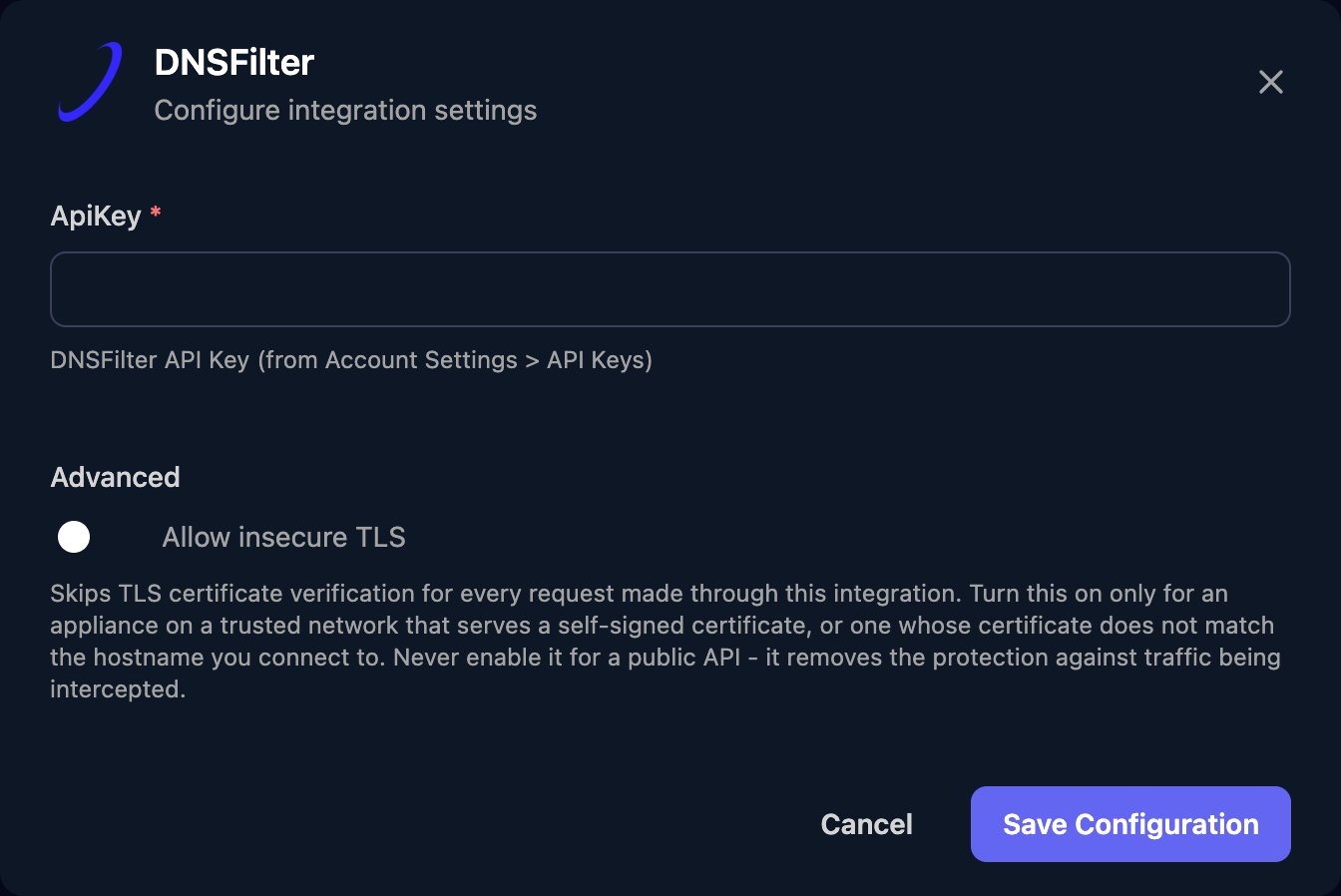
Go to **Integrations > DNSFilter** and click **Configure** on the Base Configuration card.
 Paste the key (it starts with `eyJ`) into ApiKey, with nothing such as `Bearer` in front, then click **Save Configuration**.
 ## Map your clients
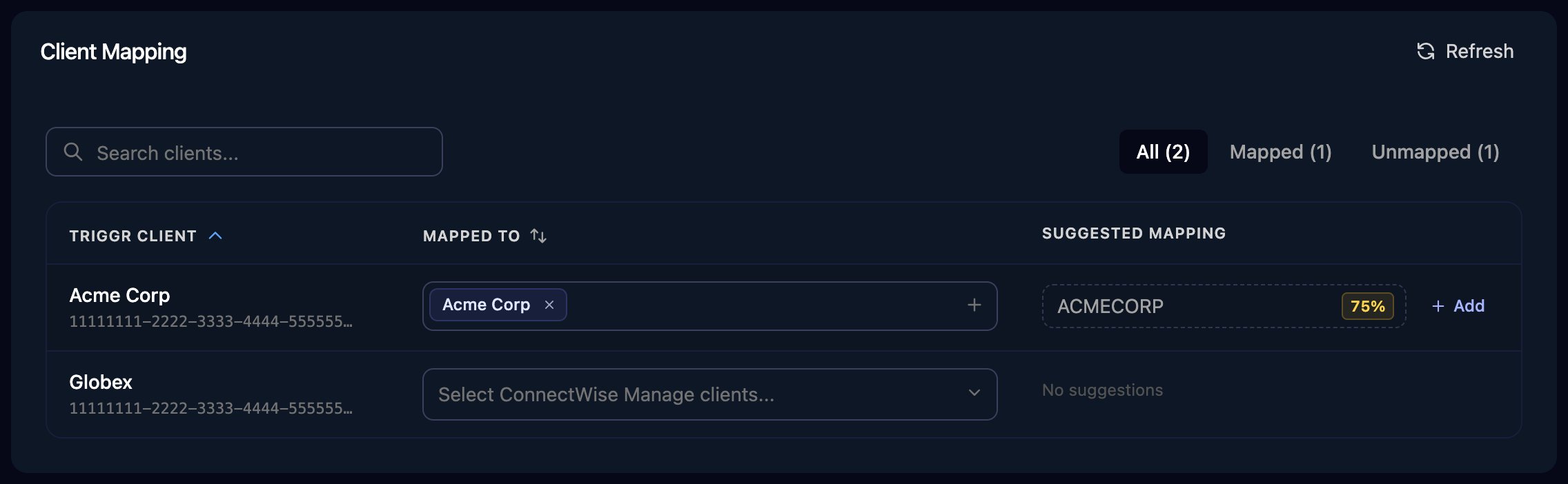
On the Client Mapping card, click **Apply 100% Matches**, then choose the DNSFilter organisation in Mapped to for anyone left. Triggr saves each match as the client's `organizationId` variable, so pass `{{ ctx.client.organizationId }}` to any action that asks for an organisation ID.
## Map your clients
On the Client Mapping card, click **Apply 100% Matches**, then choose the DNSFilter organisation in Mapped to for anyone left. Triggr saves each match as the client's `organizationId` variable, so pass `{{ ctx.client.organizationId }}` to any action that asks for an organisation ID.
 ## Troubleshooting
The key has expired or been revoked, or ApiKey has spaces or `Bearer` in it. As the Triggr user, check the key's Status under API Keys.
Keys can't be extended. As the Triggr user, create a new key, paste it in via Edit on the Base Configuration card, then revoke the old key. Only the user who created a key can revoke it.
The Triggr user's role doesn't allow the change, or it has Organization Access Restrictions. Fix both in MSP > Users, then click Refresh on Client Mapping.
Each user can have five active keys. Revoke or delete keys the Triggr user no longer needs, then try again.
DNSFilter allows 2,000 requests per 300 seconds per organisation, including dashboard use. Run large bulk workflows in smaller batches.
This documentation is built and hosted on [Mintlify](https://mintlify.com), a developer documentation platform.
## Troubleshooting
The key has expired or been revoked, or ApiKey has spaces or `Bearer` in it. As the Triggr user, check the key's Status under API Keys.
Keys can't be extended. As the Triggr user, create a new key, paste it in via Edit on the Base Configuration card, then revoke the old key. Only the user who created a key can revoke it.
The Triggr user's role doesn't allow the change, or it has Organization Access Restrictions. Fix both in MSP > Users, then click Refresh on Client Mapping.
Each user can have five active keys. Revoke or delete keys the Triggr user no longer needs, then try again.
DNSFilter allows 2,000 requests per 300 seconds per organisation, including dashboard use. Run large bulk workflows in smaller batches.
This documentation is built and hosted on [Mintlify](https://mintlify.com), a developer documentation platform.