> ## Documentation Index
> Fetch the complete documentation index at: https://university.triggr-app.com/llms.txt
> Use this file to discover all available pages before exploring further.
# Duo Accounts API
> Connect your Duo MSP account to Triggr to manage client subaccounts with one Admin API application.
The Duo Accounts integration uses one set of keys in your Duo MSP account to create and delete subaccounts, manage their users and groups, and read their logs. For phones, tokens or administrators, use [Duo](/integrations/duo/admin-api) in the client's own account; to verify people, use [Duo Auth](/integrations/duo/auth-api).
You need the Owner role in a Duo MSP account (or another account that can create subaccounts). Duo moved [subaccount management](https://duo.com/docs/adminapi#subaccounts) into the Admin API in June 2026; existing Accounts API keys still work.
## Set up Duo
In the Duo Admin Panel for your main account, go to **Applications → Application Catalog**, find Admin API and click + Add. You don't need one per subaccount.
Under Subaccount permissions, tick what your workflows need and click Save. If you fill in Networks for API Access, include Triggr's [outbound IP addresses](/security/ip-allowlist).
| Permission | Lets Triggr |
| - | - |
| Grant accounts - Read | List subaccounts (needed for client mapping) |
| Grant accounts - Write | Create and delete subaccounts |
| Grant resource - Read | Read users, their groups and bypass codes |
| Grant resource - Write | Create, update, delete and enrol users, and change group membership |
| Grant read log | Read logs and Trust Monitor events |
Copy the Integration key, Secret key and API hostname from Details.
## Connect it in Triggr
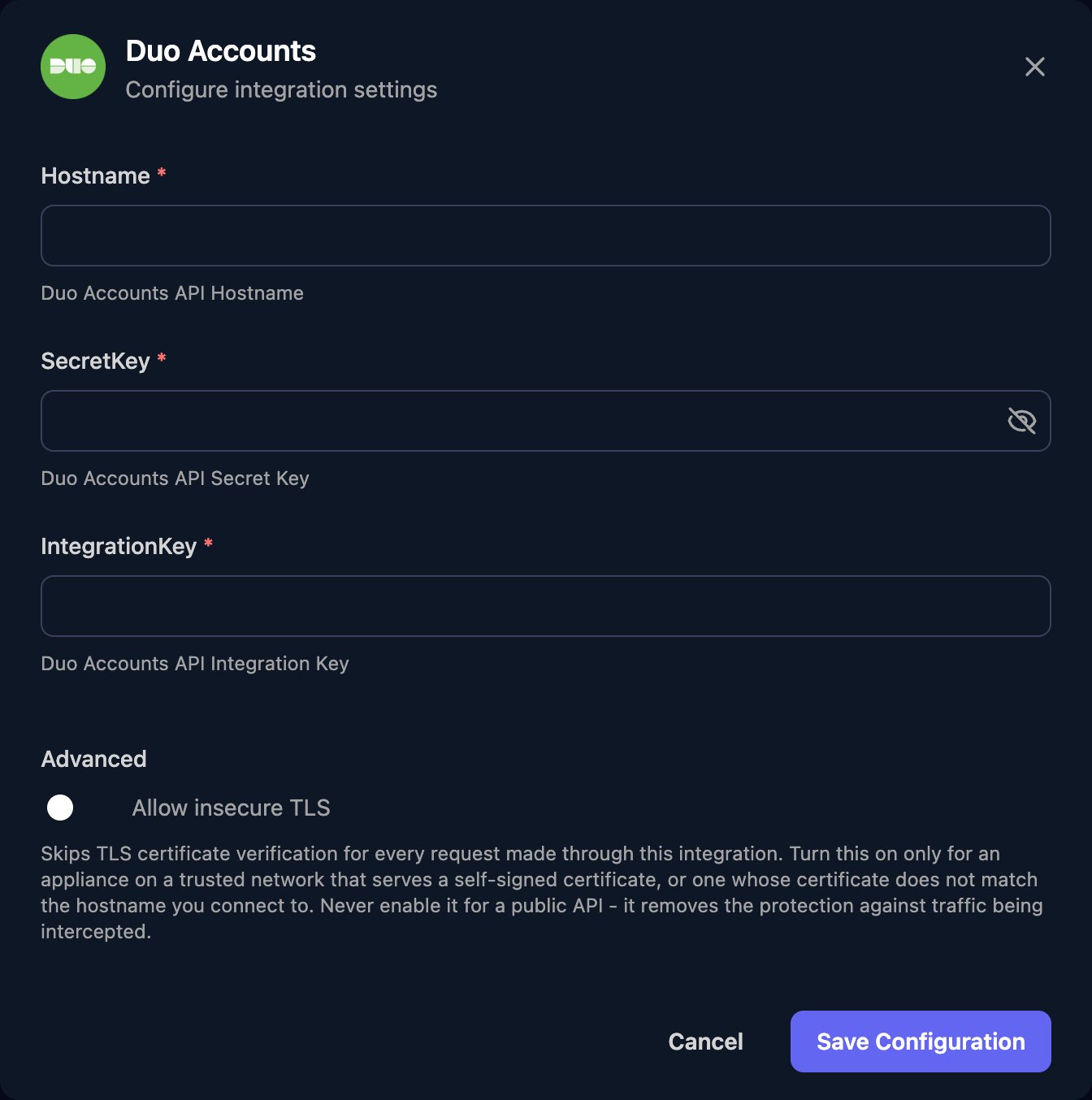
Go to **Integrations > Duo Accounts** and click **Configure** on the Base Configuration card.
 Enter Hostname as `https://` plus the API hostname, with no trailing `/` or path (for example `https://api-XXXXXXXX.duosecurity.com`), add the SecretKey and IntegrationKey, then click **Save Configuration**.
 ## Map your clients
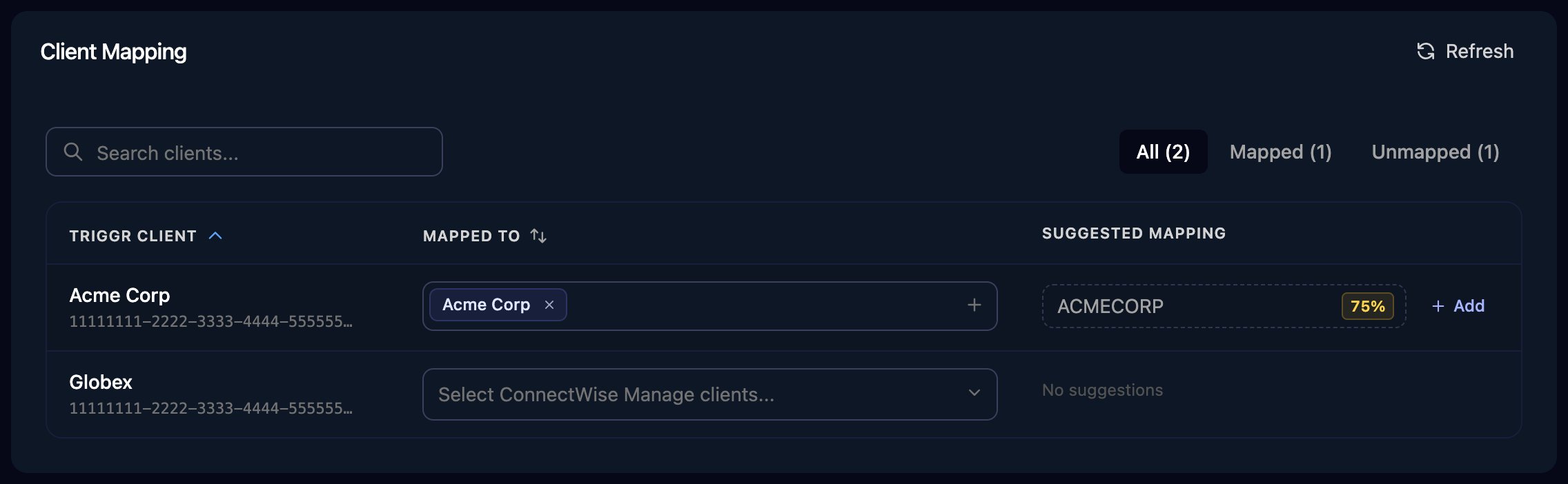
On the Client Mapping card, click **Apply 100% Matches**, then choose the subaccount in Mapped to for anyone left. Triggr saves each match as the client's `duoAccountId` (the subaccount's account ID, starting `DA`) and `duoApiHostname` variables.
## Map your clients
On the Client Mapping card, click **Apply 100% Matches**, then choose the subaccount in Mapped to for anyone left. Triggr saves each match as the client's `duoAccountId` (the subaccount's account ID, starting `DA`) and `duoApiHostname` variables.
 In subaccount actions, set Duo Account Id (reads and deletes) or Account Id (creates and changes) to `{{ ctx.client.duoAccountId }}`. Without it, Duo answers for your main account.
## Troubleshooting
Check the application has Grant accounts - Read and its keys come from your main account, not a subaccount. Then click Refresh on Client Mapping.
40102 means IntegrationKey is wrong or from a different account to Hostname. 40103 means SecretKey is wrong (perhaps reset in Duo) or Hostname has a trailing `/` or path.
Tick the subaccount permission the action needs in the Duo Admin Panel and click Save.
Set the action's Duo Account Id or Account Id to `{{ ctx.client.duoAccountId }}` and check the client is mapped.
Add Triggr's [outbound IP addresses](/security/ip-allowlist) to the application's Networks for API Access.
This documentation is built and hosted on [Mintlify](https://mintlify.com), a developer documentation platform.
In subaccount actions, set Duo Account Id (reads and deletes) or Account Id (creates and changes) to `{{ ctx.client.duoAccountId }}`. Without it, Duo answers for your main account.
## Troubleshooting
Check the application has Grant accounts - Read and its keys come from your main account, not a subaccount. Then click Refresh on Client Mapping.
40102 means IntegrationKey is wrong or from a different account to Hostname. 40103 means SecretKey is wrong (perhaps reset in Duo) or Hostname has a trailing `/` or path.
Tick the subaccount permission the action needs in the Duo Admin Panel and click Save.
Set the action's Duo Account Id or Account Id to `{{ ctx.client.duoAccountId }}` and check the client is mapped.
Add Triggr's [outbound IP addresses](/security/ip-allowlist) to the application's Networks for API Access.
This documentation is built and hosted on [Mintlify](https://mintlify.com), a developer documentation platform.