> ## Documentation Index
> Fetch the complete documentation index at: https://university.triggr-app.com/llms.txt
> Use this file to discover all available pages before exploring further.
# Duo Admin API
> Connect each client's Duo account to Triggr with a Duo Admin API application.
The Duo integration administers a Duo account in full: users, groups, devices, verification pushes, administrators, settings and logs. If your clients are subaccounts of a Duo MSP account, [Duo Accounts](/integrations/duo/accounts-api) covers all of them with one set of keys; to verify people, use [Duo Auth](/integrations/duo/auth-api).
Each Duo account needs Duo Premier, Duo Advantage or Duo Essentials (or an Advantage or Premier trial), and you need its Owner role.
## Set up Duo
Repeat these steps in each Duo account: your own, and each client's.
In the Duo Admin Panel, go to **Applications → Application Catalog**, find Admin API and click + Add.
Tick what your workflows need and click Save. If you fill in Networks for API Access, include Triggr's [outbound IP addresses](/security/ip-allowlist).
| Permission | Lets Triggr |
| - | - |
| Grant resource - Read | Read users, groups, phones, tokens, bypass codes, WebAuthn credentials, desktop authenticators, endpoints, registered devices and push responses |
| Grant resource - Write | Change those objects, enrol users, send SMS links and verification pushes, run bulk user operations and directory syncs |
| Grant administrators - Read | Read administrators, pending activations and administrative units |
| Grant administrators - Write | Change administrators, administrative units and activation links, and sync administrators |
| Grant read log | Read logs and Trust Monitor events |
| Grant settings | Read and change settings, the logo and custom messaging |
| Grant read information | Read the account summary, telephony credits and authentication attempts |
Copy the Integration key, Secret key and API hostname from Details.
Directory sync actions also need the directory's key, from Users → Directory Sync. See Duo's [Admin API first steps](https://duo.com/docs/adminapi#first-steps).
## Connect it in Triggr
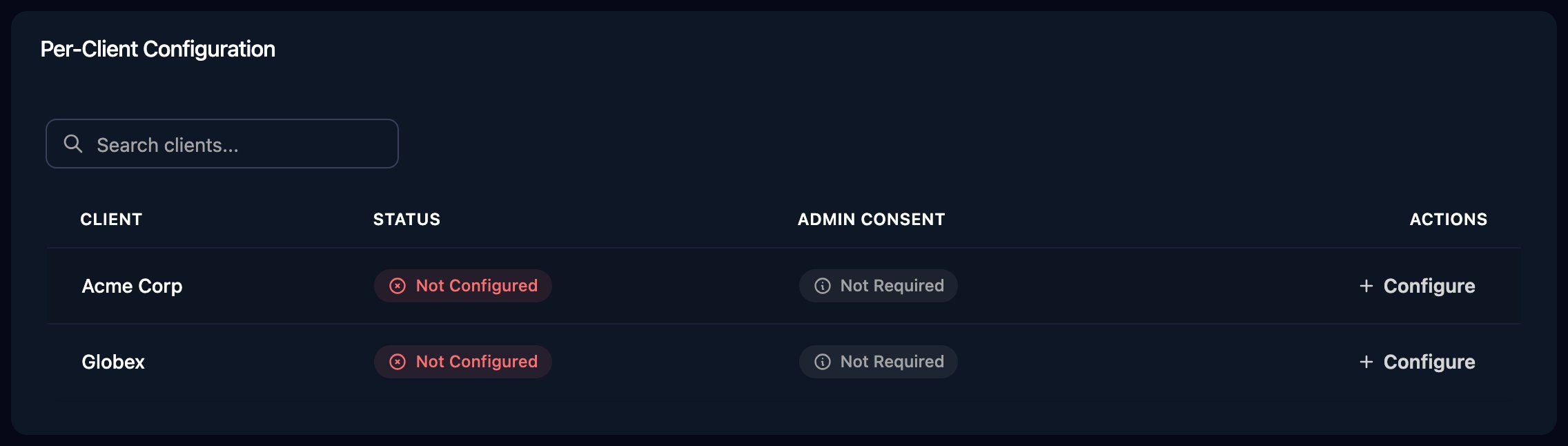
Go to **Integrations > Duo** and click **Configure** on the client's row in the Per-Client Configuration card, or on the Base Configuration card for your own account.
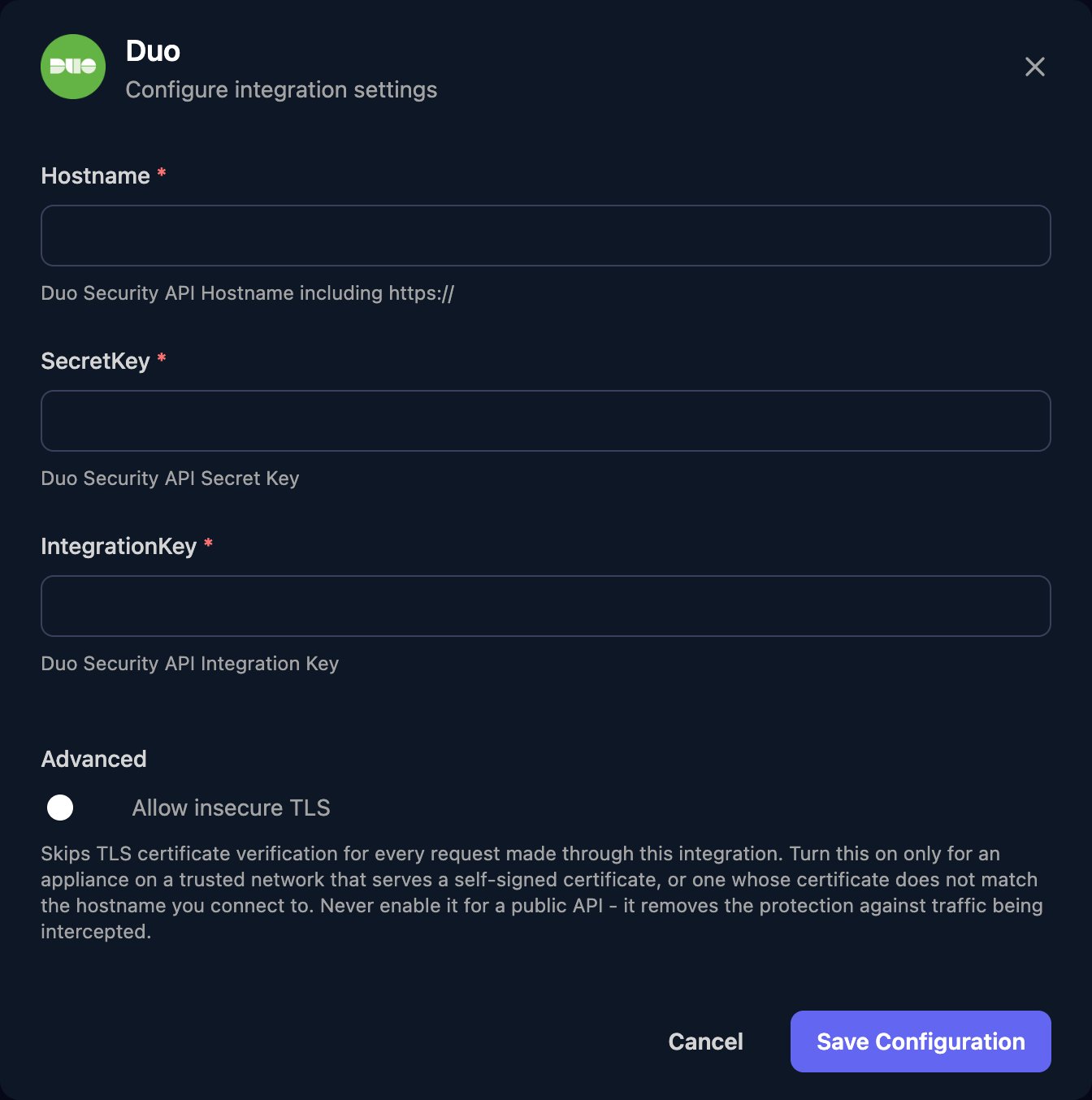
 Enter Hostname as `https://` plus the API hostname, with no trailing `/` or path (for example `https://api-XXXXXXXX.duosecurity.com`), add the SecretKey and IntegrationKey, then click **Save Configuration**.
 Per-client integrations never fall back to the Base Configuration, so every client whose workflows use Duo needs its own row.
## Troubleshooting
40102 means IntegrationKey is wrong or from a different account to Hostname. 40103 means SecretKey is wrong (perhaps reset in Duo) or Hostname has a trailing `/` or path.
Tick the permission the action needs in the Duo Admin Panel, and check the keys come from an Admin API application, not Auth API.
Configure Duo for that client on the Per-Client Configuration card.
Add Triggr's [outbound IP addresses](/security/ip-allowlist) to the application's Networks for API Access.
This documentation is built and hosted on [Mintlify](https://mintlify.com), a developer documentation platform.
Per-client integrations never fall back to the Base Configuration, so every client whose workflows use Duo needs its own row.
## Troubleshooting
40102 means IntegrationKey is wrong or from a different account to Hostname. 40103 means SecretKey is wrong (perhaps reset in Duo) or Hostname has a trailing `/` or path.
Tick the permission the action needs in the Duo Admin Panel, and check the keys come from an Admin API application, not Auth API.
Configure Duo for that client on the Per-Client Configuration card.
Add Triggr's [outbound IP addresses](/security/ip-allowlist) to the application's Networks for API Access.
This documentation is built and hosted on [Mintlify](https://mintlify.com), a developer documentation platform.