> ## Documentation Index
> Fetch the complete documentation index at: https://university.triggr-app.com/llms.txt
> Use this file to discover all available pages before exploring further.
# Employment Hero
> Connect Employment Hero to Triggr with an OAuth application from the Employment Hero Developer Portal.
Triggr reads Employment Hero organisations, employees, teams and leave, as the user who authorises it. Your plan must include API access and the Developer Portal, such as Platinum HR, eOS Plus or eOS Unlimited; see [Accessing the Employment Hero API and Developer Portal](https://help.employmenthero.com/hc/en-au/articles/17426641029007-Accessing-the-Employment-Hero-API-and-Developer-Portal).
## Set up Employment Hero
In [Employment Hero](https://secure.employmenthero.com), click your profile name, select **Developer Portal** and click Add Application. Set the redirect URI to exactly `https://app.triggr-app.com/oauth/callback`.
Select the read scope for each area your workflows use: organisations, employing entities, work locations, cost centres, employees, employment history, custom fields, certifications, emergency contacts, teams and leave. Always include organisations (`urn:mainapp:organisations:read`), as other actions need an organisation ID.
You can't change scopes after creating the application. To add one later, register a new application and replace the credentials in Triggr.
Create the application and copy the Client ID and Client Secret.
See Employment Hero's [Obtain Credentials](https://developer.employmenthero.com/api-references#obtain-credentials) guide.
## Connect it in Triggr
Go to **Integrations > Employment Hero** and click **Configure** on the Base Configuration card.
 Enter the Client ID and Client Secret, then click **Save Configuration**.
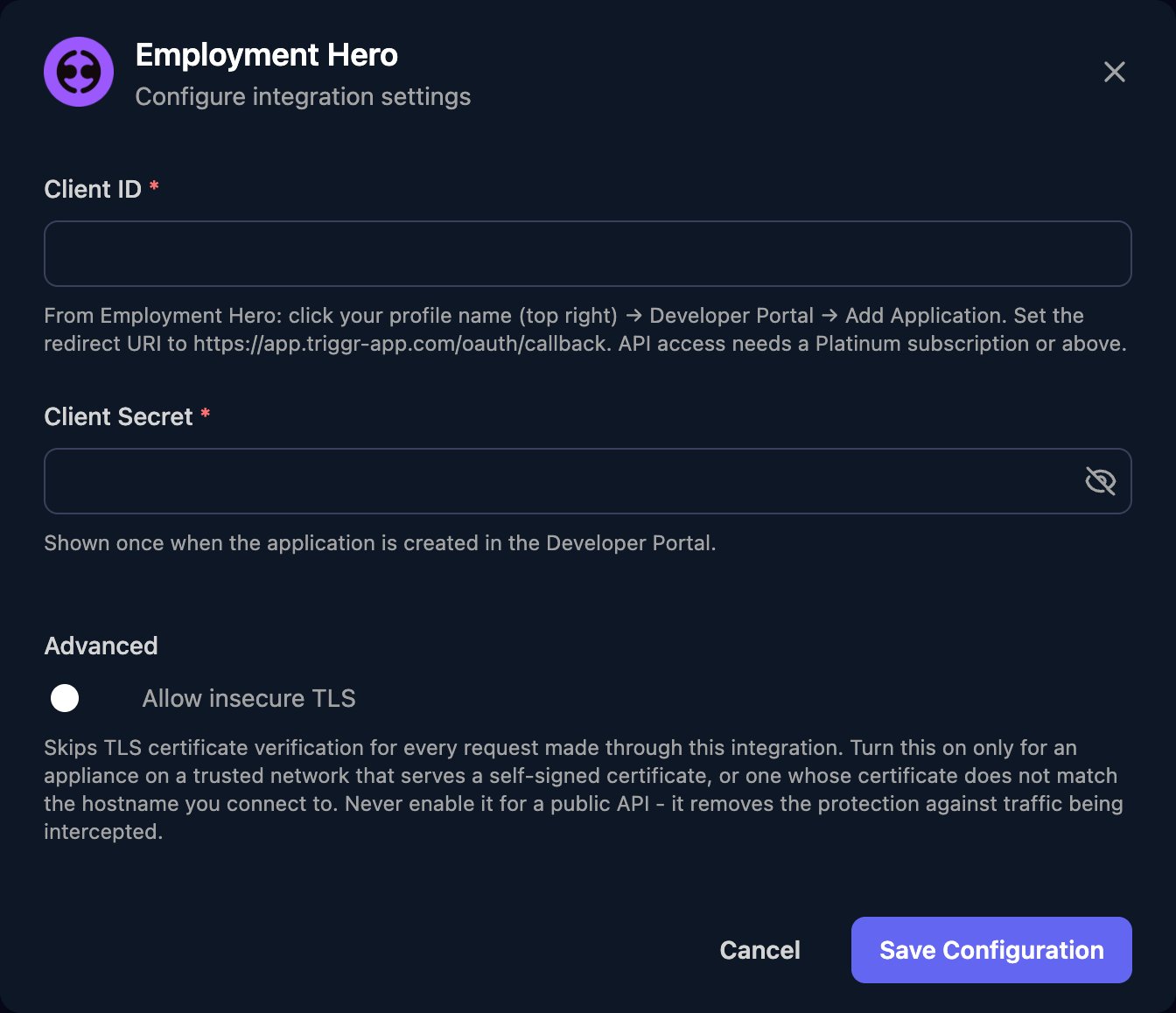 Click **Authorize** on the Base Configuration card and sign in as an Employment Hero user, such as an admin, who can see the organisations and employees your workflows need. Click Authorize again whenever you change the credentials.
In workflows, run List Organisations first to get the `organisation_id` most actions need.
## Troubleshooting
Your plan doesn't include API access. Check it against Employment Hero's [supported plans](https://help.employmenthero.com/hc/en-au/articles/17426641029007-Accessing-the-Employment-Hero-API-and-Developer-Portal).
Check the application's redirect URI is exactly `https://app.triggr-app.com/oauth/callback` with no trailing slash, and that the Client ID in Triggr belongs to it.
Re-enter the Client ID and Client Secret with no spaces, click Save Configuration, then Authorize again.
The authorising user can't see that data, or the application lacks its read scope. Authorize as a user who can, or register a new application with the scope.
Employment Hero allows 20 requests per second and 100 per minute. Spread large workflows out, or fetch up to 100 items per page.
This documentation is built and hosted on [Mintlify](https://mintlify.com), a developer documentation platform.
Click **Authorize** on the Base Configuration card and sign in as an Employment Hero user, such as an admin, who can see the organisations and employees your workflows need. Click Authorize again whenever you change the credentials.
In workflows, run List Organisations first to get the `organisation_id` most actions need.
## Troubleshooting
Your plan doesn't include API access. Check it against Employment Hero's [supported plans](https://help.employmenthero.com/hc/en-au/articles/17426641029007-Accessing-the-Employment-Hero-API-and-Developer-Portal).
Check the application's redirect URI is exactly `https://app.triggr-app.com/oauth/callback` with no trailing slash, and that the Client ID in Triggr belongs to it.
Re-enter the Client ID and Client Secret with no spaces, click Save Configuration, then Authorize again.
The authorising user can't see that data, or the application lacks its read scope. Authorize as a user who can, or register a new application with the scope.
Employment Hero allows 20 requests per second and 100 per minute. Spread large workflows out, or fetch up to 100 items per page.
This documentation is built and hosted on [Mintlify](https://mintlify.com), a developer documentation platform.