> ## Documentation Index
> Fetch the complete documentation index at: https://university.triggr-app.com/llms.txt
> Use this file to discover all available pages before exploring further.
# Field Effect
> Connect Field Effect MDR to Triggr with an MDR Portal API key and map your clients to Field Effect organisations.
Triggr works with Field Effect MDR organisations, AROs, devices, risks, DNS Firewall, users, reports and PSA ticketing integrations.
## Set up Field Effect
The key has the access of the user who creates it, so use a user in your partner organisation, ideally a dedicated one for Triggr. A user invited to a client organisation can only reach that client.
| Level | Lets Triggr |
| - | - |
| View | See AROs, reports and dashboards |
| Edit | Also manage AROs, monitoring profiles, DNS Firewall and SEAS settings |
| Admin | Also manage Active Response, Agent Protection and users |
To change a level, an Admin goes to Administration > User Management on the partner view and clicks Edit user Permissions in the user's menu. See Field Effect's [How to Edit User Permissions](https://support.fieldeffect.com/en/support/solutions/articles/16000178684-how-to-edit-user-permissions).
Signed in to `my.fieldeffect.net` as that user, go to **Account Settings > Sign in & Security** and click Create API Key in the API Keys card. Name it, click Create and copy the key. Field Effect shows it only once.
See Field Effect's [Create an API Key](https://support.fieldeffect.com/en/support/solutions/articles/16000231955-create-an-api-key) guide.
## Connect it in Triggr
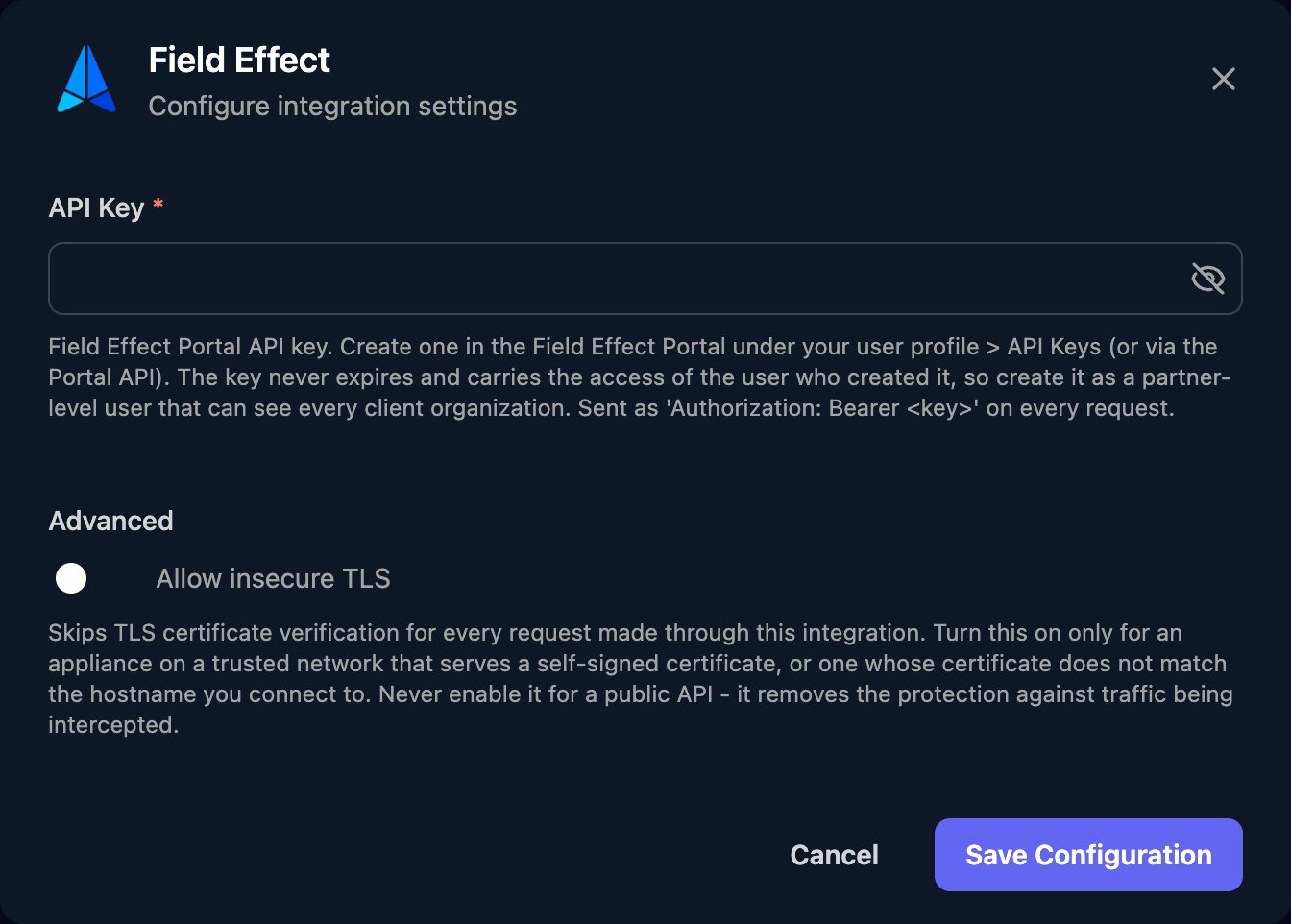
Go to **Integrations > Field Effect** and click **Configure** on the Base Configuration card.
 Paste it into API Key without `Bearer` in front, then click **Save Configuration**.
 ## Map your clients
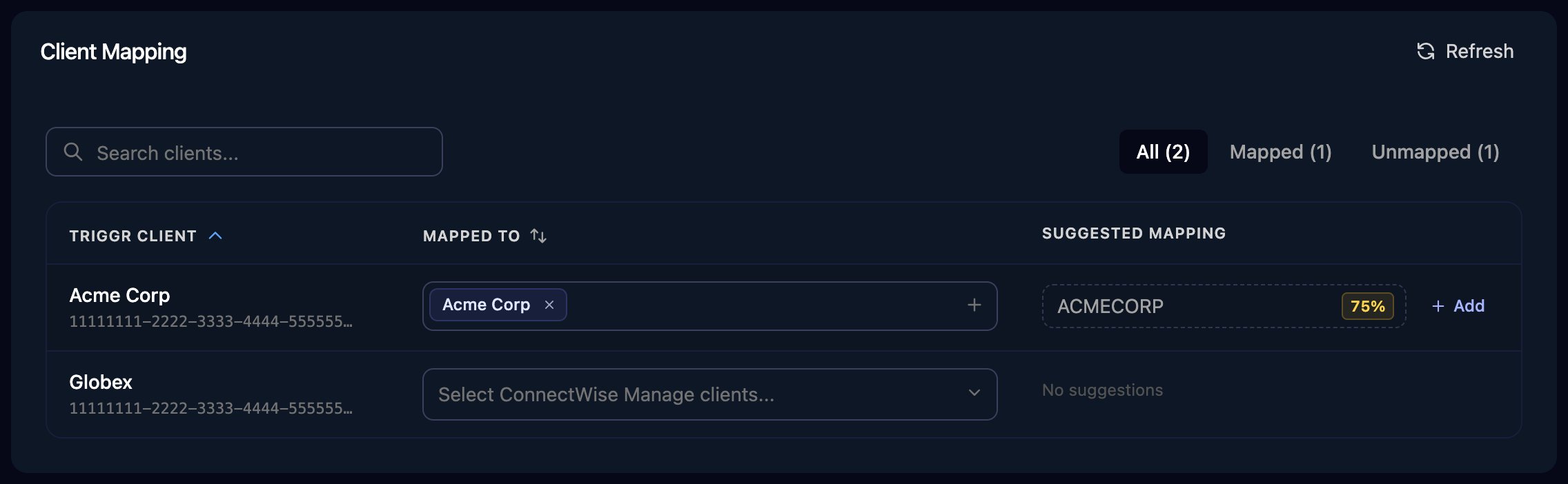
On the Client Mapping card, click **Apply 100% Matches**, then choose the Field Effect organisation in Mapped to for anyone left. Triggr saves each match as the client's `fieldEffectOrganizationId` variable, so pass `{{ ctx.client.fieldEffectOrganizationId }}` to any action that asks for `organization_id`.
## Map your clients
On the Client Mapping card, click **Apply 100% Matches**, then choose the Field Effect organisation in Mapped to for anyone left. Triggr saves each match as the client's `fieldEffectOrganizationId` variable, so pass `{{ ctx.client.fieldEffectOrganizationId }}` to any action that asks for `organization_id`.
 ## Troubleshooting
Check API Key has no `Bearer` or spaces, and that the key is still switched on in the user's API Keys card.
The key belongs to a client organisation user. Create one as a partner organisation user, replace it in Triggr, then click Refresh.
Raise the key's user to Edit or Admin in Administration > User Management.
Create a new key as the same user, click Edit on the Base Configuration card to paste it, then delete or switch off the old key in API Keys.
This documentation is built and hosted on [Mintlify](https://mintlify.com), a developer documentation platform.
## Troubleshooting
Check API Key has no `Bearer` or spaces, and that the key is still switched on in the user's API Keys card.
The key belongs to a client organisation user. Create one as a partner organisation user, replace it in Triggr, then click Refresh.
Raise the key's user to Edit or Admin in Administration > User Management.
Create a new key as the same user, click Edit on the Base Configuration card to paste it, then delete or switch off the old key in API Keys.
This documentation is built and hosted on [Mintlify](https://mintlify.com), a developer documentation platform.