> ## Documentation Index
> Fetch the complete documentation index at: https://university.triggr-app.com/llms.txt
> Use this file to discover all available pages before exploring further.
# FortiCloud Asset Management
> Connect FortiCloud Asset Management to Triggr with a FortiCloud IAM API user to track Fortinet products, contracts and expiry dates.
Triggr lists, registers, updates and decommissions the Fortinet products on a FortiCloud account, with their contracts, expiry dates and licence files. To work with FortiGates themselves, use [FortiGate Cloud](/integrations/fortinet/fortigate-cloud), [FortiGate](/integrations/fortinet/fortigate) or [FortiManager](/integrations/fortinet/fortimanager).
You need to be the FortiCloud account's primary user or an IAM user with SysAdmin permissions.
## Set up FortiCloud
In [FortiCloud IAM](https://support.fortinet.com/iam), go to **Permission Profiles > Add New**, set Status to Active, click Add Portal and add Asset Management. Under Resources, choose Read Only, or Read & Write if workflows register, update or decommission products, then click Save.
Go to **Users > Add New > API User**, enter an Email, select the profile in Permission Profile and click Add. A FortiCloud API user can have only one active token, so don't share it with scripts, other tools or [FortiGate Cloud](/integrations/fortinet/fortigate-cloud).
Click Download Credentials, set a password for the ZIP file and click Proceed. The file holds the API user's ID and password; each download resets them, and the previous ones stop working.
See Fortinet's [Adding an API user](https://docs.fortinet.com/document/forticloud/latest/identity-access-management-iam/282341/adding-an-api-user) guide.
## Connect it in Triggr
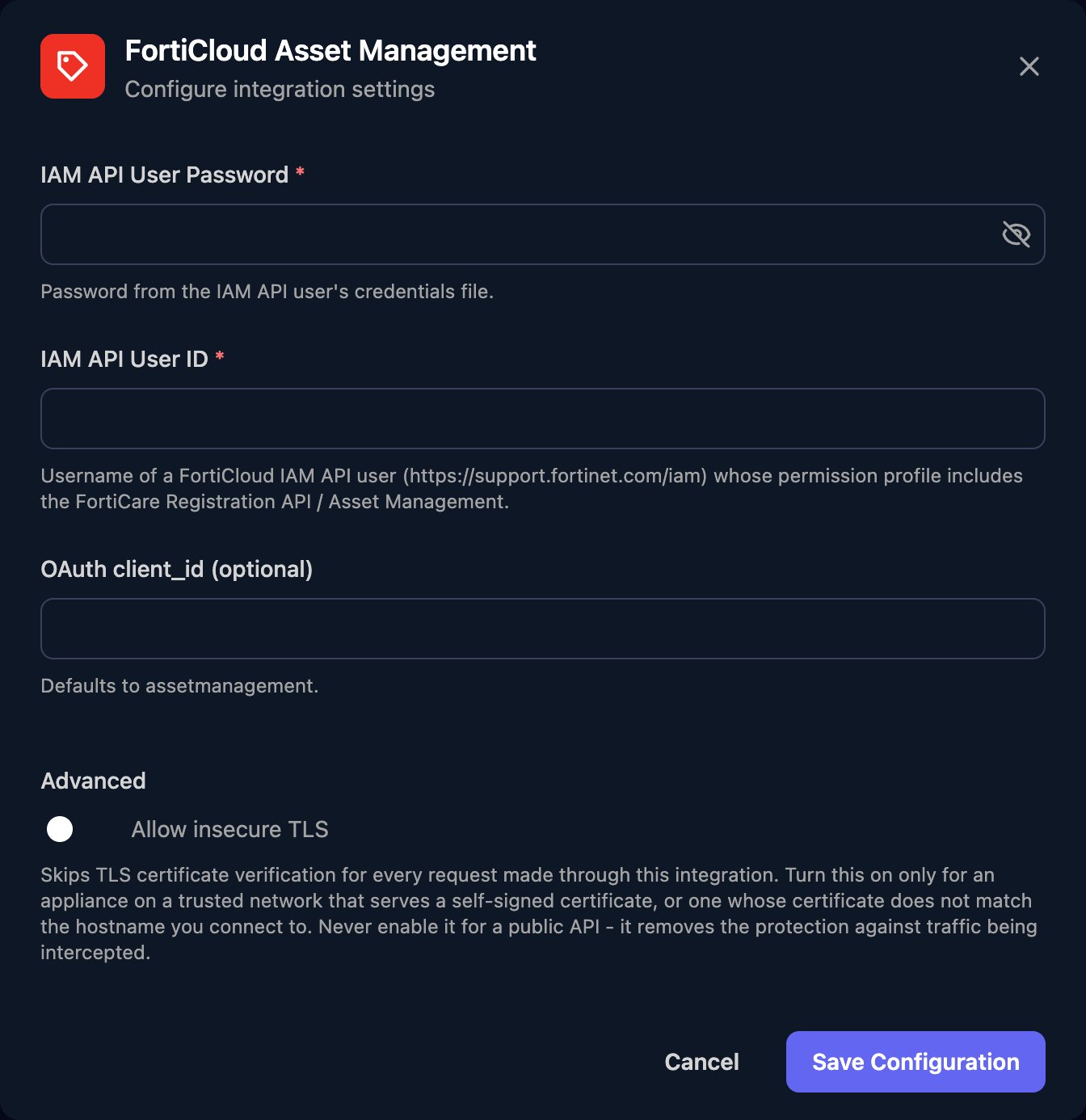
Go to **Integrations > FortiCloud Asset Management** and click **Configure** on the Base Configuration card.
 Enter the IAM API User Password and IAM API User ID from the credentials file, leave OAuth client\_id (optional) empty, then click **Save Configuration**.
 There's no client mapping; workflows pick a product by serial number. List Products needs `serialNumber` or `expireBefore` in its body; to list everything, use a far-future date such as `{ "expireBefore": "2030-01-01T00:00:00" }`.
## Troubleshooting
Fortinet rejected the sign-in. Use the API user's ID (not your sign-in email) and the newest credentials file, and check it lists `assetmanagement` as a client ID.
Changes need Read & Write on Asset Management. If the API user is used elsewhere, create a dedicated one for Triggr.
The API user only sees the FortiCloud account it was created in.
Fortinet allows 100 calls a minute, 1,000 an hour and 10 failed calls an hour. Run large workflows in smaller batches.
This documentation is built and hosted on [Mintlify](https://mintlify.com), a developer documentation platform.
There's no client mapping; workflows pick a product by serial number. List Products needs `serialNumber` or `expireBefore` in its body; to list everything, use a far-future date such as `{ "expireBefore": "2030-01-01T00:00:00" }`.
## Troubleshooting
Fortinet rejected the sign-in. Use the API user's ID (not your sign-in email) and the newest credentials file, and check it lists `assetmanagement` as a client ID.
Changes need Read & Write on Asset Management. If the API user is used elsewhere, create a dedicated one for Triggr.
The API user only sees the FortiCloud account it was created in.
Fortinet allows 100 calls a minute, 1,000 an hour and 10 failed calls an hour. Run large workflows in smaller batches.
This documentation is built and hosted on [Mintlify](https://mintlify.com), a developer documentation platform.