> ## Documentation Index
> Fetch the complete documentation index at: https://university.triggr-app.com/llms.txt
> Use this file to discover all available pages before exploring further.
# FortiGate Cloud
> Connect FortiGate Cloud to Triggr with a FortiCloud IAM API user to reach your FortiGates through Fortinet's cloud.
Triggr reads the live state, configuration, VPN and security profiles of the FortiGates on a FortiGate Cloud account, and can send any FortiOS REST API request to them, without a route to each firewall. To connect to a firewall directly, use [FortiGate](/integrations/fortinet/fortigate); for licences and contracts, use [FortiCloud Asset Management](/integrations/fortinet/forticloud-asset-management).
You need to be the FortiCloud account's primary user or an IAM user with SysAdmin permissions.
## Set up FortiCloud
In [FortiCloud IAM](https://support.fortinet.com/iam), go to **Permission Profiles > Add New**, set Status to Active, click Add Portal and add the FortiGate Cloud portal with Admin access, then click Save.
Go to **Users > Add New > API User**, enter an Email, select the profile in Permission Profile and click Add. A FortiCloud API user can have only one active token, so don't share it with scripts, other tools or [FortiCloud Asset Management](/integrations/fortinet/forticloud-asset-management).
Click Download Credentials, set a password for the ZIP file and click Proceed. The file holds the API user's ID and password; each download resets them, and the previous ones stop working.
See Fortinet's [FortiGate Cloud API access](https://docs.fortinet.com/document/fortigate-cloud/latest/administration-guide/557024/api-access) and [Adding an API user](https://docs.fortinet.com/document/forticloud/latest/identity-access-management-iam/282341/adding-an-api-user) guides.
## Connect it in Triggr
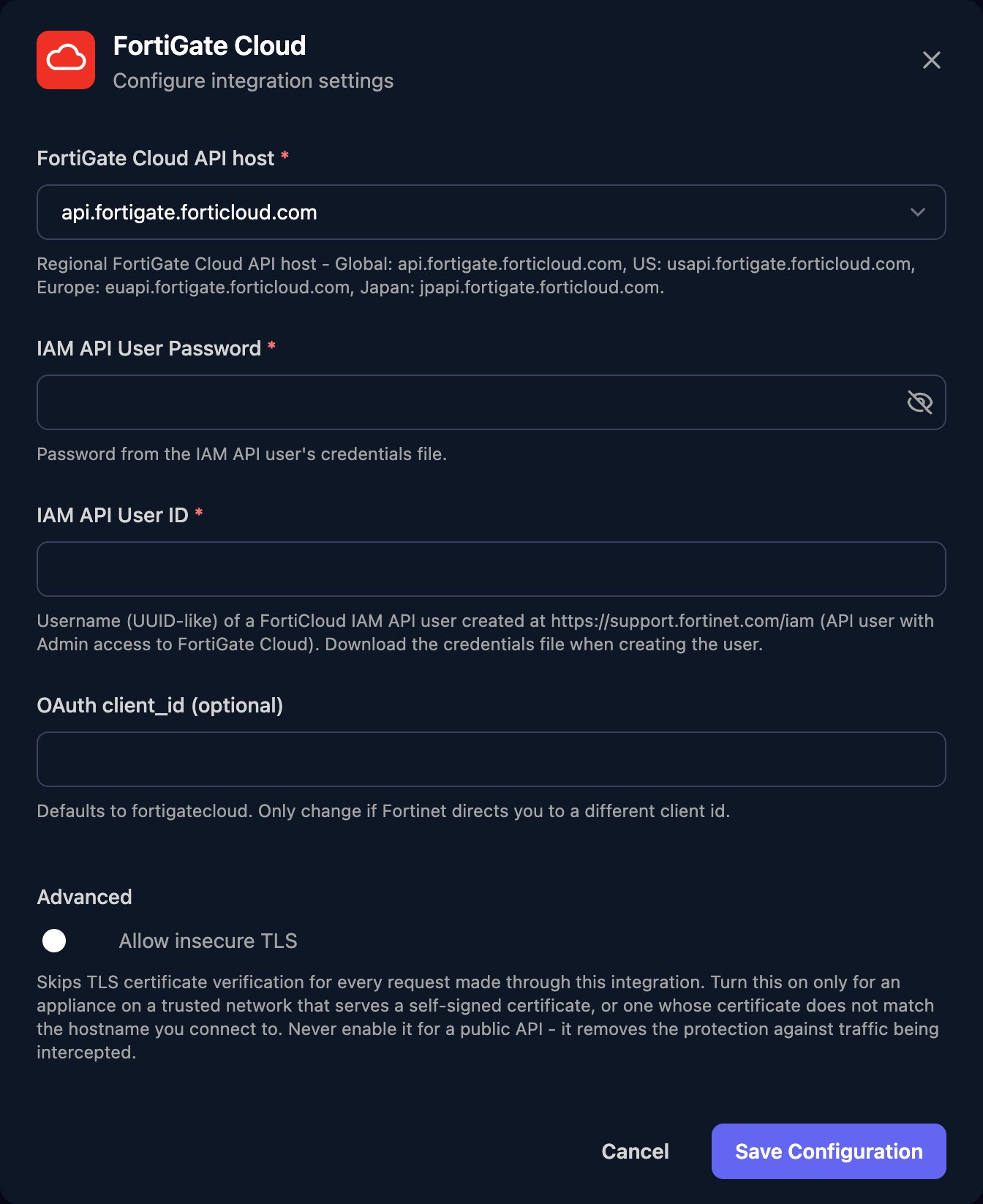
Go to **Integrations > FortiGate Cloud** and click **Configure** on the Base Configuration card.
 Choose the FortiGate Cloud API host for the region your FortiGates are registered to, enter the IAM API User Password and IAM API User ID, leave OAuth client\_id (optional) empty, then click **Save Configuration**.
 Run List Devices in a workflow to check the connection. There's no client mapping: device actions take the FortiGate's `serialNumber` (`sn` in List Devices), so keep each client's serial numbers somewhere your workflows can read, such as a client variable. The Proxy actions take `fortiosPath`, the FortiOS REST API path after `/api/v2/`, such as `monitor/system/status`.
## Troubleshooting
Fortinet rejected the sign-in. Use the API user's ID (not your sign-in email) and the newest credentials file, and check it lists `fortigatecloud` as a client ID.
Give the profile admin access to the FortiGate Cloud portal. If the API user is used elsewhere, create a dedicated one for Triggr.
Check FortiGate Cloud API host matches your region, and that the FortiGates are on the account the API user belongs to.
The FortiGate must be online and connected to FortiGate Cloud, and `serialNumber` must match its `sn`.
This documentation is built and hosted on [Mintlify](https://mintlify.com), a developer documentation platform.
Run List Devices in a workflow to check the connection. There's no client mapping: device actions take the FortiGate's `serialNumber` (`sn` in List Devices), so keep each client's serial numbers somewhere your workflows can read, such as a client variable. The Proxy actions take `fortiosPath`, the FortiOS REST API path after `/api/v2/`, such as `monitor/system/status`.
## Troubleshooting
Fortinet rejected the sign-in. Use the API user's ID (not your sign-in email) and the newest credentials file, and check it lists `fortigatecloud` as a client ID.
Give the profile admin access to the FortiGate Cloud portal. If the API user is used elsewhere, create a dedicated one for Triggr.
Check FortiGate Cloud API host matches your region, and that the FortiGates are on the account the API user belongs to.
The FortiGate must be online and connected to FortiGate Cloud, and `serialNumber` must match its `sn`.
This documentation is built and hosted on [Mintlify](https://mintlify.com), a developer documentation platform.