> ## Documentation Index
> Fetch the complete documentation index at: https://university.triggr-app.com/llms.txt
> Use this file to discover all available pages before exploring further.
# FortiGate
> Connect each client's FortiGate to Triggr directly with a FortiOS REST API administrator token.
Triggr connects straight to each client's FortiGate to read its live state and configuration, manage policies, objects, interfaces, administrators, users and VPN settings, upgrade firmware, and send any FortiOS REST API request. To reach firewalls through a system that already manages them, use [FortiManager](/integrations/fortinet/fortimanager) or [FortiGate Cloud](/integrations/fortinet/fortigate-cloud).
You need FortiOS 6.4 or later, a super\_admin on the FortiGate, and a public IP address or hostname for its management interface. Triggr doesn't connect to private addresses.
## Set up the FortiGate
Repeat these steps on each client's FortiGate.
In **System > Admin Profiles**, click Create New. Set each area your workflows read to Read and each area they change to Read/Write, leave the rest at None, and click OK.
In **System > Administrators**, select Create New > REST API Admin. Choose your profile in Administrator Profile, leave PKI Group off, and add each of Triggr's [outbound IP addresses](/security/ip-allowlist) under Trusted Hosts with a `/32` mask. Click OK and copy the token, which FortiOS shows only once.
In **Network > Interfaces**, edit the interface with the public address and select HTTPS under Administrative Access. Note the HTTPS admin port in System > Settings > Administration Settings (443 by default), and allow Triggr's IP addresses through anything in front of the FortiGate.
See Fortinet's [REST API administrator](https://docs.fortinet.com/document/fortigate/7.6.5/administration-guide/399023/rest-api-administrator) guide.
## Connect it in Triggr
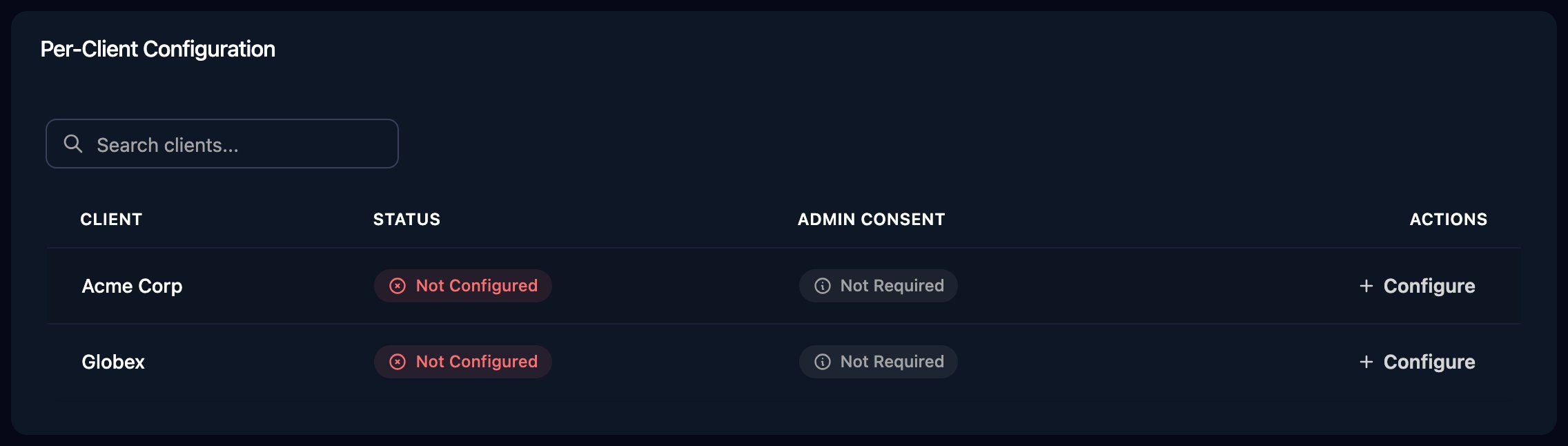
Go to **Integrations > FortiGate** and click **Configure** on the client's row in the Per-Client Configuration card, or on the Base Configuration card for your own firewall.
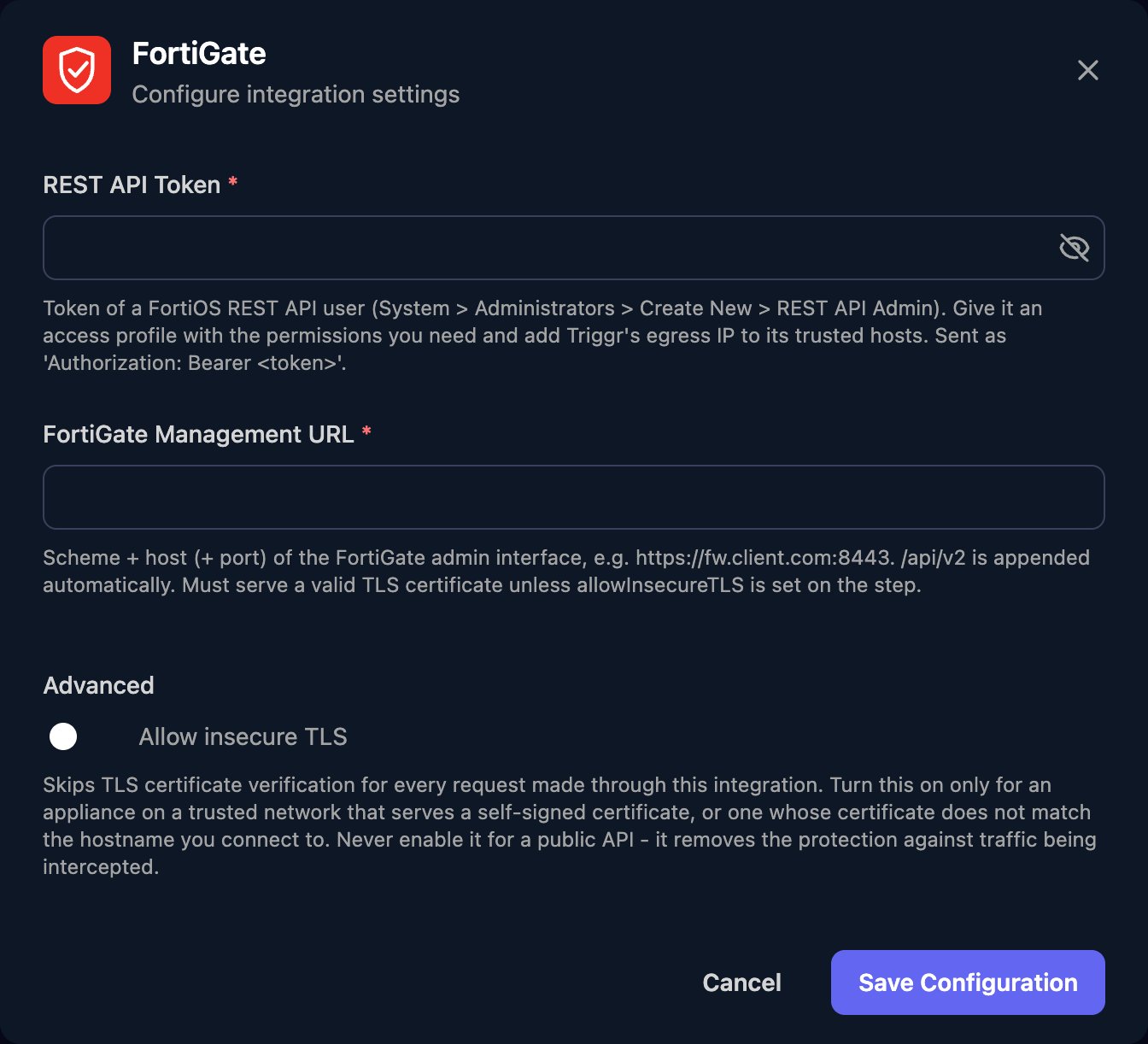
 Enter the REST API Token and the FortiGate Management URL, such as `https://fw.example.com:8443`, with the port if it isn't 443 and no `/api/v2` or other path. If the FortiGate uses a self-signed certificate, turn on Allow insecure TLS. Click **Save Configuration**.
 Per-client integrations never fall back to the Base Configuration, so every client whose workflows use FortiGate needs its own row. Run Get System Status to check one works. The Generic actions take `fortiosPath`, the path after `/api/v2/`, such as `cmdb/firewall/policy`.
## Troubleshooting
Configure the client in the Per-Client Configuration card.
Check the token is complete and hasn't been regenerated, and that every Triggr IP address is in the administrator's Trusted Hosts.
Set the area the action uses to Read or Read/Write in the administrator profile.
Check the URL is the public address with `https://` and the right port, the interface allows HTTPS, nothing in front blocks [Triggr's IP addresses](/security/ip-allowlist), and the hostname doesn't resolve to a private address. For certificate errors, turn on Allow insecure TLS.
Check FortiGate Management URL has no path after the host and port, and that the object or policy exists in the VDOM the step uses.
This documentation is built and hosted on [Mintlify](https://mintlify.com), a developer documentation platform.
Per-client integrations never fall back to the Base Configuration, so every client whose workflows use FortiGate needs its own row. Run Get System Status to check one works. The Generic actions take `fortiosPath`, the path after `/api/v2/`, such as `cmdb/firewall/policy`.
## Troubleshooting
Configure the client in the Per-Client Configuration card.
Check the token is complete and hasn't been regenerated, and that every Triggr IP address is in the administrator's Trusted Hosts.
Set the area the action uses to Read or Read/Write in the administrator profile.
Check the URL is the public address with `https://` and the right port, the interface allows HTTPS, nothing in front blocks [Triggr's IP addresses](/security/ip-allowlist), and the hostname doesn't resolve to a private address. For certificate errors, turn on Allow insecure TLS.
Check FortiGate Management URL has no path after the host and port, and that the object or policy exists in the VDOM the step uses.
This documentation is built and hosted on [Mintlify](https://mintlify.com), a developer documentation platform.