> ## Documentation Index
> Fetch the complete documentation index at: https://university.triggr-app.com/llms.txt
> Use this file to discover all available pages before exploring further.
# FortiManager
> Connect FortiManager to Triggr with a REST API administrator key, or an administrator's username and password, over its JSON-RPC API.
Triggr works with FortiManager's ADOMs, managed devices, policy packages, objects and device database, reads live data from managed FortiGates through it, and can send raw JSON-RPC requests. Changes reach the FortiGates when FortiManager installs them. One configuration covers every ADOM and FortiGate, and the firewalls don't need to be reachable from Triggr.
You need a FortiManager administrator who can create administrators (such as Super\_User), and a public IP address or hostname for FortiManager with HTTPS under Administrative Access. Triggr doesn't connect to private addresses.
## Set up FortiManager
Needs FortiManager 7.2.2 or later.
1. In **System Settings > Administrators** (System Settings > Admin > Administrators on 7.2), select Create New > REST API Admin.
2. Set Admin Profile (Super\_User covers every action) and JSON API Access to Read-Write, or Read for read-only workflows.
3. Add Triggr's [outbound IP addresses](/security/ip-allowlist) under Trusted Hosts, then click OK.
4. Copy the API key. FortiManager shows it only once; to replace it, click Regenerate API Key.
For versions before 7.2.2. FortiManager needs a certificate from a trusted authority that matches its hostname.
1. In **System Settings > Administrators**, select Create New > Administrator and set a password.
2. Set Admin Profile and JSON API Access as for a REST API administrator.
3. If you use trusted hosts, include Triggr's [outbound IP addresses](/security/ip-allowlist), then click OK.
Allow Triggr's IP addresses through any firewall in front of FortiManager. See Fortinet's [Creating administrators for the FortiManager API](https://docs.fortinet.com/document/fortimanager/7.4.9/administration-guide/797124).
## Connect it in Triggr
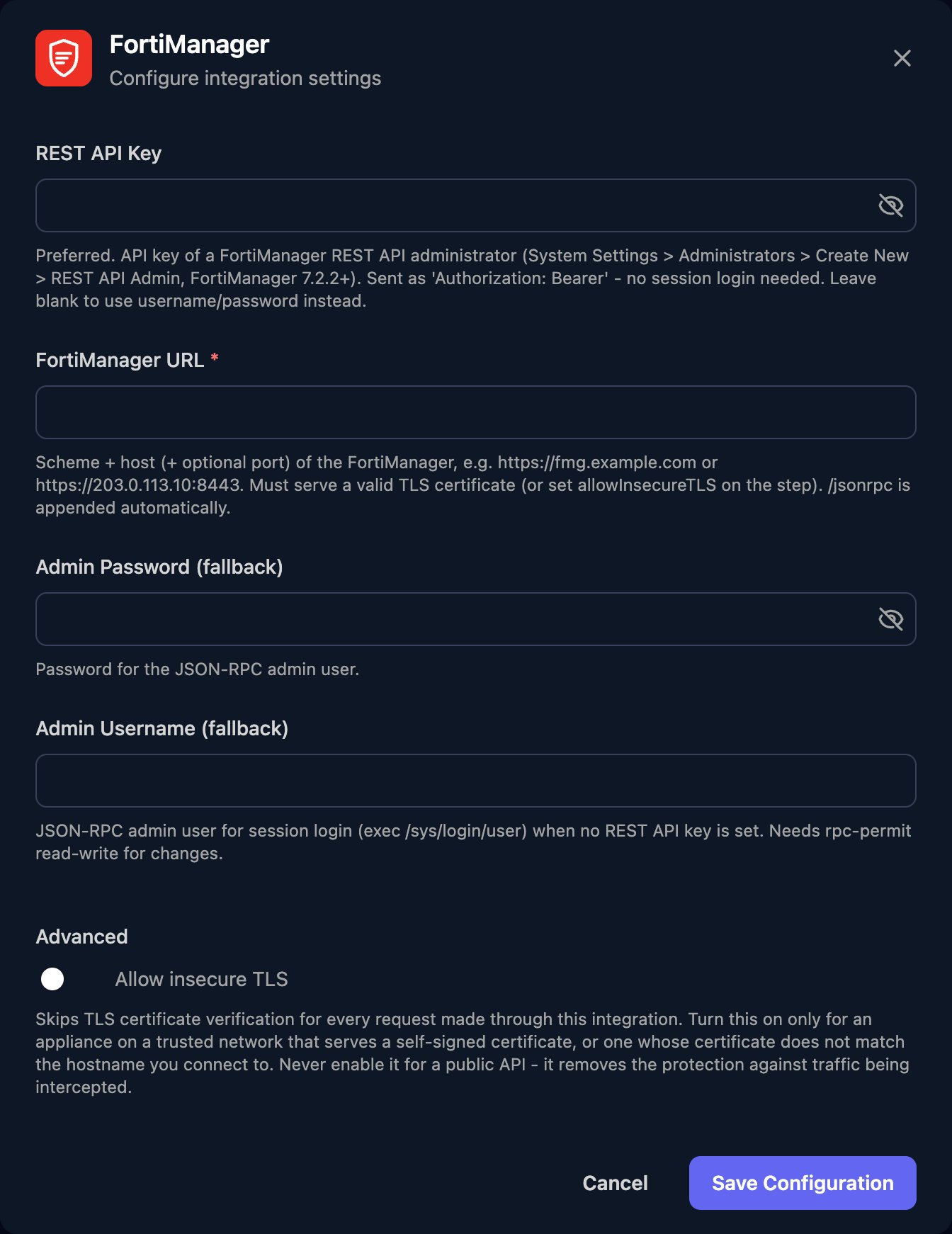
Go to **Integrations > FortiManager** and click **Configure** on the Base Configuration card.
 Enter the FortiManager URL, such as `https://fmg.example.com`, with the port if it isn't 443 and no `/jsonrpc` (include a reverse proxy's path if you use one). Enter either the REST API Key, or the Admin Username (fallback) and Admin Password (fallback); if a key is set, Triggr uses it. With a key and a self-signed certificate, turn on Allow insecure TLS. Click **Save Configuration**.
 Run Get System Status to check the connection. Actions take an `adom` (from List ADOMs, or `root` without ADOMs), `device` and `pkg`. FortiManager often reports errors with HTTP 200, so check `result[0].status` in the step's output.
## Troubleshooting
The configuration has no REST API Key and is missing the username or password. Enter a key, or both fallback fields.
Check the username, password, JSON API Access and trusted hosts. If it mentions a certificate, install a trusted one or switch to a REST API key with Allow insecure TLS.
Check the key is complete and current, Trusted Hosts includes every Triggr IP address, and FortiManager runs 7.2.2 or later.
For "No permission for the resource" (code -11), set JSON API Access to Read-Write and check the Admin Profile and ADOM access. With workspace mode on, FortiManager only accepts Policy & Objects changes while the ADOM is locked.
Check the URL is the public address with `https://` and the right port, HTTPS is allowed on the interface, nothing blocks [Triggr's IP addresses](/security/ip-allowlist), and the hostname doesn't resolve to a private address.
They read live from the FortiGate through FortiManager, so the device must be online and connected, with `adom` and `device` matching List ADOM Devices.
This documentation is built and hosted on [Mintlify](https://mintlify.com), a developer documentation platform.
Run Get System Status to check the connection. Actions take an `adom` (from List ADOMs, or `root` without ADOMs), `device` and `pkg`. FortiManager often reports errors with HTTP 200, so check `result[0].status` in the step's output.
## Troubleshooting
The configuration has no REST API Key and is missing the username or password. Enter a key, or both fallback fields.
Check the username, password, JSON API Access and trusted hosts. If it mentions a certificate, install a trusted one or switch to a REST API key with Allow insecure TLS.
Check the key is complete and current, Trusted Hosts includes every Triggr IP address, and FortiManager runs 7.2.2 or later.
For "No permission for the resource" (code -11), set JSON API Access to Read-Write and check the Admin Profile and ADOM access. With workspace mode on, FortiManager only accepts Policy & Objects changes while the ADOM is locked.
Check the URL is the public address with `https://` and the right port, HTTPS is allowed on the interface, nothing blocks [Triggr's IP addresses](/security/ip-allowlist), and the hostname doesn't resolve to a private address.
They read live from the FortiGate through FortiManager, so the device must be online and connected, with `adom` and `device` matching List ADOM Devices.
This documentation is built and hosted on [Mintlify](https://mintlify.com), a developer documentation platform.