> ## Documentation Index
> Fetch the complete documentation index at: https://university.triggr-app.com/llms.txt
> Use this file to discover all available pages before exploring further.
# Gandi
> Connect Gandi to Triggr with a Gandi personal access token, so workflows can look up, check and renew domain names.
Triggr lists your Gandi domains, checks availability, reads their details and contacts, and renews them.
## Set up Gandi
In Gandi, click Organizations, open the organisation that holds your domains, go to the Sharing tab and click Create a token.
Choose Expires in, and under Token resources choose The whole organization or Restrict to selected products. Turn on See and renew domain names.
Click Create, then Copy. Gandi shows the token only once, and an expired token can't be reused, so note its expiry date.
See Gandi's [Manage API accesses with a Personal Access Token](https://docs.gandi.net/en/managing_an_organization/organizations/personal_access_token.html).
## Connect it in Triggr
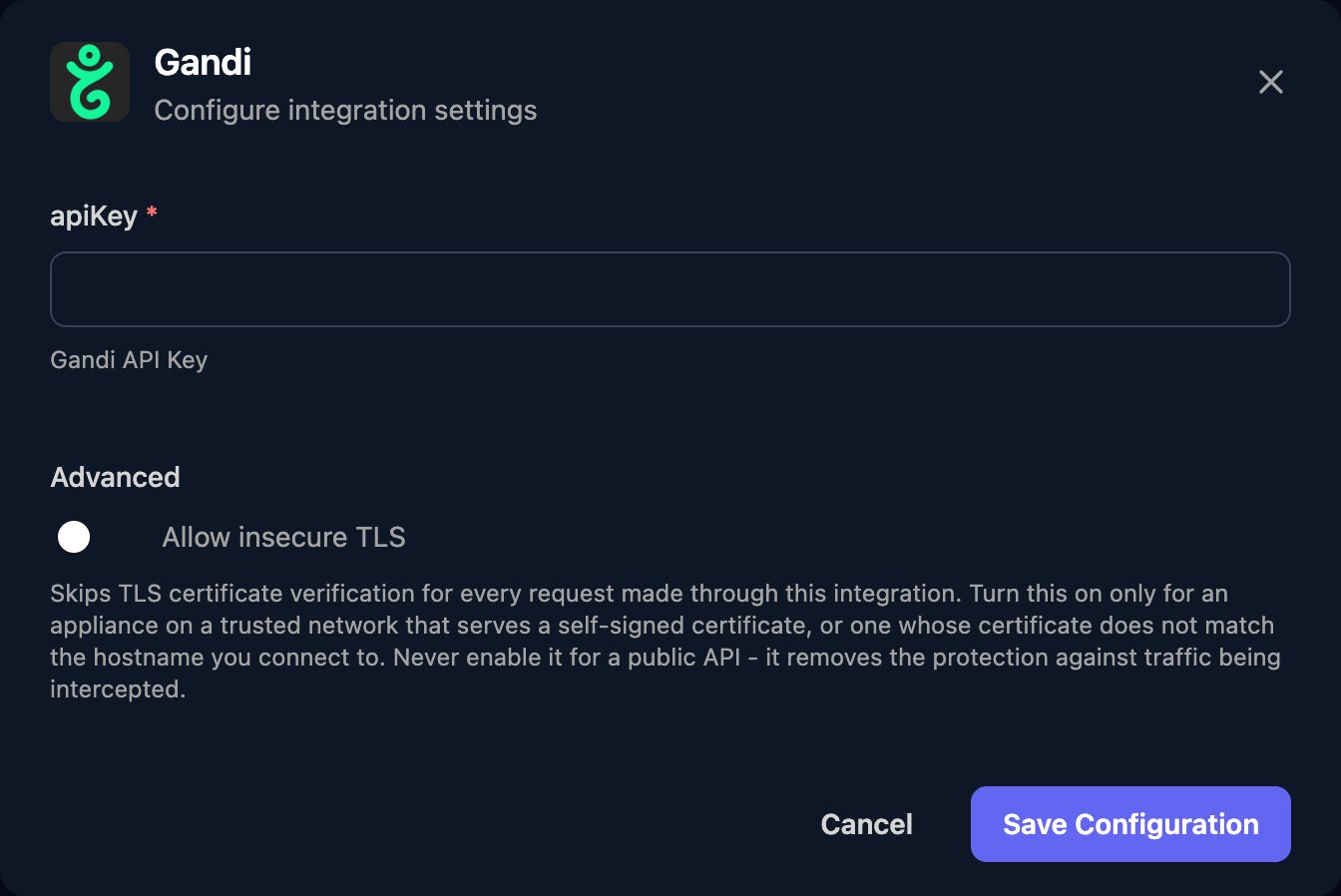
Go to **Integrations > Gandi** and click **Configure** on the Base Configuration card.
 Paste the personal access token into apiKey, then click **Save Configuration**.
 To renew a domain, run Get Renewal Information to check `prohibited` and the accepted `durations`, then Renew Domain with `durationInYears` from that range. Gandi charges renewals to your prepaid account.
## Troubleshooting
Check the token is complete, hasn't expired, has See and renew domain names, and is a personal access token, not one of Gandi's older API keys.
The token covers only its own organisation and, if restricted, its selected products. Create a token that includes the domain.
Check your prepaid account has enough credit, and that Get Renewal Information allows the duration.
Create a new token, click Edit on the Base Configuration card to paste it, then delete the old one on the Sharing tab.
This documentation is built and hosted on [Mintlify](https://mintlify.com), a developer documentation platform.
To renew a domain, run Get Renewal Information to check `prohibited` and the accepted `durations`, then Renew Domain with `durationInYears` from that range. Gandi charges renewals to your prepaid account.
## Troubleshooting
Check the token is complete, hasn't expired, has See and renew domain names, and is a personal access token, not one of Gandi's older API keys.
The token covers only its own organisation and, if restricted, its selected products. Create a token that includes the domain.
Check your prepaid account has enough credit, and that Get Renewal Information allows the duration.
Create a new token, click Edit on the Base Configuration card to paste it, then delete the old one on the Sharing tab.
This documentation is built and hosted on [Mintlify](https://mintlify.com), a developer documentation platform.