> ## Documentation Index
> Fetch the complete documentation index at: https://university.triggr-app.com/llms.txt
> Use this file to discover all available pages before exploring further.
# Google Workspace
> Connect each client's Google Workspace to Triggr with an OAuth client or a service account with domain-wide delegation.
Triggr manages each client's Google Workspace users, groups and domains, and can call other Google APIs from a Generic Integration Action step within the granted scopes.
Each client connects one of two ways, and you need a super admin in the client's Google Workspace for either:
* An OAuth client: Triggr acts as the admin who clicks Authorize.
* A service account with domain-wide delegation: the only way to change Gmail delegates and forwarding on other users' mailboxes.
## Set up an OAuth client
Signed in to the [Google Cloud console](https://console.cloud.google.com) as a client user, go to **IAM & Admin → Manage Resources > Create Project** and choose the client's organisation as the location.
In **APIs & Services → Library**, enable Admin SDK API, plus Gmail API and Google Calendar API if workflows use them.
In **Google Auth platform → Branding**, click Get started, enter an App name and User support email, choose Internal under Audience, add a contact email and click Create. Leave Data Access empty: Triggr asks for its scopes when you authorise.
In **Google Auth platform → Clients**, click Create client, choose Web application and add this under Authorized redirect URIs, then click Create and copy the Client ID and Client secret:
```text theme={null}
https://app.triggr-app.com/oauth/callback
```
Google shows the secret only once; if you lose it, open the client and click Add secret.
Triggr asks for these scopes when you authorise:
| Scope | Gives access to |
| - | - |
| `https://www.googleapis.com/auth/admin.directory.user` | Users |
| `https://www.googleapis.com/auth/admin.directory.user.security` | User security, such as signing users out |
| `https://www.googleapis.com/auth/admin.directory.group` | Groups and members |
| `https://www.googleapis.com/auth/admin.directory.domain.readonly` | Domains (read only) |
| `https://www.googleapis.com/auth/admin.directory.orgunit.readonly` | Organisational units (read only) |
| `https://www.googleapis.com/auth/calendar.readonly` | Calendars (read only) |
| `https://www.googleapis.com/auth/gmail.settings.basic` | Gmail settings |
| `https://www.googleapis.com/auth/gmail.settings.sharing` | Gmail delegates and forwarding |
If the client restricts API access, tick Trust internal apps in the [Admin console](https://admin.google.com) under Security → Access and data control → API controls, or set the app to Trusted in Manage App Access.
## Set up domain-wide delegation
In the [Google Cloud console](https://console.cloud.google.com), enable Admin SDK API and the APIs your workflows call, such as Gmail API, Google Calendar API, Google Drive API or Enterprise License Manager API.
In **IAM & Admin → Service Accounts**, click Create service account (it needs no project roles). Open it, go to **Keys > Add key → Create new key**, choose JSON and click Create, then copy the Client ID from Advanced settings.
The key can act as any user in the client's domain. Delete the downloaded file once it's in Triggr.
If key creation is blocked, an Organization Policy Administrator must relax the [`iam.managed.disableServiceAccountKeyCreation`](https://docs.cloud.google.com/resource-manager/docs/secure-by-default-organizations) policy for the project.
As a super admin in the [Admin console](https://admin.google.com), go to **Security → Access and data control → API controls → Manage Domain Wide Delegation**, click Add new, enter the Client ID and add these scopes under OAuth scopes:
```text theme={null}
https://www.googleapis.com/auth/admin.directory.user
https://www.googleapis.com/auth/admin.directory.group
https://www.googleapis.com/auth/admin.directory.orgunit
https://www.googleapis.com/auth/admin.directory.user.security
https://www.googleapis.com/auth/admin.directory.device.mobile
https://www.googleapis.com/auth/admin.directory.domain.readonly
https://www.googleapis.com/auth/admin.datatransfer
https://www.googleapis.com/auth/apps.licensing
https://www.googleapis.com/auth/gmail.settings.basic
https://www.googleapis.com/auth/gmail.settings.sharing
https://www.googleapis.com/auth/calendar
https://www.googleapis.com/auth/drive
```
Click Authorize, then View details on the entry to check every scope is listed. Changes can take up to 24 hours. See Google's [Control API access with domain-wide delegation](https://knowledge.workspace.google.com/admin/apps/control-api-access-with-domain-wide-delegation).
## Connect it in Triggr
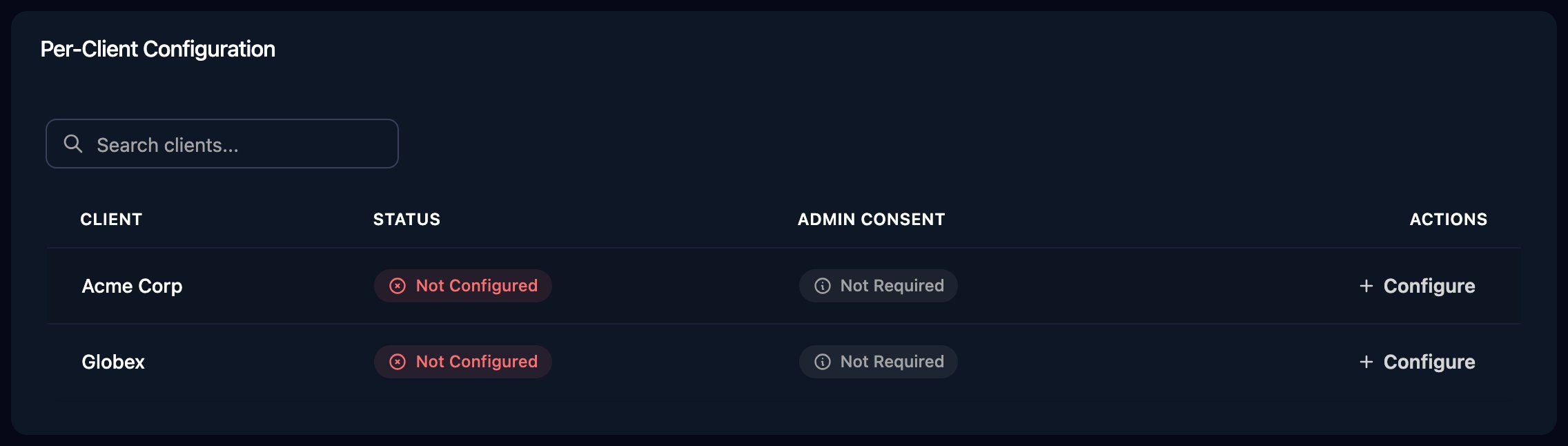
Go to **Integrations > Google Workspace** and click **Configure** on the client's row in the Per-Client Configuration card.
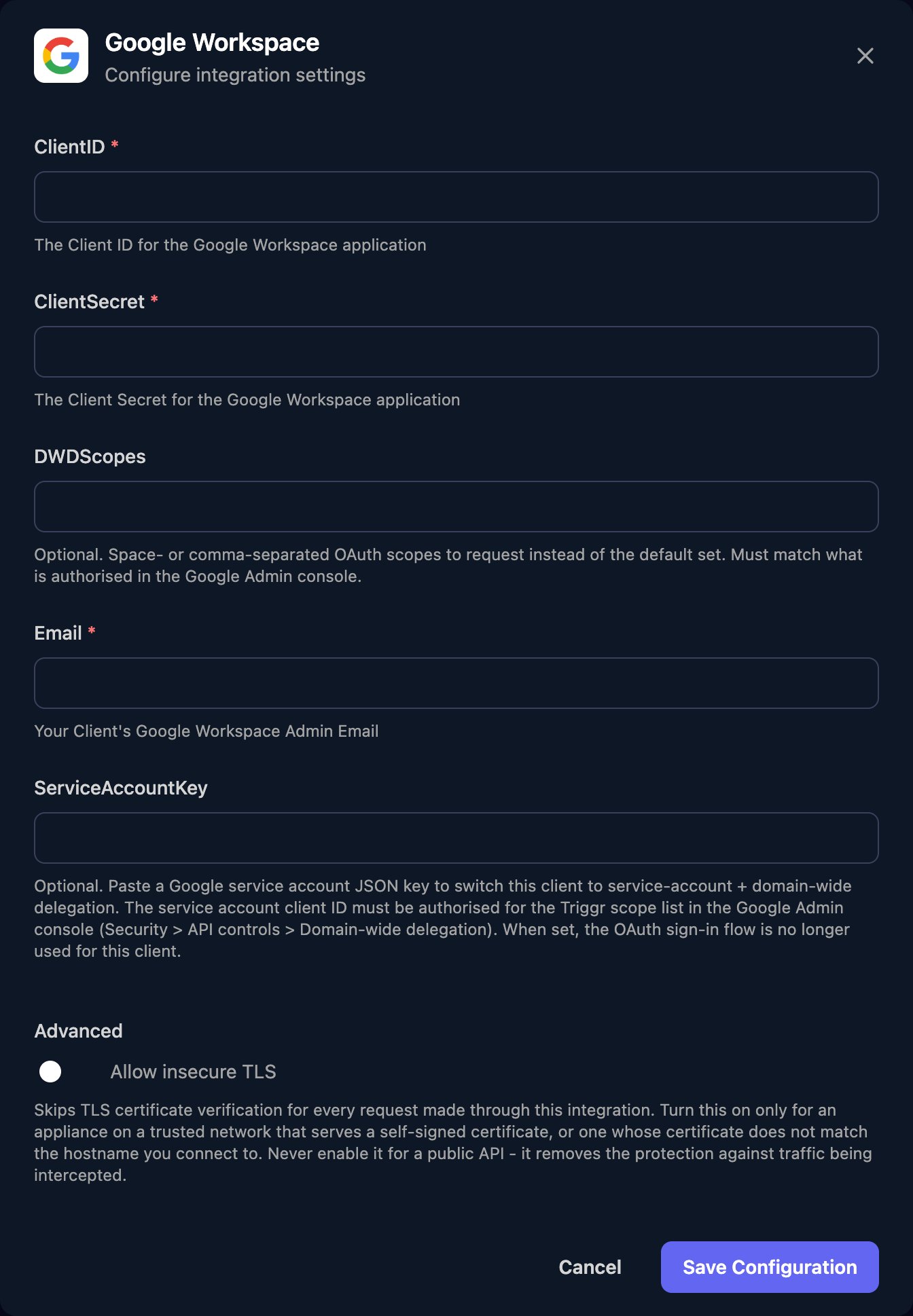
 * OAuth client: enter the ClientID, ClientSecret and the admin's Email, and leave ServiceAccountKey and DWDScopes empty.
* Domain-wide delegation: paste the whole JSON key into ServiceAccountKey and a super admin into Email. ClientID and ClientSecret are required but unused: keep existing values, or enter the service account's client ID and `-`. Leave DWDScopes empty unless you authorised a shorter list.
Click **Save Configuration**.
* OAuth client: enter the ClientID, ClientSecret and the admin's Email, and leave ServiceAccountKey and DWDScopes empty.
* Domain-wide delegation: paste the whole JSON key into ServiceAccountKey and a super admin into Email. ClientID and ClientSecret are required but unused: keep existing values, or enter the service account's client ID and `-`. Leave DWDScopes empty unless you authorised a shorter list.
Click **Save Configuration**.
 Click **Authorize** on the client's row and sign in as the admin you entered. With a service account key, Triggr skips OAuth sign-in and acts as the mailbox owner for Gmail requests to a user's mailbox, and as Email for everything else.
Per-client integrations never fall back to the Base Configuration, so every client whose workflows use Google Workspace needs its own row. Leave the Base Configuration empty unless you connect your own Google Workspace for workflows that don't run for a client.
## Troubleshooting
Check the OAuth client's redirect URI is exactly `https://app.triggr-app.com/oauth/callback`, and that you sign in with an account in the organisation that owns the project.
Enable it under APIs & Services → Library in that project, then wait a few minutes.
Changing another user's Gmail settings needs [domain-wide delegation](#set-up-domain-wide-delegation).
Check the delegation uses the service account's client ID and authorises every scope Triggr requests (the default list, or DWDScopes if set), and that Email is an existing user in the client's domain. Delegation changes can take up to 24 hours.
Paste the entire key file into ServiceAccountKey, from the opening `{` to the closing `}`.
Click Edit on the client's row, update Email, save, then click Authorize and sign in as the new admin.
The client's configuration was saved but never authorised. Click Authorize on its row.
This documentation is built and hosted on [Mintlify](https://mintlify.com), a developer documentation platform.
Click **Authorize** on the client's row and sign in as the admin you entered. With a service account key, Triggr skips OAuth sign-in and acts as the mailbox owner for Gmail requests to a user's mailbox, and as Email for everything else.
Per-client integrations never fall back to the Base Configuration, so every client whose workflows use Google Workspace needs its own row. Leave the Base Configuration empty unless you connect your own Google Workspace for workflows that don't run for a client.
## Troubleshooting
Check the OAuth client's redirect URI is exactly `https://app.triggr-app.com/oauth/callback`, and that you sign in with an account in the organisation that owns the project.
Enable it under APIs & Services → Library in that project, then wait a few minutes.
Changing another user's Gmail settings needs [domain-wide delegation](#set-up-domain-wide-delegation).
Check the delegation uses the service account's client ID and authorises every scope Triggr requests (the default list, or DWDScopes if set), and that Email is an existing user in the client's domain. Delegation changes can take up to 24 hours.
Paste the entire key file into ServiceAccountKey, from the opening `{` to the closing `}`.
Click Edit on the client's row, update Email, save, then click Authorize and sign in as the new admin.
The client's configuration was saved but never authorised. Click Authorize on its row.
This documentation is built and hosted on [Mintlify](https://mintlify.com), a developer documentation platform.