> ## Documentation Index
> Fetch the complete documentation index at: https://university.triggr-app.com/llms.txt
> Use this file to discover all available pages before exploring further.
# HaloPSA
> Connect HaloPSA to Triggr with a Client ID and Secret API application, then map your clients to Halo clients.
Triggr works with Halo clients, users, tickets, ticket actions, sites, assets and recurring invoices.
## Set up HaloPSA
In **Configuration > Teams & Agents > Agents**, create an agent such as `Triggr API` with access to every client and team your workflows use. Triggr can only see and change what this agent can.
In **Configuration > Integrations > Halo API**, click View Applications, then New:
* Authentication Method: Client ID and Secret (Services)
* Login Type: Agent, with Agent to log in as set to your Triggr agent
* Permissions tab: tick all
Save it, then copy the Client ID and Client Secret. You may not see the secret again.
API Details on the Halo API page shows your Resource Server, such as `https://yourcompany.halopsa.com/api`. Your Halo address is that URL without `/api`.
See Halo's guide to [creating API applications](https://usehalo.com/halopsa/guides/1823/).
## Connect it in Triggr
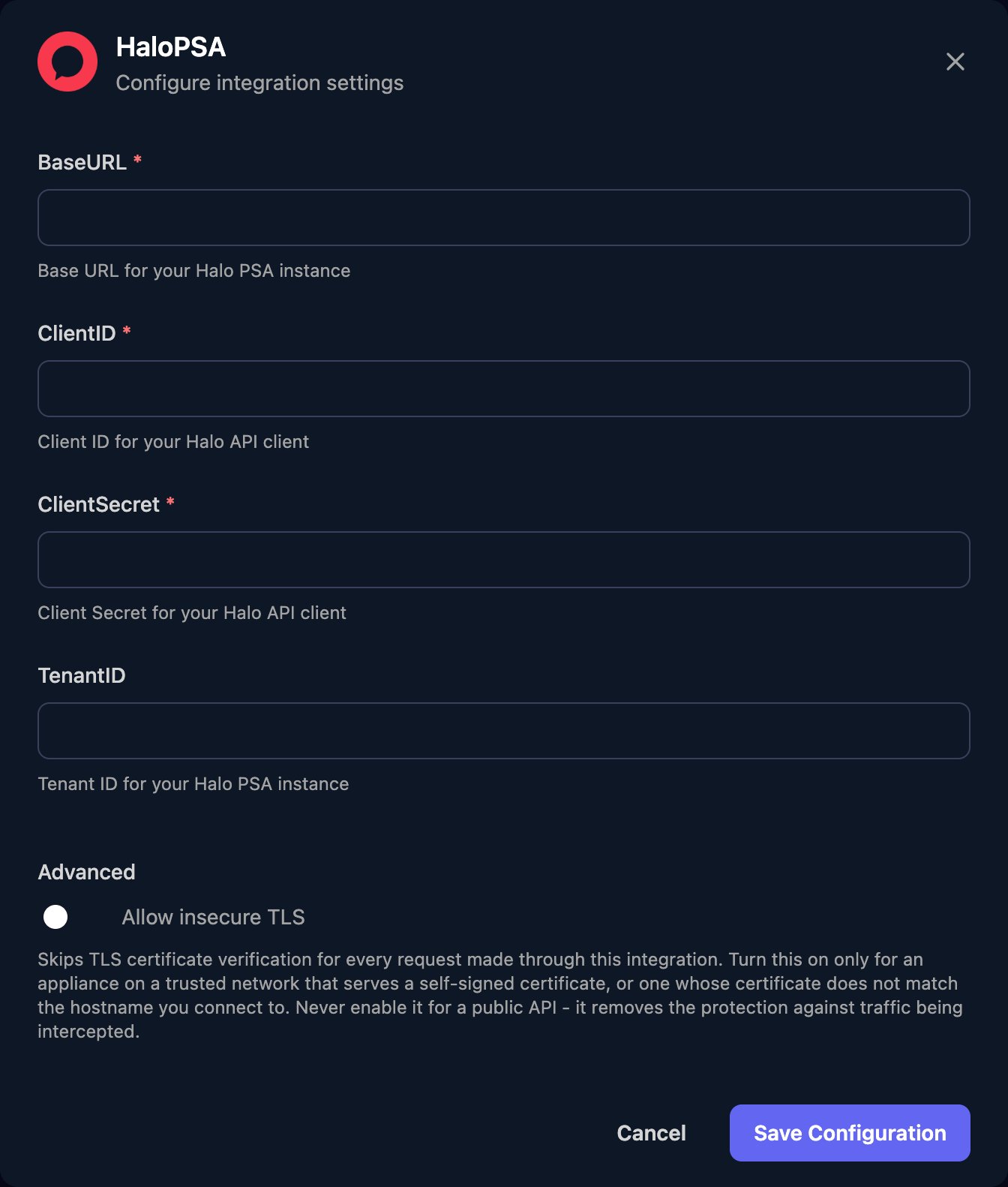
Go to **Integrations > HaloPSA** and click Configure on the Base Configuration card.
 Enter your Halo address as BaseURL, plus the ClientID and ClientSecret. Leave TenantID blank, then click Save Configuration.
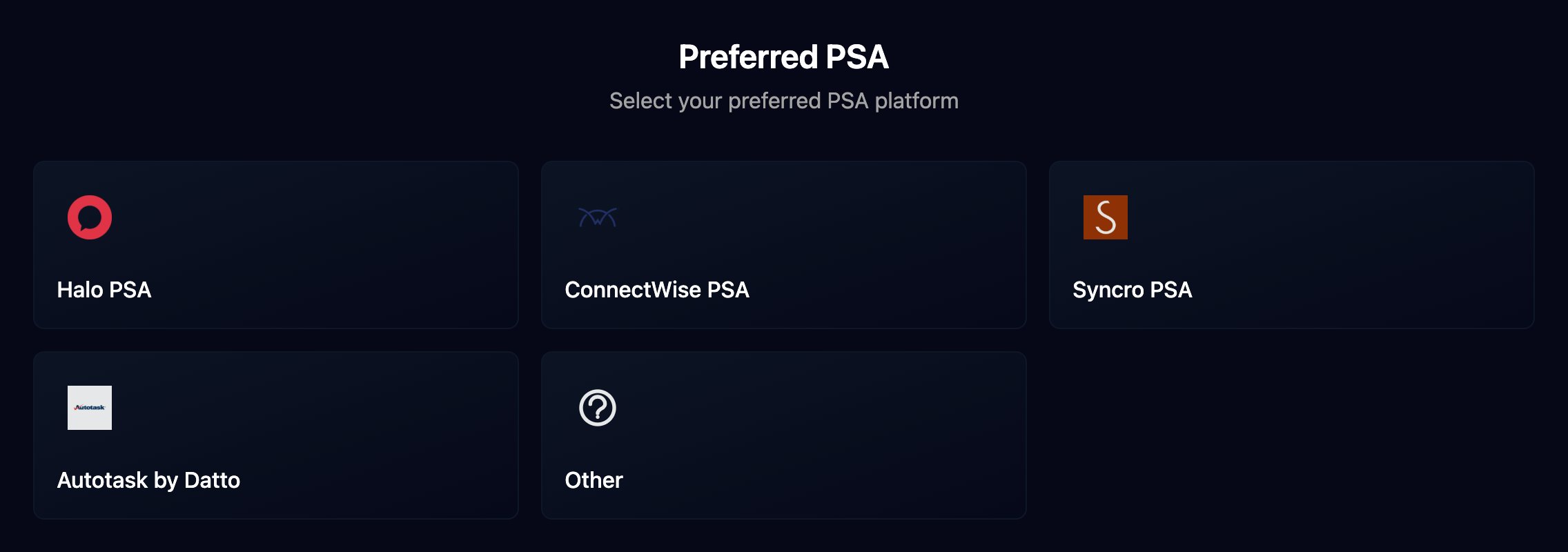
 Ticket steps run against the PSA set as Default PSA: in Triggr Core, Settings > General; in Studio, **Settings > Org Variables > Setup Wizard**. See [Connect your PSA](/core/get-started/connect-your-psa).
 ## Map your clients
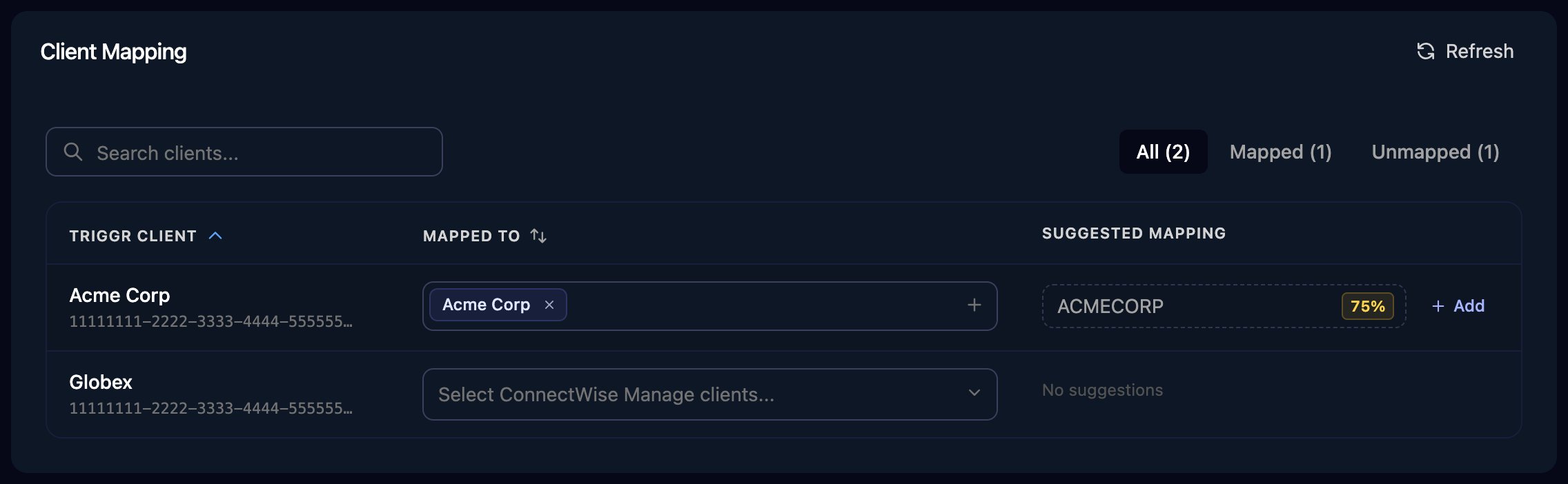
On the Client Mapping card, click **Apply 100% Matches**, then choose the Halo client in Mapped to for anyone left. Triggr saves each match as the client's `haloId` variable.
## Map your clients
On the Client Mapping card, click **Apply 100% Matches**, then choose the Halo client in Mapped to for anyone left. Triggr saves each match as the client's `haloId` variable.
 ## Troubleshooting
BaseURL must start with `https://` and not end in `/api` or `/`. In Halo, check the application is enabled, uses Client ID and Secret (Services) and has the all permission, then re-copy the Client ID and Client Secret.
A Create Ticket step ran for a client with no `haloId`. Map the client on the Client Mapping card, or set the step's Client ID to the client's `haloId` variable.
The Triggr agent can't see them. Give it access in Halo, then click Refresh on Client Mapping.
Give the Triggr agent the permission or team access the action needs.
Triggr needs a public address with a certificate from a trusted authority. Publish Halo there and allow [Triggr's IP addresses](/security/ip-allowlist) through your firewall.
This documentation is built and hosted on [Mintlify](https://mintlify.com), a developer documentation platform.
## Troubleshooting
BaseURL must start with `https://` and not end in `/api` or `/`. In Halo, check the application is enabled, uses Client ID and Secret (Services) and has the all permission, then re-copy the Client ID and Client Secret.
A Create Ticket step ran for a client with no `haloId`. Map the client on the Client Mapping card, or set the step's Client ID to the client's `haloId` variable.
The Triggr agent can't see them. Give it access in Halo, then click Refresh on Client Mapping.
Give the Triggr agent the permission or team access the action needs.
Triggr needs a public address with a certificate from a trusted authority. Publish Halo there and allow [Triggr's IP addresses](/security/ip-allowlist) through your firewall.
This documentation is built and hosted on [Mintlify](https://mintlify.com), a developer documentation platform.