> ## Documentation Index
> Fetch the complete documentation index at: https://university.triggr-app.com/llms.txt
> Use this file to discover all available pages before exploring further.
# HubSpot
> Connect HubSpot to Triggr with a HubSpot service key and map your clients to companies.
Triggr maps your clients to HubSpot companies and works with CRM records such as contacts, companies, deals and custom objects.
You need Super Admin or the Developer tools access permission in HubSpot.
## Set up HubSpot
1. In HubSpot, go to **Development > Keys > Service keys** (or Settings > Integrations > Service Keys) and click Create service key.
2. Click Add new scope, tick the scopes below and click Update.
3. Click Create and confirm, then click Show and Copy. The key starts with `pat-`.
Service keys are in public beta. If your account doesn't have them, use a private app; Triggr treats its token the same way.
1. In HubSpot, go to **Development > Legacy apps**, click Create legacy app and choose Private.
2. On the Scopes tab, click Add new scope, tick the scopes below and click Update.
3. Click Create app, then Continue creating. On the Auth tab, click Show token, then Copy.
| Scope | Enables |
| - | - |
| `crm.objects.companies.read` | Required. Client mapping, and looking up and searching companies |
| `crm.objects.companies.write` | Creating, updating and deleting companies |
| `crm.objects.contacts.read` | Reading and searching contacts |
| `crm.objects.contacts.write` | Creating, updating and deleting contacts |
| `crm.objects.deals.read` | Reading and searching deals |
| `crm.objects.deals.write` | Creating, updating and deleting deals |
| `crm.objects.custom.read` | Reading and searching custom objects |
| `crm.objects.custom.write` | Creating, updating and deleting custom objects |
## Connect it in Triggr
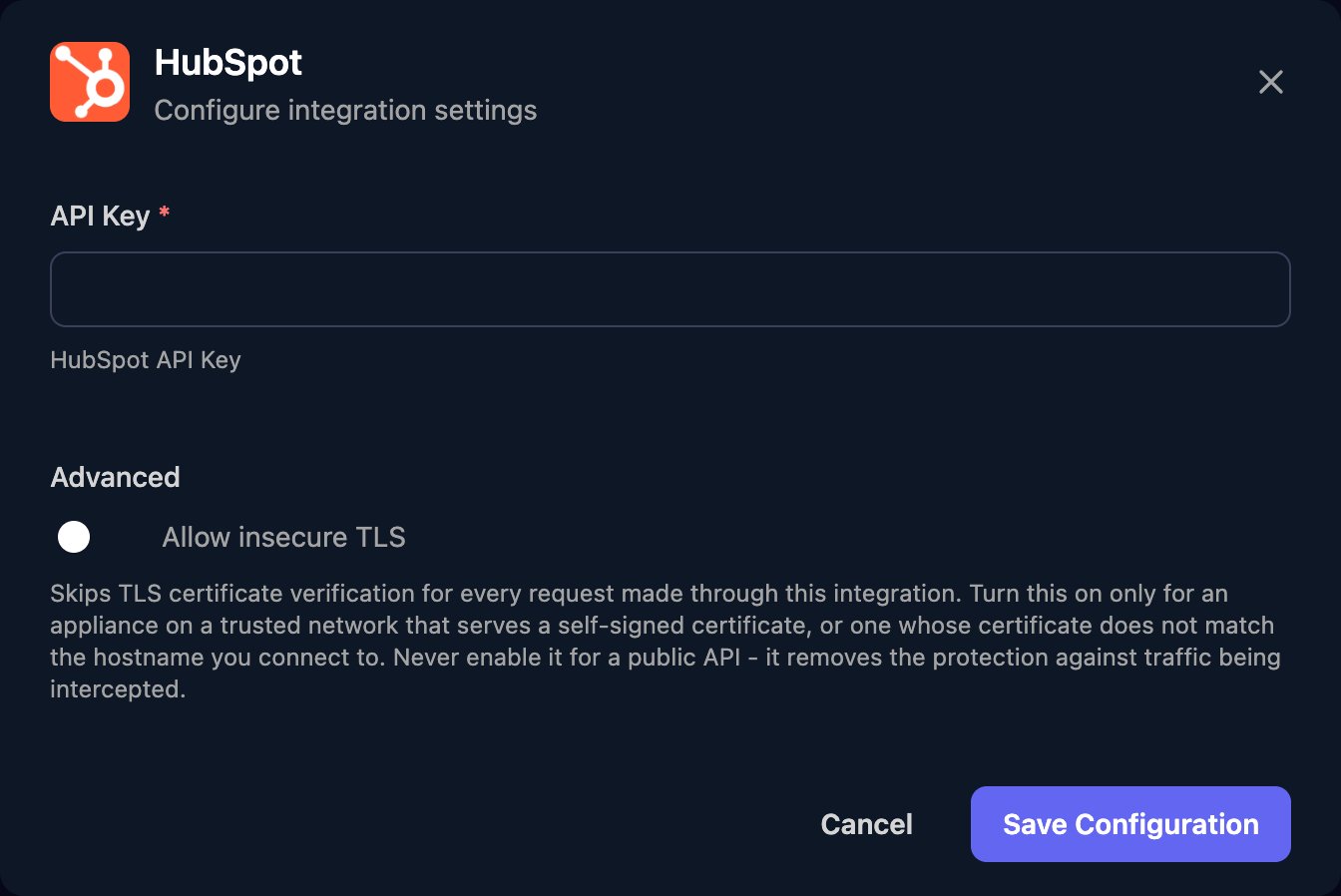
Go to **Integrations > HubSpot** and click Configure on the Base Configuration card.
 Paste the key or token into API Key, then click Save Configuration.
 CRM record actions take the object type, such as `contacts`, or a custom object's type ID, such as `2-3465404`.
## Map your clients
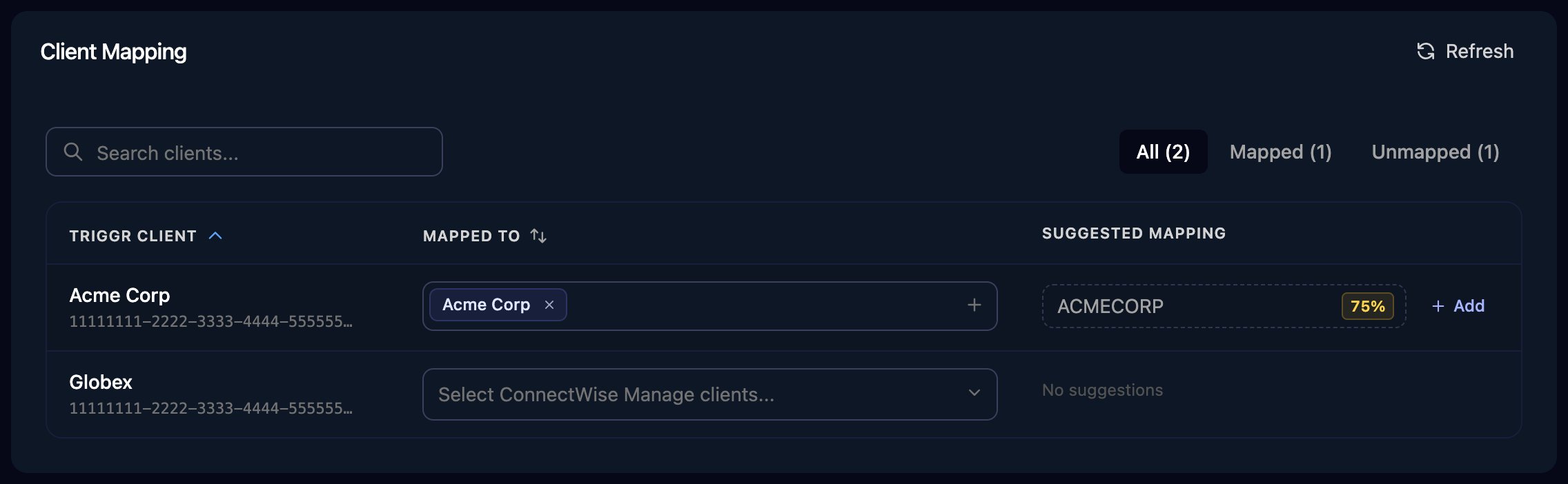
On the Client Mapping card, click **Apply 100% Matches**, then choose the HubSpot company in Mapped to for anyone left. Triggr saves each match as the client's `hubspotId` variable.
CRM record actions take the object type, such as `contacts`, or a custom object's type ID, such as `2-3465404`.
## Map your clients
On the Client Mapping card, click **Apply 100% Matches**, then choose the HubSpot company in Mapped to for anyone left. Triggr saves each match as the client's `hubspotId` variable.
 ## Troubleshooting
The key was rotated, expired or deleted, or pasted with spaces. Paste a fresh copy into API Key.
Edit the key (or click Edit app for a private app) and add the missing scope.
Check the key has `crm.objects.companies.read` and the companies have a Name, then click Refresh.
On the key's page in HubSpot, click Rotate, then paste the new key into Triggr. Rotate and expire later keeps the old key working for 7 days; Rotate and expire now stops it immediately.
This documentation is built and hosted on [Mintlify](https://mintlify.com), a developer documentation platform.
## Troubleshooting
The key was rotated, expired or deleted, or pasted with spaces. Paste a fresh copy into API Key.
Edit the key (or click Edit app for a private app) and add the missing scope.
Check the key has `crm.objects.companies.read` and the companies have a Name, then click Refresh.
On the key's page in HubSpot, click Rotate, then paste the new key into Triggr. Rotate and expire later keeps the old key working for 7 days; Rotate and expire now stops it immediately.
This documentation is built and hosted on [Mintlify](https://mintlify.com), a developer documentation platform.