> ## Documentation Index
> Fetch the complete documentation index at: https://university.triggr-app.com/llms.txt
> Use this file to discover all available pages before exploring further.
# Huntress
> Connect Huntress to Triggr with a user API key and secret from the Huntress portal.
Triggr works with Huntress organisations, agents, incident reports, remediations, escalations, ITDR identities and invoices, plus reseller accounts.
## Set up Huntress
You need an Admin user in the Huntress portal.
The credential has exactly the permissions of its user, so choose an account-level Admin for every action. A Read-only user covers most reads (escalations need Admin or Security Engineer, invoices Admin or Finance). See [Write actions and roles](#write-actions-and-roles) and Huntress's [user permissions](https://support.huntress.io/hc/en-us/articles/4404012728083-Huntress-Platform-User-Permissions).
Open the menu in the top right and select **API Credentials**. Under User API Credentials, click **Add**, select the user, enter a Key Name such as `Triggr` and click Add.
Copy the API Key and Secret, then click Ok. Huntress shows the secret only once.
Use a user API credential, not the older account API key, which is read-only and returns incomplete data. See Huntress's [Generating API Keys](https://support.huntress.io/hc/en-us/articles/4416826761235-Generating-API-Keys).
## Connect it in Triggr
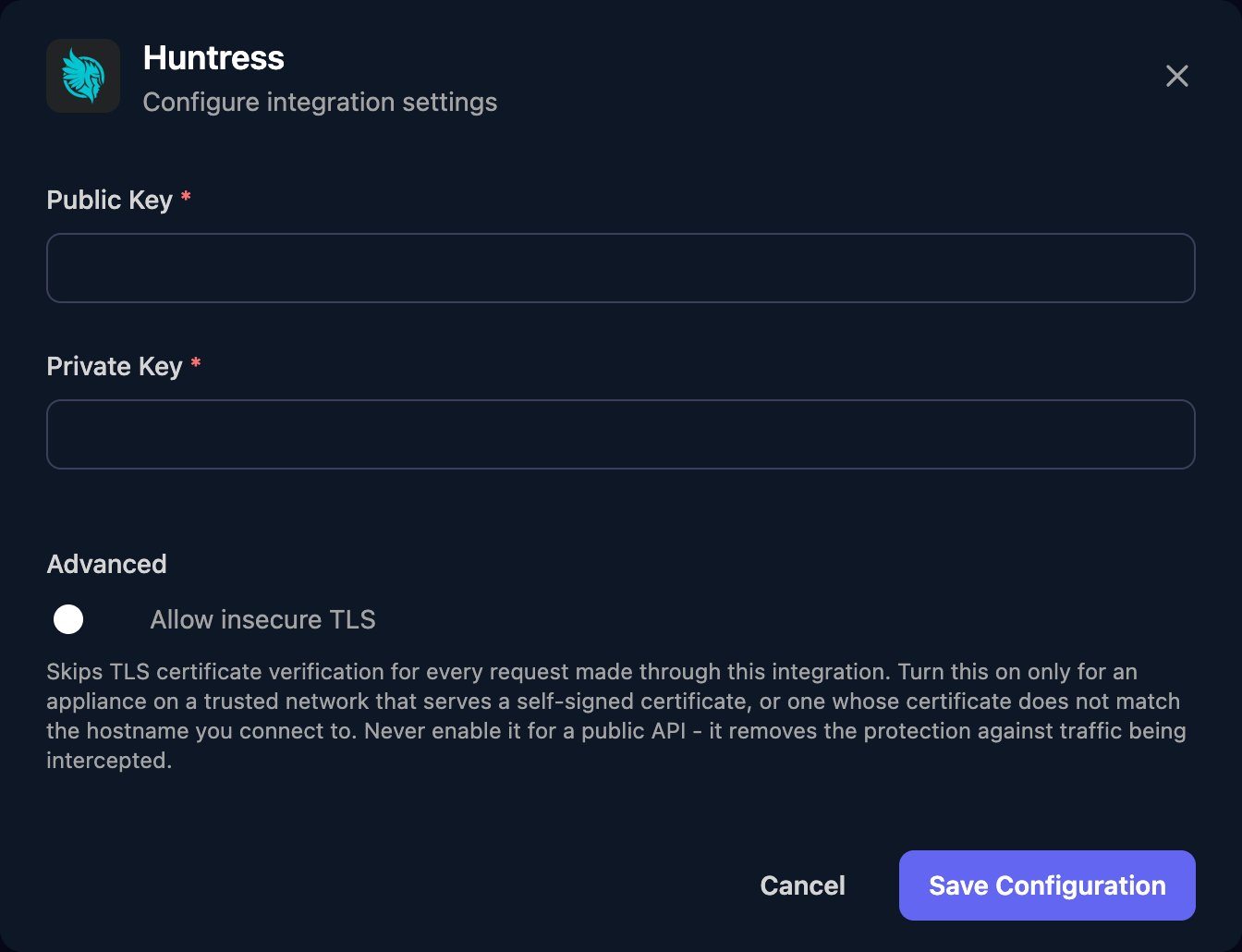
Go to **Integrations > Huntress** and click Configure on the Base Configuration card.
 Enter the API Key as Public Key and the Secret as Private Key, then click Save Configuration.
 One connection covers all your clients. Actions on one organisation take its Huntress organisation ID, which Get Organizations returns.
## Write actions and roles
| Triggr action | Huntress role |
| - | - |
| Create an Incident Report Resolution, Create an Escalation Resolution | Admin or Security Engineer |
| Bulk Approve Remediations | Admin, Security Engineer or User |
| Update an Organization, Delete an Organization | Admin, Provisioner or User (Security Engineer can update only) |
| Delete Unwanted Access Rule, Delete Membership | Admin |
Reseller actions (Accounts, Reseller Invoices, Reseller Subscriptions and actions that take an account ID) need reseller-level credentials. Delete an Organization and Permanently Disable an Account can't be undone. For endpoints without a built-in action, use a Generic Integration Action step; see the [Huntress API reference](https://api.huntress.io/docs).
## Troubleshooting
Check Public Key holds the API Key and Private Key the Secret, in full and not swapped. If you've lost the secret, create a new credential.
A field is empty (or only spaces). Click Edit on the Base Configuration card and fill in both keys.
The credential's user lacks the role the action needs. See [Write actions and roles](#write-actions-and-roles).
Organisation-level users only see their own organisations, User and Read-only can't see escalations, and per-account actions need reseller-level credentials.
Huntress allows 60 requests a minute per account. Spread large workflows out or run them in smaller batches.
Huntress timed out building a large list. Narrow the action with its filters, such as an organisation ID or date range, or lower its limit.
This documentation is built and hosted on [Mintlify](https://mintlify.com), a developer documentation platform.
One connection covers all your clients. Actions on one organisation take its Huntress organisation ID, which Get Organizations returns.
## Write actions and roles
| Triggr action | Huntress role |
| - | - |
| Create an Incident Report Resolution, Create an Escalation Resolution | Admin or Security Engineer |
| Bulk Approve Remediations | Admin, Security Engineer or User |
| Update an Organization, Delete an Organization | Admin, Provisioner or User (Security Engineer can update only) |
| Delete Unwanted Access Rule, Delete Membership | Admin |
Reseller actions (Accounts, Reseller Invoices, Reseller Subscriptions and actions that take an account ID) need reseller-level credentials. Delete an Organization and Permanently Disable an Account can't be undone. For endpoints without a built-in action, use a Generic Integration Action step; see the [Huntress API reference](https://api.huntress.io/docs).
## Troubleshooting
Check Public Key holds the API Key and Private Key the Secret, in full and not swapped. If you've lost the secret, create a new credential.
A field is empty (or only spaces). Click Edit on the Base Configuration card and fill in both keys.
The credential's user lacks the role the action needs. See [Write actions and roles](#write-actions-and-roles).
Organisation-level users only see their own organisations, User and Read-only can't see escalations, and per-account actions need reseller-level credentials.
Huntress allows 60 requests a minute per account. Spread large workflows out or run them in smaller batches.
Huntress timed out building a large list. Narrow the action with its filters, such as an organisation ID or date range, or lower its limit.
This documentation is built and hosted on [Mintlify](https://mintlify.com), a developer documentation platform.