> ## Documentation Index
> Fetch the complete documentation index at: https://university.triggr-app.com/llms.txt
> Use this file to discover all available pages before exploring further.
# ImmyBot
> Connect ImmyBot to Triggr with a Microsoft Entra app that signs in to ImmyBot as an API user.
Triggr works with ImmyBot computers, maintenance sessions (including Run Immy Service), tenants, scripts, maintenance tasks, licences and change requests.
## Set up ImmyBot
You need an ImmyBot account that can add users and assign roles, and the Application Developer role or higher in the Microsoft tenant you sign in to ImmyBot with.
In the [Microsoft Entra admin center](https://entra.microsoft.com), go to **Entra ID > App registrations > New registration**, name it `Triggr ImmyBot`, leave the defaults, click Register and copy the Application (client) ID and Directory (tenant) ID. It needs no API permissions or redirect URI.
In **Certificates & secrets > Client secrets**, click New client secret and copy its Value (not the Secret ID). Note when it expires: Triggr can't sign in after that.
On the app's Overview page, click the link next to Managed application in local directory and copy that enterprise application's Object ID, not the app registration's own Object ID.
In ImmyBot, go to **Show More > Users & Roles**, click Add New User and open the Manually tab. Select your MSP tenant, enter a name and an unused email on your domain, paste the object ID into Azure Object ID and click Create.
Edit the user, click **Direct Role Assignment**, select System Administrator (Legacy), set Scope Category to Owner, choose Allow and click Assign. A custom role also works if it has the View permissions each feature depends on; see ImmyBot's [Role-Based Access Control](https://www.immy.bot/documentation/administration/rbac/).
If your instance has no Users & Roles, follow the older route in ImmyBot's [API guide](https://www.immy.bot/documentation/integrations/build-your-own-integration/).
## Connect it in Triggr
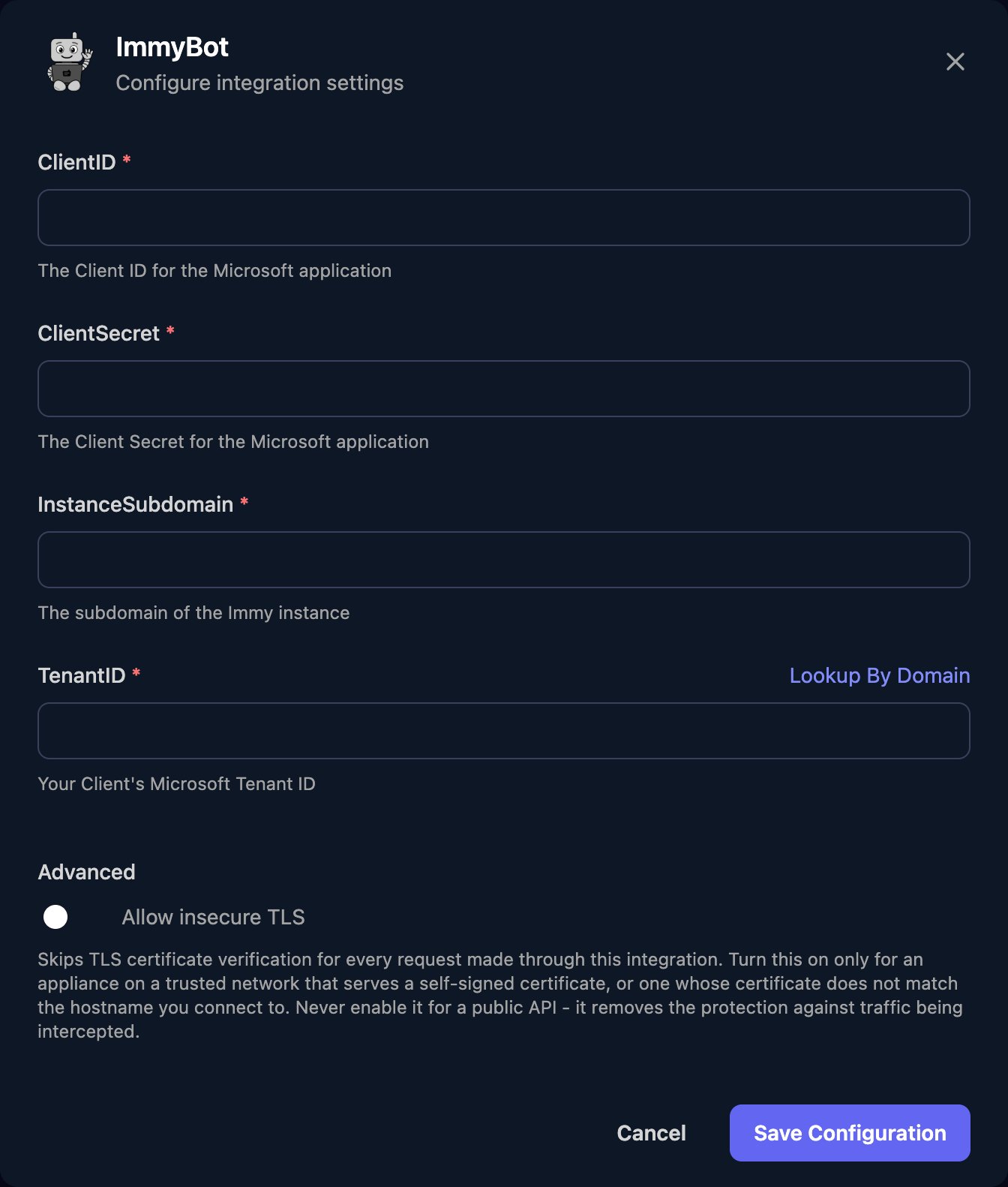
Go to **Integrations > ImmyBot** and click Configure on the Base Configuration card.
 Enter the ClientID and ClientSecret, your own tenant's Directory (tenant) ID as TenantID (or click Lookup By Domain), and only the part of your ImmyBot address before `.immy.bot`, such as `contoso`, as InstanceSubdomain. Click Save Configuration.
 One connection covers every tenant in your instance. Actions on one tenant take its ImmyBot ID. Actions with a request body, such as Run Immy Service, take the JSON documented at `https://.immy.bot/swagger`.
## Troubleshooting
Check ClientID and TenantID match the app, ClientSecret is the secret's Value and hasn't expired, and InstanceSubdomain is only the subdomain, such as `contoso`.
The user's Azure Object ID must be the enterprise application's Object ID. If it's wrong, create a new user with the right ID and the same role.
Check the user's role assignment has Allow and covers the tenant. For a custom role, add the missing permission and the View permissions it depends on. The user's Check Access tab shows what grants or denies it.
This documentation is built and hosted on [Mintlify](https://mintlify.com), a developer documentation platform.
One connection covers every tenant in your instance. Actions on one tenant take its ImmyBot ID. Actions with a request body, such as Run Immy Service, take the JSON documented at `https://.immy.bot/swagger`.
## Troubleshooting
Check ClientID and TenantID match the app, ClientSecret is the secret's Value and hasn't expired, and InstanceSubdomain is only the subdomain, such as `contoso`.
The user's Azure Object ID must be the enterprise application's Object ID. If it's wrong, create a new user with the right ID and the same role.
Check the user's role assignment has Allow and covers the tenant. For a custom role, add the missing permission and the View permissions it depends on. The user's Check Access tab shows what grants or denies it.
This documentation is built and hosted on [Mintlify](https://mintlify.com), a developer documentation platform.