> ## Documentation Index
> Fetch the complete documentation index at: https://university.triggr-app.com/llms.txt
> Use this file to discover all available pages before exploring further.
# Inforcer
> Connect Inforcer to Triggr with an Inforcer REST API key.
Triggr works with the Microsoft 365 tenants you manage in Inforcer: their baselines, alignment scores, policies, users, groups, roles, Secure Score, assessments, activity log and reports.
## Set up Inforcer
In the [Inforcer portal](https://portal.inforcer.com/), go to Configure and open **REST API**.
Create a key covering every tenant your workflows use, with read access to the areas they use, plus permission to run assessments and reports if they start them. Triggr can only reach what the key covers.
Copy the key, and note the region your account is hosted in: ANZ, EU, UK or US.
## Connect it in Triggr
Go to **Integrations > Inforcer** and click Configure on the Base Configuration card.
 Paste the API Key, select your account's Region and click Save Configuration.
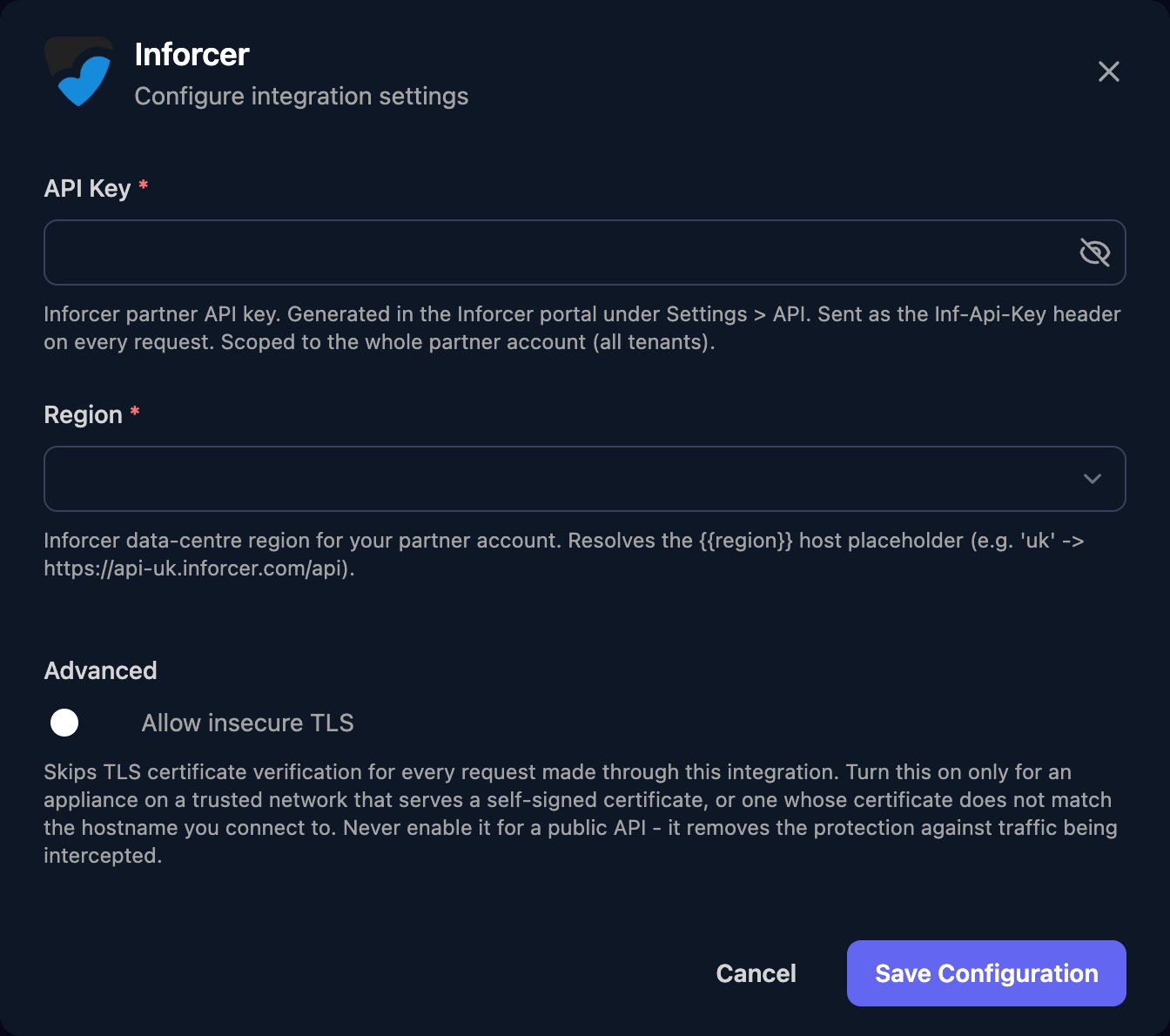 One configuration covers all your clients. Actions on one tenant take its Inforcer ID as `tenantId`, a number that List Tenants returns as `clientTenantId` (not the Microsoft tenant ID). For paged results, pass each response's `continuationToken` back in the next call.
## Troubleshooting
Check the key was pasted in full and Region matches your account: a key only works in its own region. If the key was deleted, create a new one and paste it in with Edit on the Base Configuration card.
The key doesn't cover that area or tenant. Create a new key with the right tenants and permissions.
Use List Report Runs to check the run is `completed` or `completedWithErrors` first. The key must cover every tenant in the run.
This documentation is built and hosted on [Mintlify](https://mintlify.com), a developer documentation platform.
One configuration covers all your clients. Actions on one tenant take its Inforcer ID as `tenantId`, a number that List Tenants returns as `clientTenantId` (not the Microsoft tenant ID). For paged results, pass each response's `continuationToken` back in the next call.
## Troubleshooting
Check the key was pasted in full and Region matches your account: a key only works in its own region. If the key was deleted, create a new one and paste it in with Edit on the Base Configuration card.
The key doesn't cover that area or tenant. Create a new key with the right tenants and permissions.
Use List Report Runs to check the run is `completed` or `completedWithErrors` first. The key must cover every tenant in the run.
This documentation is built and hosted on [Mintlify](https://mintlify.com), a developer documentation platform.