> ## Documentation Index
> Fetch the complete documentation index at: https://university.triggr-app.com/llms.txt
> Use this file to discover all available pages before exploring further.
# Inserve
> Connect Inserve to Triggr with an Inserve API key and your Inserve address.
Triggr works with Inserve companies, contacts, tickets, assets, products, time registrations and custom cloud distributors. In Triggr's action names, clients are contact persons (Contactpersonen) and companies are your customers' organisations.
## Set up Inserve
Sign in as the account Triggr should work as: the key has that account's rights.
Click the profile menu at the top right and choose **API instellingen**.
On the API sleutels tab, enter `Triggr` in Naam voor sleutel and click **Nieuwe sleutel genereren**.
Copy the new key. To see it again later, click Bekijken in the Sleutel column.
See Inserve's [API documentatie](https://docs.inserve.nl/nl/article/api-documentatie).
## Connect it in Triggr
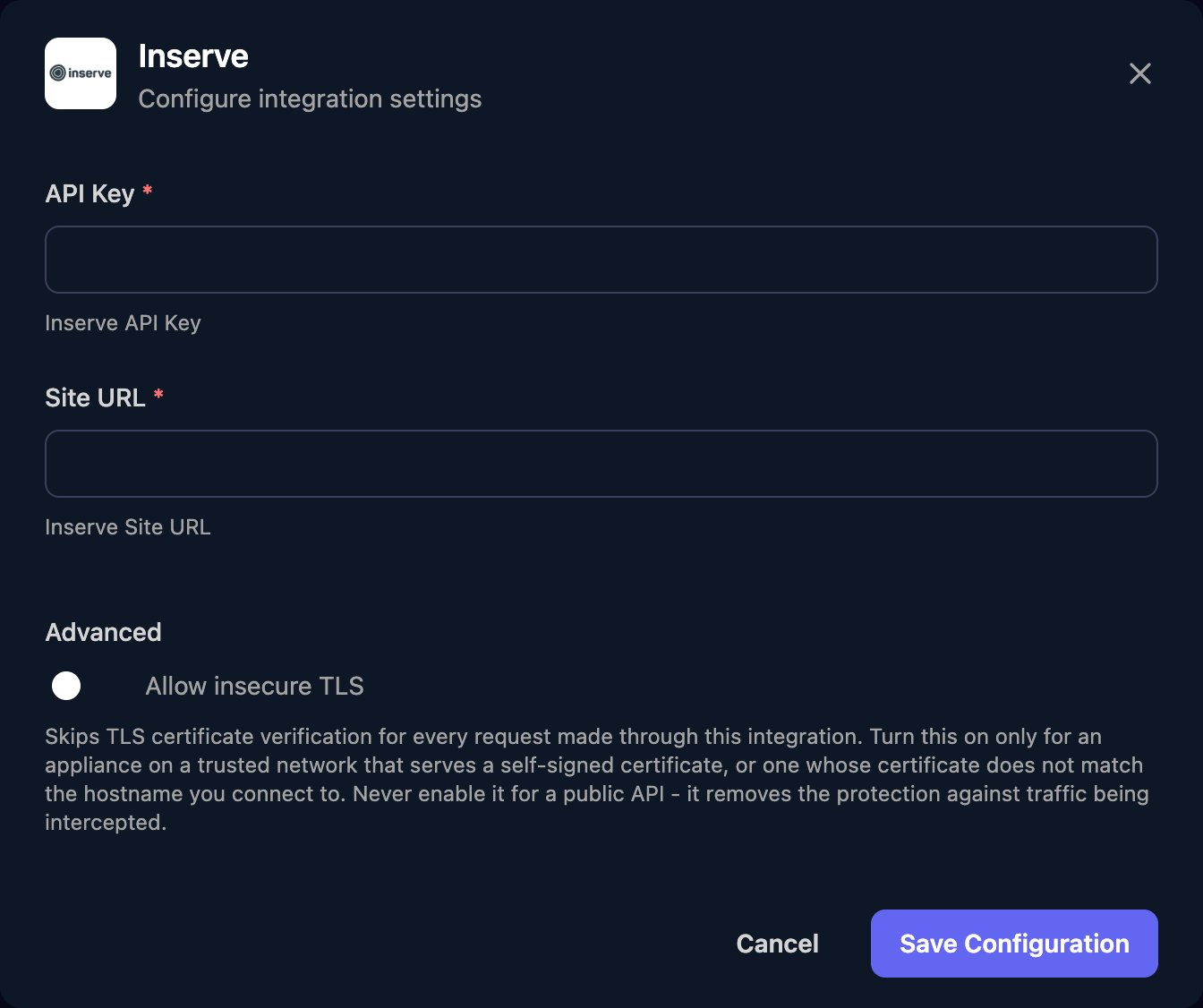
Go to **Integrations > Inserve** and click Configure on the Base Configuration card.
 Paste the API Key, enter your Inserve address as Site URL, such as `https://yourcompany.inserve.nl`, with no trailing slash or `/api`, and click Save Configuration.
 One connection covers all your clients. Run the me action to check it. JSON bodies use the field names in Inserve's [API reference](https://documenter.getpostman.com/view/14835414/2s935kQ6UW).
## Troubleshooting
Site URL must start with `https://` and have nothing after the domain.
Check API Key holds the full key with no spaces, and that it still exists under API instellingen.
The account that created the key lacks the right. Give it a role with that right under Rollen and Rechten; you don't need a new key.
Inserve allows 3,600 API calls an hour per environment, across all integrations. Spread large workflows out or run them in smaller batches.
This documentation is built and hosted on [Mintlify](https://mintlify.com), a developer documentation platform.
One connection covers all your clients. Run the me action to check it. JSON bodies use the field names in Inserve's [API reference](https://documenter.getpostman.com/view/14835414/2s935kQ6UW).
## Troubleshooting
Site URL must start with `https://` and have nothing after the domain.
Check API Key holds the full key with no spaces, and that it still exists under API instellingen.
The account that created the key lacks the right. Give it a role with that right under Rollen and Rechten; you don't need a new key.
Inserve allows 3,600 API calls an hour per environment, across all integrations. Spread large workflows out or run them in smaller batches.
This documentation is built and hosted on [Mintlify](https://mintlify.com), a developer documentation platform.