> ## Documentation Index
> Fetch the complete documentation index at: https://university.triggr-app.com/llms.txt
> Use this file to discover all available pages before exploring further.
# IT Glue
> Connect IT Glue to Triggr with a custom API key.
Triggr works with IT Glue organisations, contacts, locations, passwords, configurations, documents, flexible assets, checklists and account data.
## Set up IT Glue
You need an IT Glue Enterprise plan and the Administrator role.
Go to **Admin > Settings > API Keys**. Under Custom API Keys, click **Create API Key**, name it `Triggr` and click Generate API Key.
Tick Password Access only if workflows need to read or store password values. It lets anyone with the key read every stored password through the API.
Copy the key, which starts with `ITG.`. IT Glue shows it only once.
See IT Glue's [Getting started with the IT Glue API](https://help.itglue.kaseya.com/help/Content/1-admin/it-glue-api/getting-started-with-the-it-glue-api.html).
## Connect it in Triggr
Go to **Integrations > IT Glue** and click Configure on the Base Configuration card.
 Paste the key into ApiKey. Leave Hostname as `https://api.itglue.com`, or enter `https://api.eu.itglue.com` (EU) or `https://api.au.itglue.com` (Australia) for your data centre, then click Save Configuration.
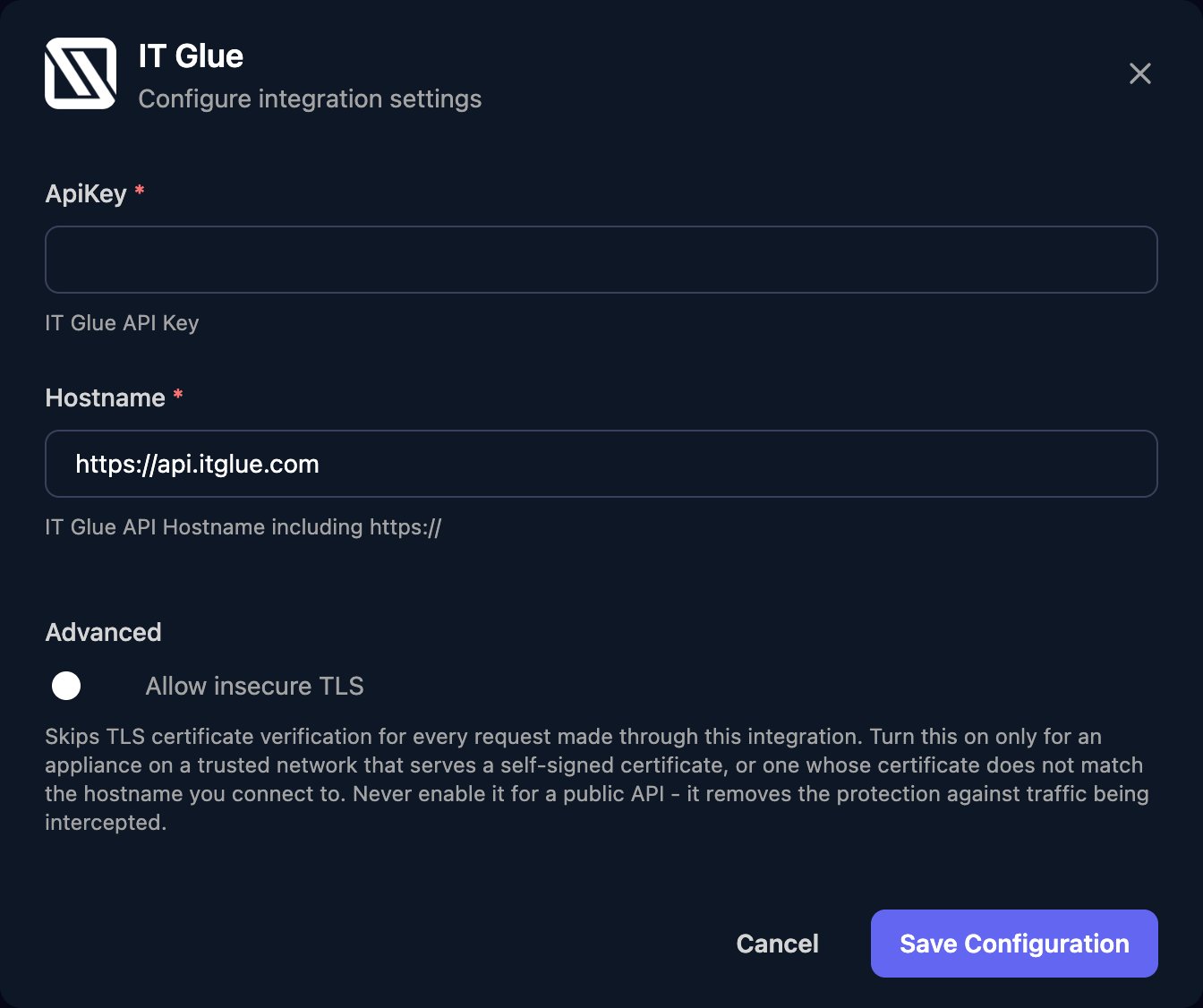 One connection covers your whole account, with no client mapping. Workflows find a client's organisation with List Organizations, filtered by name or PSA ID.
## Troubleshooting
Paste the key again in full, check it's active (not paused) under Admin > Settings > API Keys, and check Hostname starts with `https://` and matches your data centre. If Admin > Settings > IP Access Control is set to Allow specific IP addresses, add [Triggr's IP addresses](/security/ip-allowlist).
IT Glue revokes keys unused for 90 days. Generate a new key and paste it into ApiKey.
Tick Password Access on Triggr's key, then rerun the workflow.
IT Glue rejects API updates to an organisation that's syncing with your PSA.
This documentation is built and hosted on [Mintlify](https://mintlify.com), a developer documentation platform.
One connection covers your whole account, with no client mapping. Workflows find a client's organisation with List Organizations, filtered by name or PSA ID.
## Troubleshooting
Paste the key again in full, check it's active (not paused) under Admin > Settings > API Keys, and check Hostname starts with `https://` and matches your data centre. If Admin > Settings > IP Access Control is set to Allow specific IP addresses, add [Triggr's IP addresses](/security/ip-allowlist).
IT Glue revokes keys unused for 90 days. Generate a new key and paste it into ApiKey.
Tick Password Access on Triggr's key, then rerun the workflow.
IT Glue rejects API updates to an organisation that's syncing with your PSA.
This documentation is built and hosted on [Mintlify](https://mintlify.com), a developer documentation platform.