> ## Documentation Index
> Fetch the complete documentation index at: https://university.triggr-app.com/llms.txt
> Use this file to discover all available pages before exploring further.
# Keeper MSP
> Connect Keeper's MSP Vendor API to Triggr to manage MSP accounts and read their usage.
Triggr works with the Keeper MSP accounts linked to your partner account: creating trials, converting, cancelling, reactivating and removing accounts, and reading usage and products. To manage users and teams inside a Keeper tenant, use [Keeper SCIM](/integrations/keeper/scim) instead.
## Set up Keeper MSP
Ask Keeper support or your Keeper representative for access to the MSP Vendor (Account Management) API, which Keeper offers to distributors of Keeper MSP accounts.
Keeper shares a record with your Partner name, Partner key (`consumer.key`) and Pre-shared secret (`secret.key`). Check which Keeper region your partner account is in.
See Keeper's [Account Management APIs](https://docs.keeper.io/enterprise-guide/keeper-msp/account-management-apis).
## Connect it in Triggr
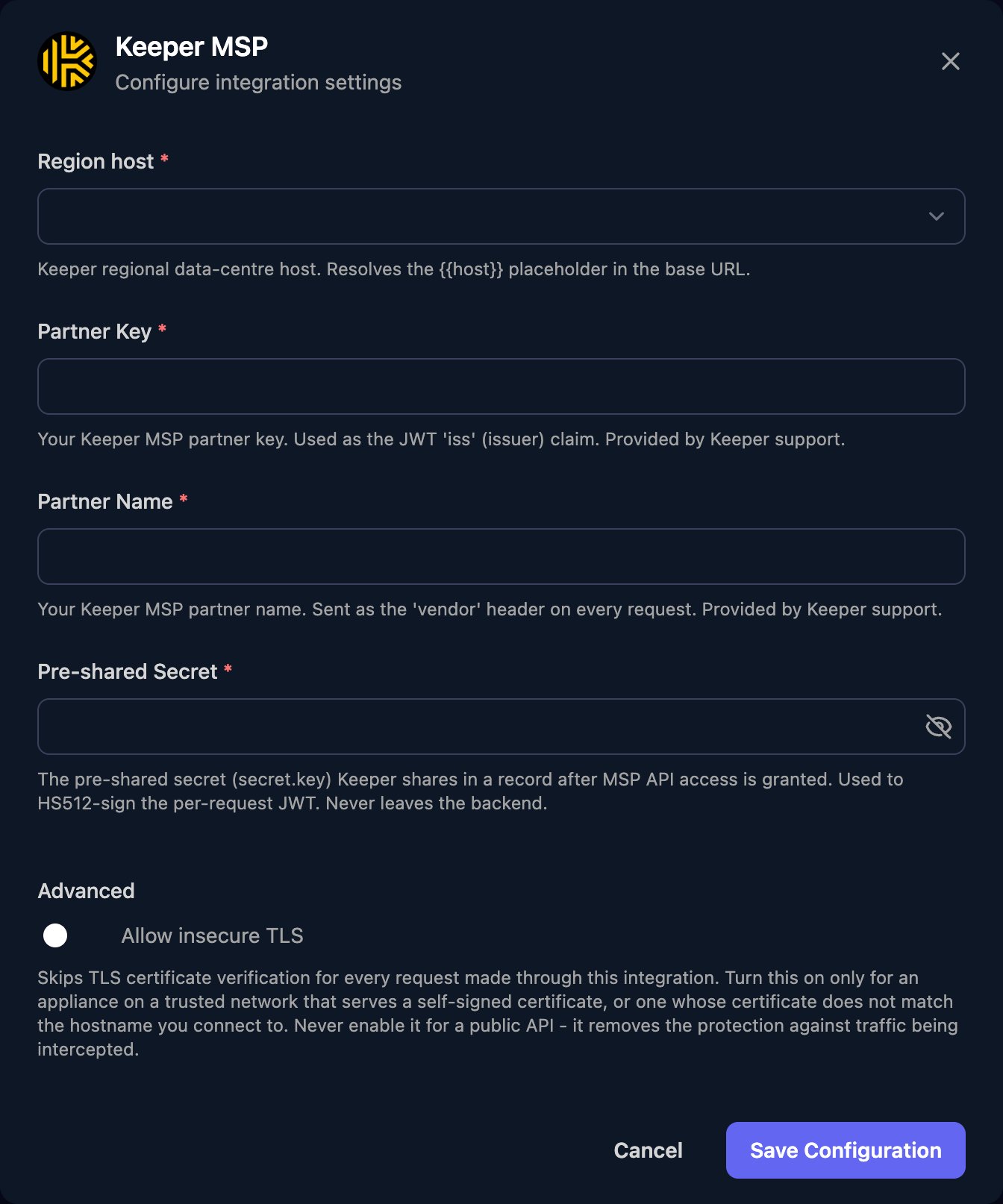
Go to **Integrations > Keeper MSP** and click Configure on the Base Configuration card.
 Select your Region host (`keepersecurity.com` for the US, or `keepersecurity.eu`, `keepersecurity.com.au`, `keepersecurity.ca`, `keepersecurity.jp` or `govcloud.keepersecurity.us`), enter the Partner Key, Partner Name and Pre-shared Secret, then click Save Configuration.
 One connection covers every MSP account linked to your partner account. Actions take Keeper's JSON body and identify an account by `vendorInternalId` (the ID you give it at creation) or `partnerId`, for example `{"vendorInternalId": "acme-001"}`. Keeper's documentation has the full request schemas.
## Account statuses
| Status | Meaning |
| - | - |
| `PENDING` | Created with Create Trial Account; invitation not yet accepted. |
| `TRIAL` | On Keeper's 14-day trial. Keeper deactivates it if it isn't converted to paid; it can be reactivated while Keeper holds its data (one year). |
| `ACTIVE` | Paid. |
| `EXPIRED` | Cancelled with Cancel Paid Account. Billing stops straight away. |
| `REGION_CONFLICT` | Activated in another Keeper region; see `accountRegion`. |
| `PRODUCT_CONFLICT` | Activated as another Keeper product; see `productType`. |
## Troubleshooting
Check Partner Key, Partner Name and Pre-shared Secret match the Keeper record exactly, and Region host is your partner account's region.
The customer activated an account without the invitation link. Remove Account deletes accounts that are pending or in conflict.
This documentation is built and hosted on [Mintlify](https://mintlify.com), a developer documentation platform.
One connection covers every MSP account linked to your partner account. Actions take Keeper's JSON body and identify an account by `vendorInternalId` (the ID you give it at creation) or `partnerId`, for example `{"vendorInternalId": "acme-001"}`. Keeper's documentation has the full request schemas.
## Account statuses
| Status | Meaning |
| - | - |
| `PENDING` | Created with Create Trial Account; invitation not yet accepted. |
| `TRIAL` | On Keeper's 14-day trial. Keeper deactivates it if it isn't converted to paid; it can be reactivated while Keeper holds its data (one year). |
| `ACTIVE` | Paid. |
| `EXPIRED` | Cancelled with Cancel Paid Account. Billing stops straight away. |
| `REGION_CONFLICT` | Activated in another Keeper region; see `accountRegion`. |
| `PRODUCT_CONFLICT` | Activated as another Keeper product; see `productType`. |
## Troubleshooting
Check Partner Key, Partner Name and Pre-shared Secret match the Keeper record exactly, and Region host is your partner account's region.
The customer activated an account without the invitation link. Remove Account deletes accounts that are pending or in conflict.
This documentation is built and hosted on [Mintlify](https://mintlify.com), a developer documentation platform.