> ## Documentation Index
> Fetch the complete documentation index at: https://university.triggr-app.com/llms.txt
> Use this file to discover all available pages before exploring further.
# Keeper SCIM
> Connect a Keeper Enterprise node to Triggr with a SCIM provisioning token, to onboard and offboard Keeper users and teams.
Triggr works with the users and teams in one node of a Keeper Enterprise tenant, yours or a managed company's: provisioning, updating, locking and deactivating users, and managing teams. To manage Keeper MSP accounts as a distributor, use [Keeper MSP](/integrations/keeper/msp) instead.
## Set up Keeper SCIM
You need admin rights to add provisioning methods in the tenant's Keeper Admin Console (for a managed company, the Manage Companies permission in your Keeper MSP console). Users' email domains must be [reserved](https://docs.keeper.io/enterprise-guide/domain-reservation) to the tenant.
In the Admin Console, go to **Admin** and select the node Triggr should provision into. It must be below the root node, and sub-nodes aren't included.
On the node's Provisioning tab, click **Add Method**, select SCIM (System for Cross-Domain Identity Management) and click Next.
Click **Create Provisioning Token** (or Generate), copy the URL and token, then click Save. The token only works once the method is saved, and the method then shows as Pending.
The URL has the form `https:///api/rest/scim/v2/`. Keeper Commander's `scim create --node=""` prints the same URL and token; the node ID is the number at the end of the URL, not the separate SCIM ID Commander also prints. See Keeper's [API Provisioning with SCIM](https://docs.keeper.io/enterprise-guide/user-and-team-provisioning/automated-provisioning-with-scim).
## Connect it in Triggr
Go to **Integrations > Keeper SCIM** and click Configure on the Base Configuration card.
 Select the Region host from your URL, enter the digits at the end of the URL as SCIM Node ID, paste the SCIM Bearer Token and click Save Configuration.
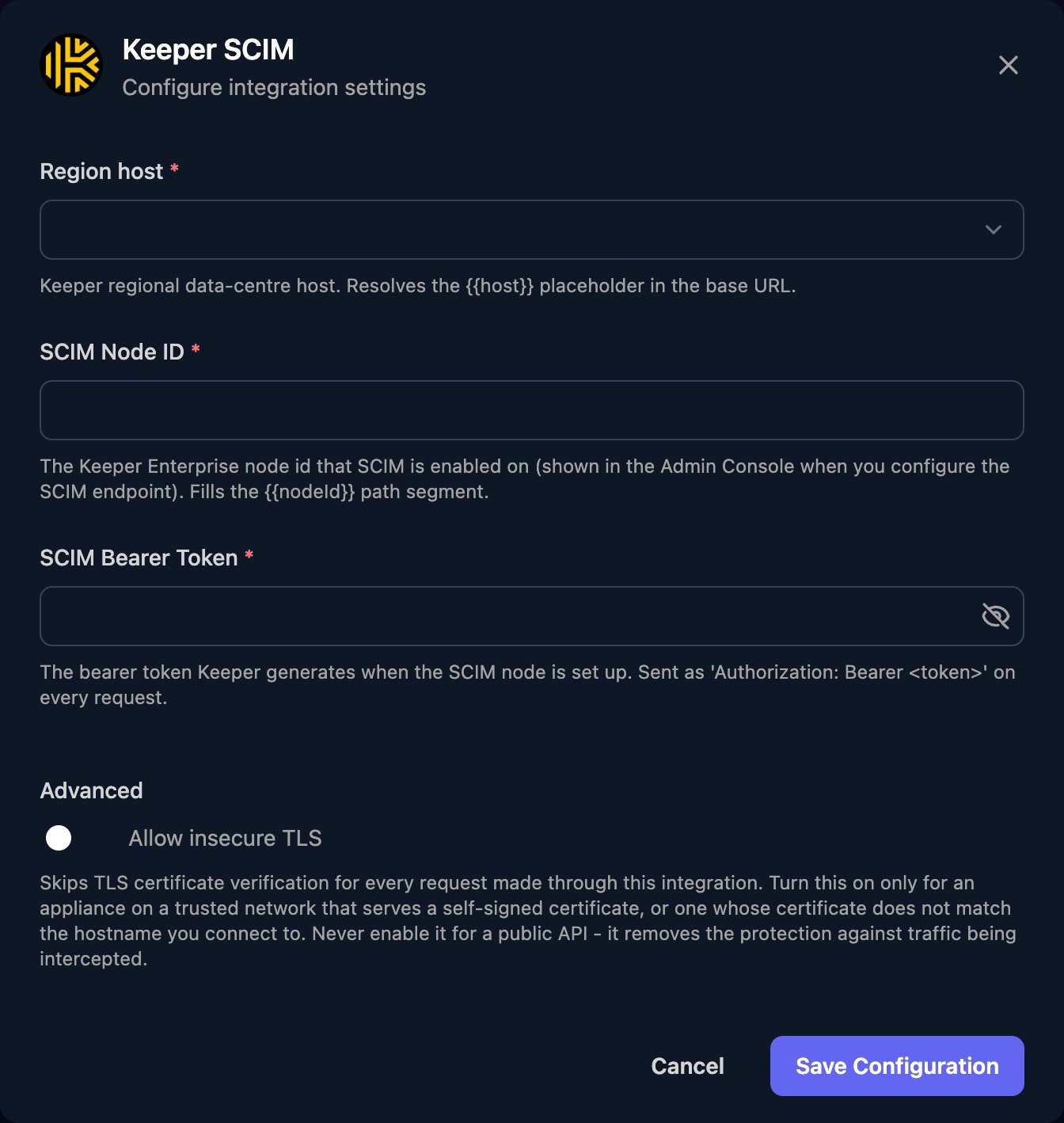 One connection covers one node. To connect a different node, click Edit and enter its details.
## How Keeper handles changes
* New users are invited by email. Set `userName` to the user's email address.
* New teams and team memberships wait for approval by an administrator, a team member, Keeper Commander or [Keeper Automator](https://docs.keeper.io/sso-connect-cloud/device-approvals/automator).
* Deactivate User locks the account rather than deleting it.
* List actions return 1,000 results by default; page with `startIndex` and `count`. Bodies use SCIM JSON, as in Keeper's [Using SCIM API Provisioning](https://docs.keeper.io/enterprise-guide/user-and-team-provisioning/automated-provisioning-with-scim/using-scim-api-provisioning).
## Troubleshooting
Check the token was pasted in full, the method was saved in the Admin Console, and Region host and SCIM Node ID match the URL. To get a new token, run `scim edit ` in Keeper Commander.
The email is already used in another Keeper tenant or node. For a user in this tenant, move them into the SCIM node in the Admin Console first.
The tenant has no licensed seats left. Add licences or free up seats.
It's waiting for approval, or the user's email domain isn't reserved to the tenant.
This documentation is built and hosted on [Mintlify](https://mintlify.com), a developer documentation platform.
One connection covers one node. To connect a different node, click Edit and enter its details.
## How Keeper handles changes
* New users are invited by email. Set `userName` to the user's email address.
* New teams and team memberships wait for approval by an administrator, a team member, Keeper Commander or [Keeper Automator](https://docs.keeper.io/sso-connect-cloud/device-approvals/automator).
* Deactivate User locks the account rather than deleting it.
* List actions return 1,000 results by default; page with `startIndex` and `count`. Bodies use SCIM JSON, as in Keeper's [Using SCIM API Provisioning](https://docs.keeper.io/enterprise-guide/user-and-team-provisioning/automated-provisioning-with-scim/using-scim-api-provisioning).
## Troubleshooting
Check the token was pasted in full, the method was saved in the Admin Console, and Region host and SCIM Node ID match the URL. To get a new token, run `scim edit ` in Keeper Commander.
The email is already used in another Keeper tenant or node. For a user in this tenant, move them into the SCIM node in the Admin Console first.
The tenant has no licensed seats left. Add licences or free up seats.
It's waiting for approval, or the user's email domain isn't reserved to the tenant.
This documentation is built and hosted on [Mintlify](https://mintlify.com), a developer documentation platform.