> ## Documentation Index
> Fetch the complete documentation index at: https://university.triggr-app.com/llms.txt
> Use this file to discover all available pages before exploring further.
# Level
> Connect Level RMM to Triggr with a Level API key.
Triggr works with Level devices (with their hardware and network details) and groups, including creating groups for new clients.
## Set up Level
You need administrator access in Level, or a role with access to Settings.
Go to **Settings > API keys**, click **+ Create API key** and enter `Triggr` as the Description.
Choose Read-only if workflows only list devices and groups, or Read and write if they create groups or change anything. You can change this later without changing the key.
Click Create key and copy the key.
See Level's [API keys settings](https://docs.level.io/en/articles/13909289-api-keys-settings).
## Connect it in Triggr
Go to **Integrations > Level** and click Configure on the Base Configuration card.
 Paste the key into API Key, without a `Bearer` prefix, and click Save Configuration.
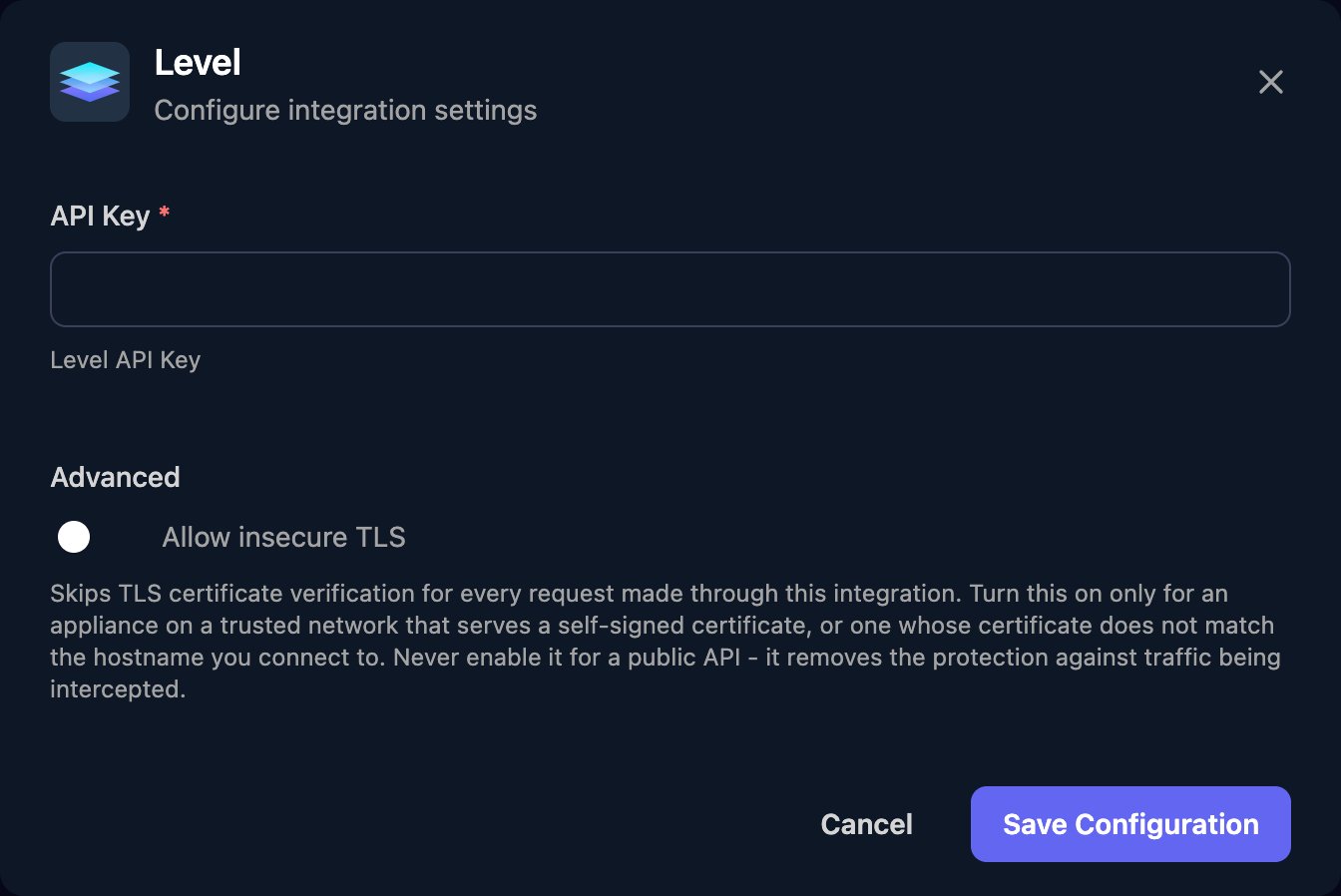 One key covers all your clients. For endpoints without a built-in action, use a Generic Integration Action step with URL Type set to Relative to base URL and a path such as `/v2/tags`. See Level's [API reference](https://developers.level.io).
## Troubleshooting
Check the key was pasted in full with no `Bearer` prefix, and still exists under Settings > API keys. Deleting a key in Level revokes it straight away.
The key is Read-only. Click Edit on the key in Level and change it to Read and write. Nothing changes in Triggr.
Set the action's `limit` to up to 100. When `has_more` is `true`, pass the last record's ID in `startingAfter` to get the next page.
Level's rate limit was reached. Spread large workflows out or run them in smaller batches.
This documentation is built and hosted on [Mintlify](https://mintlify.com), a developer documentation platform.
One key covers all your clients. For endpoints without a built-in action, use a Generic Integration Action step with URL Type set to Relative to base URL and a path such as `/v2/tags`. See Level's [API reference](https://developers.level.io).
## Troubleshooting
Check the key was pasted in full with no `Bearer` prefix, and still exists under Settings > API keys. Deleting a key in Level revokes it straight away.
The key is Read-only. Click Edit on the key in Level and change it to Read and write. Nothing changes in Triggr.
Set the action's `limit` to up to 100. When `has_more` is `true`, pass the last record's ID in `startingAfter` to get the next page.
Level's rate limit was reached. Spread large workflows out or run them in smaller batches.
This documentation is built and hosted on [Mintlify](https://mintlify.com), a developer documentation platform.