> ## Documentation Index
> Fetch the complete documentation index at: https://university.triggr-app.com/llms.txt
> Use this file to discover all available pages before exploring further.
# Mesh
> Connect Mesh email security to Triggr with an API key from the Mesh Partner Hub.
Triggr works with Mesh customers and their licences and users, global allow and block rules, Live Email Tracker logs, reports and the partner audit log.
## Set up Mesh
Every key belongs to a team member. Use an existing one, or [create one](https://docs.emailsecurity.app/help-center/creating-team-members) for automation.
In the Partner Hub you sign in to, go to **Settings > API Keys** and click **New**. Enter `Triggr` as the Name, select the team member in User, choose an Expiry Date and the User Permissions below, then click Submit.
| Workflows will | Mesh permission |
| - | - |
| List, read and update customers and licences | Customers: Manage |
| Create customers | Customers: Create New |
| Manage global allow and block rules | Global policy |
| Read Live Email Tracker logs | Live Email Tracker |
| Read the audit log | Partner Account Settings |
In Show API Key Details, click the copy icon next to Key, then Close. Mesh shows the key only once.
See Mesh's [API Keys](https://docs.emailsecurity.app/help-center/api-keys) guide.
## Connect it in Triggr
Go to **Integrations > Mesh** and click Configure on the Base Configuration card.
 Partner Hub Host starts as the EU host; change it to `hub-us.emailsecurity.app` or the host you sign in to, without `https://` or a path. Paste the API Key and click Save Configuration.
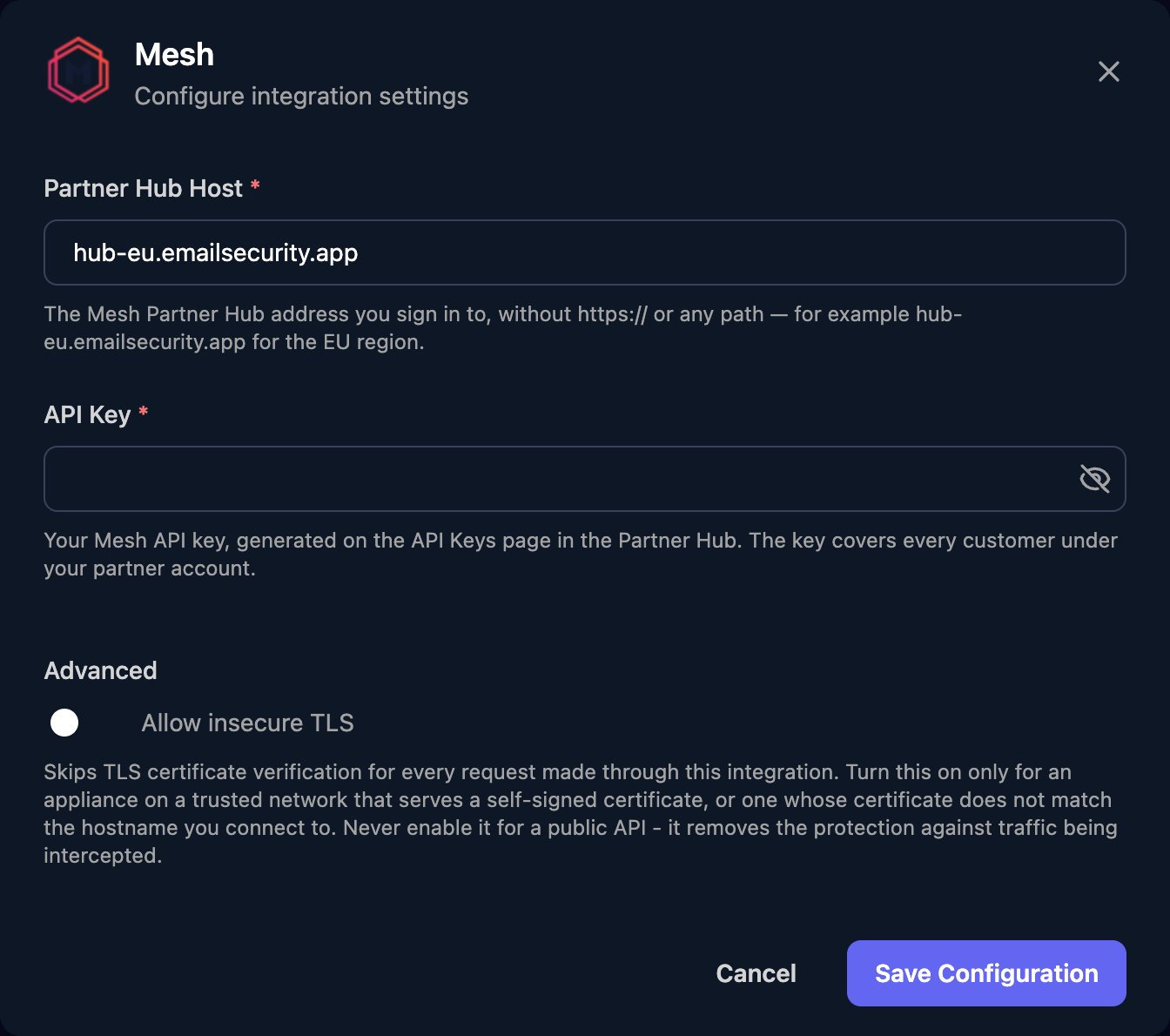 One key covers every customer under your partner account. Actions on one customer, user or rule take its Mesh ID, which list actions such as List Customers return.
The key stops working on its Expiry Date. Before then, create a new key, paste it in with Edit on the Base Configuration card, then revoke the old one from its three-dot menu on API Keys.
## Troubleshooting
Check the key is active and not past its Expiry Date, Partner Hub Host is where you created it, and the key was pasted in full.
Partner Hub Host must be the host name only, with no `https://`, trailing `/` or `/api`.
Click the pencil icon next to the key on API Keys and add the permission for that area.
The customer turned off MSP Management. An administrator on the customer's domain must turn it back on under Settings. See Mesh's [Restricting Partner Access](https://docs.emailsecurity.app/help-center/restricting-partner-access-to-customer-domain-or-m).
Mesh keeps Live Email Tracker data and audit log entries for 90 days.
This documentation is built and hosted on [Mintlify](https://mintlify.com), a developer documentation platform.
One key covers every customer under your partner account. Actions on one customer, user or rule take its Mesh ID, which list actions such as List Customers return.
The key stops working on its Expiry Date. Before then, create a new key, paste it in with Edit on the Base Configuration card, then revoke the old one from its three-dot menu on API Keys.
## Troubleshooting
Check the key is active and not past its Expiry Date, Partner Hub Host is where you created it, and the key was pasted in full.
Partner Hub Host must be the host name only, with no `https://`, trailing `/` or `/api`.
Click the pencil icon next to the key on API Keys and add the permission for that area.
The customer turned off MSP Management. An administrator on the customer's domain must turn it back on under Settings. See Mesh's [Restricting Partner Access](https://docs.emailsecurity.app/help-center/restricting-partner-access-to-customer-domain-or-m).
Mesh keeps Live Email Tracker data and audit log entries for 90 days.
This documentation is built and hosted on [Mintlify](https://mintlify.com), a developer documentation platform.