> ## Documentation Index
> Fetch the complete documentation index at: https://university.triggr-app.com/llms.txt
> Use this file to discover all available pages before exploring further.
# Microsoft 365 email
> Send Triggr email, such as approval requests and workflow notifications, from a mailbox in your MSP's Microsoft 365 tenant.
Triggr sends approval requests and workflow notifications through Microsoft Graph from a mailbox in your MSP's tenant, using Triggr's own Entra app (application ID `93d55b6f-8b1c-41c6-845d-0bd579b3e68b`). Admin consent gives the app `Mail.Send` across your tenant, which you can [limit to one mailbox](#limit-the-app-to-the-sending-mailbox).
## Set up Microsoft 365
Create a dedicated mailbox in the tenant, such as `notifications@yourdomain.com`: a [shared mailbox](https://learn.microsoft.com/en-us/microsoft-365/admin/email/create-a-shared-mailbox) (no licence needed under 50 GB) or a user mailbox licensed for Exchange Online.
## Connect it in Triggr
You need a Global Administrator or Privileged Role Administrator in the tenant.
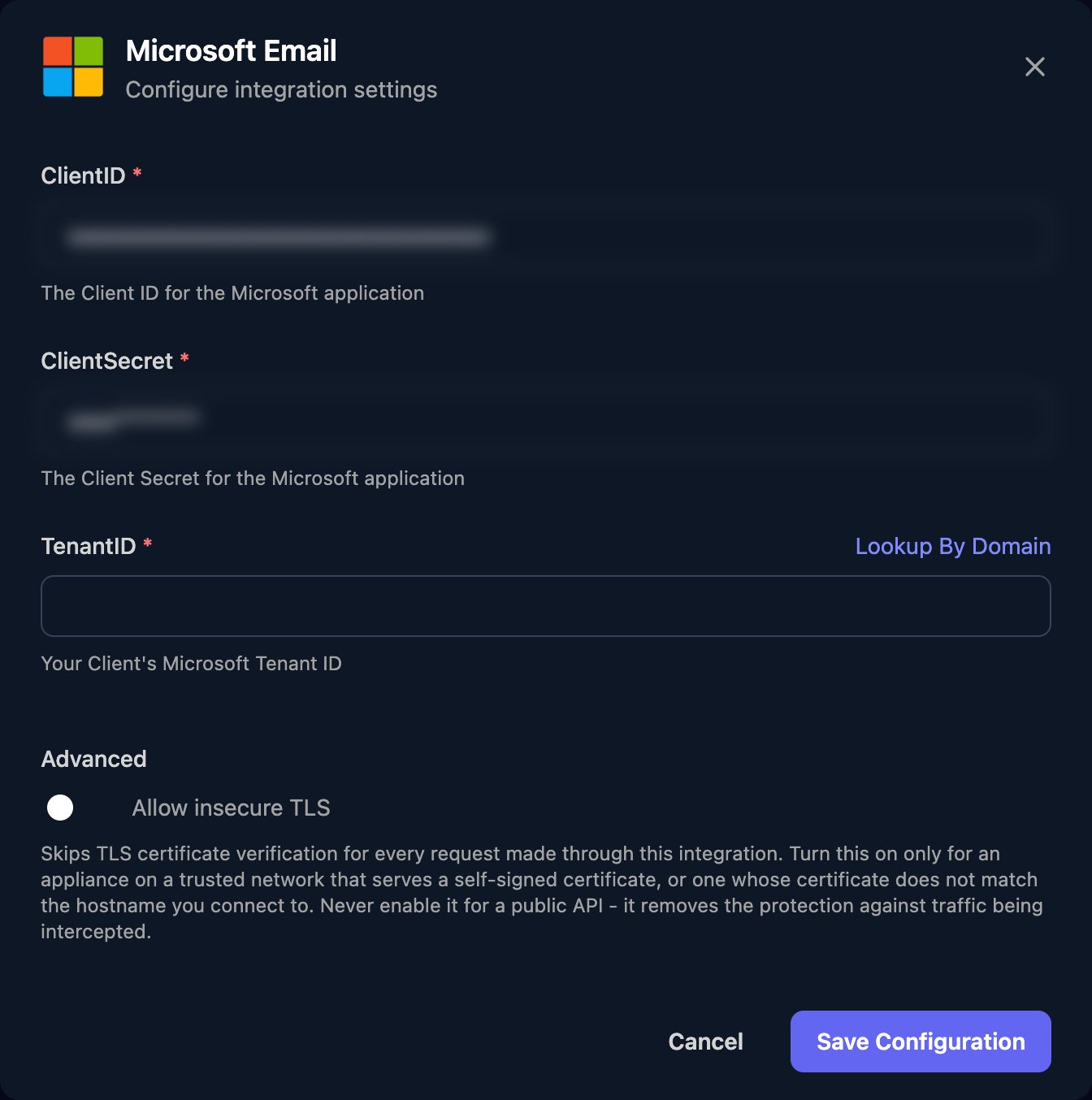
Go to **Integrations > Microsoft Email** and click Configure on the Base Configuration card.
 Enter your TenantID, or click Lookup By Domain to find it, leave ClientID and ClientSecret as they are and click Save Configuration.
 Click **Admin Consent** on the card, sign in as an administrator of the same tenant and select Accept. The card's Admin Consent status changes to Granted.
## Create a sending profile
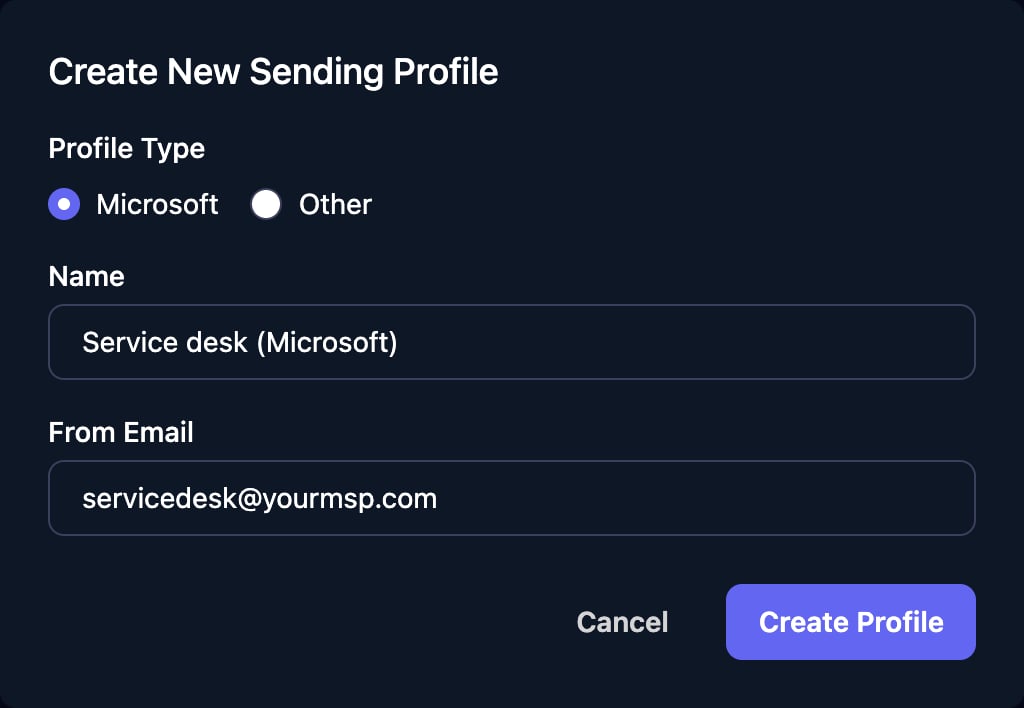
Go to **Settings > Sending Profiles**, click New Profile, set Profile Type to Microsoft, enter a unique Name (up to 50 characters) and the mailbox as From Email, then click Create Profile.
Click **Admin Consent** on the card, sign in as an administrator of the same tenant and select Accept. The card's Admin Consent status changes to Granted.
## Create a sending profile
Go to **Settings > Sending Profiles**, click New Profile, set Profile Type to Microsoft, enter a unique Name (up to 50 characters) and the mailbox as From Email, then click Create Profile.
 Choose the profile in Sending Profile on a Send Email or Await Form Submission step, or as the approval sender in Triggr Core. Steps without one send from `app@triggr-app.com`. See [Sending profiles](/studio/settings/sending-profiles).
## Limit the app to the sending mailbox
This uses [RBAC for Applications in Exchange Online](https://learn.microsoft.com/en-us/exchange/permissions-exo/application-rbac) and needs the [Exchange Online PowerShell module](https://learn.microsoft.com/en-us/powershell/exchange/connect-to-exchange-online-powershell) and the Organization Management role group. Grant admin consent first.
In the [Microsoft Entra admin center](https://entra.microsoft.com), go to **Entra ID > Enterprise apps > All applications** (not App registrations), search for `93d55b6f-8b1c-41c6-845d-0bd579b3e68b` and copy its Object ID.
```powershell theme={null}
Connect-ExchangeOnline
New-ServicePrincipal -AppId 93d55b6f-8b1c-41c6-845d-0bd579b3e68b -ObjectId -DisplayName "Triggr"
New-ManagementScope -Name "Triggr sending mailbox" -RecipientRestrictionFilter "PrimarySmtpAddress -eq 'notifications@yourdomain.com'"
New-ManagementRoleAssignment -App 93d55b6f-8b1c-41c6-845d-0bd579b3e68b -Role "Application Mail.Send" -CustomResourceScope "Triggr sending mailbox"
```
```powershell theme={null}
Test-ServicePrincipalAuthorization -Identity 93d55b6f-8b1c-41c6-845d-0bd579b3e68b -Resource notifications@yourdomain.com
```
Application Mail.Send should show InScope `True`, and `False` for any other mailbox.
Open the app under Enterprise apps and select Permissions. On the Admin consent tab, select **...** next to Mail.Send, then **Revoke permission**. This needs at least Cloud Application Administrator.
Changes take 30 minutes to 2 hours to apply. Add mailboxes later with `Set-ManagementScope`. Clicking Admin Consent again grants `Mail.Send` tenant-wide again, so revoke it afterwards.
## Troubleshooting
Use a domain verified in your tenant, such as your `.onmicrosoft.com` domain, or paste the Tenant ID from Entra ID > Overview into TenantID.
Sign in as a Global Administrator or Privileged Role Administrator of the tenant in TenantID. Application and Cloud Application Administrators can't consent.
Check TenantID and that Admin Consent shows Granted. If ClientID or ClientSecret were changed, click Unlink, configure again and grant consent again.
The app can't send as the From Email mailbox. Check it's in the management scope with `Test-ServicePrincipalAuthorization`, and allow up to 2 hours for changes.
From Email must match a mailbox in the connected tenant exactly: a shared mailbox, or a user mailbox licensed for Exchange Online.
Set up SPF, DKIM and DMARC for Exchange Online. See Microsoft's [email authentication guidance](https://learn.microsoft.com/en-us/defender-office-365/email-authentication-about).
This documentation is built and hosted on [Mintlify](https://mintlify.com), a developer documentation platform.
Choose the profile in Sending Profile on a Send Email or Await Form Submission step, or as the approval sender in Triggr Core. Steps without one send from `app@triggr-app.com`. See [Sending profiles](/studio/settings/sending-profiles).
## Limit the app to the sending mailbox
This uses [RBAC for Applications in Exchange Online](https://learn.microsoft.com/en-us/exchange/permissions-exo/application-rbac) and needs the [Exchange Online PowerShell module](https://learn.microsoft.com/en-us/powershell/exchange/connect-to-exchange-online-powershell) and the Organization Management role group. Grant admin consent first.
In the [Microsoft Entra admin center](https://entra.microsoft.com), go to **Entra ID > Enterprise apps > All applications** (not App registrations), search for `93d55b6f-8b1c-41c6-845d-0bd579b3e68b` and copy its Object ID.
```powershell theme={null}
Connect-ExchangeOnline
New-ServicePrincipal -AppId 93d55b6f-8b1c-41c6-845d-0bd579b3e68b -ObjectId -DisplayName "Triggr"
New-ManagementScope -Name "Triggr sending mailbox" -RecipientRestrictionFilter "PrimarySmtpAddress -eq 'notifications@yourdomain.com'"
New-ManagementRoleAssignment -App 93d55b6f-8b1c-41c6-845d-0bd579b3e68b -Role "Application Mail.Send" -CustomResourceScope "Triggr sending mailbox"
```
```powershell theme={null}
Test-ServicePrincipalAuthorization -Identity 93d55b6f-8b1c-41c6-845d-0bd579b3e68b -Resource notifications@yourdomain.com
```
Application Mail.Send should show InScope `True`, and `False` for any other mailbox.
Open the app under Enterprise apps and select Permissions. On the Admin consent tab, select **...** next to Mail.Send, then **Revoke permission**. This needs at least Cloud Application Administrator.
Changes take 30 minutes to 2 hours to apply. Add mailboxes later with `Set-ManagementScope`. Clicking Admin Consent again grants `Mail.Send` tenant-wide again, so revoke it afterwards.
## Troubleshooting
Use a domain verified in your tenant, such as your `.onmicrosoft.com` domain, or paste the Tenant ID from Entra ID > Overview into TenantID.
Sign in as a Global Administrator or Privileged Role Administrator of the tenant in TenantID. Application and Cloud Application Administrators can't consent.
Check TenantID and that Admin Consent shows Granted. If ClientID or ClientSecret were changed, click Unlink, configure again and grant consent again.
The app can't send as the From Email mailbox. Check it's in the management scope with `Test-ServicePrincipalAuthorization`, and allow up to 2 hours for changes.
From Email must match a mailbox in the connected tenant exactly: a shared mailbox, or a user mailbox licensed for Exchange Online.
Set up SPF, DKIM and DMARC for Exchange Online. See Microsoft's [email authentication guidance](https://learn.microsoft.com/en-us/defender-office-365/email-authentication-about).
This documentation is built and hosted on [Mintlify](https://mintlify.com), a developer documentation platform.