> ## Documentation Index
> Fetch the complete documentation index at: https://university.triggr-app.com/llms.txt
> Use this file to discover all available pages before exploring further.
# Microsoft Exchange
> Let Triggr run Exchange Online PowerShell in your clients' Microsoft 365 tenants, signed in as Triggr's own Microsoft app.
Triggr runs Exchange Online PowerShell in your clients' tenants as its own Microsoft app, for shared mailboxes, out-of-office replies, mailbox permissions, distribution groups and your own cmdlets. Microsoft 365 steps use it through GDAP or SAM; steps that run through [CIPP](/integrations/cipp) use CIPP instead.
In each tenant, Triggr's app (`e0ce32ae-7ba3-4f66-b686-d22dd0eb7841`) needs Exchange.ManageAsApp on Office 365 Exchange Online and the Exchange Administrator role. See Microsoft's [app-only authentication](https://learn.microsoft.com/en-us/powershell/exchange/app-only-auth-powershell-v2?view=exchange-ps).
## Set up Exchange for GDAP clients
For clients linked through [Microsoft Graph (GDAP)](/integrations/microsoft-graph/gdap-service-account), Triggr does this itself, as long as Triggr's security group has Privileged Role Administrator in their GDAP relationships.
Linking a client through Microsoft Graph (GDAP) creates its Exchange configuration from its default verified domain, saved as its `microsoftTenantDomain` variable. If that didn't happen, Triggr tries again the first time an Exchange step runs for the client.
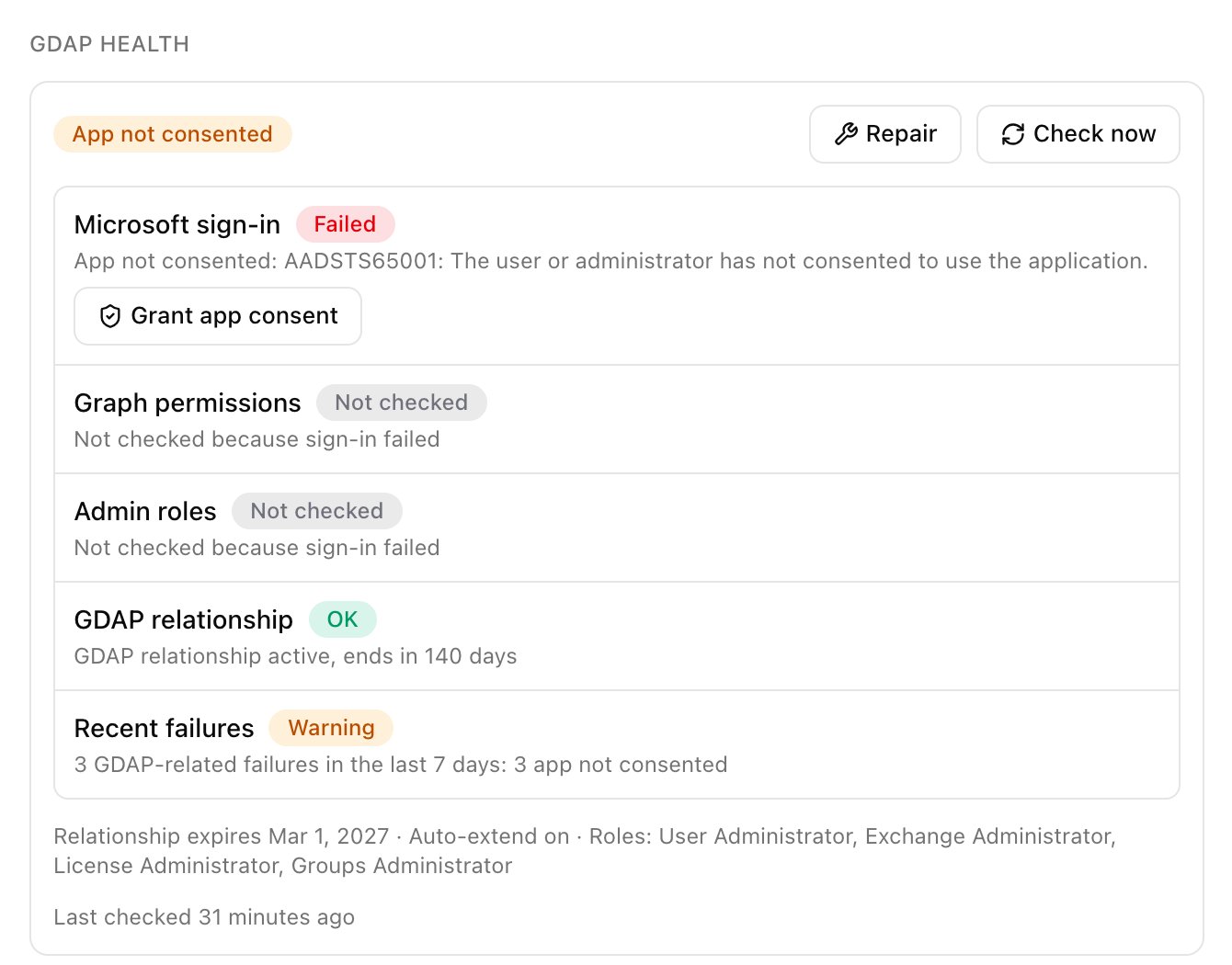
Open the client from Clients and click **Repair** on its GDAP Health card, if shown. It grants Exchange.ManageAsApp, assigns Exchange Administrator and adds any missing configuration.
 ## Connect it in Triggr
To add or fix a client's configuration yourself:
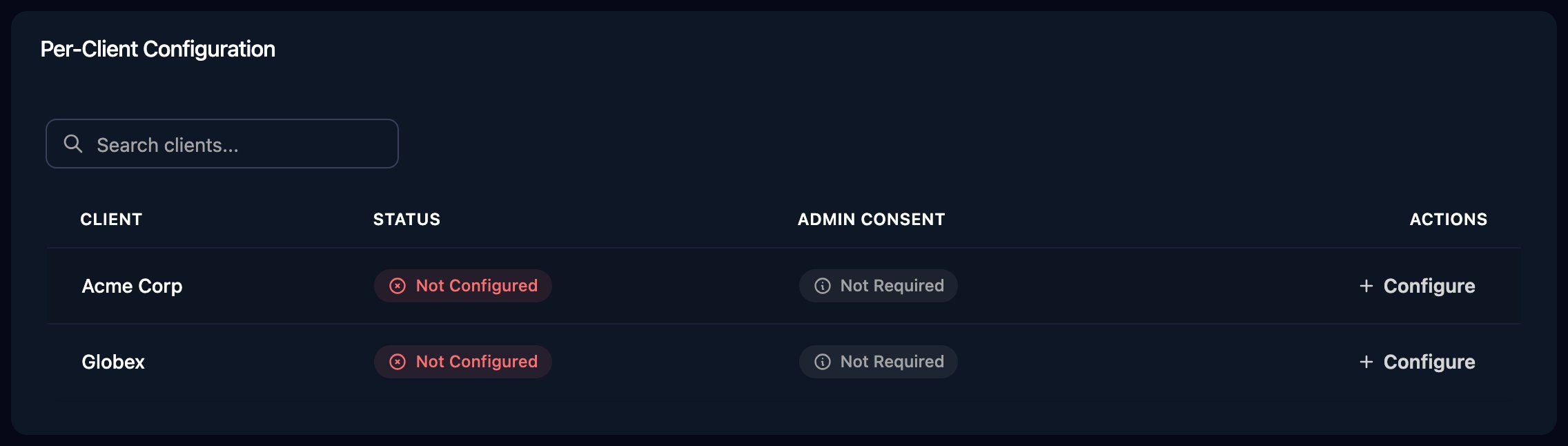
Go to **Integrations > Microsoft Exchange** and click Configure (or Edit) on the client's row in the Per-Client Configuration card.
## Connect it in Triggr
To add or fix a client's configuration yourself:
Go to **Integrations > Microsoft Exchange** and click Configure (or Edit) on the client's row in the Per-Client Configuration card.
 Leave ClientID as `e0ce32ae-7ba3-4f66-b686-d22dd0eb7841`, enter a domain of the client's tenant in MicrosoftTenantDomain without `https://` (ideally its `.onmicrosoft.com` domain), and click Save Configuration.
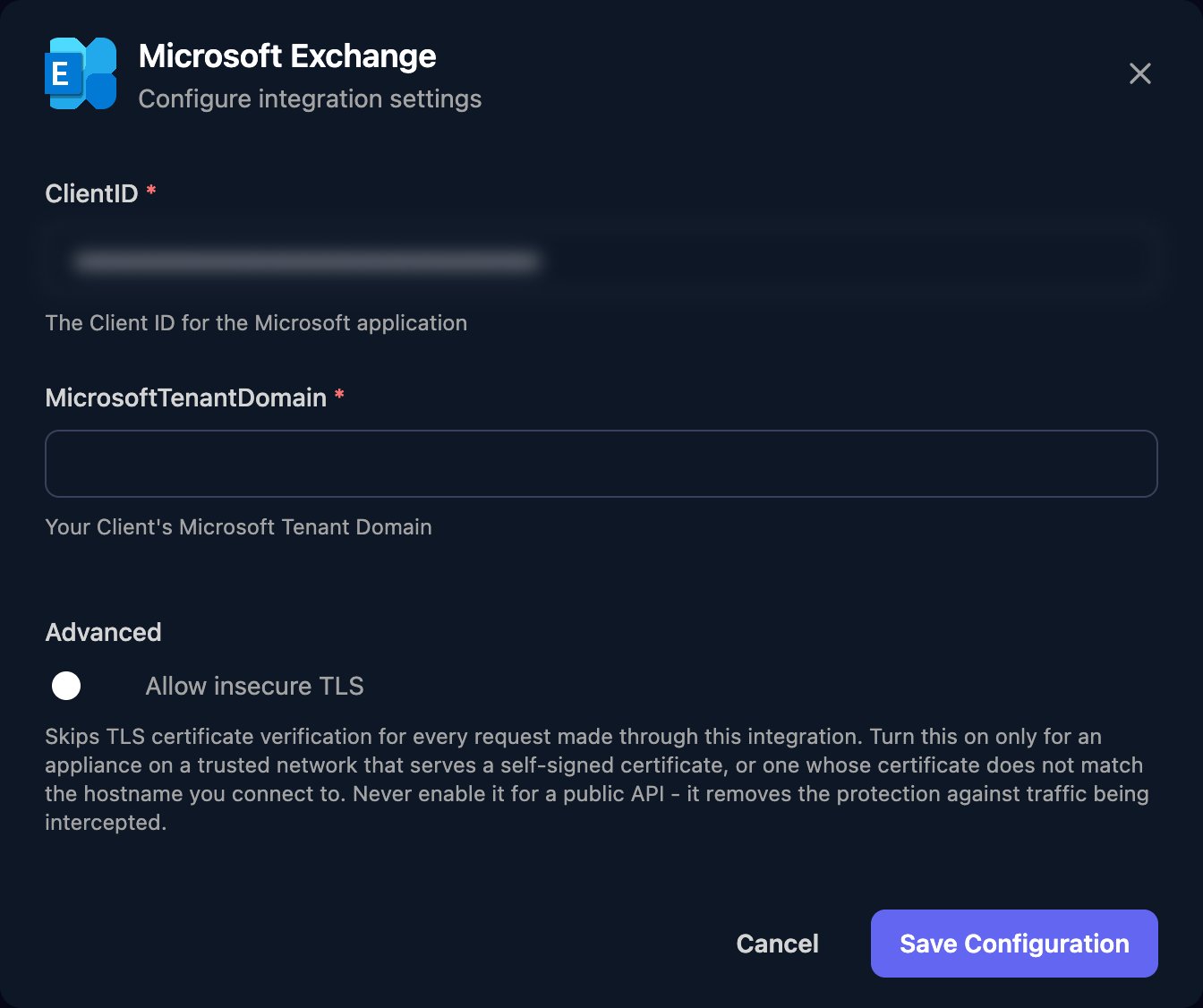 Triggr saves the domain as the client's `microsoftTenantDomain` variable. For many clients, click **Automap**, then Approve All; clients without that variable are skipped. Per-client integrations never fall back to the Base Configuration when a workflow runs for a client.
To use Exchange in your own tenant, for workflows without a client, enter your own domain on the Base Configuration card and [grant Exchange access yourself](#grant-exchange-access-yourself).
## Grant Exchange access yourself
Use this in your own tenant, or when Repair can't. Triggr's app must already be in the tenant: GDAP consent adds it to a client's, and Admin Consent on the Microsoft Graph (GDAP) Base Configuration adds it to yours (check under **Entra ID > Enterprise apps > All applications**, with Application Type set to All applications, by searching for `e0ce32ae`). Sign in to [Microsoft Graph PowerShell](https://learn.microsoft.com/en-us/powershell/microsoftgraph/installation) as a Privileged Role Administrator or Global Administrator and run this, replacing ``:
```powershell theme={null}
Connect-MgGraph -TenantId "" -Scopes "AppRoleAssignment.ReadWrite.All","Application.Read.All","RoleManagement.ReadWrite.Directory"
# Triggr's app and Exchange Online in this tenant
$triggr = Get-MgServicePrincipal -Filter "appId eq 'e0ce32ae-7ba3-4f66-b686-d22dd0eb7841'"
$exo = Get-MgServicePrincipal -Filter "appId eq '00000002-0000-0ff1-ce00-000000000000'"
$manageAsApp = $exo.AppRoles | Where-Object { $_.Value -eq "Exchange.ManageAsApp" }
# Grant Exchange.ManageAsApp to Triggr's app
New-MgServicePrincipalAppRoleAssignment -ServicePrincipalId $triggr.Id -BodyParameter @{
principalId = $triggr.Id
resourceId = $exo.Id
appRoleId = $manageAsApp.Id
}
# Assign Exchange Administrator (role template 29232cdf-9323-42fd-ade2-1d097af3e4de) to Triggr's app
New-MgRoleManagementDirectoryRoleAssignment -DirectoryScopeId "/" -PrincipalId $triggr.Id -RoleDefinitionId "29232cdf-9323-42fd-ade2-1d097af3e4de"
```
Or assign the role in the admin centre: **Entra ID > Roles & admins > Exchange Administrator > Add assignments**, select Triggr's app and click Add.
## Run your own cmdlets
Run Cmdlet runs the PowerShell in `script` in the client's tenant (or yours, without a client) and returns its output as JSON in `body.output`. Add `-ErrorAction Stop` to fail the step on an error, and return only the properties you need:
```powershell theme={null}
Get-Mailbox -RecipientTypeDetails SharedMailbox -ResultSize 200 | Select-Object DisplayName,PrimarySmtpAddress
```
Microsoft doesn't allow `New-UnifiedGroup`, `Remove-UnifiedGroup`, `Add-UnifiedGroupLinks` or `Remove-UnifiedGroupLinks` with this sign-in; use Triggr's Microsoft 365 group steps.
## Troubleshooting
The client has no configuration, or no MicrosoftTenantDomain. Configure it, run Automap, or click **Repair** on its GDAP Health card.
Check MicrosoftTenantDomain is the client's domain (try its `.onmicrosoft.com` one) and ClientID is Triggr's app. Then click Repair, or [grant Exchange.ManageAsApp yourself](#grant-exchange-access-yourself).
Triggr's app lacks Exchange Administrator in that tenant. Click Repair, or [assign it yourself](#grant-exchange-access-yourself).
Add Privileged Role Administrator to the client's GDAP relationship for Triggr's security group and run Repair again, or [grant access yourself](#grant-exchange-access-yourself).
The configuration holds a GUID. Click **Edit** on the client's row and enter a domain of its tenant, such as `contoso.onmicrosoft.com`, or click Repair to correct it.
Grant Triggr's consent from the client's GDAP Health card, wait a couple of minutes, then click Repair again. "Another Microsoft setup check for this client is still running" means the same: wait a few minutes and retry.
Triggr couldn't find Exchange Online there. Check the client has a Microsoft 365 subscription that includes Exchange Online.
This documentation is built and hosted on [Mintlify](https://mintlify.com), a developer documentation platform.
Triggr saves the domain as the client's `microsoftTenantDomain` variable. For many clients, click **Automap**, then Approve All; clients without that variable are skipped. Per-client integrations never fall back to the Base Configuration when a workflow runs for a client.
To use Exchange in your own tenant, for workflows without a client, enter your own domain on the Base Configuration card and [grant Exchange access yourself](#grant-exchange-access-yourself).
## Grant Exchange access yourself
Use this in your own tenant, or when Repair can't. Triggr's app must already be in the tenant: GDAP consent adds it to a client's, and Admin Consent on the Microsoft Graph (GDAP) Base Configuration adds it to yours (check under **Entra ID > Enterprise apps > All applications**, with Application Type set to All applications, by searching for `e0ce32ae`). Sign in to [Microsoft Graph PowerShell](https://learn.microsoft.com/en-us/powershell/microsoftgraph/installation) as a Privileged Role Administrator or Global Administrator and run this, replacing ``:
```powershell theme={null}
Connect-MgGraph -TenantId "" -Scopes "AppRoleAssignment.ReadWrite.All","Application.Read.All","RoleManagement.ReadWrite.Directory"
# Triggr's app and Exchange Online in this tenant
$triggr = Get-MgServicePrincipal -Filter "appId eq 'e0ce32ae-7ba3-4f66-b686-d22dd0eb7841'"
$exo = Get-MgServicePrincipal -Filter "appId eq '00000002-0000-0ff1-ce00-000000000000'"
$manageAsApp = $exo.AppRoles | Where-Object { $_.Value -eq "Exchange.ManageAsApp" }
# Grant Exchange.ManageAsApp to Triggr's app
New-MgServicePrincipalAppRoleAssignment -ServicePrincipalId $triggr.Id -BodyParameter @{
principalId = $triggr.Id
resourceId = $exo.Id
appRoleId = $manageAsApp.Id
}
# Assign Exchange Administrator (role template 29232cdf-9323-42fd-ade2-1d097af3e4de) to Triggr's app
New-MgRoleManagementDirectoryRoleAssignment -DirectoryScopeId "/" -PrincipalId $triggr.Id -RoleDefinitionId "29232cdf-9323-42fd-ade2-1d097af3e4de"
```
Or assign the role in the admin centre: **Entra ID > Roles & admins > Exchange Administrator > Add assignments**, select Triggr's app and click Add.
## Run your own cmdlets
Run Cmdlet runs the PowerShell in `script` in the client's tenant (or yours, without a client) and returns its output as JSON in `body.output`. Add `-ErrorAction Stop` to fail the step on an error, and return only the properties you need:
```powershell theme={null}
Get-Mailbox -RecipientTypeDetails SharedMailbox -ResultSize 200 | Select-Object DisplayName,PrimarySmtpAddress
```
Microsoft doesn't allow `New-UnifiedGroup`, `Remove-UnifiedGroup`, `Add-UnifiedGroupLinks` or `Remove-UnifiedGroupLinks` with this sign-in; use Triggr's Microsoft 365 group steps.
## Troubleshooting
The client has no configuration, or no MicrosoftTenantDomain. Configure it, run Automap, or click **Repair** on its GDAP Health card.
Check MicrosoftTenantDomain is the client's domain (try its `.onmicrosoft.com` one) and ClientID is Triggr's app. Then click Repair, or [grant Exchange.ManageAsApp yourself](#grant-exchange-access-yourself).
Triggr's app lacks Exchange Administrator in that tenant. Click Repair, or [assign it yourself](#grant-exchange-access-yourself).
Add Privileged Role Administrator to the client's GDAP relationship for Triggr's security group and run Repair again, or [grant access yourself](#grant-exchange-access-yourself).
The configuration holds a GUID. Click **Edit** on the client's row and enter a domain of its tenant, such as `contoso.onmicrosoft.com`, or click Repair to correct it.
Grant Triggr's consent from the client's GDAP Health card, wait a couple of minutes, then click Repair again. "Another Microsoft setup check for this client is still running" means the same: wait a few minutes and retry.
Triggr couldn't find Exchange Online there. Check the client has a Microsoft 365 subscription that includes Exchange Online.
This documentation is built and hosted on [Mintlify](https://mintlify.com), a developer documentation platform.