> ## Documentation Index
> Fetch the complete documentation index at: https://university.triggr-app.com/llms.txt
> Use this file to discover all available pages before exploring further.
# Microsoft CSP
> Connect Triggr to Partner Center as your service account, so it can list your CSP customers and grant its GDAP app consent.
Microsoft CSP signs Triggr in to Partner Center as your [GDAP service account](/integrations/microsoft-graph/gdap-service-account), so it can list your customers, grant or remove its app consent in clients' tenants, and check clients in the GDAP Setup Wizard. Listing customers needs only Microsoft CSP; the rest also needs Microsoft Graph (GDAP).
## Prepare the service account
Follow [Create the service account](/integrations/microsoft-graph/gdap-service-account#create-the-service-account) and keep Global Administrator on it until you finish this page: only a Global Administrator who is also an Admin Agent can consent to a partner app.
In Partner Center, go to **Account settings > User management**, open the service account and make sure Admin Agent is selected. Changes made in Microsoft Entra take up to an hour to show here.
Require Microsoft MFA on every sign-in for the account (see [Conditional Access](/integrations/microsoft-graph/conditional-access)). Partner Center rejects requests without it.
## Connect it in Triggr
Go to **Integrations > Microsoft CSP** and click Configure on the Base Configuration card.
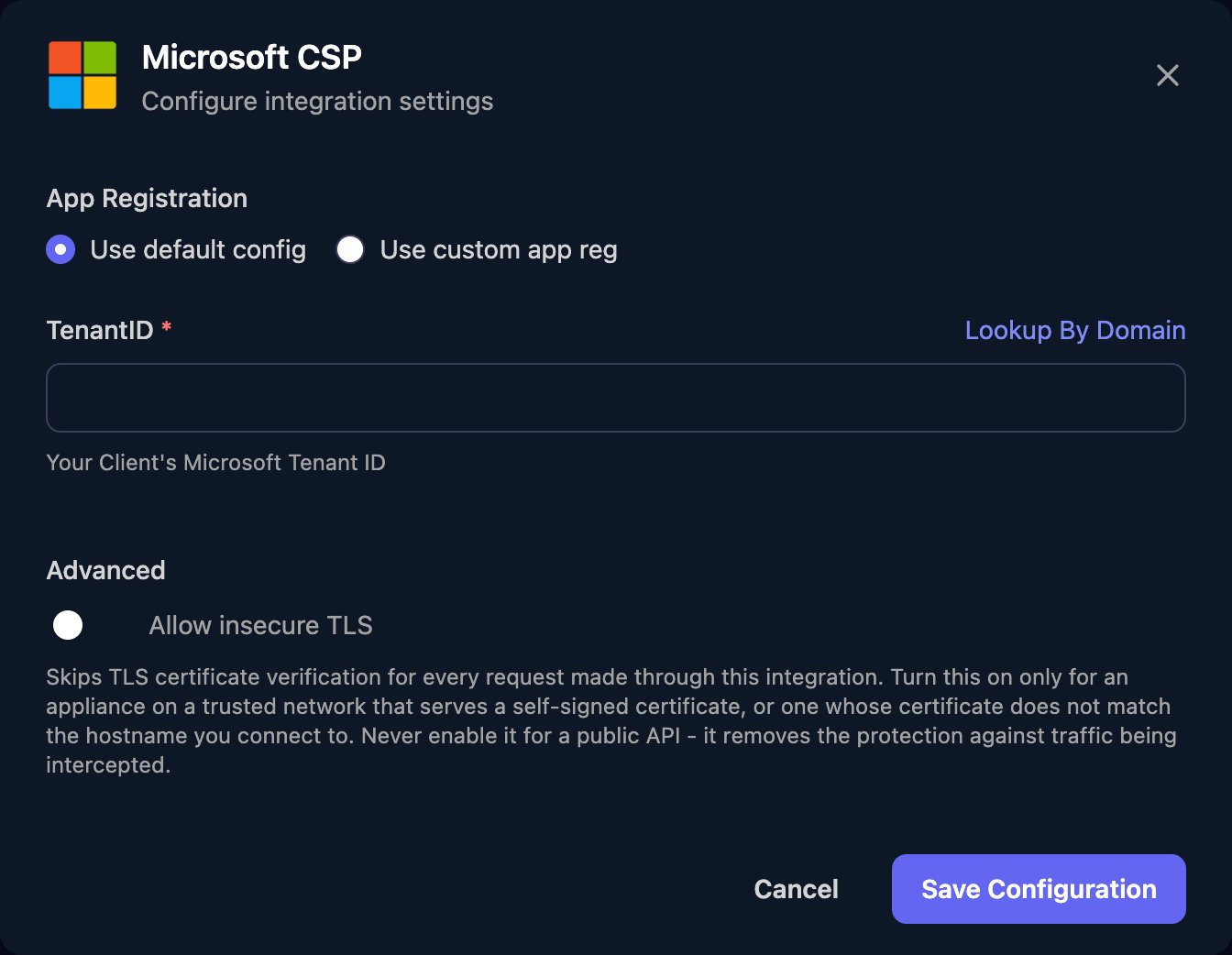
 Leave Use default config selected, enter your own partner tenant's ID in TenantID (not a client's) or use Lookup By Domain, and click Save Configuration.
 Click **Admin Consent** and accept as the service account, then click **Authorize** and sign in as the service account with MFA.
Microsoft CSP is one connection for your organisation, with nothing to set up per client. Workflows can use the List Customers action and the Grant GDAP Consent and Remove GDAP Consent steps; Remove GDAP Consent removes all of Triggr's delegated access to a client's tenant.
## Use your own app registration
Only do this if your policies require an app registered in your own tenant. See Microsoft's [Secure partner application](https://learn.microsoft.com/en-us/partner-center/developer/secure-sample-application).
In the [Microsoft Entra admin centre](https://entra.microsoft.com), go to **Entra ID > App registrations > New registration**, choose Multiple Entra ID tenants, add the Web redirect URI `https://app.triggr-app.com/oauth/callback`, select Register and copy the Application (client) ID.
Under **Manage > Authentication**, add a second Web redirect URI, `https://app.triggr-app.com/oauth/admin-consent-callback`.
Under **Manage > API permissions**, add only the Delegated permissions `user_impersonation` on Microsoft Partner Center (under APIs my organization uses) and `offline_access` on Microsoft Graph.
Under **Manage > Certificates & secrets**, select New client secret and copy its Value. Microsoft shows it only once.
Select **Use custom app reg**, fill in ClientID, ClientSecret and TenantID, then click Save Configuration, Admin Consent and Authorize. Replace the secret here before it expires.
## Troubleshooting
Check Status is Configured and TenantID is your partner tenant's ID, then click Authorize and sign in again as the service account.
Enforce Microsoft MFA on every sign-in for the service account, then click Authorize again.
Partner Center answered `Unable to initialize the authorization context`. Check the client's GDAP relationship is active and the service account is still in AdminAgents, then click Authorize again and retry.
The client's tenant ID in Microsoft Graph (GDAP) doesn't match a Partner Center customer with a relationship to you (No relationship to partner (none)). Check the ID, then the customer's relationship in Customers.
Admin consent hasn't been granted for the app. Click Admin Consent and sign in as the service account while it's still a Global Administrator, then click Authorize again.
This documentation is built and hosted on [Mintlify](https://mintlify.com), a developer documentation platform.
Click **Admin Consent** and accept as the service account, then click **Authorize** and sign in as the service account with MFA.
Microsoft CSP is one connection for your organisation, with nothing to set up per client. Workflows can use the List Customers action and the Grant GDAP Consent and Remove GDAP Consent steps; Remove GDAP Consent removes all of Triggr's delegated access to a client's tenant.
## Use your own app registration
Only do this if your policies require an app registered in your own tenant. See Microsoft's [Secure partner application](https://learn.microsoft.com/en-us/partner-center/developer/secure-sample-application).
In the [Microsoft Entra admin centre](https://entra.microsoft.com), go to **Entra ID > App registrations > New registration**, choose Multiple Entra ID tenants, add the Web redirect URI `https://app.triggr-app.com/oauth/callback`, select Register and copy the Application (client) ID.
Under **Manage > Authentication**, add a second Web redirect URI, `https://app.triggr-app.com/oauth/admin-consent-callback`.
Under **Manage > API permissions**, add only the Delegated permissions `user_impersonation` on Microsoft Partner Center (under APIs my organization uses) and `offline_access` on Microsoft Graph.
Under **Manage > Certificates & secrets**, select New client secret and copy its Value. Microsoft shows it only once.
Select **Use custom app reg**, fill in ClientID, ClientSecret and TenantID, then click Save Configuration, Admin Consent and Authorize. Replace the secret here before it expires.
## Troubleshooting
Check Status is Configured and TenantID is your partner tenant's ID, then click Authorize and sign in again as the service account.
Enforce Microsoft MFA on every sign-in for the service account, then click Authorize again.
Partner Center answered `Unable to initialize the authorization context`. Check the client's GDAP relationship is active and the service account is still in AdminAgents, then click Authorize again and retry.
The client's tenant ID in Microsoft Graph (GDAP) doesn't match a Partner Center customer with a relationship to you (No relationship to partner (none)). Check the ID, then the customer's relationship in Customers.
Admin consent hasn't been granted for the app. Click Admin Consent and sign in as the service account while it's still a Global Administrator, then click Authorize again.
This documentation is built and hosted on [Mintlify](https://mintlify.com), a developer documentation platform.