> ## Documentation Index
> Fetch the complete documentation index at: https://university.triggr-app.com/llms.txt
> Use this file to discover all available pages before exploring further.
# Microsoft Graph (SAM)
> Connect each client's Microsoft 365 tenant to Triggr through a Microsoft Entra app the client's administrator consents to.
Microsoft Graph (SAM) connects Triggr to each client's tenant as an app the client's administrator consents to, with no partner relationship, for users, groups, licences, SharePoint and OneDrive, mail and directory settings. To work through partner relationships instead, use [GDAP](/integrations/microsoft-graph/gdap-service-account) or [CIPP](/integrations/cipp).
Each client needs a Global Administrator or Privileged Role Administrator to [grant admin consent](https://learn.microsoft.com/en-us/entra/identity/enterprise-apps/grant-admin-consent).
## Register your own app
Skip this to use Triggr's app, whose details come pre-filled in Triggr. Register your own to choose its permissions and manage its secret; you need an account that can register apps, such as a Cloud Application Administrator.
In the [Microsoft Entra admin centre](https://entra.microsoft.com), go to **Entra ID > App registrations > New registration**, choose **Multiple Entra ID tenants** (older versions: Accounts in any organizational directory), click Register and copy the Application (client) ID.
Under Authentication, click **Add Redirect URI** (or Add a platform), choose Web, enter `https://app.triggr-app.com/oauth/admin-consent-callback` and click Configure.
Under **Certificates & secrets > Client secrets**, click New client secret and copy its Value, not its Secret ID. Every client uses this secret, so note when it expires: Triggr can't sign in to any client's tenant until you replace it.
Go to **API permissions > Add a permission > Microsoft Graph > Application permissions** and add what your workflows need from the table below. Skip Grant admin consent here; each client consents from Triggr.
### Microsoft Graph permissions
| Permission | Used for |
| - | - |
| `User.ReadWrite.All` | Users, passwords, managers and licence reprocessing |
| `User.RevokeSessions.All` | Revoking sessions |
| `Group.ReadWrite.All` | Groups and their members |
| `LicenseAssignment.ReadWrite.All` | Assigning and removing licences |
| `LicenseAssignment.Read.All` | Listing subscribed licences |
| `Domain.Read.All` | Listing domains |
| `Directory.Read.All` | Memberships and directory role members |
Add these only if your workflows use them: `Mail.Read` (reading mail), `Sites.Read.All` (SharePoint sites, drives and lists), `Files.ReadWrite.All` (creating and sharing folders), `RoleManagement.ReadWrite.Directory` (directory roles), and `Application.ReadWrite.All` with `AppRoleAssignment.ReadWrite.All` (applications, service principals and app role assignments). If you add permissions later, each client must grant admin consent again.
## Connect it in Triggr
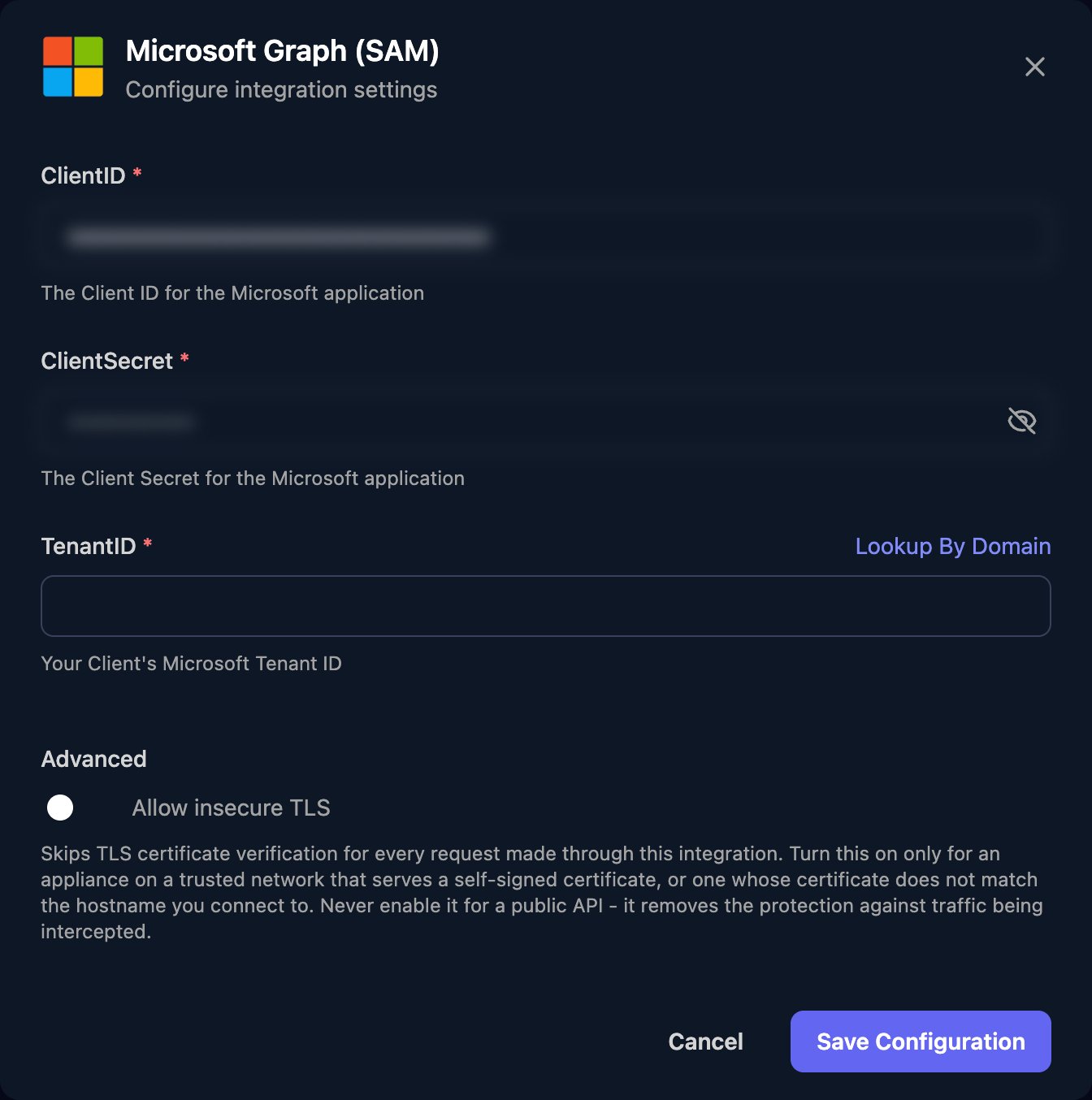
Go to **Integrations > Microsoft Graph (SAM)** and click Configure on the Base Configuration card.
 Keep the pre-filled ClientID and ClientSecret or enter your app's, enter your own tenant ID in TenantID (or use Lookup By Domain) and click Save Configuration. There's no Authorize step, and Admin Consent on this card consents in your own tenant only, for workflows that run without a client.
 ## Connect each client
Per-client integrations never fall back to the Base Configuration, so each client needs its own tenant ID and admin consent.
## Connect each client
Per-client integrations never fall back to the Base Configuration, so each client needs its own tenant ID and admin consent.
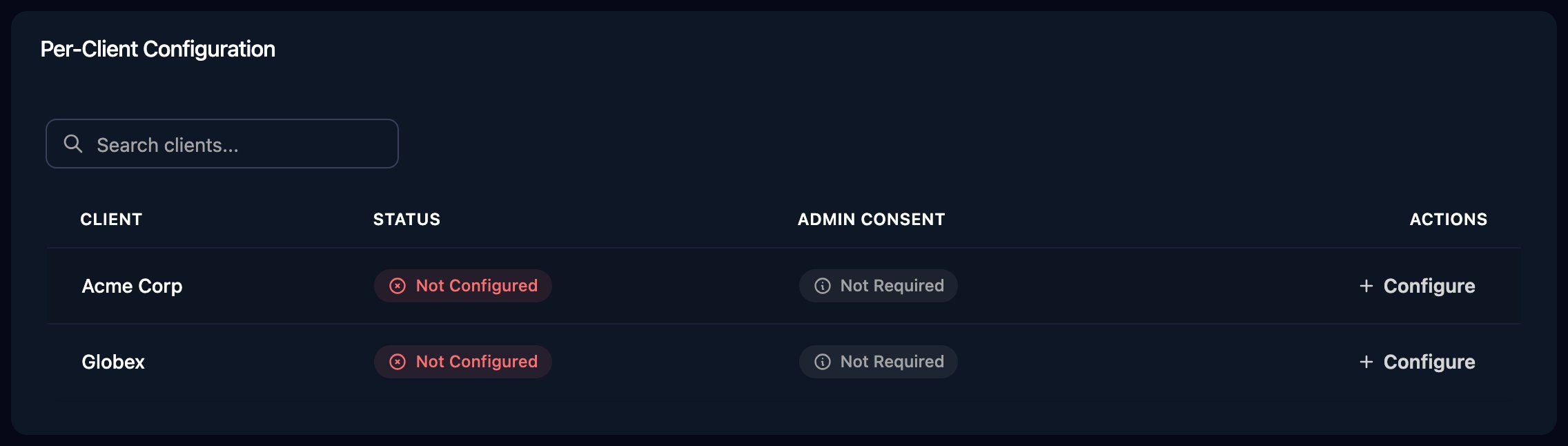 Click Configure on the client's row, enter its TenantID (or use Lookup By Domain) and click Save Configuration. Triggr saves it as the client's `microsoftTenantId` variable. For many clients, click **Automap**, then Approve All.
Click **Admin Consent** on the client's row and have an administrator of the client's tenant sign in and click Accept. The Admin Consent column shows Granted.
To reset passwords, the app also needs at least User Administrator in the client's tenant, and a more privileged role to change or delete admin accounts. Assign it to the app's enterprise application there. See Microsoft's [Who can perform sensitive actions](https://learn.microsoft.com/en-us/graph/api/resources/users#who-can-perform-sensitive-actions).
## Make SAM your default Microsoft connection
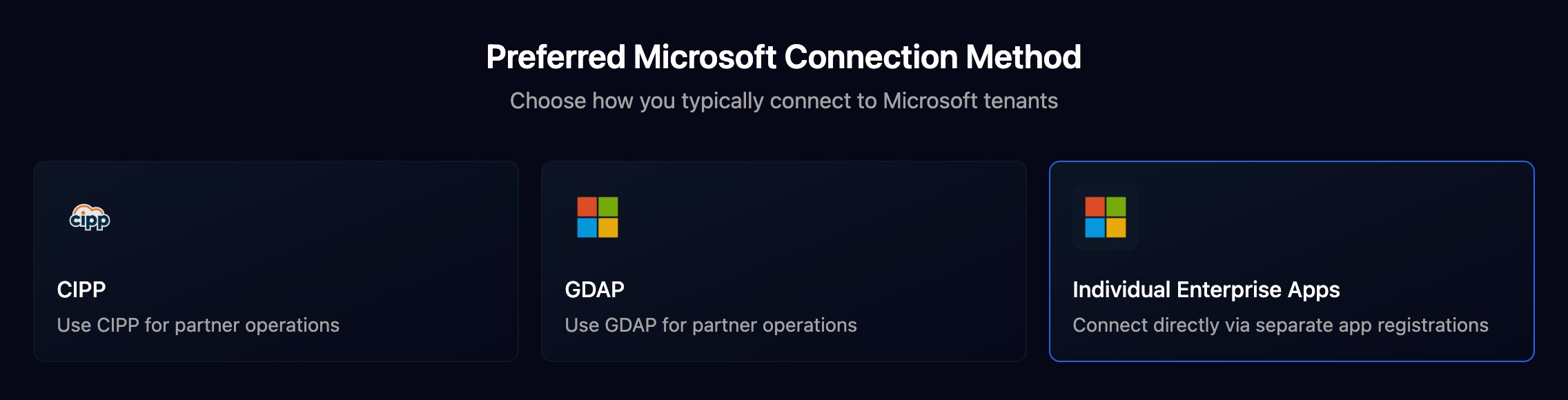
In **Settings > Org Variables**, click Setup Wizard and choose Individual Enterprise Apps under Preferred Microsoft Connection Method. For one step only, set its Connection Type to Microsoft Graph (SAM).
Click Configure on the client's row, enter its TenantID (or use Lookup By Domain) and click Save Configuration. Triggr saves it as the client's `microsoftTenantId` variable. For many clients, click **Automap**, then Approve All.
Click **Admin Consent** on the client's row and have an administrator of the client's tenant sign in and click Accept. The Admin Consent column shows Granted.
To reset passwords, the app also needs at least User Administrator in the client's tenant, and a more privileged role to change or delete admin accounts. Assign it to the app's enterprise application there. See Microsoft's [Who can perform sensitive actions](https://learn.microsoft.com/en-us/graph/api/resources/users#who-can-perform-sensitive-actions).
## Make SAM your default Microsoft connection
In **Settings > Org Variables**, click Setup Wizard and choose Individual Enterprise Apps under Preferred Microsoft Connection Method. For one step only, set its Connection Type to Microsoft Graph (SAM).
 ## Troubleshooting
Steps report `is not configured for tenant` or `no Microsoft Graph (SAM) integration is configured for this client`. Add the client's tenant ID, or use Automap.
Check the client's administrator granted consent and its TenantID is its own. With your own app, check ClientSecret is the secret's Value and hasn't expired.
`AADSTS50011`: add the redirect URI to your app. App not found: set Multiple Entra ID tenants. Can't consent: sign in as an administrator of the client's tenant. `Missing required admin consent parameters`: click Admin Consent again.
Add the missing [permission](#microsoft-graph-permissions) and click Admin Consent for the client again. For password resets or admin accounts, check the app's role in that tenant.
Enter a domain verified in the client's tenant, such as its `.onmicrosoft.com` domain, or paste the Tenant ID from Entra ID > Overview in that tenant.
This documentation is built and hosted on [Mintlify](https://mintlify.com), a developer documentation platform.
## Troubleshooting
Steps report `is not configured for tenant` or `no Microsoft Graph (SAM) integration is configured for this client`. Add the client's tenant ID, or use Automap.
Check the client's administrator granted consent and its TenantID is its own. With your own app, check ClientSecret is the secret's Value and hasn't expired.
`AADSTS50011`: add the redirect URI to your app. App not found: set Multiple Entra ID tenants. Can't consent: sign in as an administrator of the client's tenant. `Missing required admin consent parameters`: click Admin Consent again.
Add the missing [permission](#microsoft-graph-permissions) and click Admin Consent for the client again. For password resets or admin accounts, check the app's role in that tenant.
Enter a domain verified in the client's tenant, such as its `.onmicrosoft.com` domain, or paste the Tenant ID from Entra ID > Overview in that tenant.
This documentation is built and hosted on [Mintlify](https://mintlify.com), a developer documentation platform.